Single Sign-On (SSO)
Nautobot Cloud Console supports Single Sign-On (SSO) using OAuth2 / OpenID Connect with Google, GitHub, Microsoft, Okta, or any OIDC-compliant identity provider, simplifying user authentication.
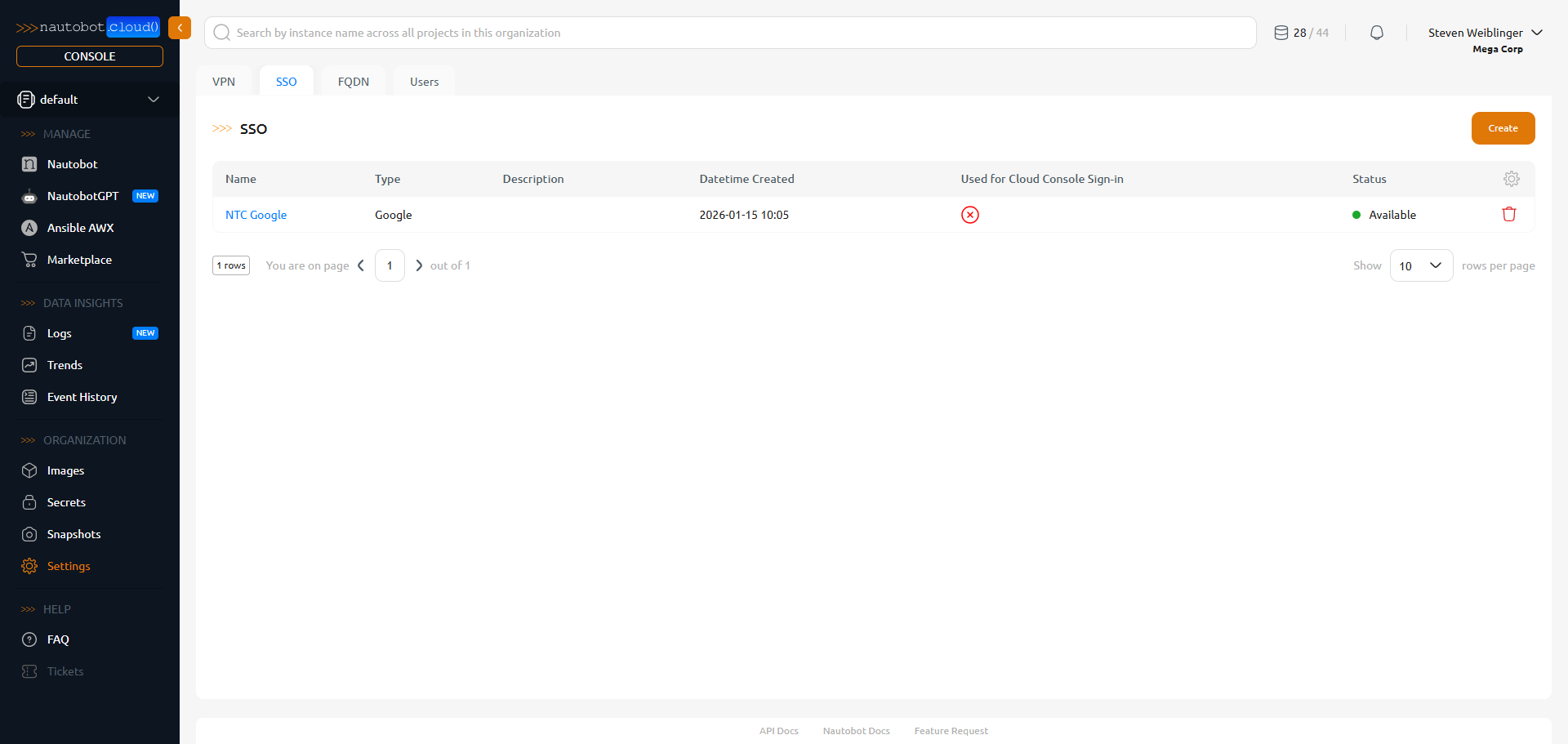
SSO configurations are managed in the Organization Settings SSO tab in the left-hand navigation pane.
SSO signs users in — it doesn't grant Organization membership
SSO controls how people authenticate to the Cloud Console and your instances. Signing in for the first time creates a Console user account, but it does not add that person to your Organization — until Support adds them, they'll sign in to an account with no Organization, projects, or instances. See How do I invite users to my Organization? to have team members added.
How SSO fits together
SSO has two configuration surfaces: an SSO integration in the Console (which connects to your identity provider) and a set of environment variables on each instance (which turn SSO on and control how groups are mapped).
flowchart TB
    user["User"] -->|"logs in"| idp["Your identity provider<br/>(Google, GitHub, Microsoft, Okta, or OIDC)"]
    idp -->|"identity and group claims"| inst["Nautobot instance"]
    ssoc["Console SSO integration<br/>Organization → Settings → SSO<br/>client ID / secret plus YAML"] -->|"secures login for"| inst
    envv["Instance Settings env vars<br/>SSO, SSO_CLAIMS_GROUP,<br/>SSO_SUPERUSER_GROUPS, SSO_STAFF_GROUPS"] -->|"enable SSO and map groups on"| inst
Create a new SSO
To create a new SSO integration, click the Create button in the top-right corner of the SSO page. A dialog will appear with a form to fill out the details of your new SSO integration.
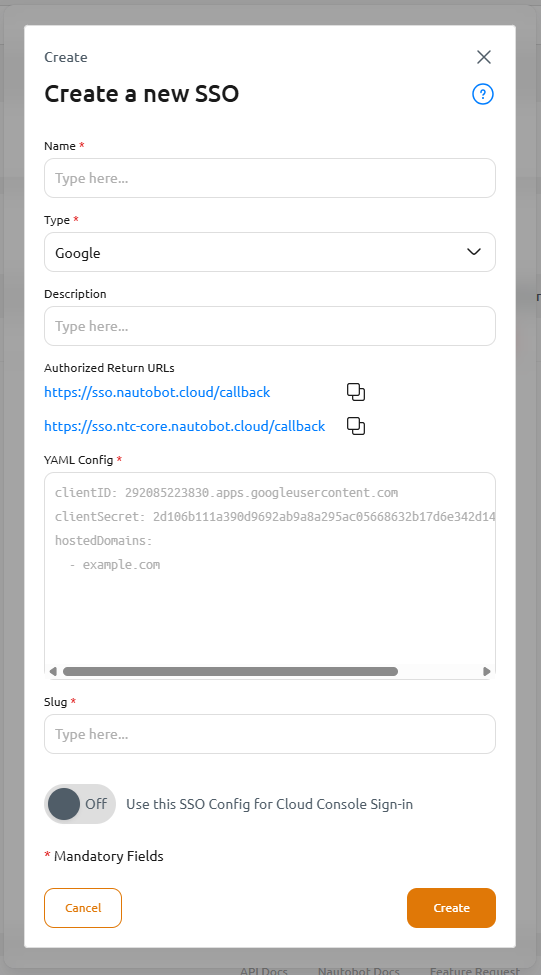
Fields
| Field | Required | Description |
|---|---|---|
| Name | Yes | The human-readable name for the SSO integration. |
| Type | Yes | The type of SSO integration: Google, GitHub, Microsoft, Okta, or OpenID Connect (OIDC). |
| Description | No | A human-readable description of the SSO integration. |
| YAML Config | Yes | The YAML configuration for the SSO integration. See YAML Configuration for more details. |
| Slug | Auto | The string used to reference the SSO within the API. This is auto-generated and cannot be changed once created. |
| Use this SSO Config for Cloud Console Sign-in | No | A toggle (default Off) at the bottom of the form. When turned On, this integration governs sign-in to the Nautobot Cloud Console itself — not just your instances. Only one integration per Organization can be active for Console sign-in. See Use an SSO integration for Cloud Console sign-in. |
YAML Configuration
Before creating a YAML Configuration, you must first create the appropriate project for Google, register an OAuth application for GitHub, or add an app in Application Registration Portal for Microsoft. You will then need the clientID and clientSecret values from the application integration. Below is a sample YAML configuration for two types of authorization
Google
clientID: 292085223830.apps.googleusercontent.com
clientSecret: 2d106b111a390d9692ab9a8a295ac05668632b17d6e342d149209eaabf769821
hostedDomains:
  - example.com
| name | type | required | meaning |
|---|---|---|---|
| clientID | string | yes | Unique username for an application. To get this value, contact your IT department. |
| clientSecret | string | yes | Unique secret password for your app that only your app and the authorization server know (256-bit value converted to a hexadecimal representation). To get this value, contact your IT department. |
| hostedDomains | list of strings | yes | List of domains that can log in using your SSO integration. |
GitHub
Example using GitHub Organizations
clientID: 6779ef20e75817b79602
clientSecret: f61fb2e07ea4c0569d72c94fd2eef75569ef9253a336395072e0c38b1012dd4c
orgs:
  - name: my-organization
  - name: my-organization-with-teams
    teams:
      - red-team
      - blue-team
name: "my-organization" - Include all teams in the organization.name: "my-organization-with-teams" - An allowed list of teams. Only include group claims for these teams.
Example without orgs field
clientID: 6779ef20e75817b79602
clientSecret: f61fb2e07ea4c0569d72c94fd2eef75569ef9253a336395072e0c38b1012dd4c
| name | type | required | meaning |
|---|---|---|---|
| clientID | string | yes | clientID is like a unique username for apps. Think of it as a long, unique password, often a string of 32 jumbled letters and numbers. To get this value, contact your IT department. |
| clientSecret | string | yes | clientSecret is a unique and secret password for your app that only your app and the authorization server know (256-bit value converted to a hexadecimal representation). To get this value, contact your IT department. |
| orgs | list of dicts | no | If orgs are specified in the config then the user MUST be a member of at least one of the specified orgs to authenticate. |
Microsoft
Example using Microsoft with scopes and groups
clientID: 3d33df33-123f-4rt3-12d9-kc45e88ebcdf
clientSecret: M456X~5kiHOHSl78kftsbhIA1bbgYTs~l12zLaPZ
tenant: networktocode.com
scopes:
  - openid
  - email
groups:
  - developers
  - devops
Example without scopes and groups field
clientID: 3d33df33-123f-4rt3-12d9-kc45e88ebcdf
clientSecret: M456X~5kiHOHSl78kftsbhIA1bbgYTs~l12zLaPZ
tenant: networktocode.com
| name | type | required | meaning |
|---|---|---|---|
| clientID | string | yes | clientID is a unique name for apps. It is often a string of 32 alphanumeric characters. To get this value, contact your IT department. |
| clientSecret | string | yes | clientSecret is a unique secret password for your app that only your app and the authorization server know (256-bit value converted to a hexadecimal representation). To get this value, contact your IT department. |
| tenant | string | yes | Tenant configuration parameter controls what kinds of accounts may be authenticated. To define this, set the tenant parameter to one of the following:• |
| scopes | list of strings | no | Configuration parameter controls what the initial scope(s) of the identity token. To change this initial set, configure the scopes parameter to be a list of one or more valid scopes (as defined in Microsoft Documentation).The default scope (if one is not specified in the connector’s configuration) is user.read |
| groups | list of strings | no | If groups are specified in the config then the user MUST be a member of at least one of the specified groups to authenticate. |
Generic OIDC
Example using Generic OIDC for Cloudflare with all fields
clientID: 8c33c3da9e8f392k71m1f9dc1a190cb3707ad27ba4d19bff45c900e6dfet1f4a
clientSecret: 2d106b111a390d9692ab9a8a295ac05668632b17bbb342d149209aaaaa100000
issuer: https://company.cloudflareaccess.com/cdn-cgi/access/sso/oidc/8c33c3da9e8f392k71m1f9dc1a190cb3707ad27ba4d19bff45c900e6dfet1f4a
scopes:
  - profile
  - email
  - groups
insecureSkipEmailVerified: true
insecureEnableGroups: true
getUserInfo: true
Example using Generic OIDC for Cloudflare with only required fields
clientID: 8c33c3da9e8f392k71m1f9dc1a190cb3707ad27ba4d19bff45c900e6dfet1f4a
clientSecret: 2d106b111a390d9692ab9a8a295ac05668632b17bbb342d149209aaaaa100000
issuer: https://company.cloudflareaccess.com/cdn-cgi/access/sso/oidc/8c33c3da9e8f392k71m1f9dc1a190cb3707ad27ba4d19bff45c900e6dfet1f4a
| name | type | required | meaning |
|---|---|---|---|
| clientID | string | yes | clientID is like a unique username for apps. Think of it as a long, unique password, often a string of 32 jumbled letters and numbers. To get this value, contact your IT department. |
| clientSecret | string | yes | clientSecret is a unique and secret password for your app that only your app and the authorization server know (256-bit value converted to a hexadecimal representation). To get this value, contact your IT department. |
| issuer | string | yes | Canonical URL of the provider, also used for configuration discovery. This value MUST match the value returned in the provider config discovery. |
| scopes | list of strings | no | List of additional scopes to request in token response. Default is profile and email. Full list of scopes |
| insecureSkipEmailVerified | boolean | no | Some providers return claims without "email_verified" when they did not use email verification in the enrollment process or if they are acting as a proxy for another IDP (e.g., AWS Cognito with an upstream SAML IDP). This can be overridden by setting this option. Default is set to True |
| insecureEnableGroups | boolean | no | Groups claims (like the rest of OIDC claims through Dex) only refresh when the ID token is refreshed, meaning the regular refresh flow doesn't update the groups claim. By default, the OIDC connector doesn't allow groups claims. If you are okay with having potentially stale group claims, you can use this option to enable groups claims through the OIDC connector on a per-connector basis. This can be overridden by setting this option. Default is set to True |
| getUserInfo | boolean | no | When enabled, the OpenID Connector will query the UserInfo endpoint for additional claims. UserInfo claims take priority over claims returned by the IDToken. This option should be used when the IDToken doesn't contain all the claims requested. Default is set to True. More information can be found in User Info Documentation |
Authorized return (redirect) URLs
When you create an SSO integration in the Console, the authorized return URLs (also called redirect or callback URLs) that you must register in your identity provider are shown to you in the SSO form. Copy those exact URLs into your IdP application's allowed redirect / reply-URL configuration so that logins are redirected back to Nautobot Cloud successfully.
Use an SSO integration for Cloud Console sign-in
Creating an SSO integration alone does not change how people sign in to the Nautobot Cloud Console. To make an integration govern Console sign-in, turn on the Use this SSO Config for Cloud Console Sign-in toggle at the bottom of the SSO create (or edit) form.
- Off (default) — The integration is available to secure your Nautobot instances, but Console sign-in is unchanged.
- On — This integration becomes the identity provider for signing in to the Nautobot Cloud Console itself.
Migrating to SSO
Enabling the toggle provisions the connection, but Console sign-in doesn't switch over until Network to Code registers your login email domain (users are routed to SSO by domain) and migrates any users created before SSO was enabled. After turning it on, raise a support ticket to complete these steps.
Only one integration secures Console sign-in at a time
Each Organization can have only one SSO integration active for Cloud Console sign-in. Turning the toggle On for one integration automatically turns it Off for whichever integration had it before. You can't switch the toggle off on the currently-active integration directly — instead, enable it on a different integration and the previous one is switched off for you. The SSO list shows a Used for Cloud Console Sign-in column so you can see which integration is active.
Enable SSO and Group Sync on an instance
To turn on SSO for a Nautobot instance — and, optionally, map your identity provider's groups to Nautobot groups and roles — set the following environment variables in the instance's Settings tab (see Manage Instances). These are read by the instance and are separate from the SSO YAML above.
| Variable | Example | Description |
|---|---|---|
SSO |
true |
Enables single sign-on (OIDC) for the instance. Nautobot Cloud wires the instance up to your organization's SSO integration automatically. Group synchronization is always active when SSO is enabled. |
SSO_CLAIMS_GROUP |
groups |
The name of the identity-provider claim that carries the user's groups. Defaults to groups; for Microsoft Entra ID (Azure AD) this is often roles. |
SSO_SUPERUSER_GROUPS |
netops-admins |
Comma-separated list of group names whose members are granted superuser in Nautobot. |
SSO_STAFF_GROUPS |
netops-staff |
Comma-separated list of group names whose members are granted staff status in Nautobot. |
After setting or changing these variables, Update the instance for the change to take effect. On each login, the user's groups from the configured claim are synchronized into Nautobot, and any user in a listed superuser or staff group is granted the corresponding flag.
Group sync is always on
No setting in the Settings tab turns group synchronization on or off. Whenever SSO is true, every group in the claim is synchronized into Nautobot on each login.
Group sync overwrites Nautobot's group assignments. Any group, superuser, or staff access you grant by hand in Nautobot is removed the next time that user signs in. Manage access in your identity provider instead. (If the identity provider sends no groups, nothing changes.)
No NAUTOBOT_ prefix
In Nautobot Cloud these SSO variables are set without the NAUTOBOT_ prefix — enter SSO, SSO_CLAIMS_GROUP, SSO_SUPERUSER_GROUPS, and SSO_STAFF_GROUPS exactly as shown.
Further reading
For background on how Nautobot maps SSO group claims to users and permissions, see the Nautobot SSO documentation.
Multiple SSO integrations
You can create more than one SSO integration for your organization, and a single integration can secure both the Cloud Console and your Nautobot instances. Remember that only one integration can be active for Cloud Console sign-in at a time, while any number of integrations can be used to secure your instances. If you're not sure how best to scope SSO for your organization, contact support.