Create & Use Secrets
Create a new Secret
You can create a new secret by clicking the Create button in the top-right corner of the Secrets page. A dialog will appear with a form to fill out the details of your new secret.
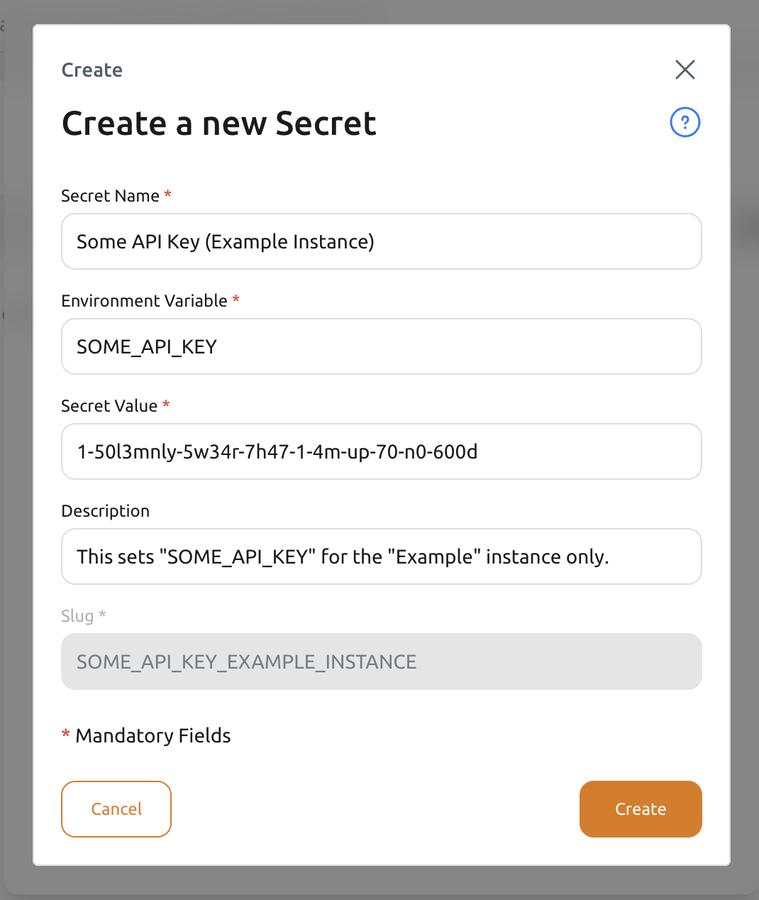
Fields
| Field | Required | Description |
|---|---|---|
| Secret Name | Yes | The human-readable name for the Secret. |
| Environment Variable | Yes | The environment variable name that the secret will be available as inside the Instance it is associated with. You can use the same environment variable name for multiple secrets, but not for multiple secrets associated with the same Instance. |
| Secret Value | Yes | The value (string) of the secret. This value will be vaulted by Nautobot Cloud Console upon saving and cannot be viewed after saving. You can edit the value later by selecting the Secret and updating the Secret Value field. After associating the secret to an instance and restarting that instance, the value will be non-vaulted and exposed as the specified environment variable. |
| Description | No | A human-readable description of the secret for additional context in the Nautobot Cloud Console UI. Not used for any other purpose. |
| Slug | Auto | The string used to reference the secret within the API. This is auto-generated and cannot be changed once created. |
After filling out the form, click the Create button at the bottom. You will be brought back to the list of secrets, where you will see your newly created secret. In order to use the secret, you must associate it with an instance.
Associate a Secret with an Instance
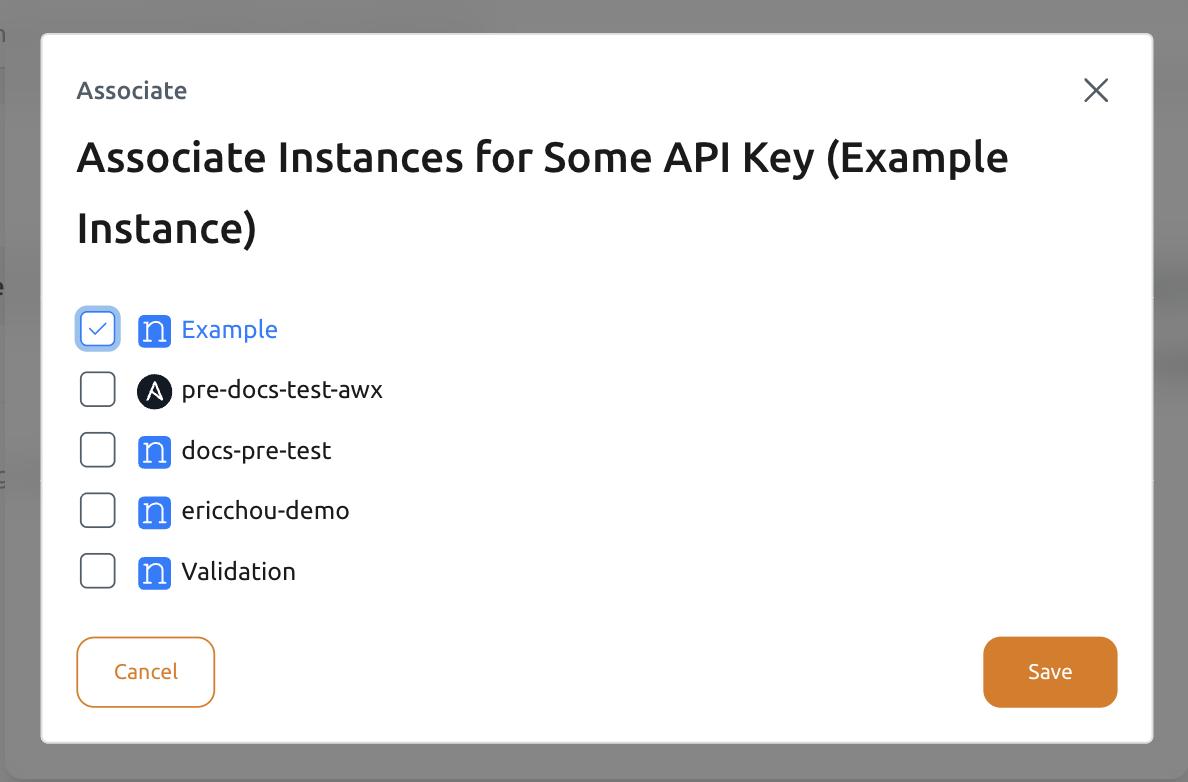
Associating a secret with an instance makes the secret available as an environment variable inside that instance. This allows you to customize the behavior of the instance or applications running inside it, assigning instance-dependent values to the same environment variable for different instances. There are multiple ways to associate a secret with an instance.
When does an associated Secret take effect?
Associating or updating a Secret completes on its own — you do not need to run Update or Restart for the association itself to finish. However, a Secret delivered as an environment variable is only read by the instance when it starts, so a new or changed value takes effect after the instance's next Restart or Update.
Method 1: From the Secrets List
Navigate to the Organization Secrets tab in the left-hand navigation pane. Click on the ... (ellipsis) button on the right of the secret you want to associate with an instance. Select Associate Instances in the dropdown menu.
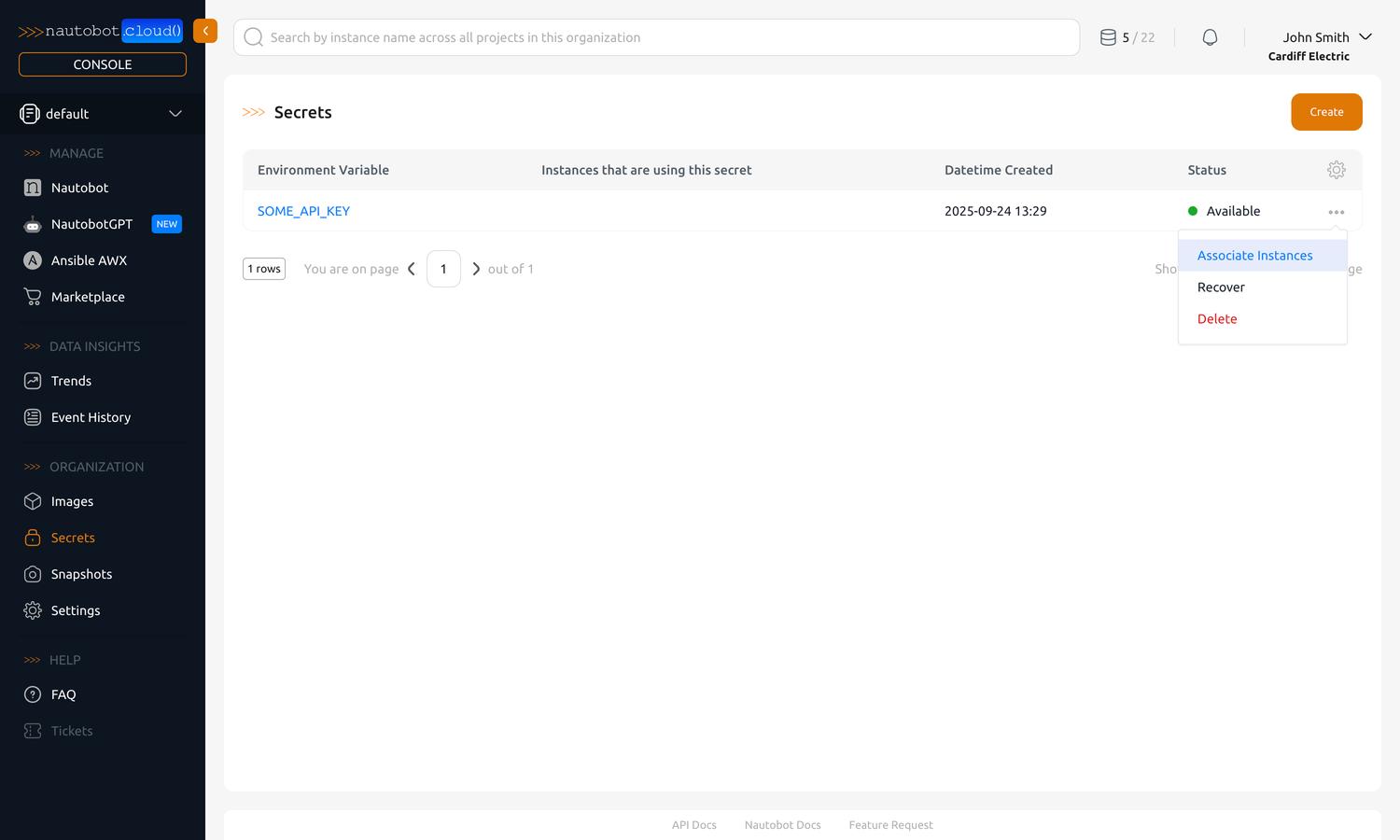
This will bring up a dialog where you can select one or more instances to associate the secret with.
Method 2: From the Instance Detail View
You can also associate a secret with an instance from the instance detail view. See Manage Instances for details.
Edit or Delete a Secret
To edit the display name or description of a secret, click on name of the secret in the list. This will bring you to the detail view of the secret.
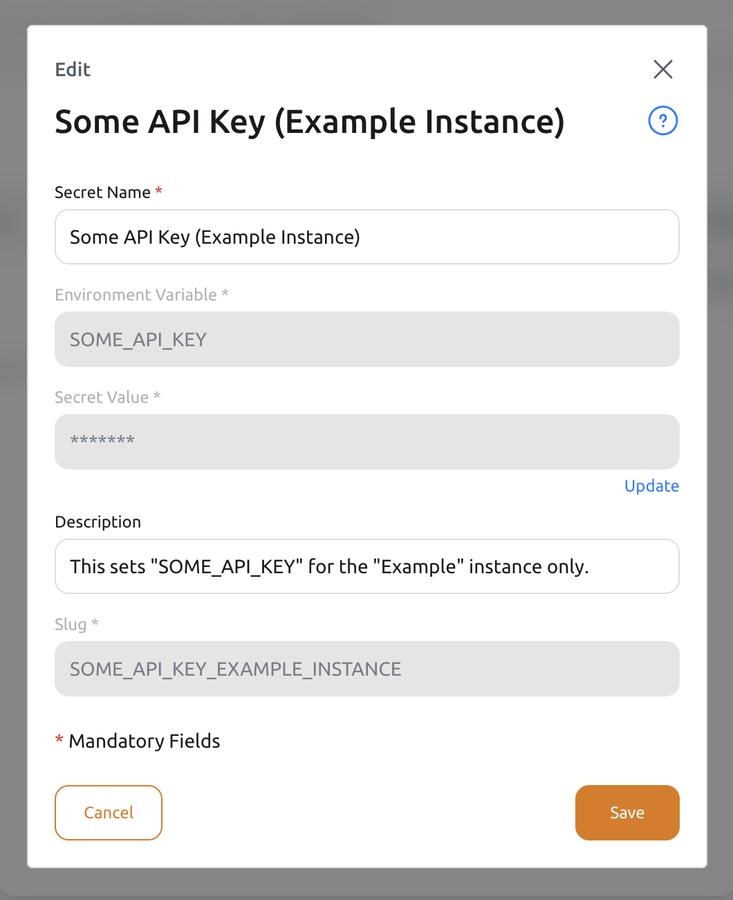
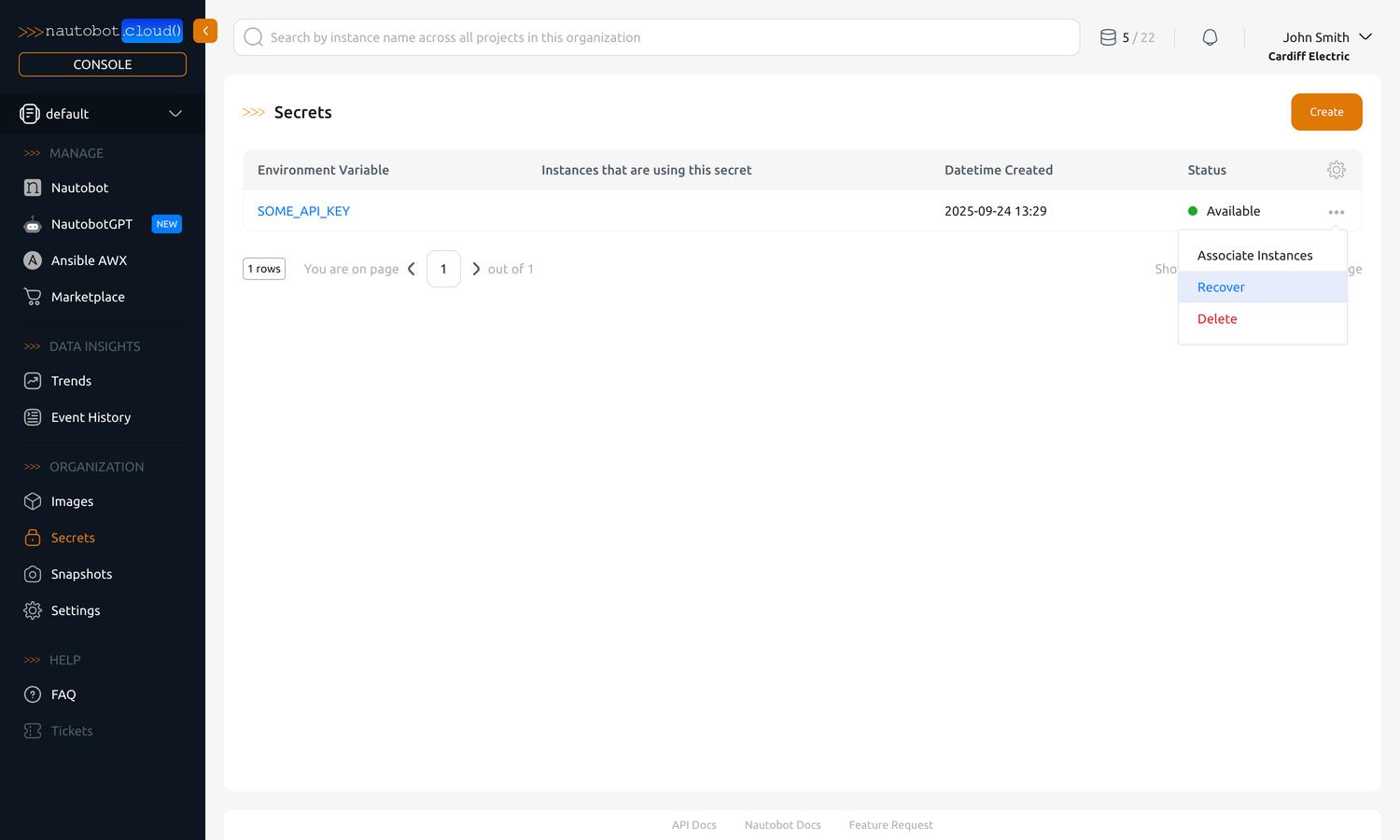
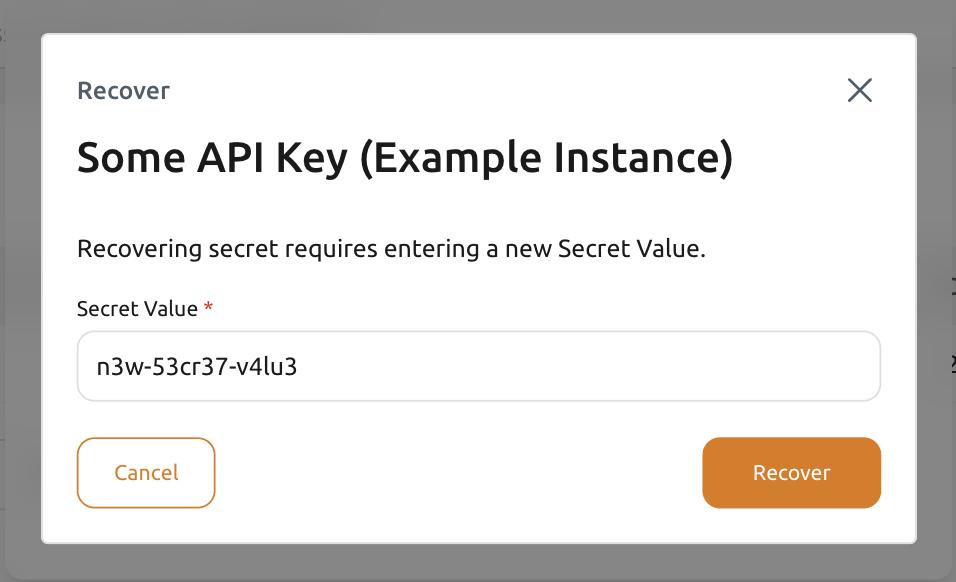
The secret value is vaulted and cannot be viewed after creation. To edit the value, navigate to the secrets list and click the ... (ellipsis) button on the right of the secret you want to edit. Select Recover in the dropdown menu.
This will bring up a dialog where you can enter a new value for the secret.
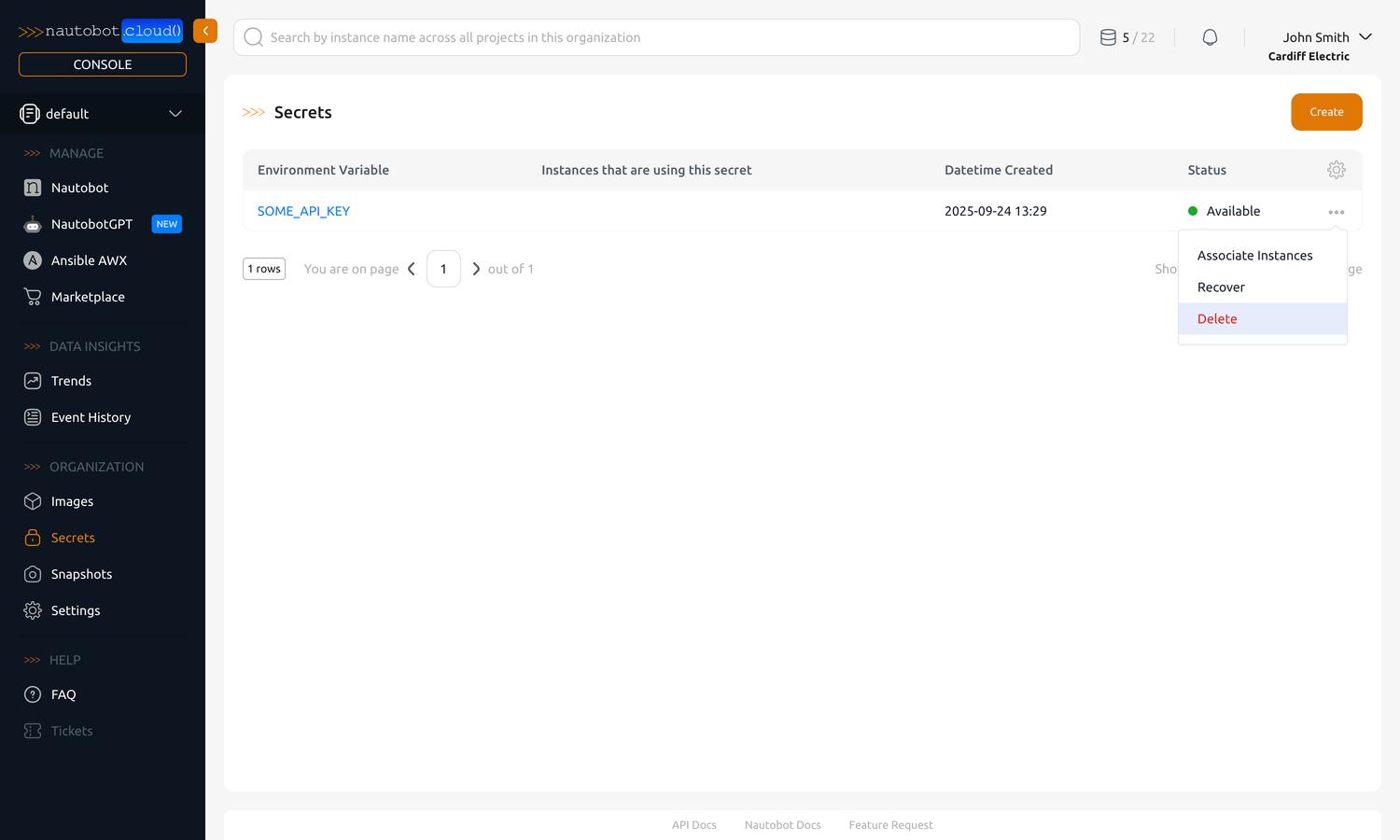
To delete a secret, navigate to the secrets list and click the ... (ellipsis) button on the right of the secret you want to delete. Select Delete in the dropdown menu.
Reference a Secret in an App's Configuration
Some Nautobot Apps need a value — such as a hostname, token, or password — supplied in their configuration. To provide that value from a Secret (or any environment variable) instead of typing it directly into the App config, use the nautobot_cloud__ prefix:
-
Create a Secret whose Environment Variable is the name you want to reference — for example
NAUTOBOT_SSOT_IPFABRIC_HOST— and associate it with the instance (see Associate a Secret with an Instance). -
In the App's configuration, set the field's value to that variable name prefixed with
nautobot_cloud__:When the instance starts, Nautobot Cloud strips the
nautobot_cloud__prefix and substitutes the value of theNAUTOBOT_SSOT_IPFABRIC_HOSTenvironment variable. If no environment variable with that name is set on the instance, the field resolves to an empty string. -
Restart or Update the instance to apply the value. The value is read only at startup, so repeat this whenever you change the Secret.
The prefix can be used on any string field in an App's configuration, including values nested inside objects and lists, so sensitive values stay in Secrets rather than in plain App config.
Note
- Whole field only. The field must start with
nautobot_cloud__;https://nautobot_cloud__HOSTstays as literal text. - Strings only. Environment variables are always text, so the App receives the value as a string. A Secret holding
Falsebecomes"False", which Python treats as true because the string isn't empty; a Secret holding443becomes"443", not a number. Use the prefix only for settings that expect a string.