Clone an Instance
To clone an instance, navigate to the type of instance under Manage in the left-hand navigation pane. This will bring you to the list of existing instances of that type.
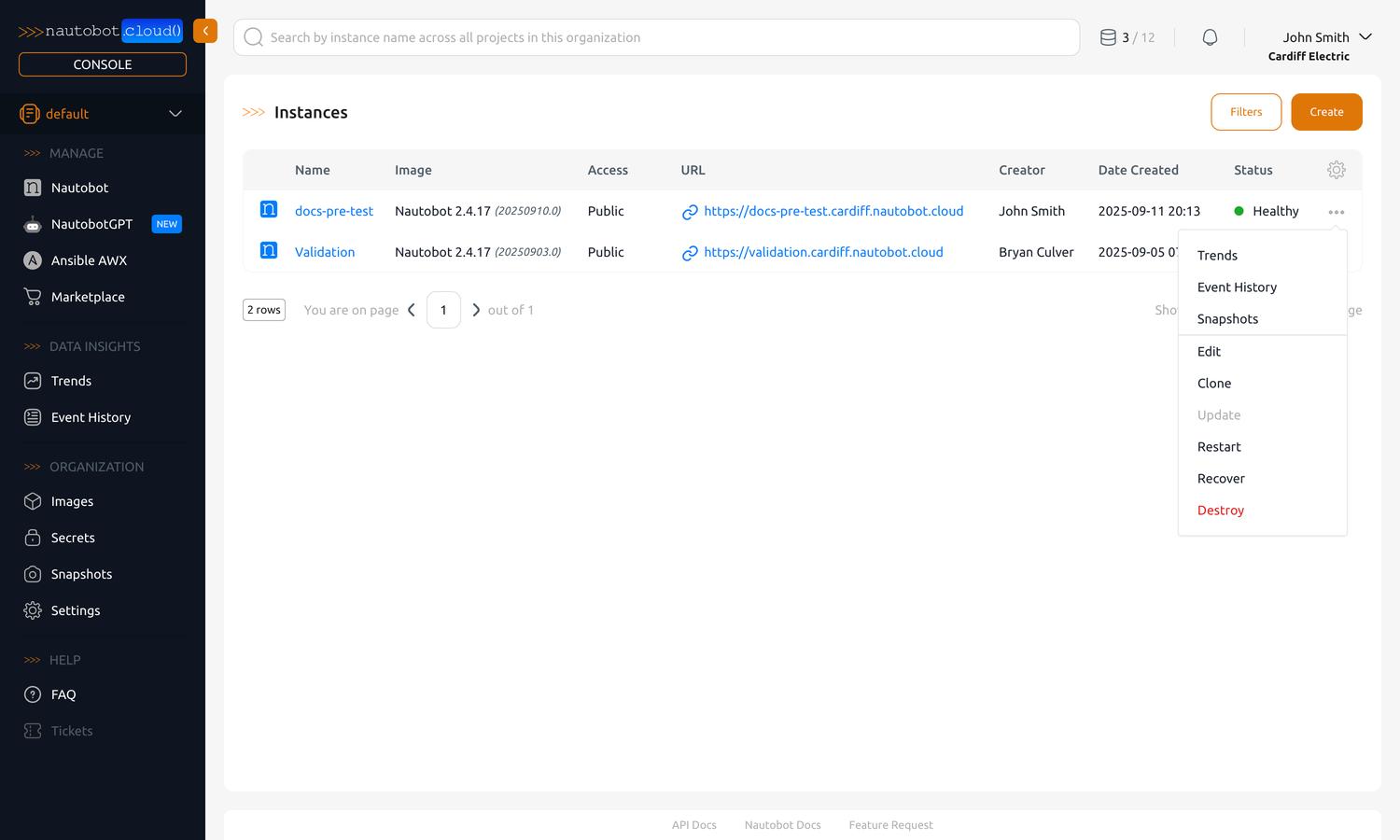
Click the ellipsis (...) button to the right of the instance you want to clone. This will open a dropdown menu with several options.
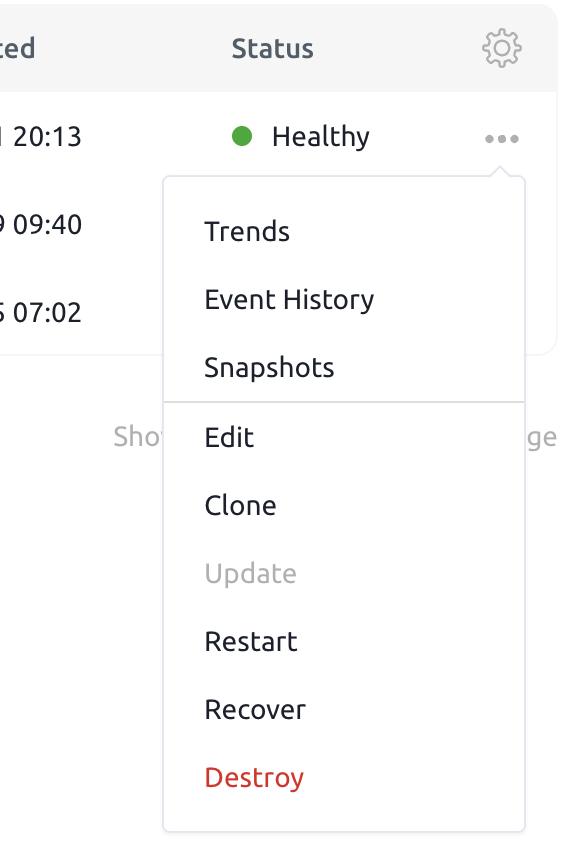
Click the Clone button to clone the instance. This will bring you to a dialog where you will choose the new name and have the option to choose a new Project for the clone. You may also choose to customize the URL for the clone.
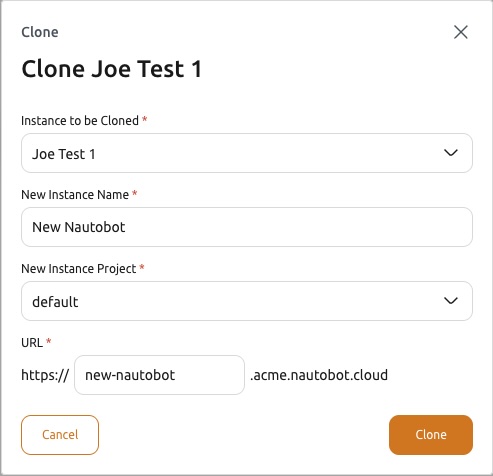
The dialog shows the instance you are cloning as the Source Instance to be Cloned, which cannot be changed there, and lists what the new instance gets from it, as the Copy Image From... dialog does. Lines with a green arrow are carried over: the Nautobot image and version, installed apps, static files, pip dependencies, app configuration, settings and environment variables, and secrets. Lines with a cross are not: the new instance gets its own hostname and URL, Secure Proxy Relays stay with the source, and the new instance starts without Prevent Delete, which an organization admin can turn on afterwards.
The Database, users, and all data line is where you choose the clone's data:
- Keep it checked (the default) to copy the data, uploaded files such as images attached to devices included, and choose the snapshot to copy it from:
- New snapshot, taken now (default). The source stays online and shows Snapshot Creating while the snapshot runs. The snapshot appears under the source's Snapshots and is kept like a snapshot you take yourself. It cannot start while another operation runs on the source, such as an update waiting for its image build; pick an existing snapshot instead, or wait until that operation is done.
- One of the source's Available snapshots that the clone can restore, listed by name and date. No new snapshot is taken, so changes made on the source since that snapshot are not included, apart from uploaded files, which are copied as they are now.
- Clear it to create an empty instance with the source's settings, apps and secrets. The dialog shows the admin password for the new instance once, as when you create an instance.
What Happens During a Clone
A clone runs in up to three steps, which you can follow in the list of instances:
| Step | The list of instances shows | Typical duration |
|---|---|---|
| Snapshot of the source | Source: Snapshot Creating. Clone: Creating (Waiting for Snapshot) | A few minutes to about two hours, depending on the size of the database |
| Build the clone | Clone: Creating | About 25 minutes |
| Restore the snapshot into the clone | Clone: Snapshot Restoring | A few minutes to about two hours, depending on the size of the database |
A clone from an existing snapshot skips the first step, and a clone without data runs only the second.
While the clone shows Creating (Waiting for Snapshot), destroying it removes it at once, as nothing has been built for it yet; the snapshot carries on and stays under the source's Snapshots. If the snapshot of the source fails, nothing is built: the clone is removed, and the failed snapshot stays under the source's Snapshots with the reason in its events. Clone again once the cause is fixed. If building the clone or restoring the snapshot into it fails, the clone shows Errored: destroy it and clone again. Recovering it and restoring a snapshot into it from the Snapshots page brings back the database but not the source's uploaded files.
After a clone with data, sign in with the same users and passwords as on the source.
Vault Paths
Any Secrets that were associated with the original instance will be copied to the new instance, however, if you configured the Secret in Nautobot via the HashiCorp Vault Provider, you will need to update the Path to point to the new vault path. You can find the new vault path by clicking on the Nautobot Instance in the Nautobot Cloud Console and navigating to the Secrets tab.
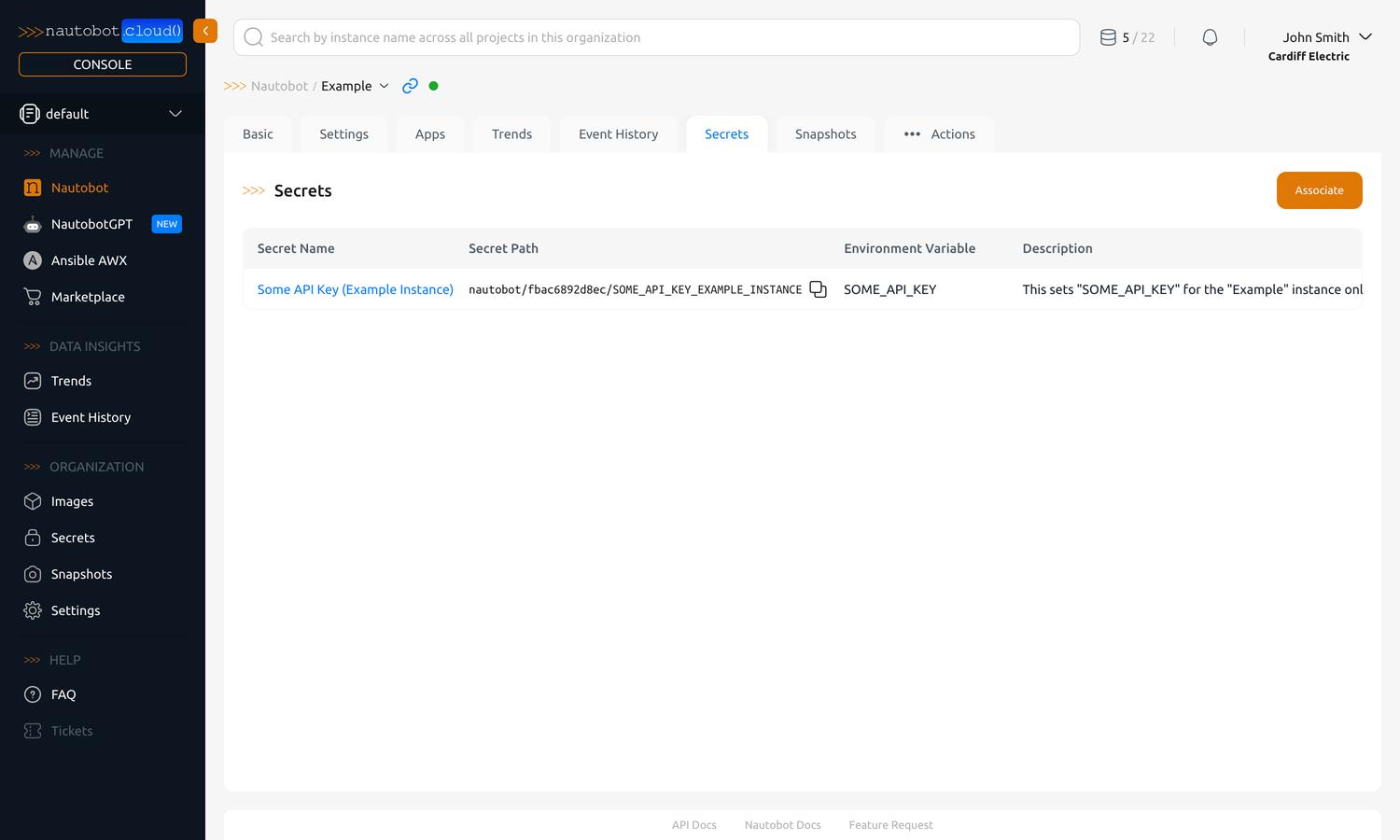
Secrets sourced from Environment Variables are not affected by this and are automatically added to the new instance.
Important
- Only instances that are in a Healthy state may be cloned (unhealthy states include: Errored, Creating, Restarting, Updating and Destroying).
- The installed apps and app configurations are cloned to the new instance (you may choose to add or remove apps after creation), and so are the database and uploaded files unless you clear Database, users, and all data. Secure Proxy Relays are not copied.
- While its snapshot is taken, the source cannot be snapshotted, restored or destroyed, and a snapshot being restored into a clone cannot be deleted until the clone is ready.
- The new instance will be created with the same access level (e.g., Private or Public) as the original instance (you may change the access level after creation).
- If you cloned a "production" instance (one that is monitored by our Nautobot Cloud support team), the new instance will NOT be monitored automatically. You will need to contact support to enable monitoring on this new instance if it is intended to be considered a "production" instance.