Configure Apps
Most Nautobot Apps accept configuration — the equivalent of an entry in PLUGINS_CONFIG in nautobot_config.py. You can set an App's configuration directly in the Console, whether the App came from the Marketplace or was installed as a custom App from PyPI or an uploaded package. The steps below are the same for all of them.
Open the Configuration Dialog
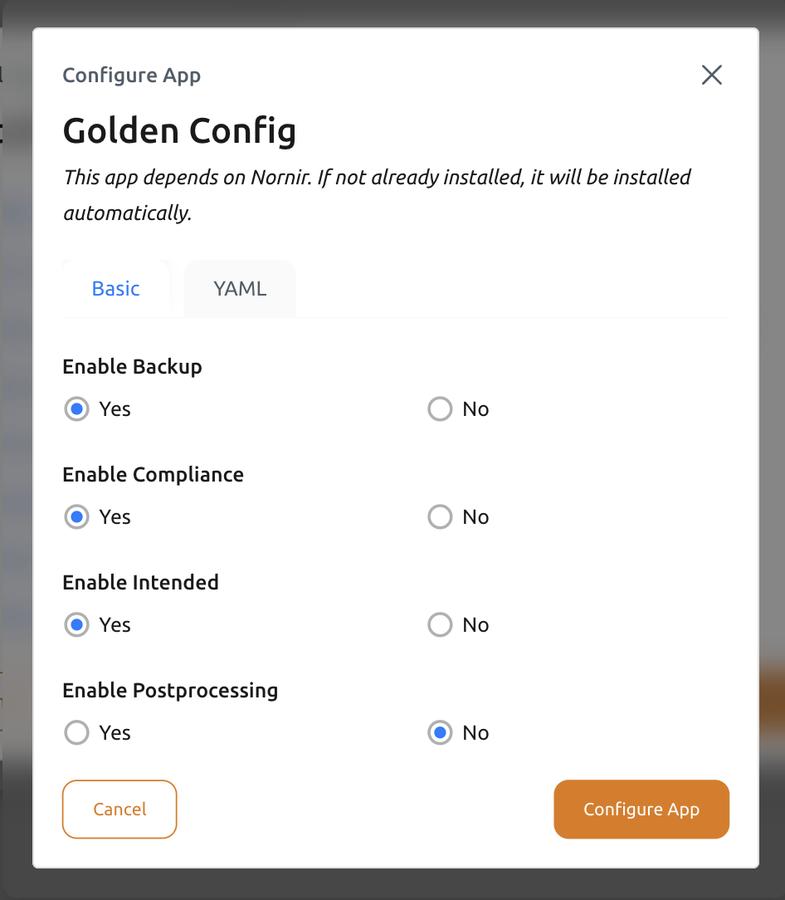
You configure an App from the Apps tab of a Nautobot instance's detail view. How the Configure App dialog opens depends on the App:
- Installing a Marketplace App — in the Install Marketplace Apps dialog, click the App's name to open its Configure App dialog. A colored indicator next to the App shows whether its configuration is complete (green) or still needs attention (red); configure any App marked red before continuing.
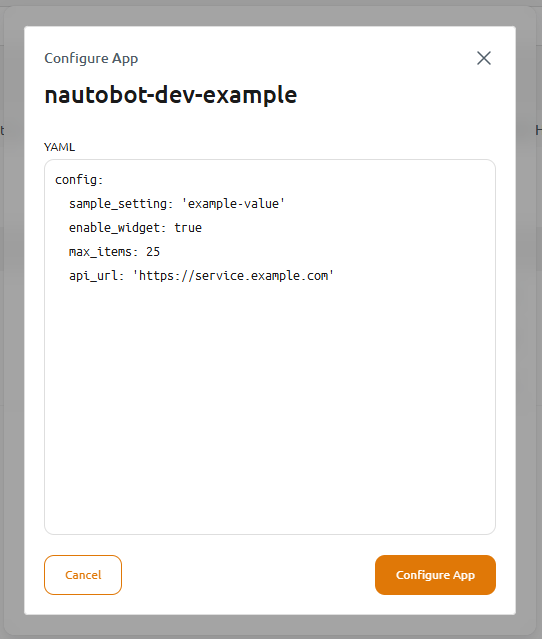
- Installing a custom App (PyPI or uploaded) — after you click Install App, the Configure App dialog opens automatically. Enter the configuration (or leave it empty) and click Configure App.
- Any time after installation — choose Edit Config on the App in the Apps list.
The dialog offers two ways to enter configuration:
- Basic — a form with a field for each option the App defines. This is available for Apps that publish a configuration schema — such as Marketplace Apps — and it validates your entries against that schema.
- YAML — a free-form editor for the whole configuration object, useful for nested or advanced settings. Custom Apps (from PyPI or an uploaded package) don't include a schema, so they're configured here, starting from a blank config.
Skip Validation
For Marketplace Apps that publish a configuration schema, the Console validates your entries against it. If you need to save configuration the schema doesn't recognize, enable Skip Validation — but note that invalid configuration may break your deployment when it's applied.
Apply Your Changes
Changing an App's configuration stages a pending update. Update the instance to apply it. See Applying Your Changes.