Install Custom Apps
Beyond the curated Apps Marketplace, you can install your own Nautobot Apps on an instance — either from public PyPI or from a package you upload. This is ideal for community Apps that aren't in the Marketplace yet, or for internal Apps you develop in-house.
Custom Apps vs. Marketplace Apps
Marketplace Apps are curated and tested by Network to Code and are the recommended way to add functionality. Install a custom App when the App you need isn't available in the Marketplace. Custom Apps are installed and configured by you, and are not validated by Network to Code — see Support and Compatibility.
Custom Apps are installed and managed from the Apps tab of a Nautobot instance's detail view. Before you start, review the requirements and how customization works.
Install an App from PyPI
- Open the instance and go to the Apps tab.
-
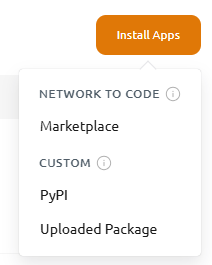
Click Install Apps (top-right), then under the Custom group choose PyPI.
-
In the Install App from PyPI dialog, fill in:
Field Description PyPI Package Name The package name as published on PyPI — for example nautobot-dev-example. The Console checks PyPI as you type and confirms Found on PyPI (with the latest version) or warns Not found on PyPI.Module Name The importable Python module Nautobot loads to enable the App — for example nautobot_dev_example. It defaults to the package name with dashes converted to underscores; change it if the App's module name differs from that convention (check the App's documentation). Must be a valid Python module name — lowercase letters, digits, and underscores, with dots for submodules.Version Constraint (Optional) A PEP 440 version specifier — for example 2.0.0,==2.0,>=1.5, or<2.0. Leave blank to install the latest available version. A bare version like2.0.0is treated as an exact pin (==2.0.0); a range is resolved to the newest matching release when the image is built.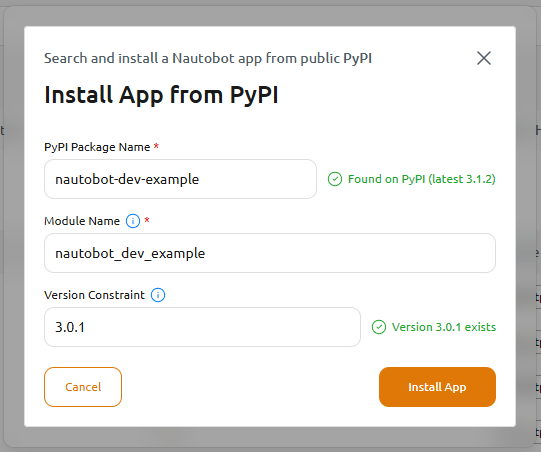
-
Click Install App. The Configure App dialog then opens automatically — enter the App's configuration if it needs any (or leave it empty), then click Configure App.
- When prompted, choose Update Now to build and deploy the new image, or Update Later to batch more changes first. See Applying Your Changes.
Install an App from an Uploaded Package
Use this for internally developed Apps that aren't published to public PyPI.
- Open the instance and go to the Apps tab.
-
Click Install Apps, then under the Custom group choose Uploaded Package.
-
In the Install Custom App Package dialog, choose how to install:
- Upload a new package — drag a
.tar.gzPython package (source distribution) into the drop zone, or click to browse. The Console reads the archive's metadata and fills in the Package Name and Version for you. - From existing uploaded package — reuse a package you uploaded previously.
Either way, confirm the Module Name — the importable Python module Nautobot loads to enable the App (for example
nautobot_dev_example). It's derived from the package name with dashes converted to underscores; change it if the App's module name differs from that convention. Unlike the auto-detected Package Name and Version, this field is editable and must be a valid Python module name — lowercase letters, digits, and underscores, with dots for submodules.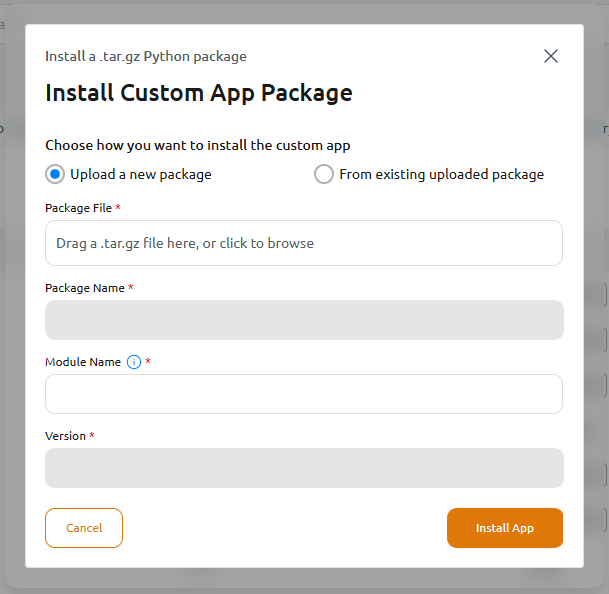
Duplicate uploads
If the file you upload has the same package name and version as one you've already uploaded, the Console won't store a duplicate — you'll be required to select it under From existing uploaded package and install it from there.
- Upload a new package — drag a
-
Click Install App. The Configure App dialog then opens automatically — enter the App's configuration if needed (or leave it empty), then click Configure App.
- When prompted, choose Update Now to build and deploy the new image, or Update Later to batch more changes first. See Applying Your Changes.
Package format
Uploaded Apps must be a valid .tar.gz Python source distribution. If the Console can't read the archive's metadata, it will ask you to enter the package name and version manually and warns that installation is at your own risk. Your uploaded package is stored securely in your own cloud environment, scoped to your organization.
Configure the App
Custom Apps are configured the same way as Marketplace Apps — from the Apps tab, via Configure App during initial installation or Edit Config afterward. See Configure Apps for the full guide, including how to reference Secrets for sensitive values.
Support and Compatibility
- Network to Code does not validate custom Apps (from PyPI or uploaded) for Nautobot compatibility beyond basic checks. Choose Apps and versions that are compatible with your instance's Nautobot version.
- Custom Apps and their configuration are managed by you. For Apps that are certified and tested for Nautobot Cloud, prefer the Marketplace.
- If a build or update fails after adding a custom App, your instance is protected and recoverable — see If Something Goes Wrong.