Production & Non-Production Instances
Nautobot Cloud lets you designate each instance as Production or Non-Production. This designation controls which backend database cluster the instance runs on, so that heavy activity on your non-production instances does not draw on the same database resources as your production instance.
Concepts
Why Isolate Production?
Without production isolation, all of an organization's Nautobot instances share a single backend database cluster. On a shared cluster, heavy activity on one instance - a large data import on a Dev instance, a resource-intensive job on a UAT instance - can consume database resources that the other instances rely on, degrading the performance of your Production instance.
Designating an instance as Production places it on a dedicated Production database cluster, separate from the Non-Production database cluster used by everything else. Workload on one cluster has no measurable impact on the other - a runaway job or a heavy query on a Dev or UAT instance can no longer slow down your Production instance.
Architecture Overview
flowchart TB
    subgraph ProdGroup["Production instances (Production = Yes)"]
        direction LR
        P1["prod-1"]
        PN["…"]
    end
    subgraph NonProdGroup["Non-Production instances (Production = No)"]
        direction LR
        N1["dev"]
        N2["uat"]
        NN["…"]
    end

    NonProdGroup --> NPCluster[("Non-Production<br/>database cluster")]
    ProdGroup --> PCluster[("Production<br/>database cluster")]

    Wall{{"Isolated — no shared resources"}}

    NPCluster -.- Wall
PCluster -.- Wall| Production instance | Non-Production instance | |
|---|---|---|
| Database cluster | Dedicated production cluster | Shared non-production cluster |
| Performance isolation | Protected from non-production workloads | Shares resources with other non-production instances |
| Visual indicator | Orange PROD badge | Gray NON-PROD badge |
The Environment column in the Instances list shows each instance's designation:


Designation is per instance
You can designate any number of instances as Production. Every instance that you do not explicitly mark as Production is treated as Non-Production.
Designate an Instance as Production
The Production designation is set when you create the instance using the Production field on the create form.
| Field | Description |
|---|---|
| Production | Whether the instance runs on the dedicated production database cluster. - Yes: the instance is provisioned on the Production database cluster. - No (default): the instance runs on the shared Non-Production database cluster. |
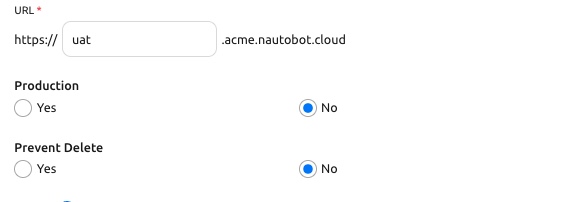
For the full set of fields on the create form, see Create an Instance.
The Production designation cannot be changed after creation
To keep each instance reliably bound to a single database cluster, the Production field is set once, at creation, and is read-only afterward. It is shown but disabled on the instance's Edit form.
To move an instance between Production and Non-Production, use the promotion / downgrade workflow below.
Promote or Downgrade an Instance
Because the Production designation is fixed at creation, you change an instance's designation by creating a new instance with the desired designation and moving your data into it, rather than by flipping a switch on the existing instance.
There are two supported paths.
Cloning copies an instance's data, installed apps, and configuration into a brand-new instance, and lets you choose the Production designation for the copy.
To promote a Non-Production instance to Production:
- Clone the Non-Production instance (see Clone an Instance).
- In the Clone dialog, give the new instance a name (and optionally a new URL), and set Production to Yes.
- Once the new Production instance is healthy, cut your users over to it and decommission the old instance when you are confident in the migration.
To downgrade a Production instance to Non-Production, follow the same steps but set Production to No on the clone.
Clones default to Non-Production
For safety, a clone is created as Non-Production unless you explicitly set Production to Yes in the Clone dialog. This prevents an accidental new instance from landing on the production cluster.
If you prefer to stage the migration around a point-in-time backup, you can use snapshots instead of a live clone:
- Take a snapshot of the source instance.
- Clone the source, set Production as you want, and pick that snapshot on the Database, users, and all data line. This also copies its settings, apps and uploaded files.
Or create a new instance with the Production designation you want and restore the snapshot onto it.
See Backup & Restore for the full snapshot and restore workflow.
Recommended naming & promotion strategy
A common pattern is to keep long-lived Dev and UAT instances as Non-Production and promote a validated build into a Production instance by cloning. Use clear, consistent names (for example dev, uat, prod) so the promotion path is obvious to your team.
Update Vault secret paths after cloning
As with any clone, Secrets configured through the HashiCorp Vault Provider must have their Path updated to point to the new instance's vault path. Secrets sourced from environment variables are copied automatically. See Clone an Instance for details.
Migrate Existing Instances
When your organization's platform is upgraded to a release that supports production database isolation, your existing instances continue to run without interruption - their data is not moved. Because they already run on the cluster that becomes the Production database cluster, all existing instances are automatically designated Production (Production = Yes) and display the PROD badge.
This means any existing instance used for development, test, or lab work continues to draw on the same database cluster pool of connections, CPU, memory, and I/O throughput as your production workloads. Moving those instances to the Non-Production database cluster removes that contention and leaves the Production database cluster serving production alone.
An instance's Production designation is set when the instance is created and cannot be changed afterwards, so an existing instance cannot be switched to Non-Production in place. Instead, you create a Non-Production replacement and move your data into it. At a high level:
- Clone the instance with Production set to No, using a temporary URL.
- Confirm the clone is healthy and its data matches the original.
- Update any HashiCorp Vault secret paths to reference the new instance's short UUID.
- Destroy the original instance.
- Optionally reassign the original URL to the replacement instance.
Only the instance being migrated is affected during the migration.
For the full procedure on how to complete the migration, (see Instance Database Migration to Non-Production).