Actions
For common tasks, you can also act on an instance directly from the list without opening its detail view. Click the ellipsis (...) button to the right of the instance to open a dropdown menu of actions.
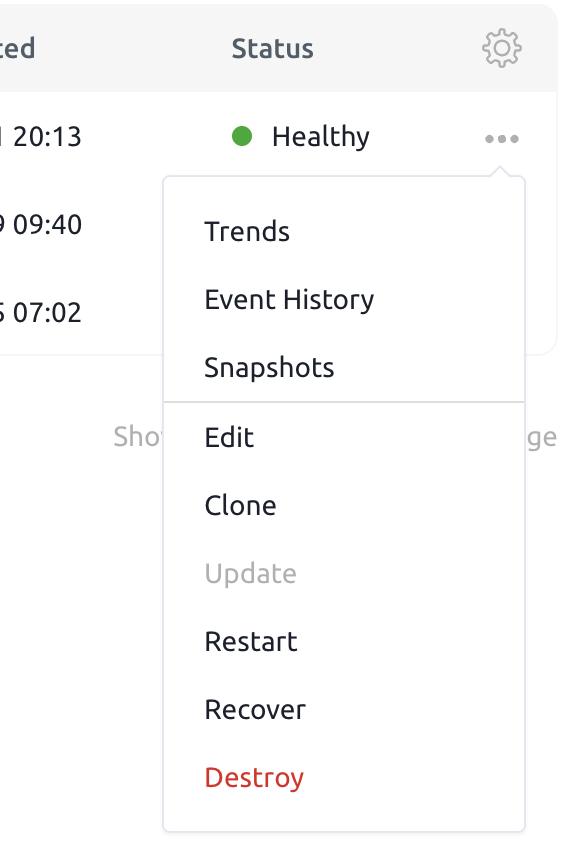
The options include:
| Action | Description |
|---|---|
| Trends | View usage and performance trends for the instance. See Monitoring Instances. |
| Event History | Review a log of events and actions related to the instance. See Monitoring Instances. |
| Snapshots | Manage snapshots for backup and recovery purposes. See Backup and Restore. |
| Edit | Modify instance settings and configuration. You can change the instance name, description, and other fields. Find the full list of fields here. Fields that cannot be changed: - Name (can only be set on creation) - State (read-only) |
| Clone | Create a new instance based on the current instance's configuration. See Clone an Instance. |
| Copy Image From... | Replace this instance's image — base Nautobot version, installed Apps, pip dependencies, static files, and App configuration — with another instance's, applying the exact same image (no rebuild). The instance's data, Secrets, URL, and environment-specific settings are preserved. Use it to promote a validated image between environments. See Environments & Promotion. |
| Update | Apply your pending configuration changes — settings, installed Apps, customizations (custom Apps, pip dependencies, static files), or image/version — to the instance. The change is rolled out in a highly-available manner. Run this after making changes in the Console so they take effect. If your changes require a custom image, the Update first builds that image (you'll see a Building Image status) and then deploys it. |
| Restart | Perform a highly-available restart of the instance's services (web and worker pods) with the same configuration. For example, restart to pick up an environment-variable Secret after it has been associated, removed, or updated. |
| Recover | Redeploy the instance as a last resort when it is stuck or in an indeterminate state (for example, after a timed-out operation). This removes and re-creates the instance's compute services while keeping the database intact — it does not restore data from a Snapshot. |
| Destroy |  Permanently delete the instance. The dialog offers a final Snapshot (checked by default) that appears under Snapshots and is kept after the instance is gone; for a production instance, only organization admins can skip it. A final Snapshot is not guaranteed, in particular when the instance is Unhealthy or Errored, so take and verify a manual Snapshot first if you need the data. If the final Snapshot fails, a Healthy or production instance is not destroyed; any other instance is destroyed without it. While the final Snapshot runs, the instance shows as Snapshot Creating (Pending Destroy); running Recover in that time cancels the destroy. The instance URL is released as soon as the destroy completes; remaining cloud resources are cleaned up in the background. Permanently delete the instance. The dialog offers a final Snapshot (checked by default) that appears under Snapshots and is kept after the instance is gone; for a production instance, only organization admins can skip it. A final Snapshot is not guaranteed, in particular when the instance is Unhealthy or Errored, so take and verify a manual Snapshot first if you need the data. If the final Snapshot fails, a Healthy or production instance is not destroyed; any other instance is destroyed without it. While the final Snapshot runs, the instance shows as Snapshot Creating (Pending Destroy); running Recover in that time cancels the destroy. The instance URL is released as soon as the destroy completes; remaining cloud resources are cleaned up in the background. |
For an explanation of the states an instance moves through as these actions run, see Instance States.