Connecting NautobotGPT MCP Server to Claude Desktop
This guide walks you through connecting the NautobotGPT MCP Server to Claude Desktop.
Prerequisites
- Claude Desktop installed (download from claude.com)
- Node.js installed (required for
npxcommand) - NautobotGPT instance
- NautobotGPT MCP Server enabled for your instance
- Your NautobotGPT API key (see Getting Your API Key)
Configure Claude Desktop
We use mcp-remote as a bridge to translate between the server's HTTP protocol and the stdio interface that Claude Desktop expects.
Edit your Claude Desktop configuration file:
- macOS:
~/Library/Application Support/Claude/claude_desktop_config.json - Windows:
%APPDATA%\Claude\claude_desktop_config.json - Linux:
~/.config/Claude/claude_desktop_config.json
Add the following MCP server configuration:
{
  "mcpServers": {
    "NautobotGPT": {
      "command": "npx",
      "args": [
        "mcp-remote@latest",
        "https://YOUR_NAUTOBOTGPT_INSTANCE.nautobot.cloud/mcp",
        "--header",
        "Authorization:${AUTH_HEADER}"
      ],
      "env": {
        "AUTH_HEADER": "Bearer YOUR_NAUTOBOTGPT_API_KEY"
      }
    }
  }
}
Configuration:
https://YOUR_NAUTOBOTGPT_INSTANCE.nautobot.cloud/mcp- Your NautobotGPT MCP Server's URLAUTH_HEADER- Set toBearer YOUR_NAUTOBOTGPT_API_KEYwith your NautobotGPT API key
Restart Claude Desktop
Close and reopen Claude Desktop. The NautobotGPT MCP Server should now be available.
Verify Connection
In Claude Desktop, you should see NautobotGPT listed when clicking the + button in the chat input area then highlighting Connectors.
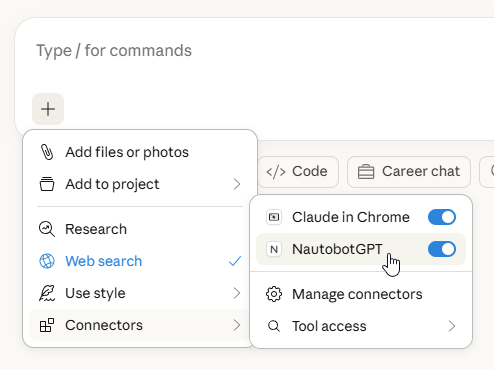
You can also verify by navigating to Settings -> Developer in the desktop app and checking the status of the NautobotGPT MCP Server.
Troubleshooting
Server Not Showing Up or Showing "Failed" in Claude Desktop
- Check Node.js installation - Verify Node.js is installed by running
node --version - Check the configuration file location - Make sure you're editing the correct
claude_desktop_config.json - Validate JSON syntax - Use a JSON validator to ensure your config is valid
- Verify server is running - Check that the NautobotGPT MCP Server is running and accessible
- Check the endpoint - Ensure the URL ends with
/mcp - Verify your API key - An invalid NautobotGPT API key will prevent successful connection
- Restart Claude Desktop - Completely quit and reopen the application
Why mcp-remote?
Claude Desktop doesn't support direct HTTP streaming protocols - it requires a stdio interface. The mcp-remote package acts as a bridge:
- It connects to your server's endpoint via HTTP
- It provides a stdio interface that Claude Desktop expects
- It translates messages between the two protocols
Windows: Connection Fails with Authorization Header
On Windows, spaces in --header args are split by cmd.exe, breaking the connection. The configurations above use AUTH_HEADER as an env var to work around this - spaces in env vars are handled safely.