Network Diagnostic Tools
Nautobot Tools includes a suite of network diagnostic tools that help you test connectivity, resolve DNS names, trace network paths, and more — all without leaving Nautobot.
Running a Tool
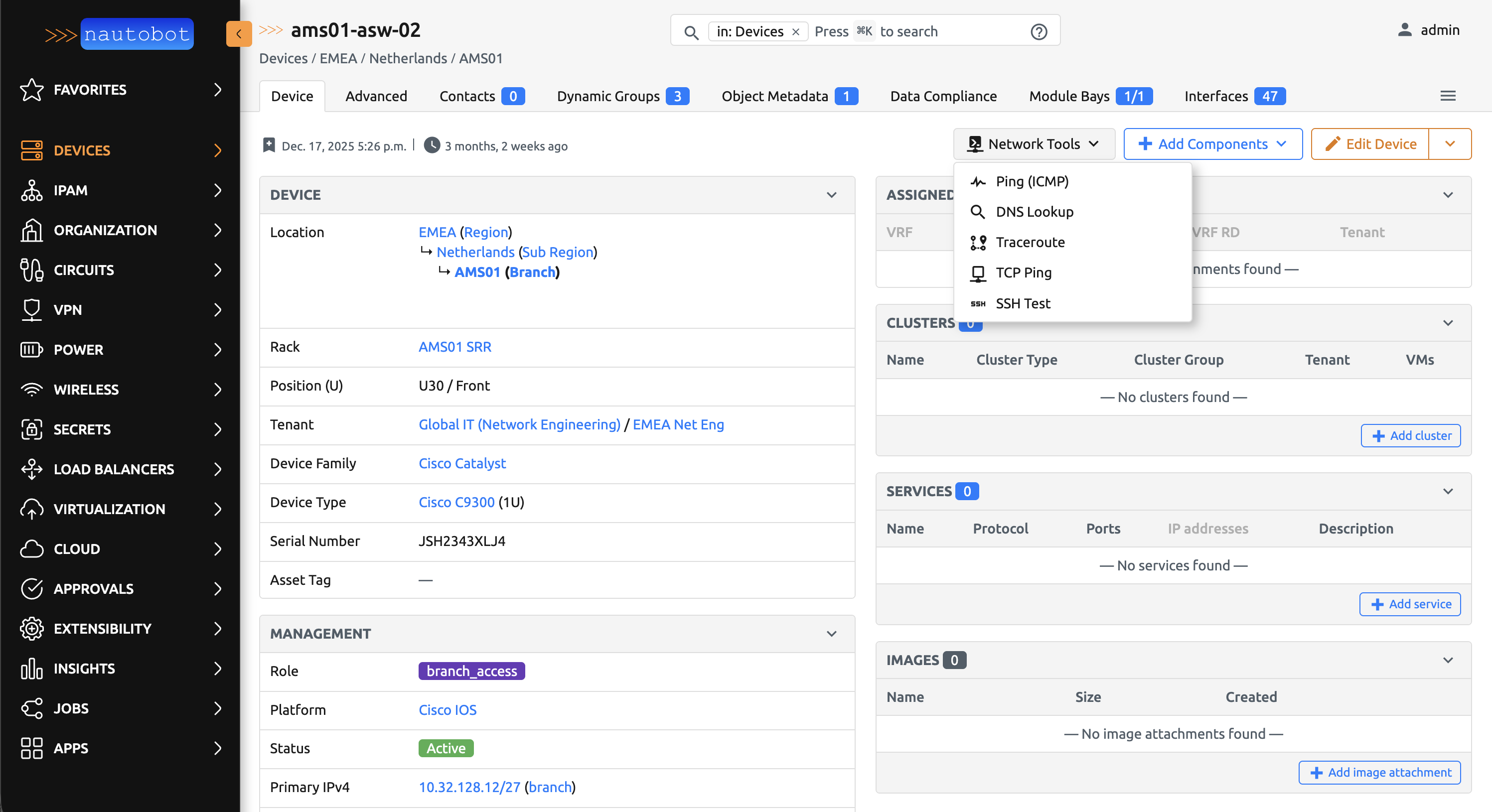
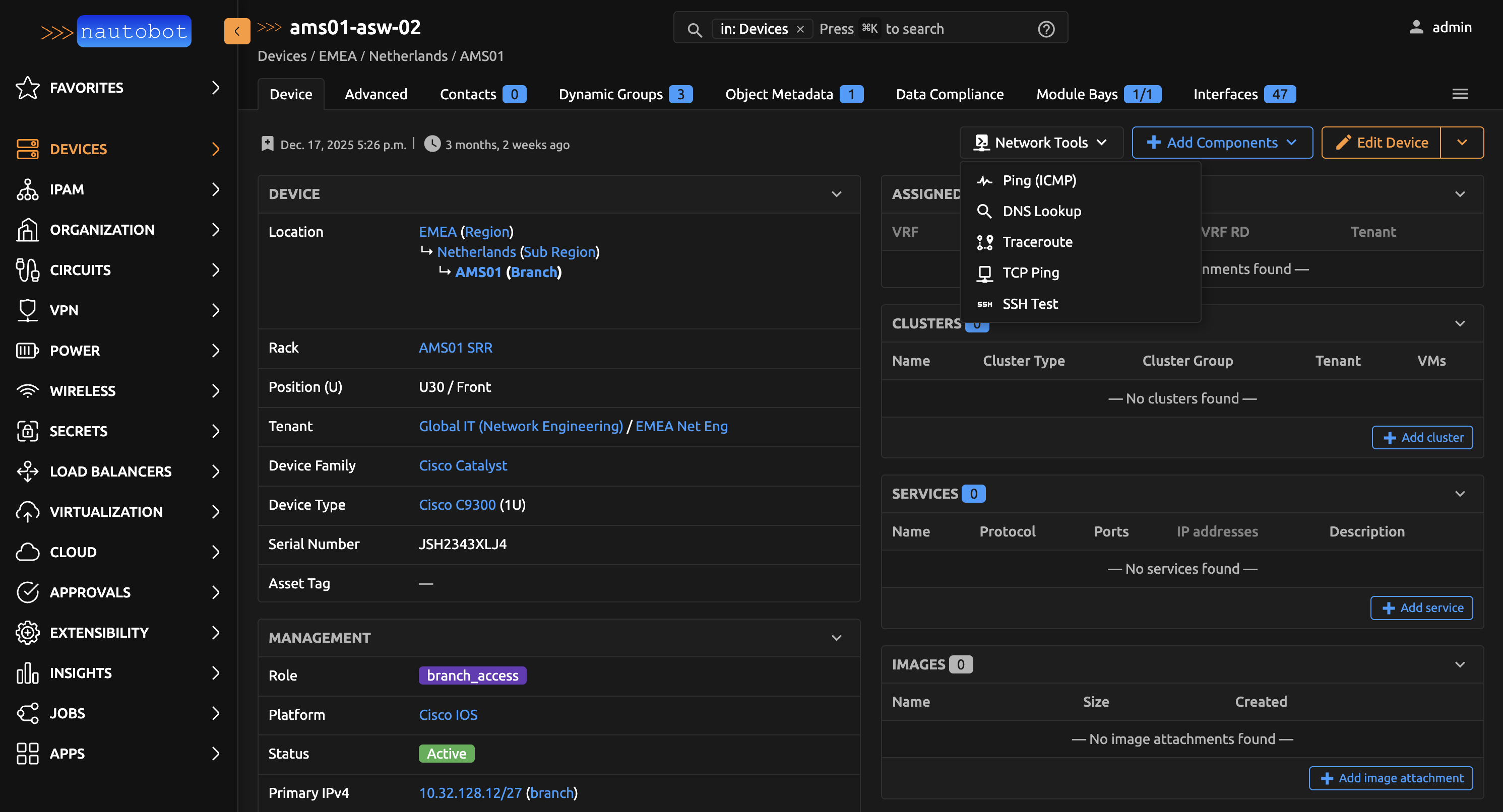
Network diagnostic tools are available as Nautobot Jobs. You can launch them in two ways:
From a Detail View
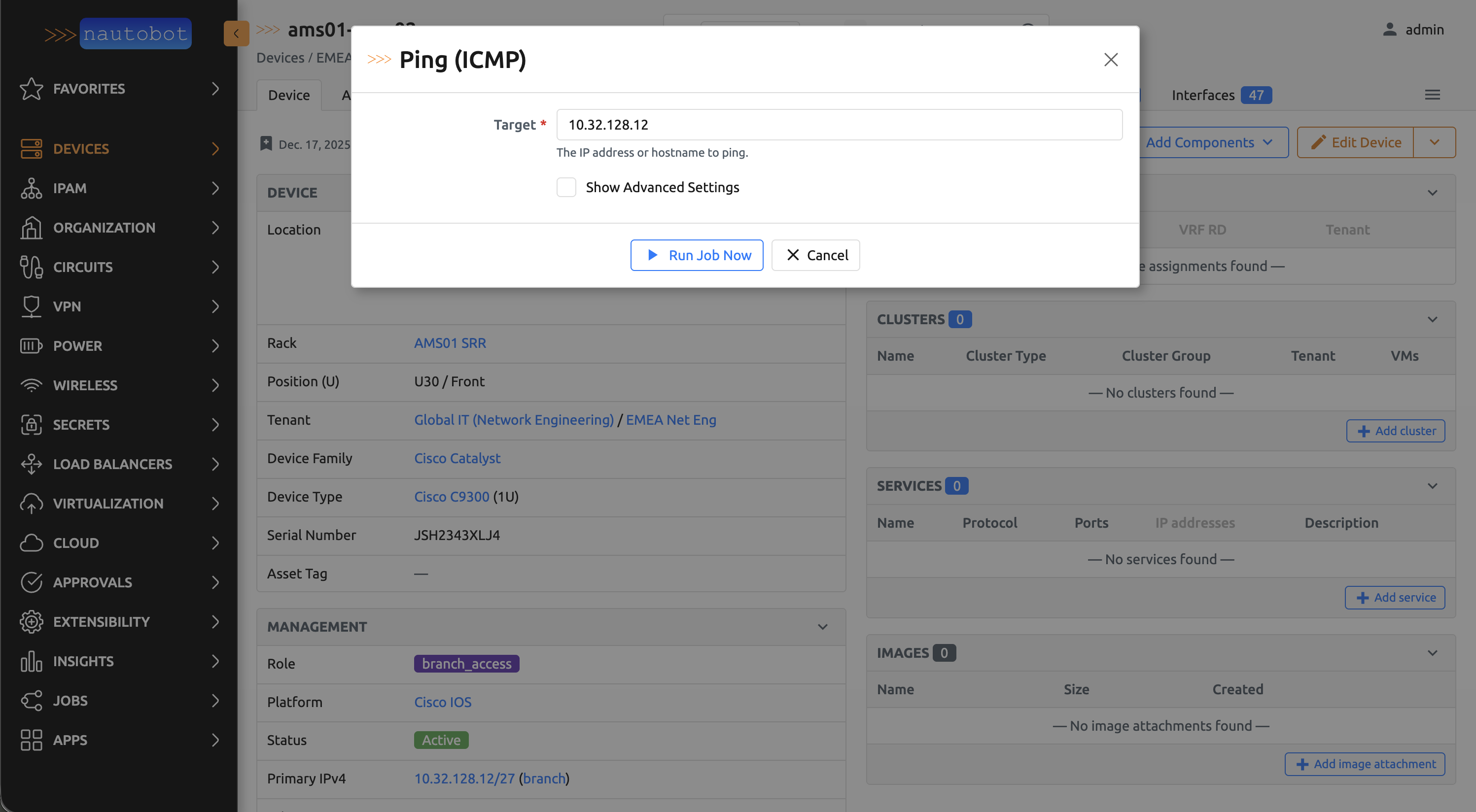
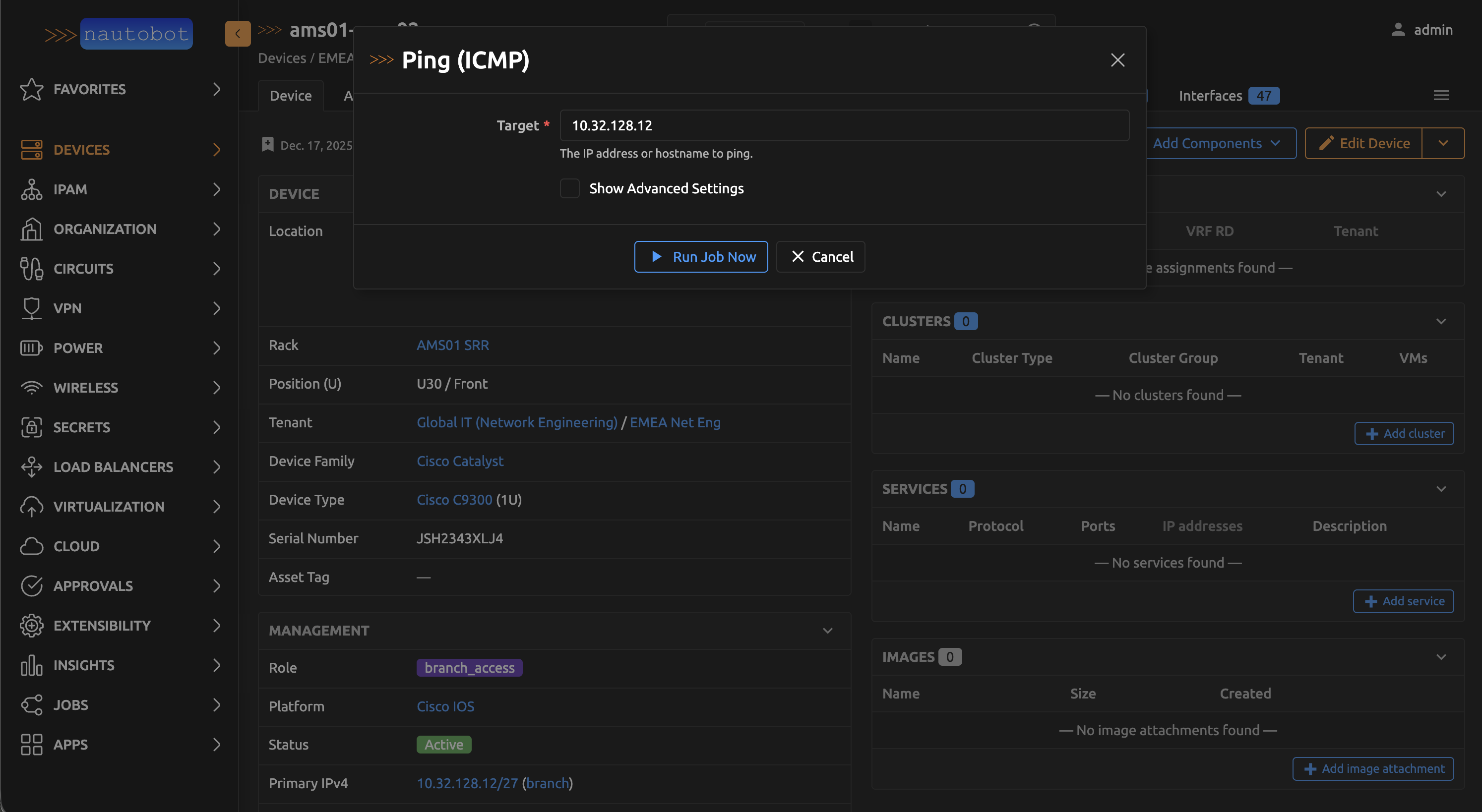
The quickest way to run a tool is directly from a Device or IP Address detail page. Click the tool button to open a dialog pre-filled with the relevant target.
From the Jobs Page
All tools are also available under Jobs in the Nautobot navigation. This is useful when you want to target a host that isn't in your Nautobot inventory.
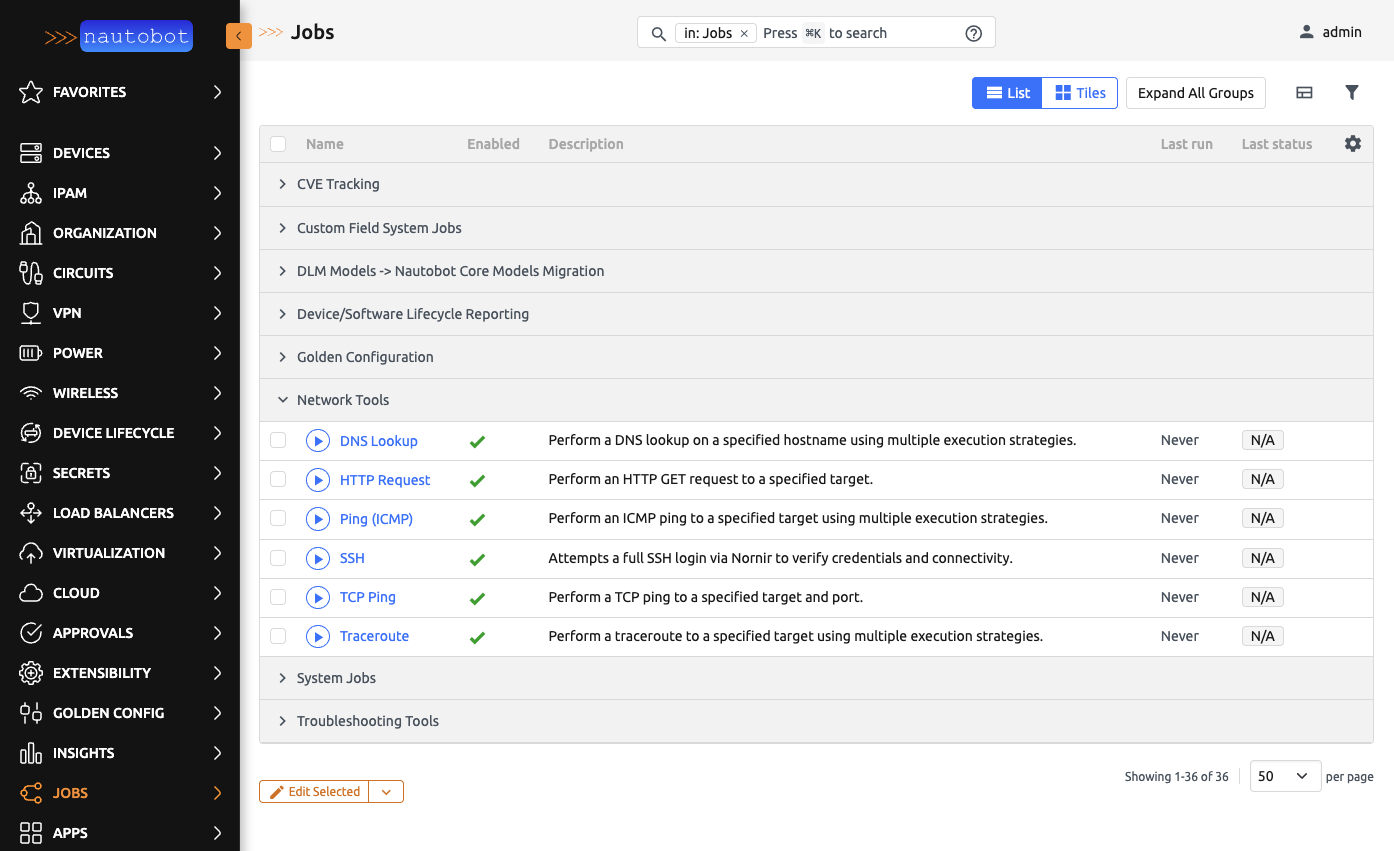
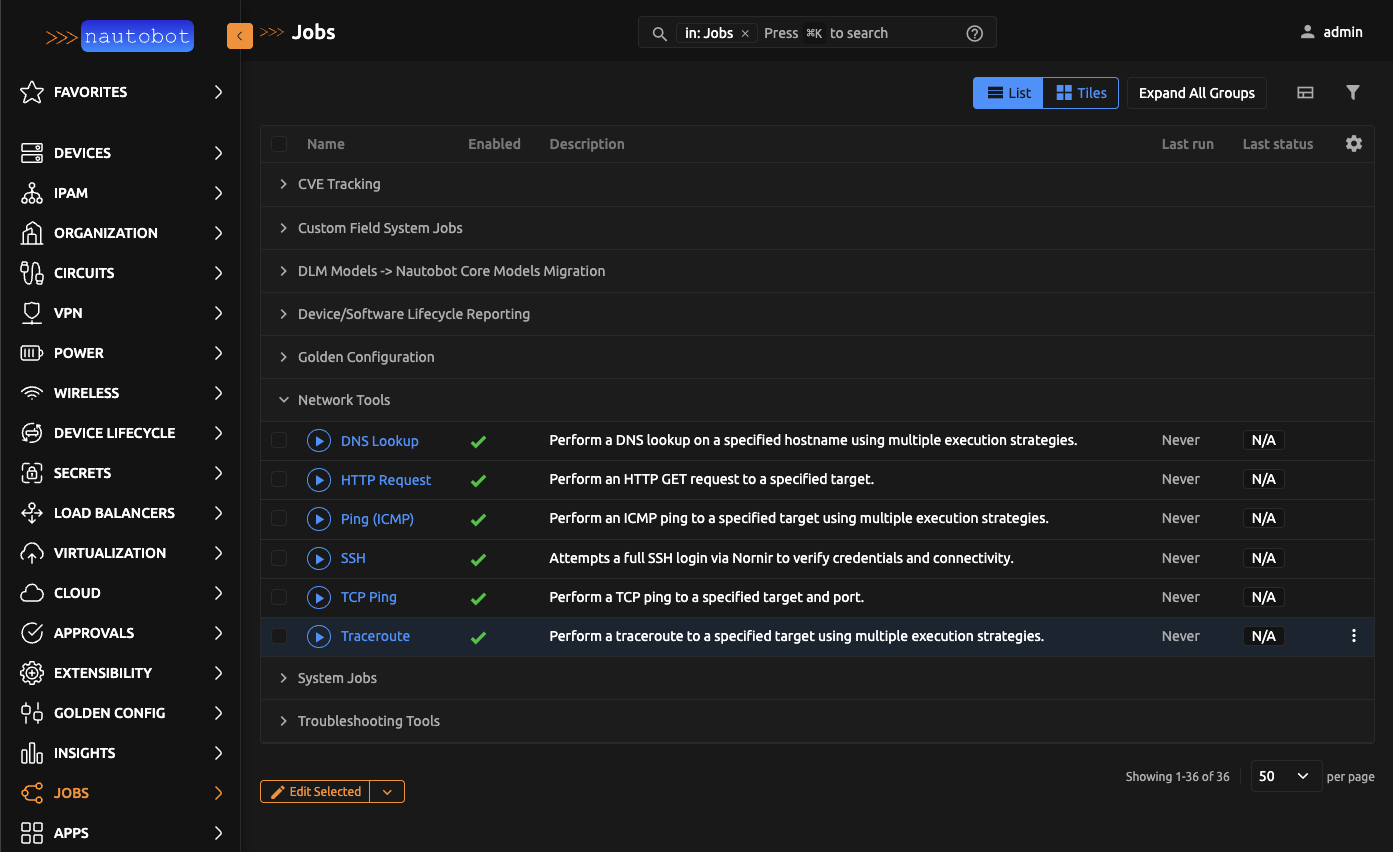
Tools
Ping (ICMP)
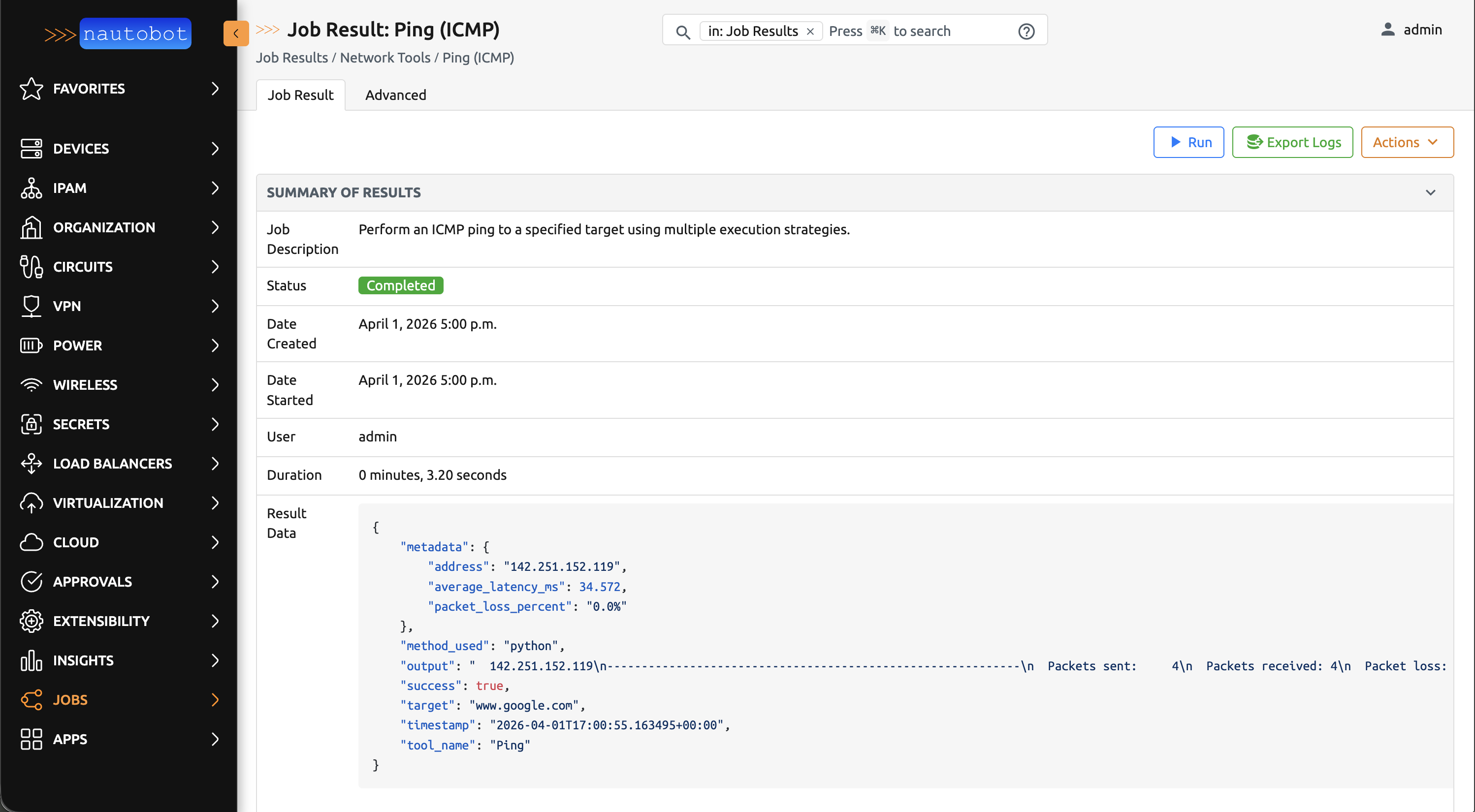
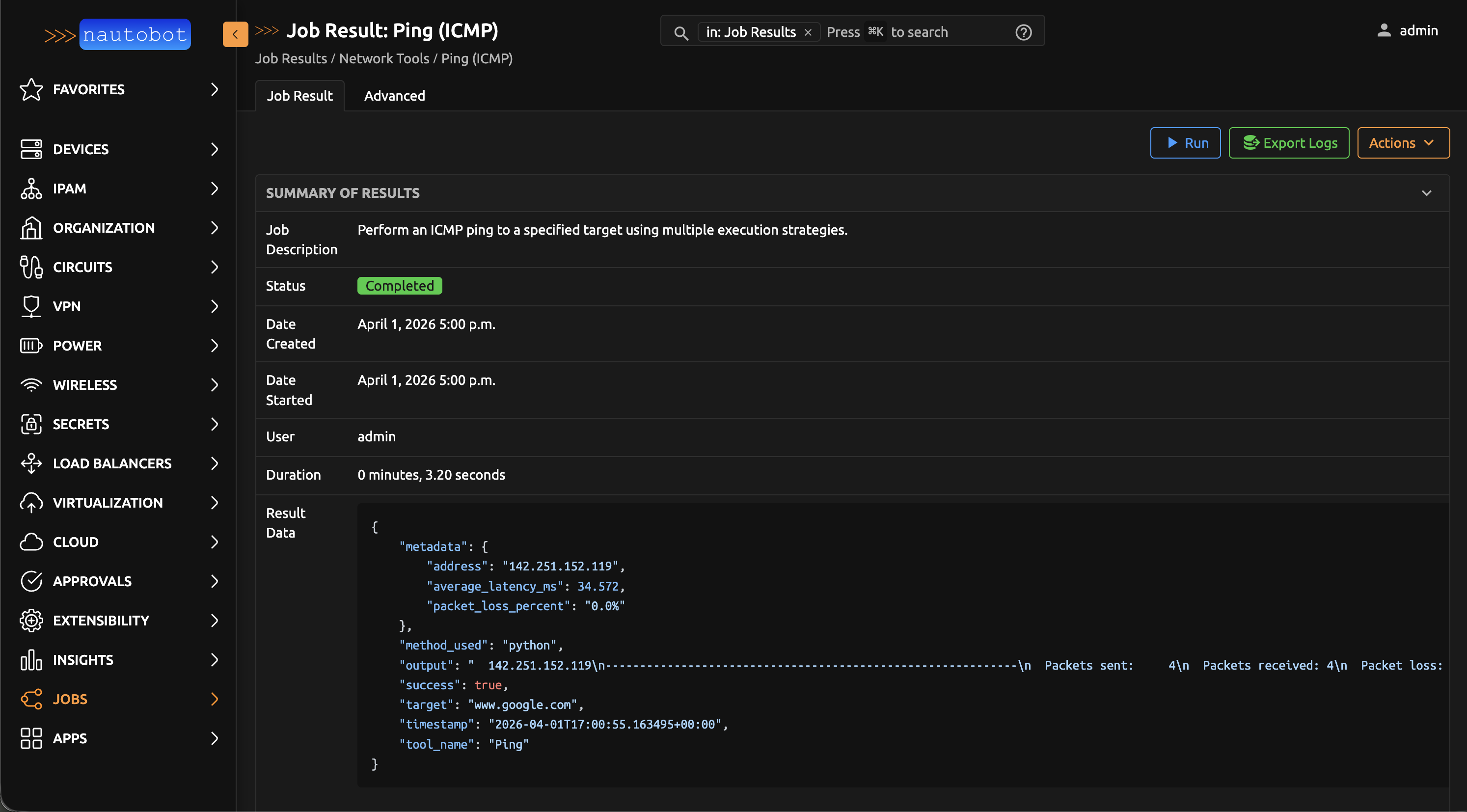
Sends ICMP echo requests to verify that a host is reachable over the network. Returns whether the host responded, the average round-trip latency, and packet loss percentage.
If the primary method is unavailable in your environment, the tool automatically tries an alternative method.
Parameters:
- Target — IP address or hostname to ping
- Count — Number of echo requests to send (default: 4)
- Interval — Seconds between each request (default: 1)
TCP Ping
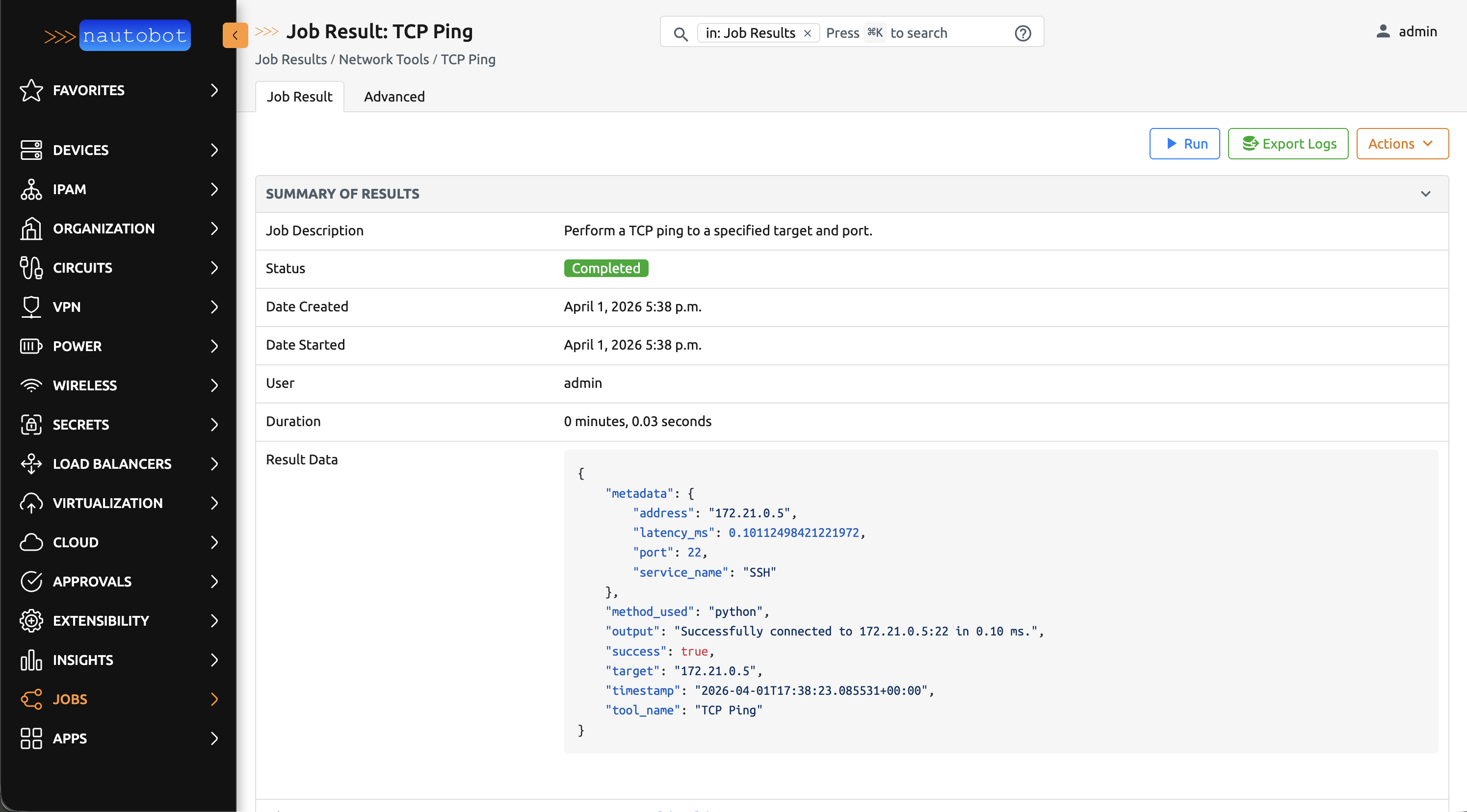
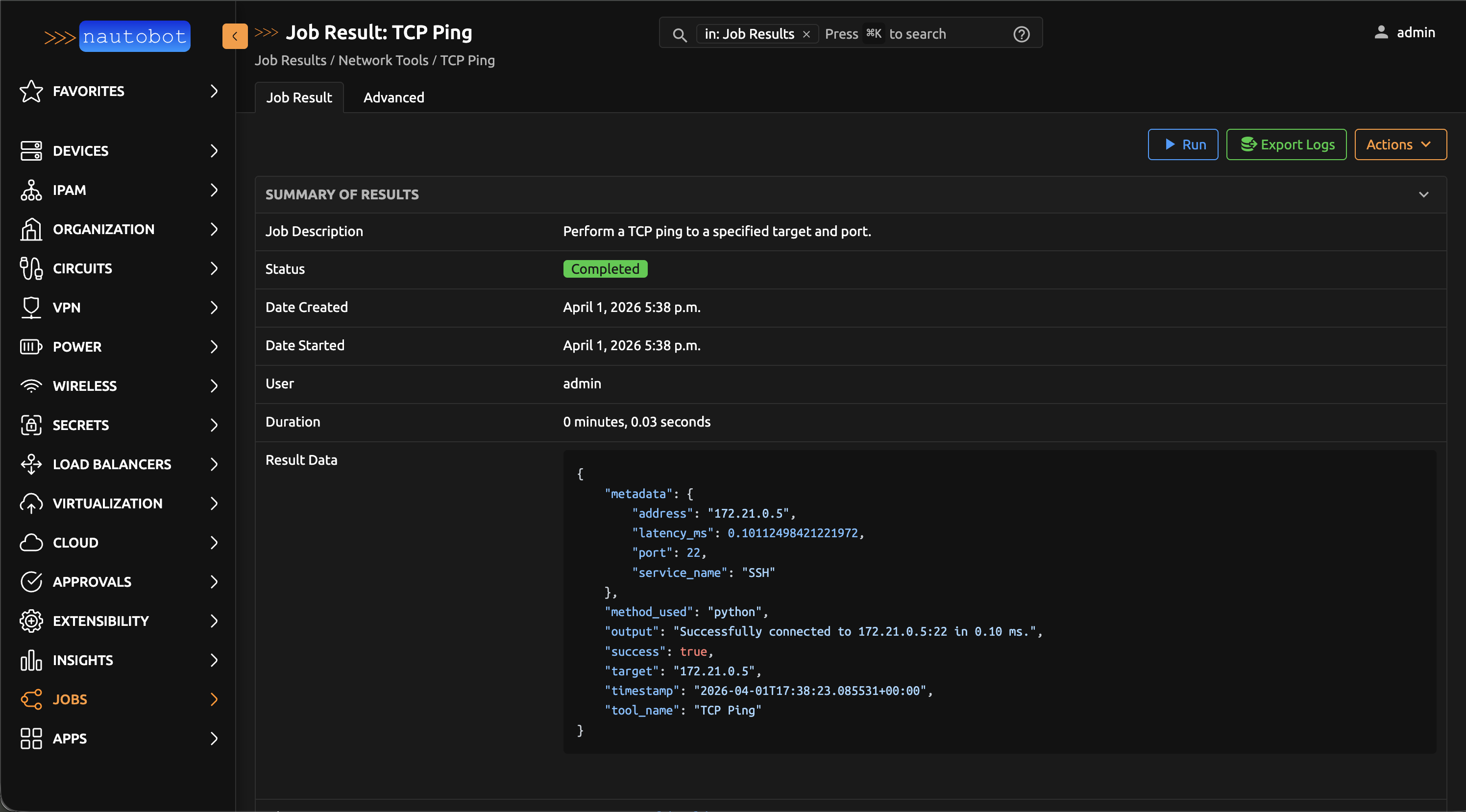
Opens a TCP connection to a specific host and port to verify that a service is accepting connections. Returns whether the connection succeeded and how long it took.
This tool works in all environments without any additional configuration.
Parameters:
- Target — IP address or hostname
- Port — TCP port number (1–65535)
- Timeout — Connection timeout in seconds (default: 5)
DNS Lookup
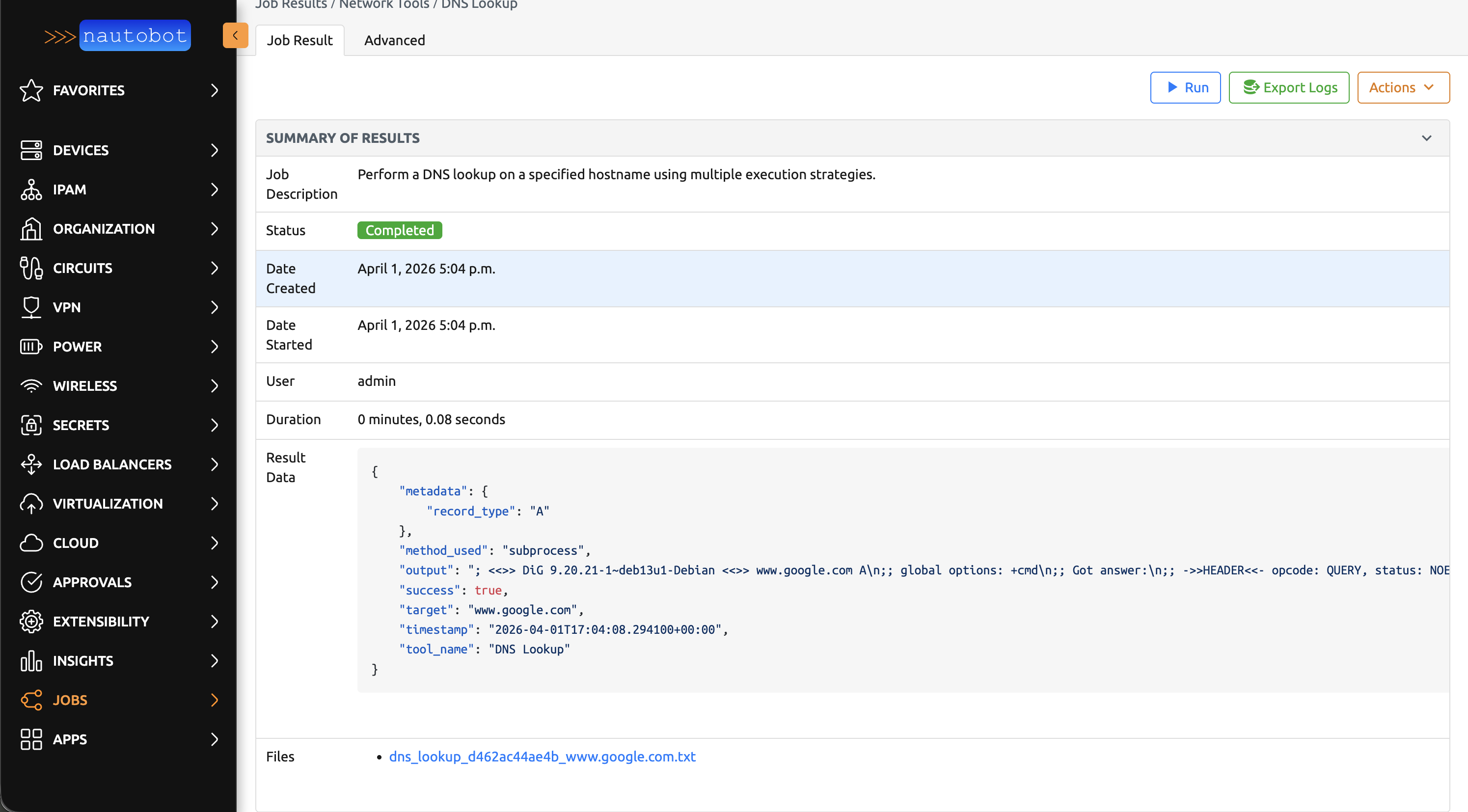
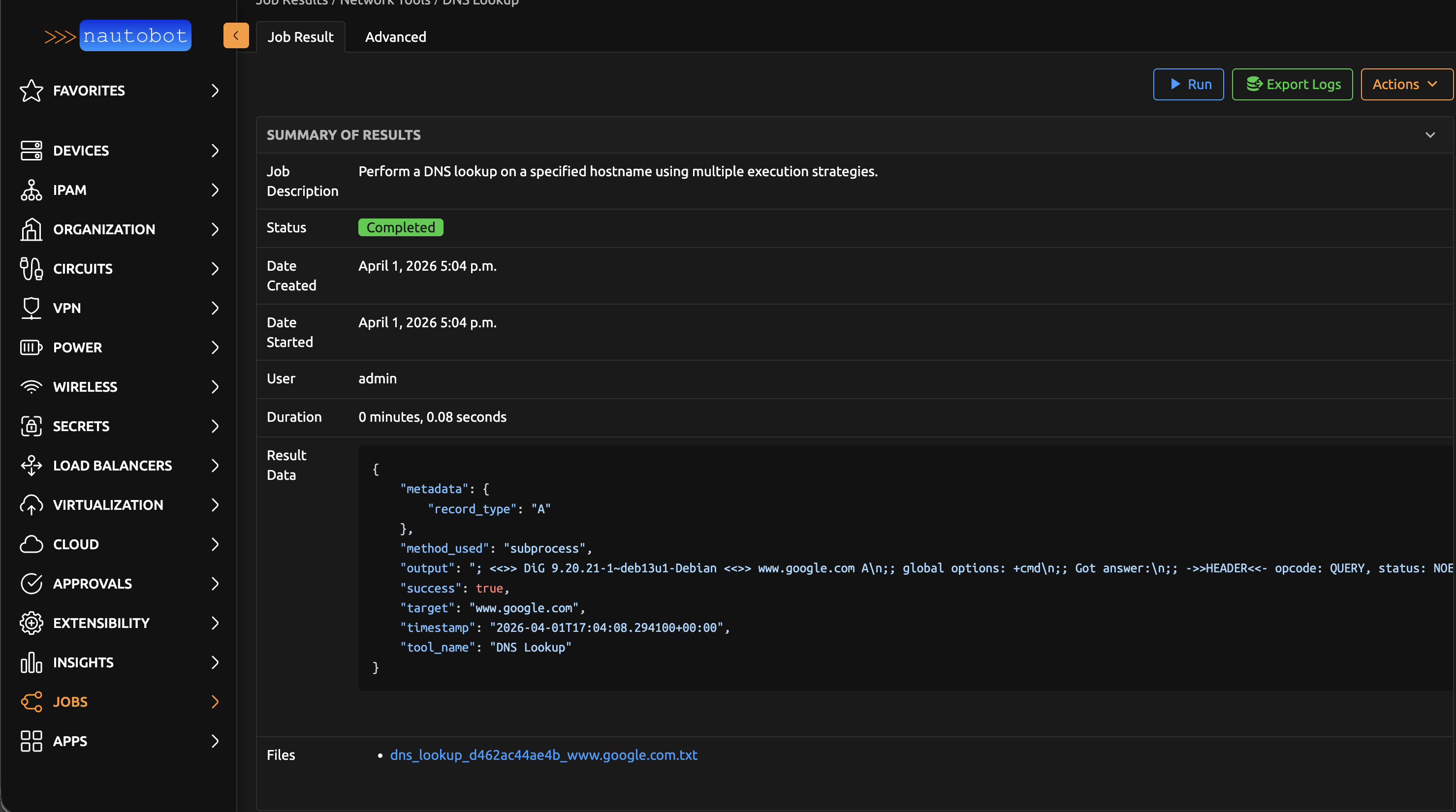
Resolves a hostname to its IP address(es) using DNS. Supports both IPv4 (A) and IPv6 (AAAA) record lookups.
When the full DNS tooling is available, you'll see a detailed response including authority and additional sections. Otherwise, the tool falls back to a simpler resolver that returns the resolved addresses.
Parameters:
- Target — Hostname to look up
- Record Type —
A(IPv4) orAAAA(IPv6)
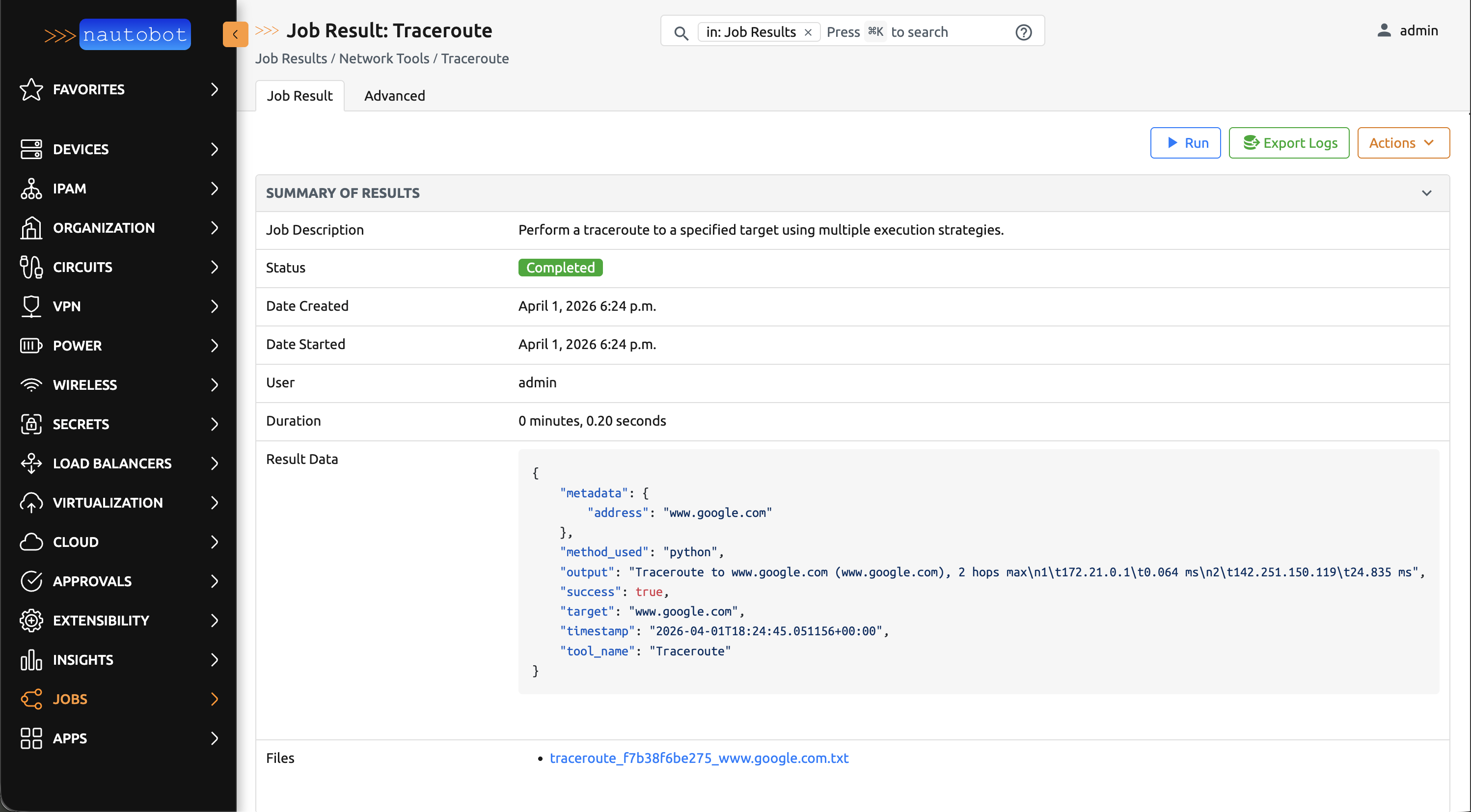
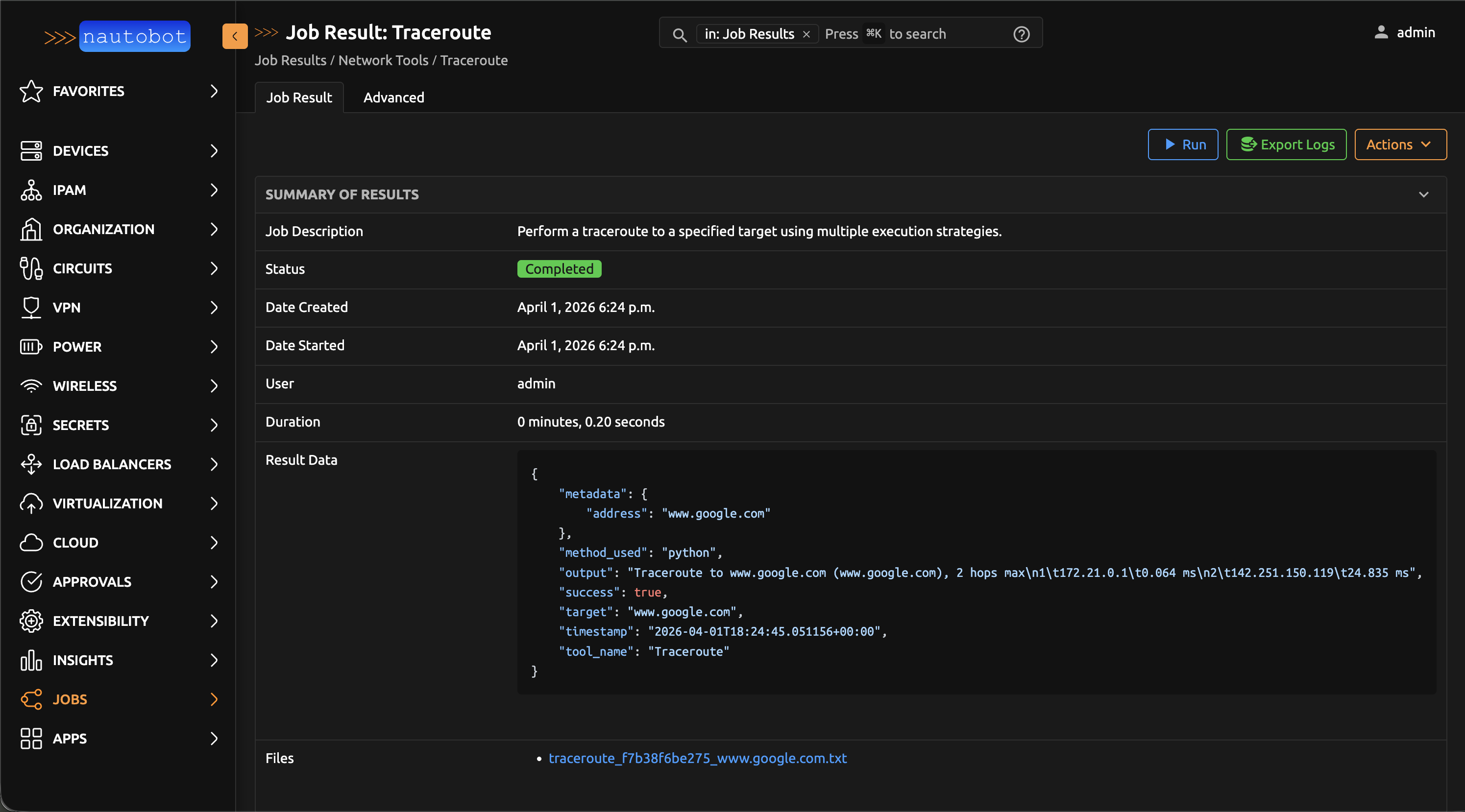
Traceroute
Traces the network path from the Nautobot worker to a target host, showing each hop along the way with its round-trip time. Useful for diagnosing where connectivity breaks down or where latency is introduced.
If the primary method is unavailable in your environment, the tool automatically tries an alternative method.
Parameters:
- Target — IP address or hostname to trace
HTTP Request
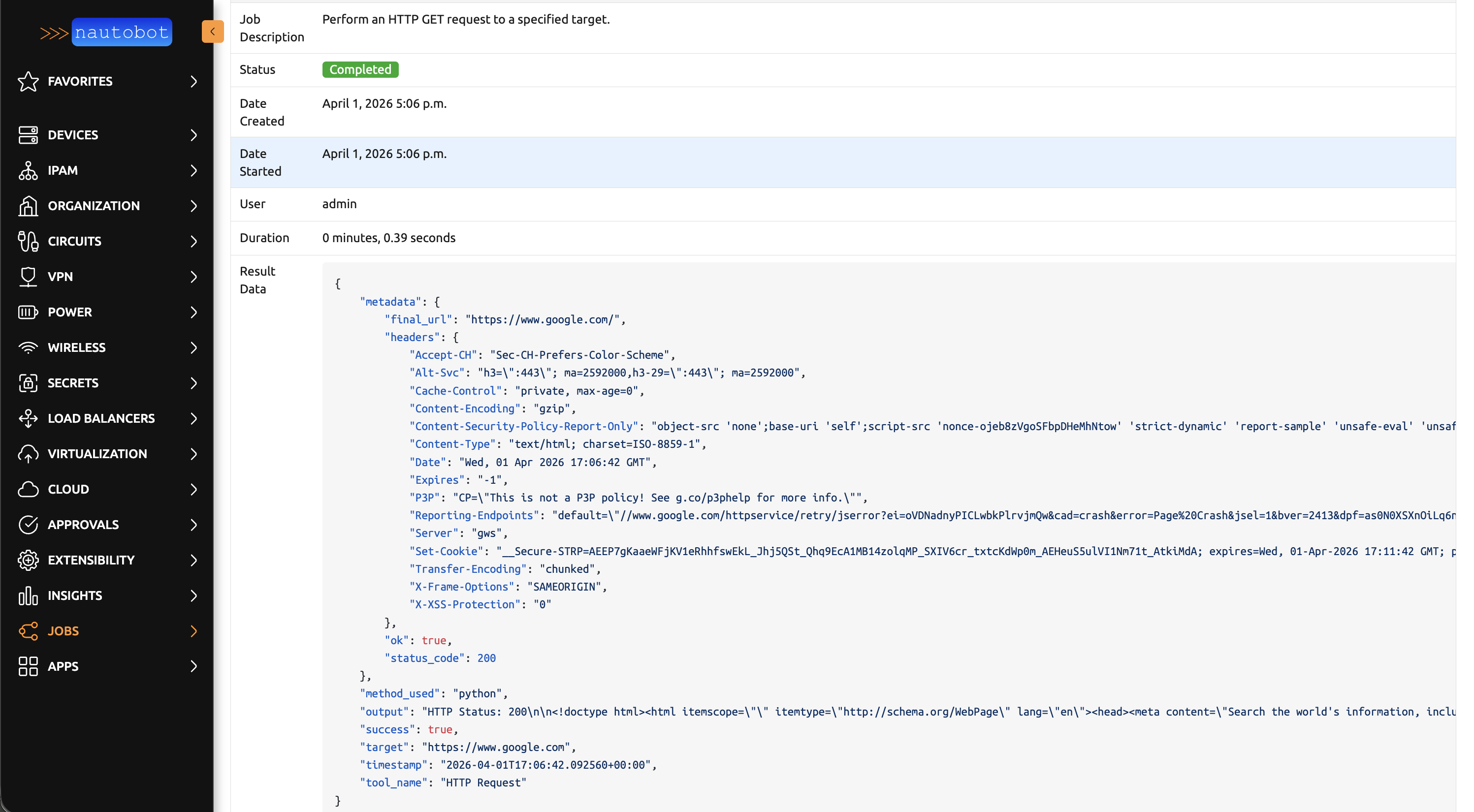
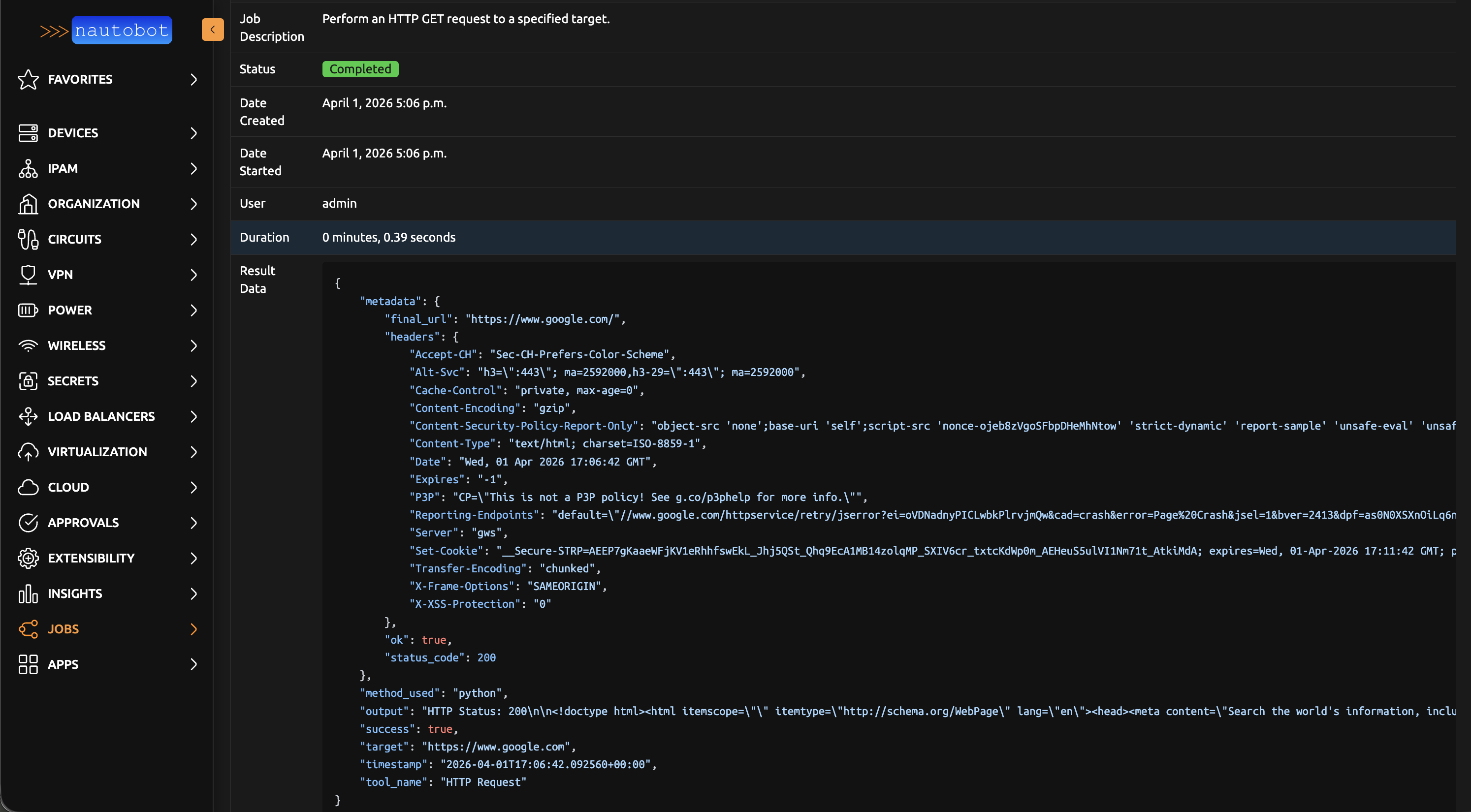
Sends an HTTP GET request to a URL and returns the status code, response headers, and response body. Useful for verifying that a web service is responding.
Parameters:
- Target URL — Full URL including scheme (e.g.,
https://example.com) - Timeout — Request timeout in seconds (default: 30)
- Verify SSL — Whether to validate SSL certificates (default: yes)
SSH Verification
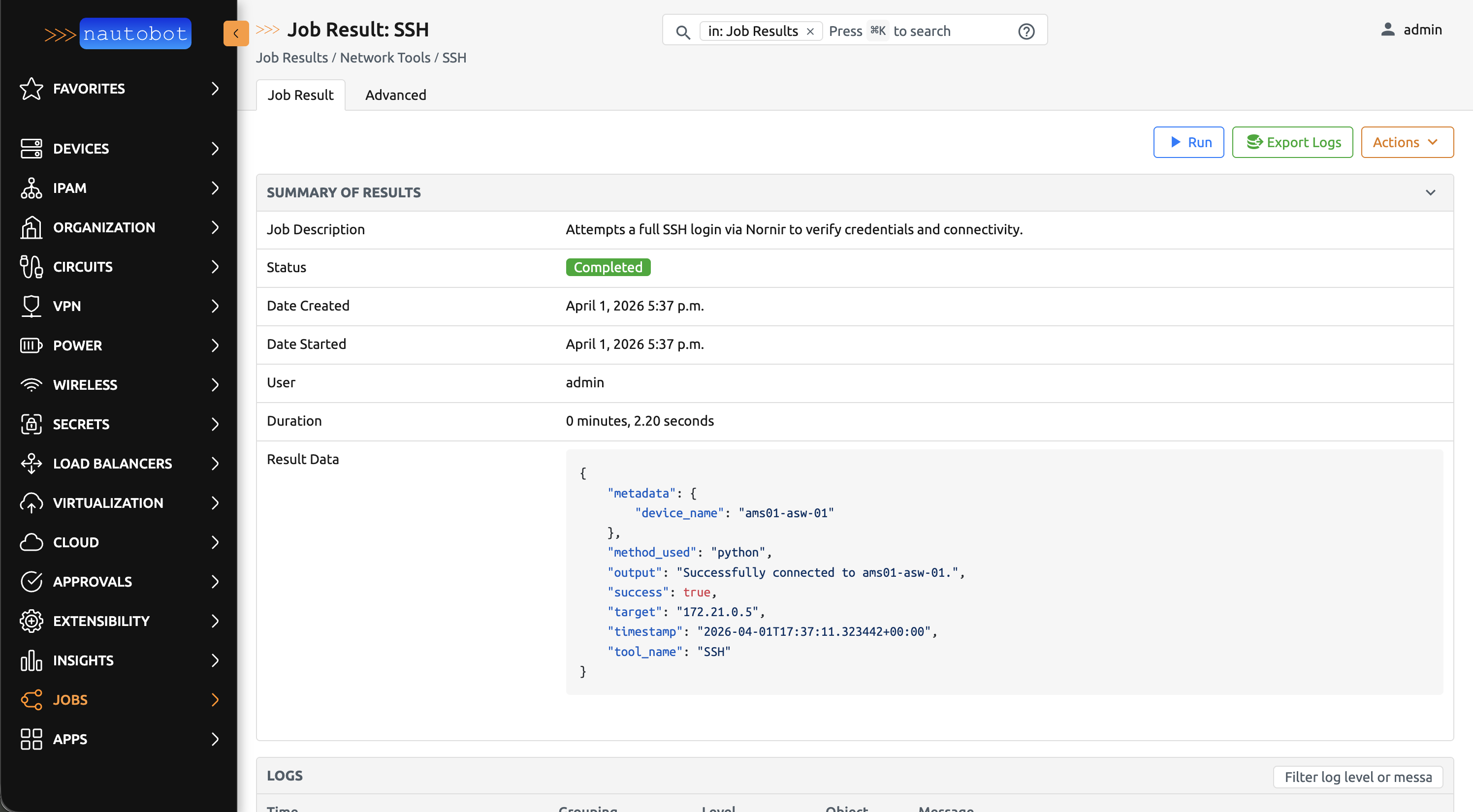
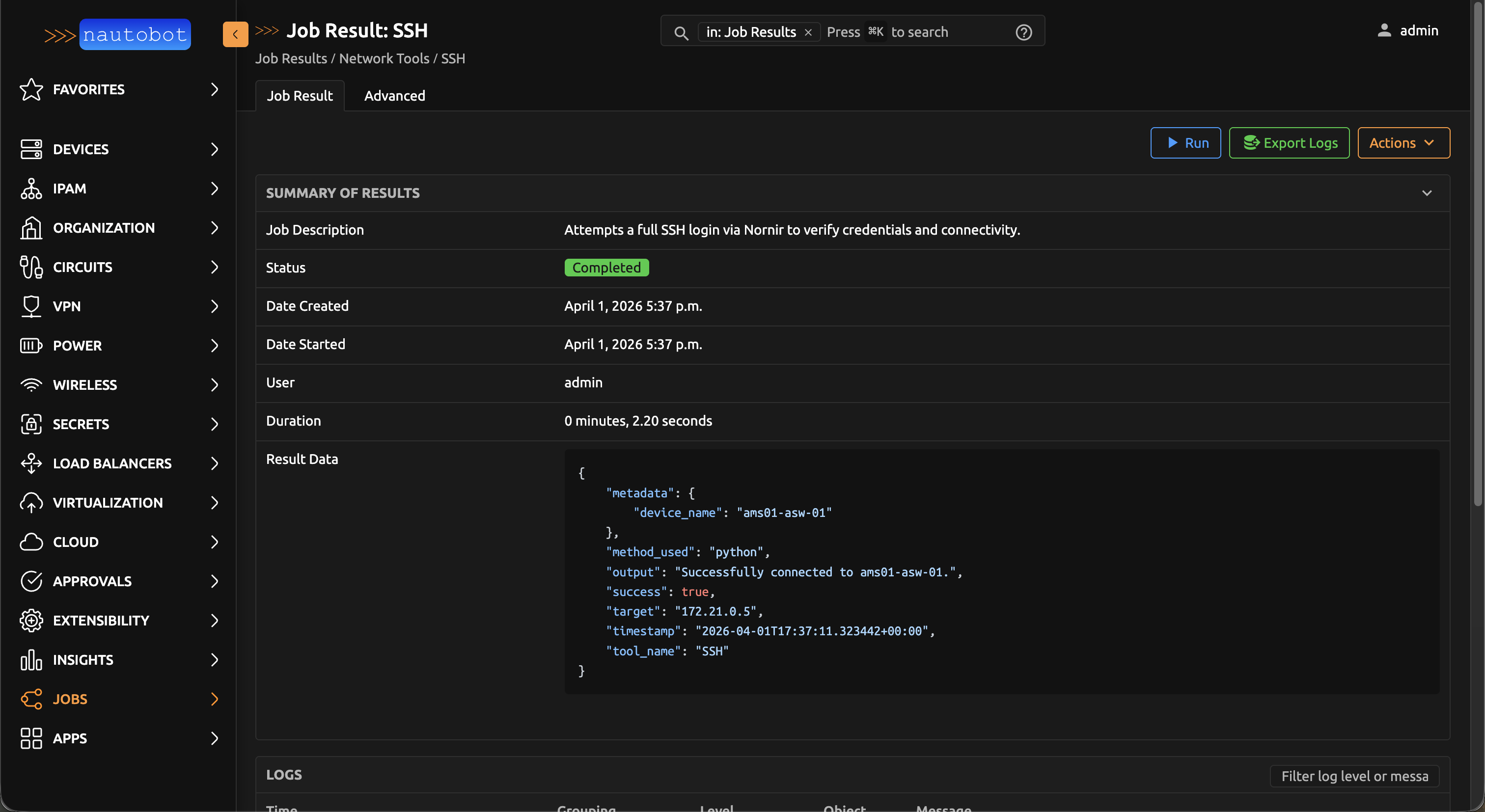
Tests SSH connectivity to a device by performing a login and retrieving basic device information. This validates that Nautobot can communicate with the device using its configured credentials and network driver.
Prerequisites:
- The device must have a primary IP assigned in Nautobot
- The device's platform must have a network driver configured
- Valid credentials must be set up in the Nornir plugin settings (see Nautobot Plugin Nornir)
Parameters:
- Device — Select a device from Nautobot inventory
Troubleshooting
If a tool fails unexpectedly, here are some things to check:
- Is the tool enabled? — Jobs must be enabled by an administrator before they can run. If a tool doesn't appear in the Jobs list, ask your administrator to enable it.
- Can the worker reach the target? — The tools run on Nautobot worker processes, not on your local machine. The worker must have network access to the target host.