Using the App
This document describes common use-cases and scenarios for this App.
Common Workflows
Interacting with Insights Dashboards
Insights dashboards are more than static summaries. Each dashboard includes interactive elements that let you drill down into the underlying data without leaving the page or manually building filters.
Big Number Card Links
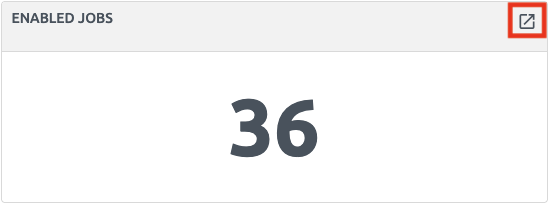
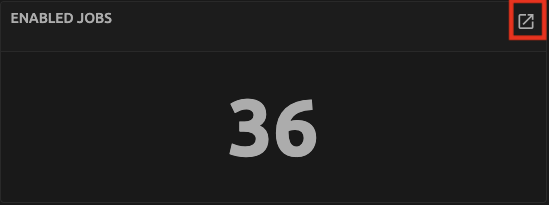
Each big number card on a dashboard displays a count for a specific model. Clicking the card navigates to the Nautobot list view for that model, filtered to show only the records that make up that count. For example, clicking the Enabled Jobs link on the Jobs Insights dashboard opens the jobs list showing all enabled jobs.
Status Badge Filtering
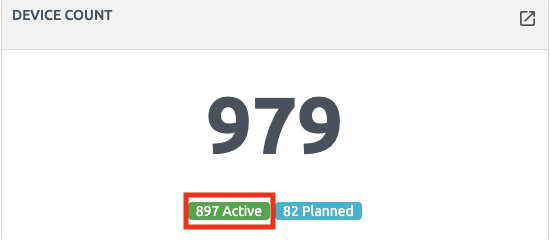
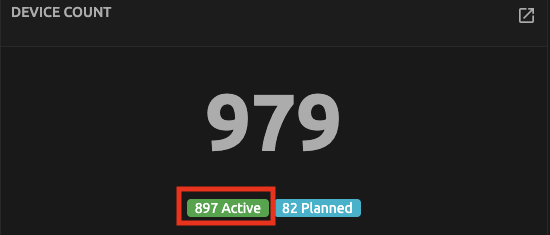
On the Inventory Insights dashboard, big number cards that include status badges allow you to filter by a specific status. Clicking on a status badge navigates to the model's list view filtered to show only records with the selected status. For example, clicking the Active badge on the Device Count card opens the device list filtered to only active devices.
Doughnut Chart Legend Toggling
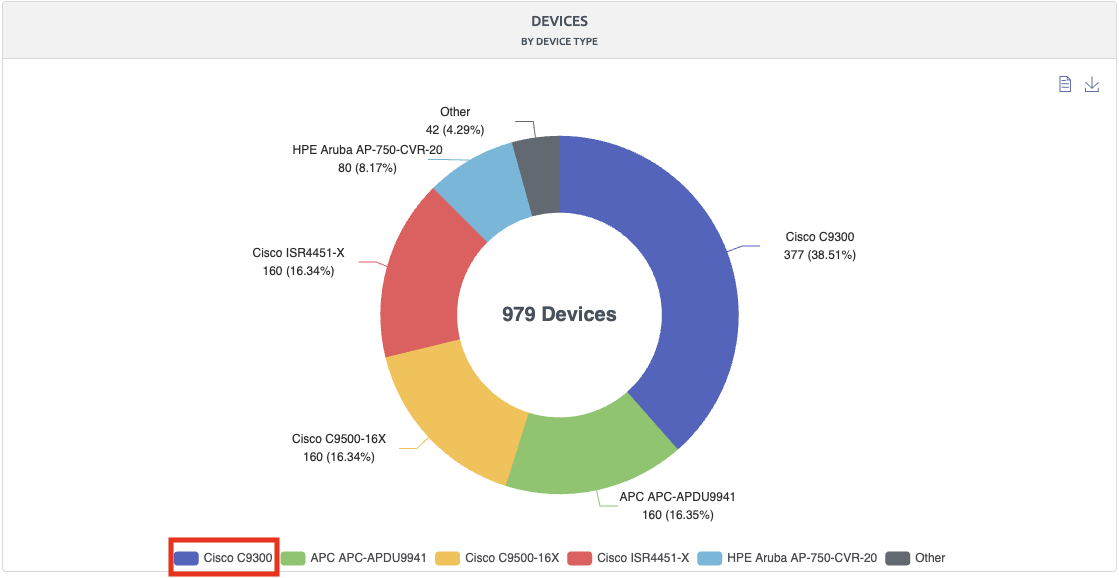
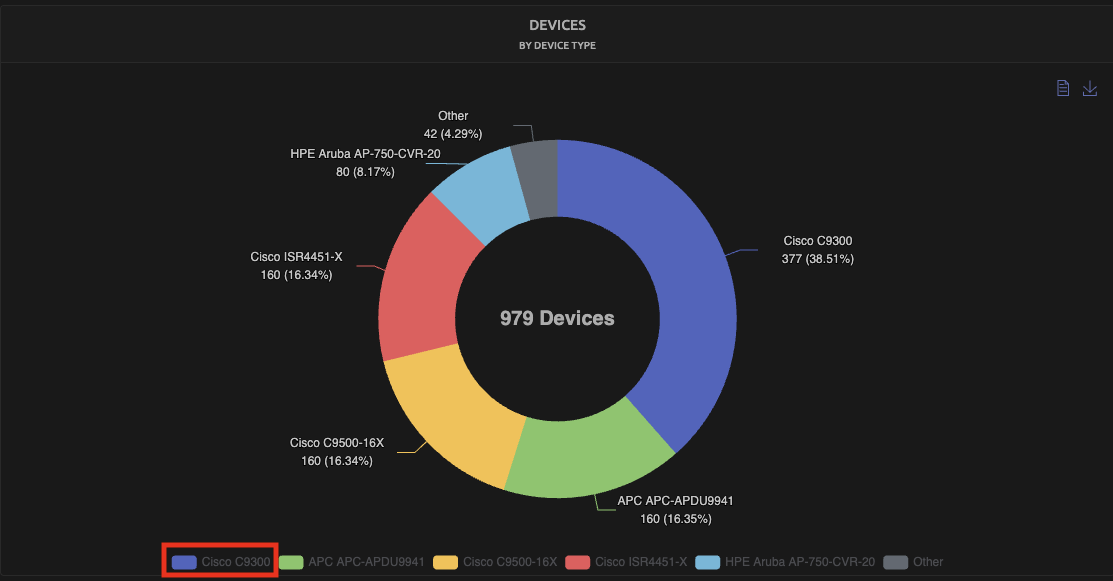
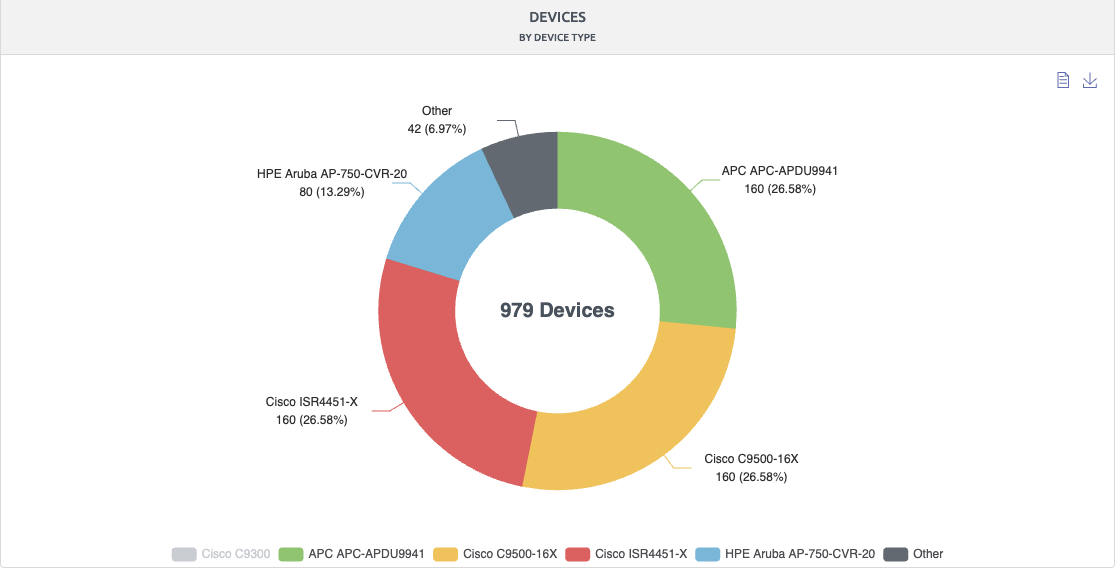
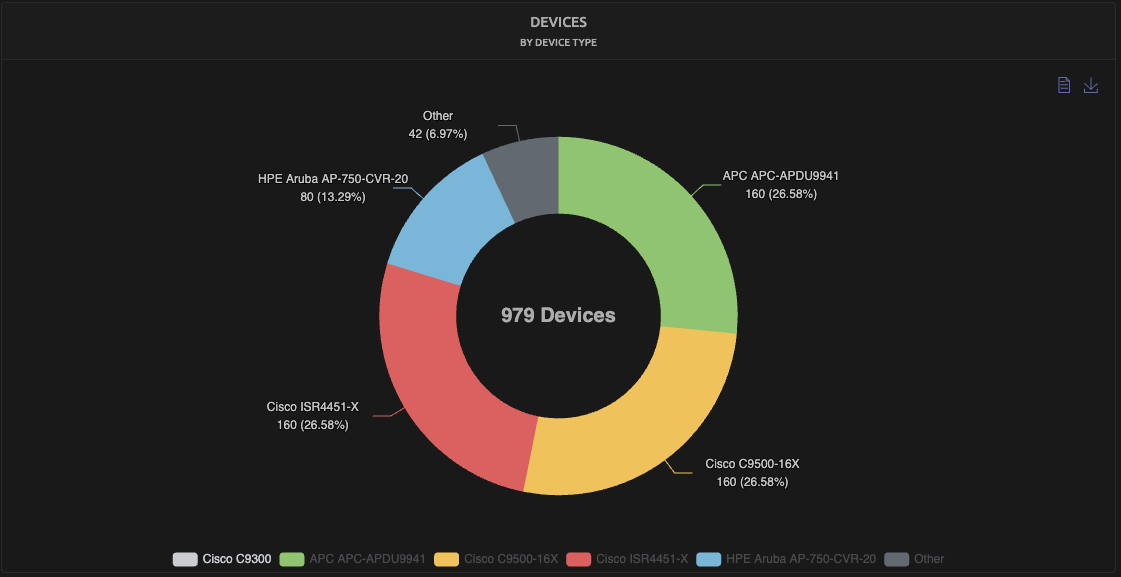
Doughnut charts include a clickable legend. Clicking on a legend entry toggles that element on or off in the chart, allowing you to focus on the specific segments you want to examine. This is useful when a single category dominates the chart and you want to see the distribution of the remaining categories more clearly.
Dashboard Filters
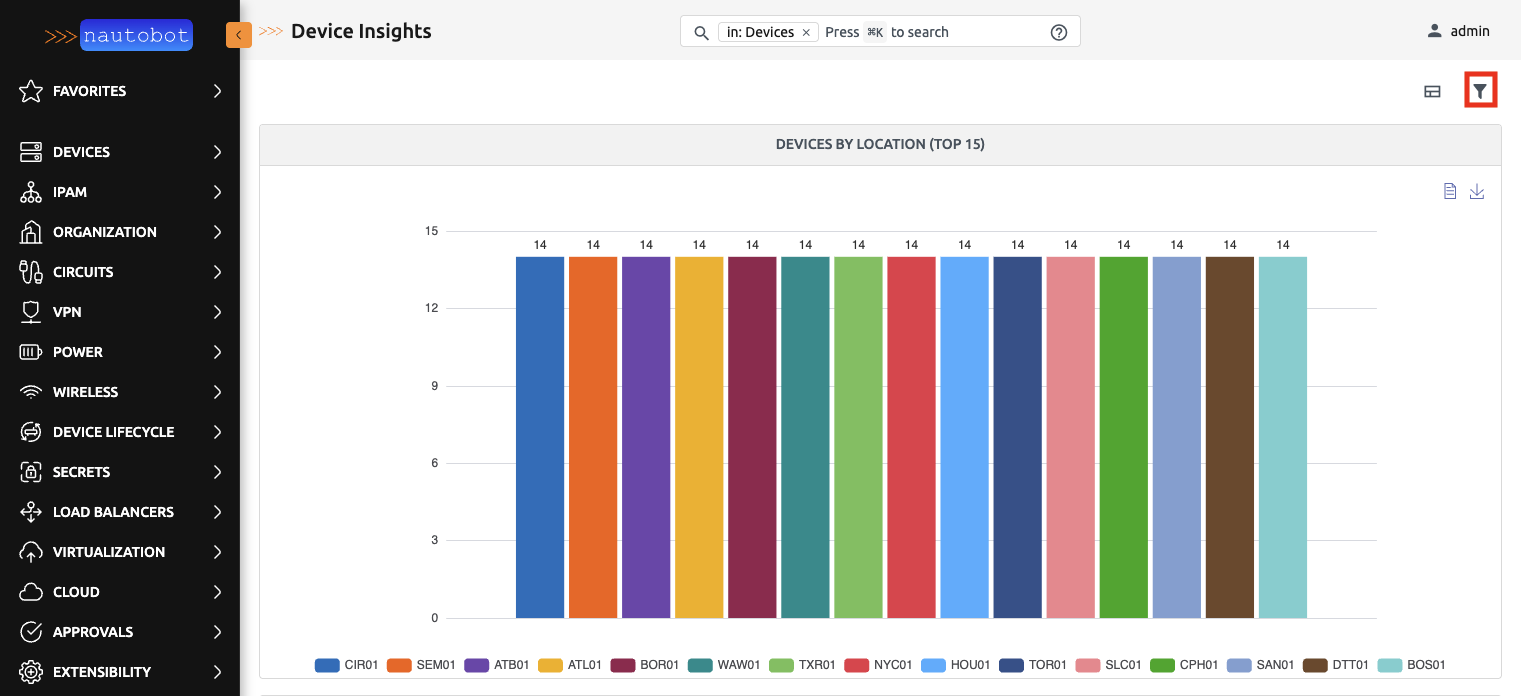
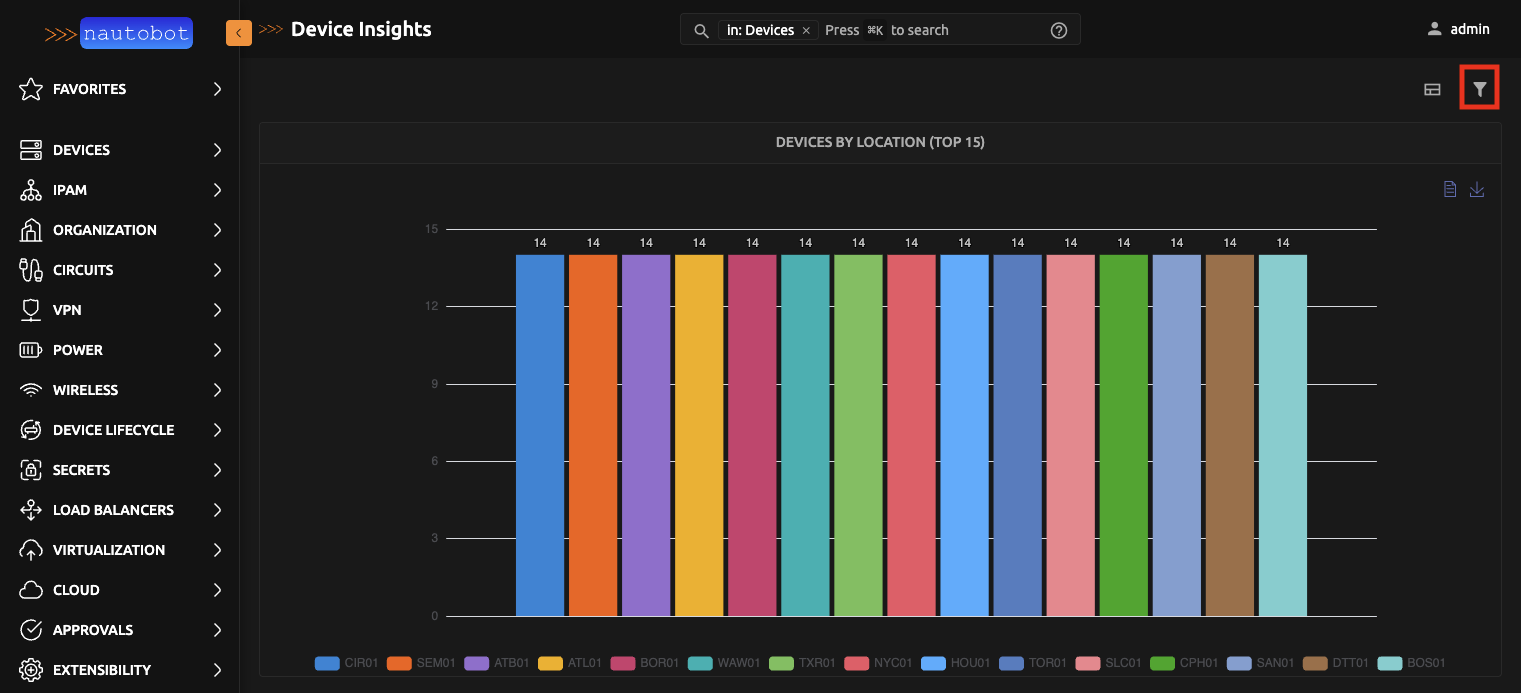
Some dashboards include a filter form in the top-right corner of the page that allows you to narrow the entire dashboard view. For example, the Device Insights dashboard provides a device filter so you can scope all charts and counts to a specific subset of devices. The Job Insights dashboard provides a job result filter, and the Configuration Compliance Insights dashboard provides a compliance filter. Applying a filter refreshes all panels on the dashboard to reflect only the filtered data.
Verifying SSH Connectivity for the Golden Config App
Golden Config relies on SSH to connect to devices for backup and compliance operations. When those jobs begin failing, it is worth confirming that basic SSH connectivity is working before investigating Golden Config configuration. The SSH Verification tool provides a targeted way to test this directly from Nautobot.
How SSH Verification Works
The SSH Verification tool checks that the device has a primary IP address assigned and that credentials are configured via the Nornir plugin. If both are in place, it establishes an SSH connection to the device using the configured network driver and attempts to run a get_config command. A successful get_config response confirms that Nautobot can authenticate, connect, and retrieve configuration data from the device.
Prerequisites
Before running SSH Verification, confirm the following are in place for the target device.
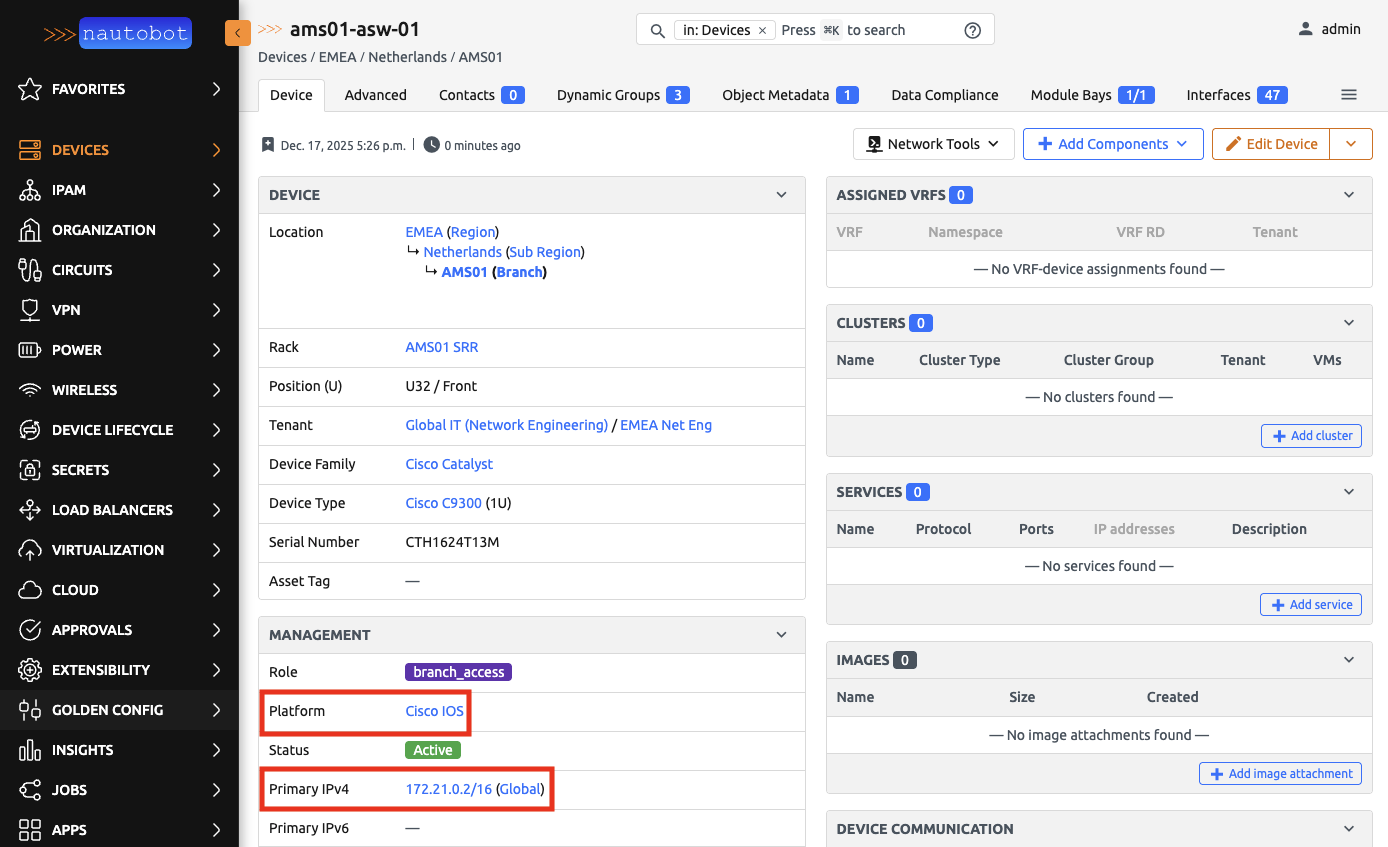
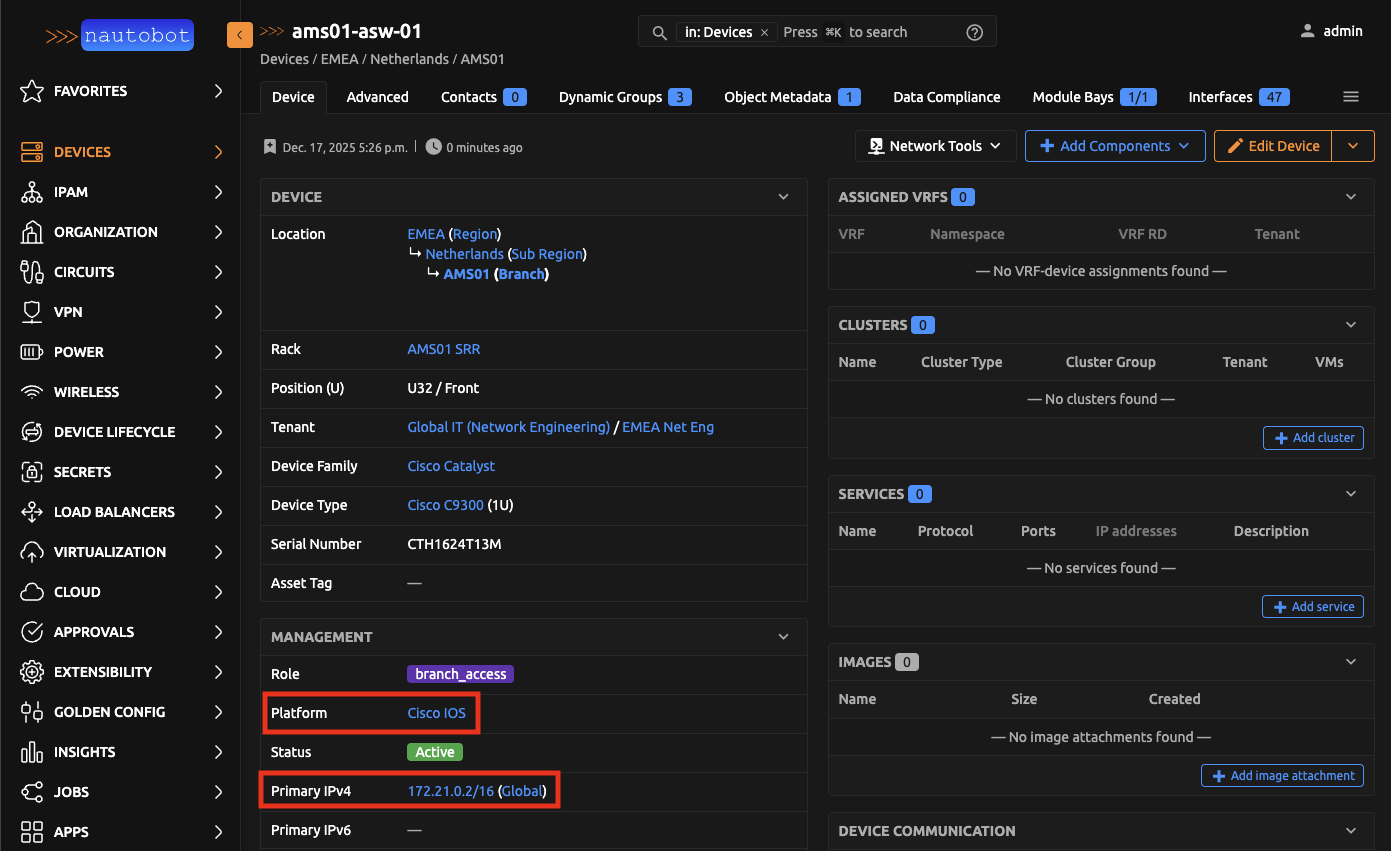
1. Primary IP is assigned
Navigate to the device's detail page. Under the device information section, confirm that a Primary IPv4 or Primary IPv6 address is set. If it is missing, assign one before proceeding.
2. Platform has a network driver configured
Navigate to Organization > Platforms and open the platform assigned to the device. Confirm that the Network Driver field is populated with the correct driver for that platform (for example, cisco_ios or arista_eos). This tells Nautobot which library to use when connecting to the device.
3. Nornir credentials are configured
SSH Verification uses the Nautobot Plugin Nornir to manage device credentials. Refer to the Nornir plugin documentation for instructions on configuring credentials for your environment.
4. The SSH Verification job is enabled
Navigate to Jobs and confirm that SSH is listed and enabled under the Network Tools group. If it is not, contact your administrator to enable it.
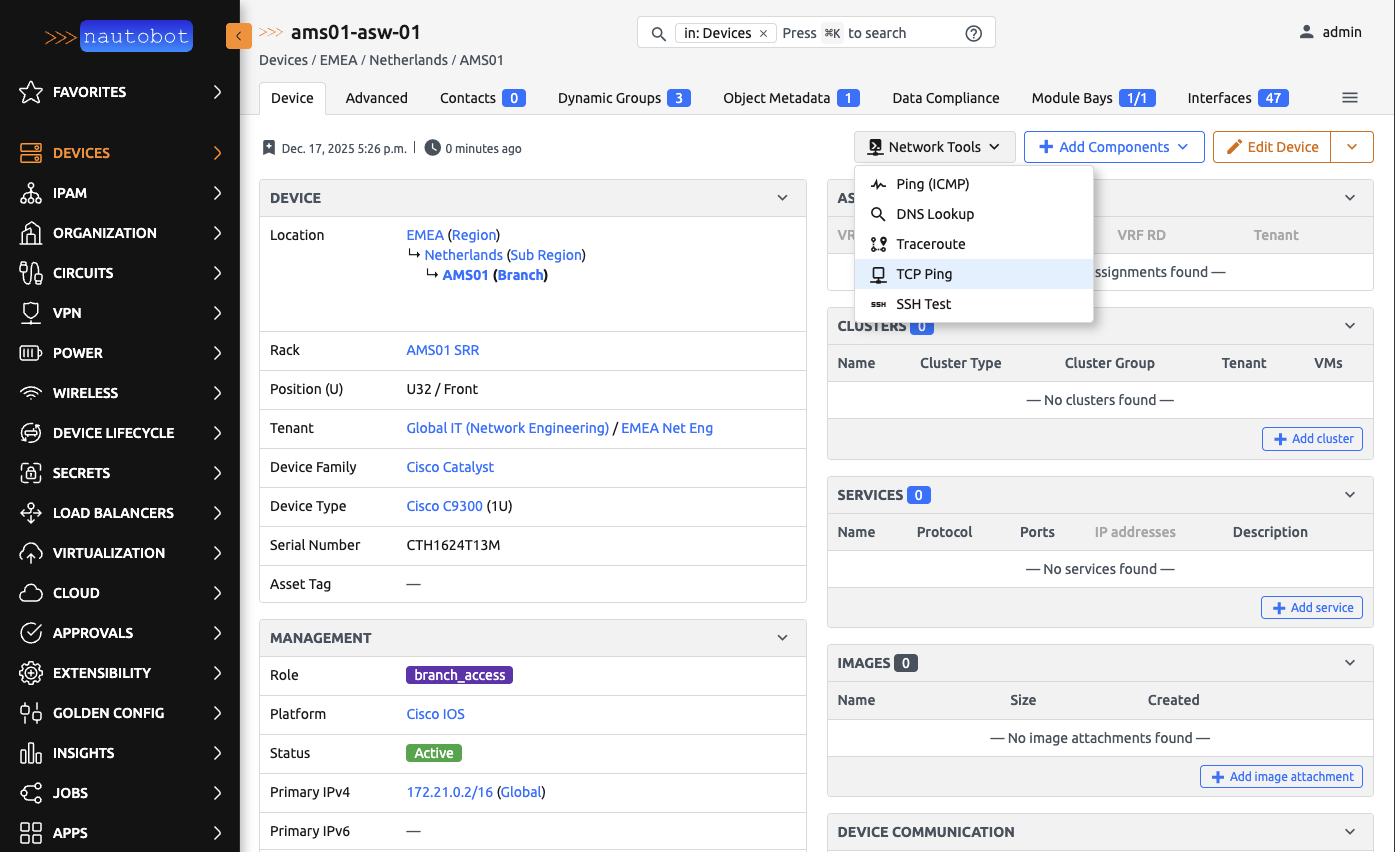
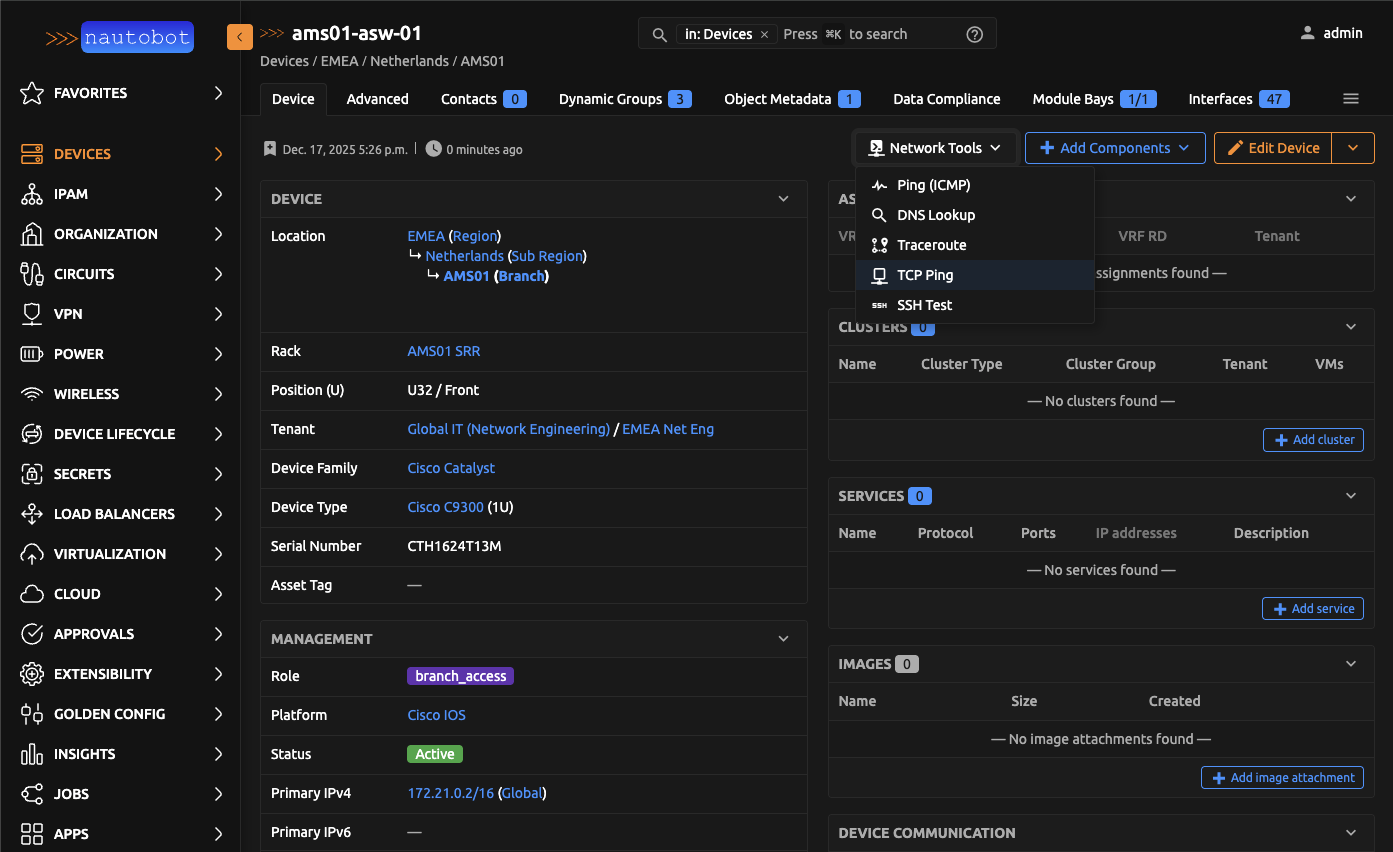
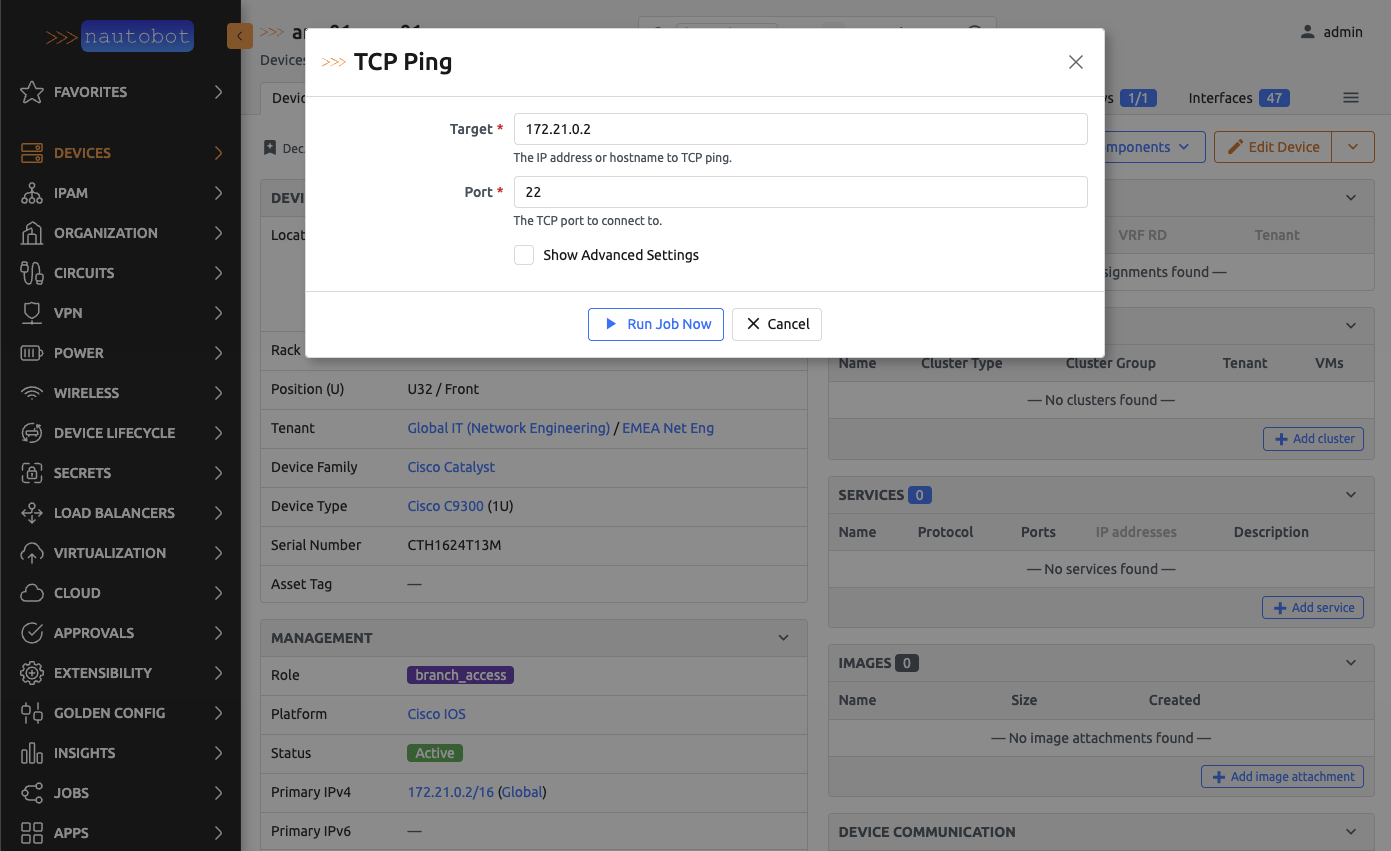
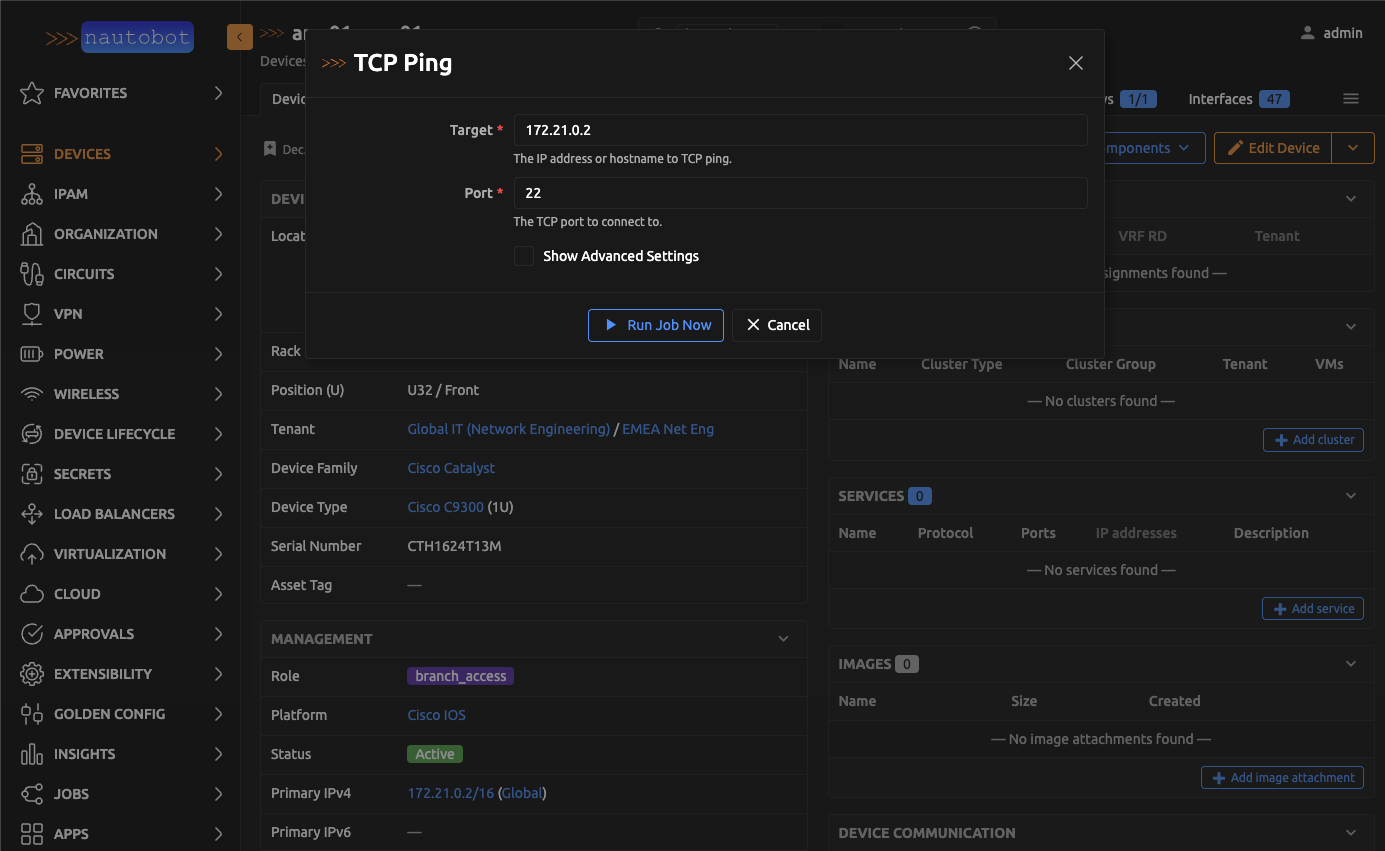
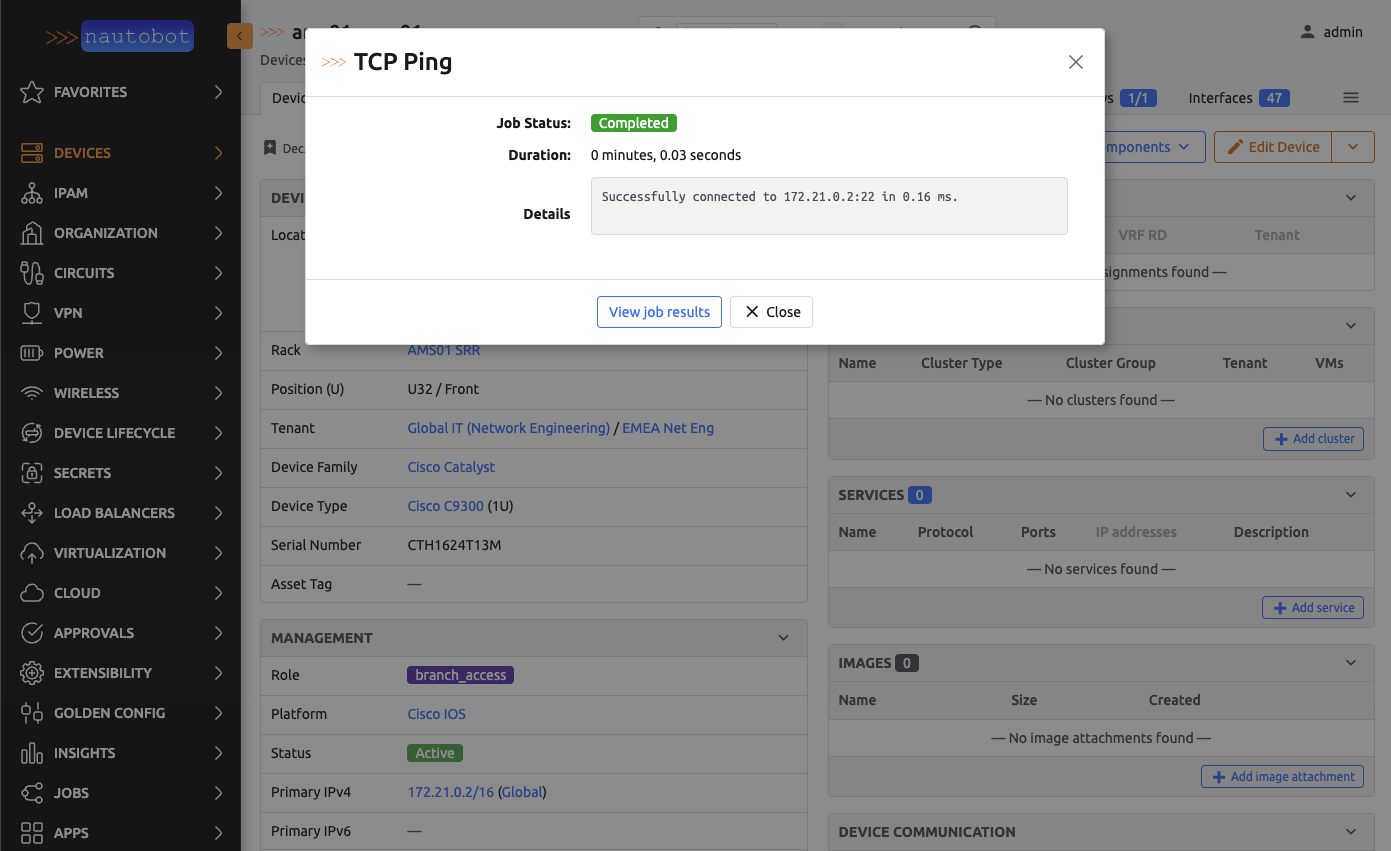
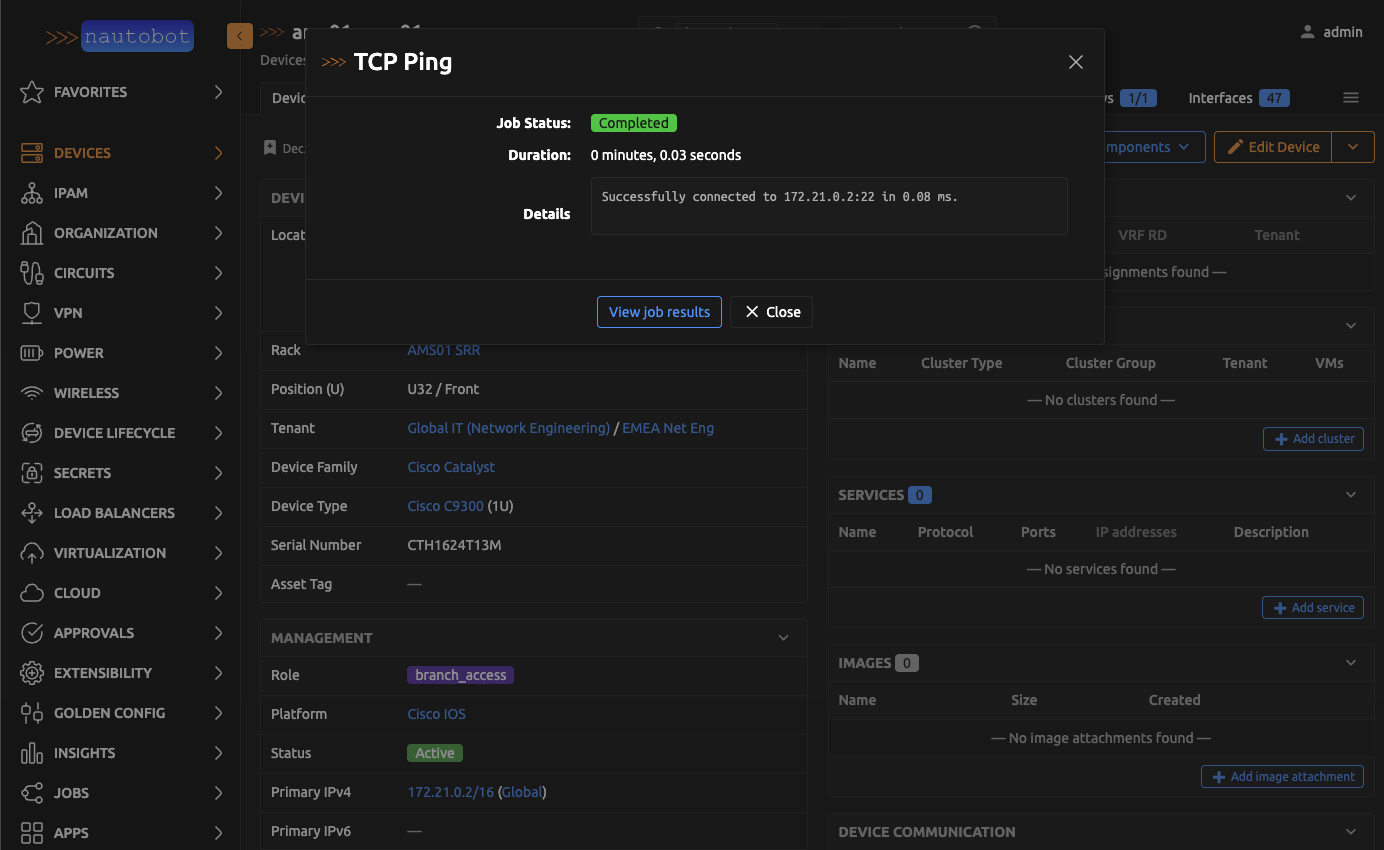
5. TCP Ping the Device
Before testing SSH, confirm that the device is reachable over the network. Run the TCP Ping tool against port 22 (or the appropriate SSH port) on the target device. This verifies basic network connectivity and that the SSH service is accepting connections.
If the TCP Ping fails, the issue is network reachability or the SSH service is not running on the device. Resolve that before proceeding to SSH Verification.
6. Run SSH Verification
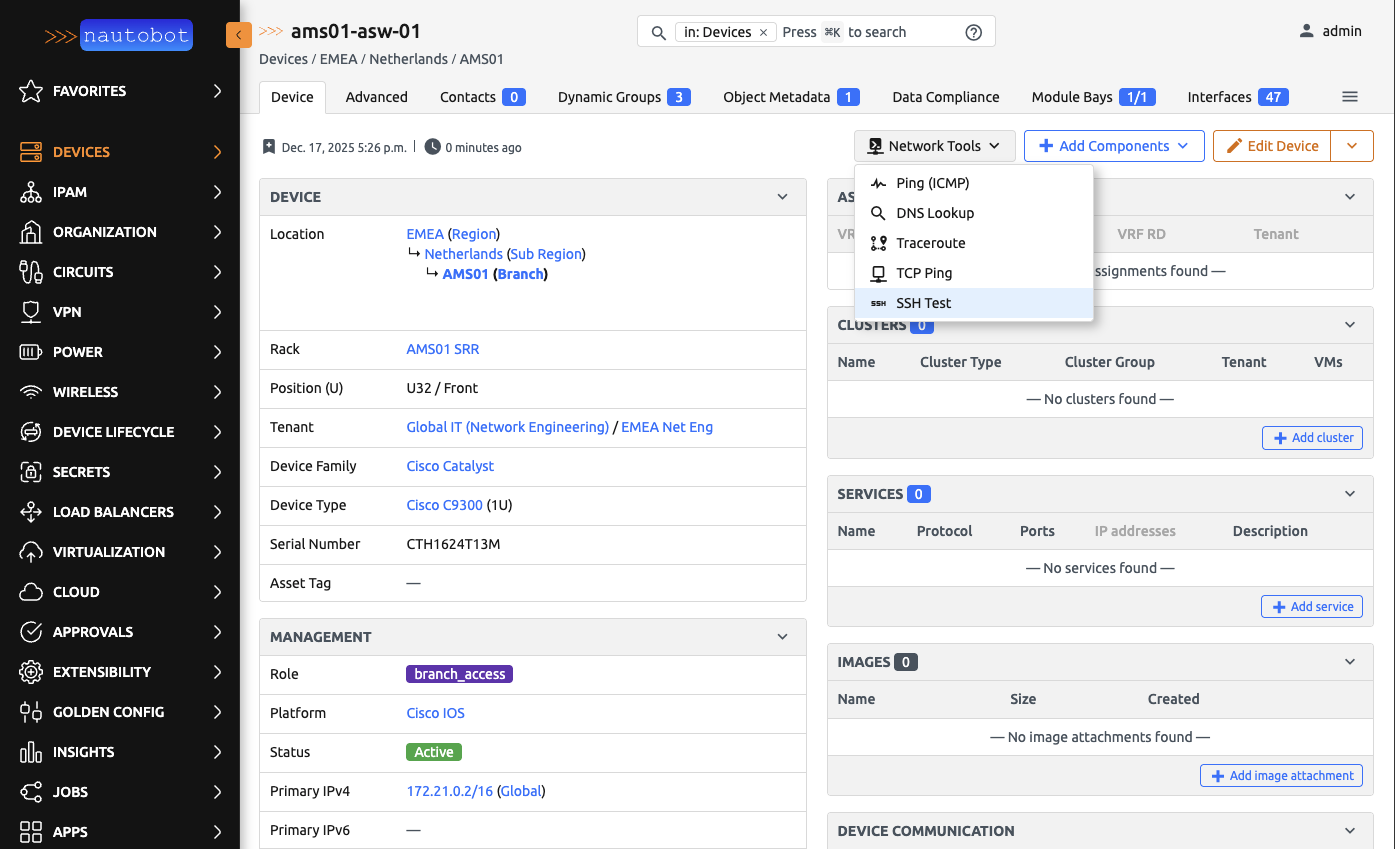
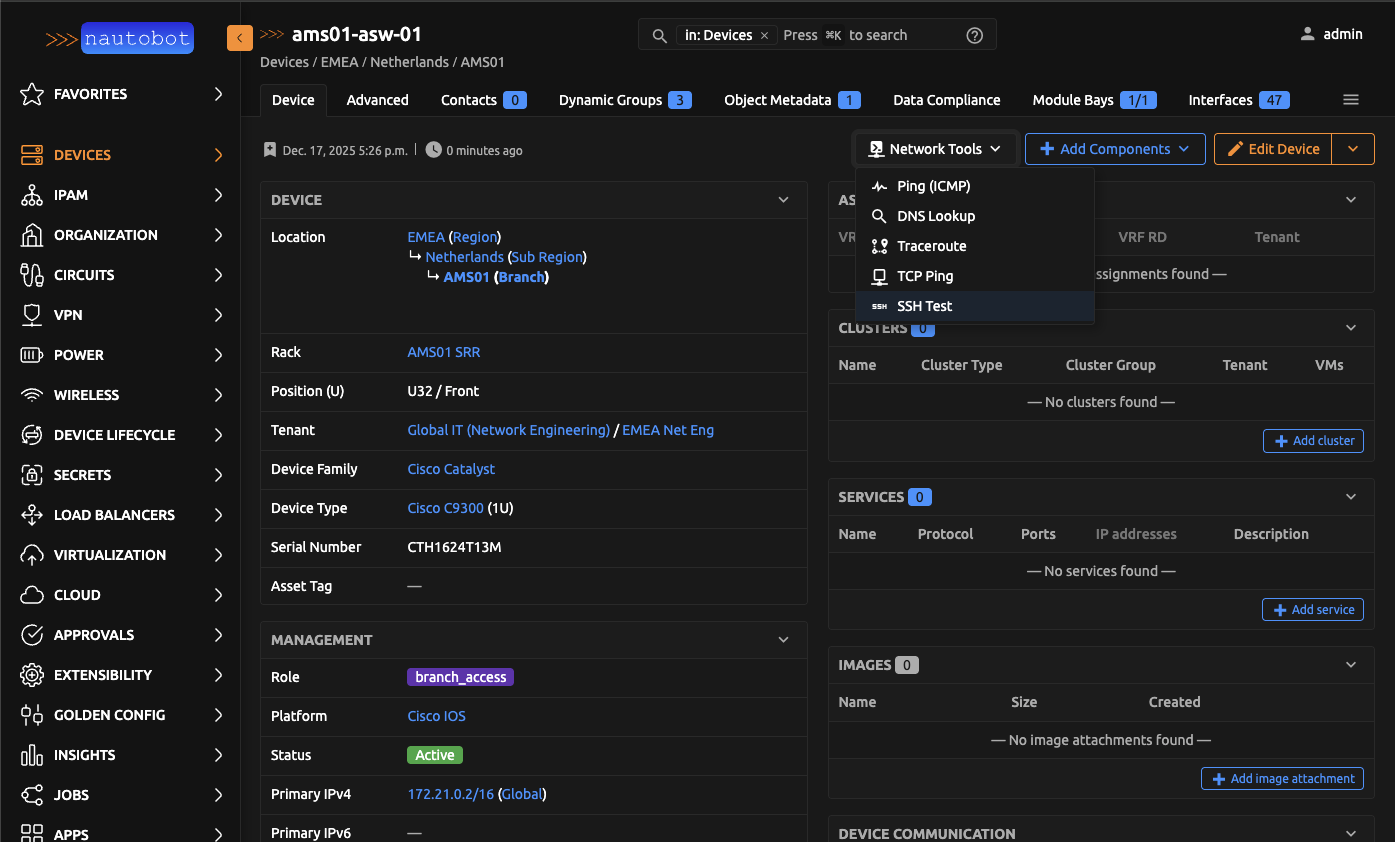
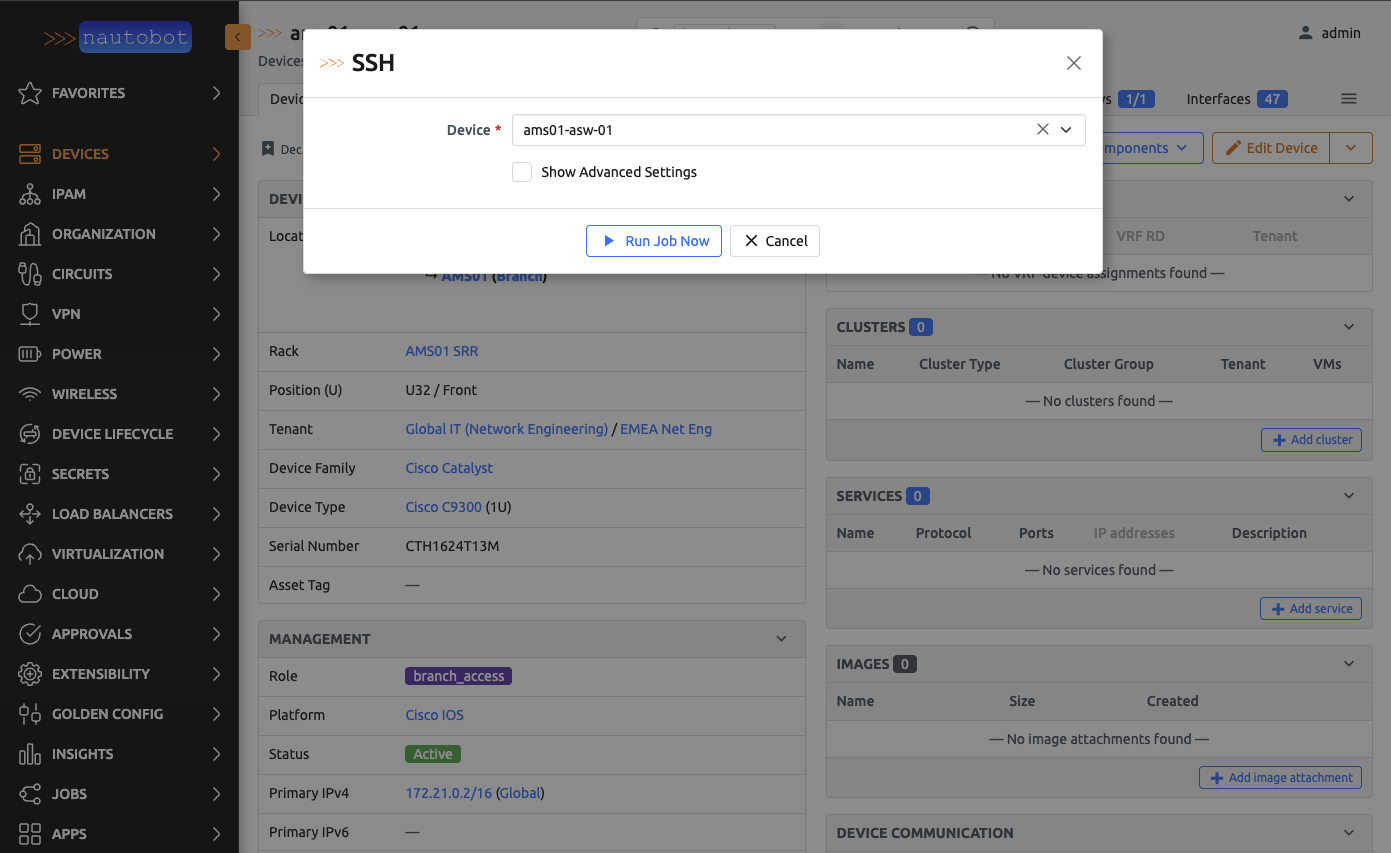
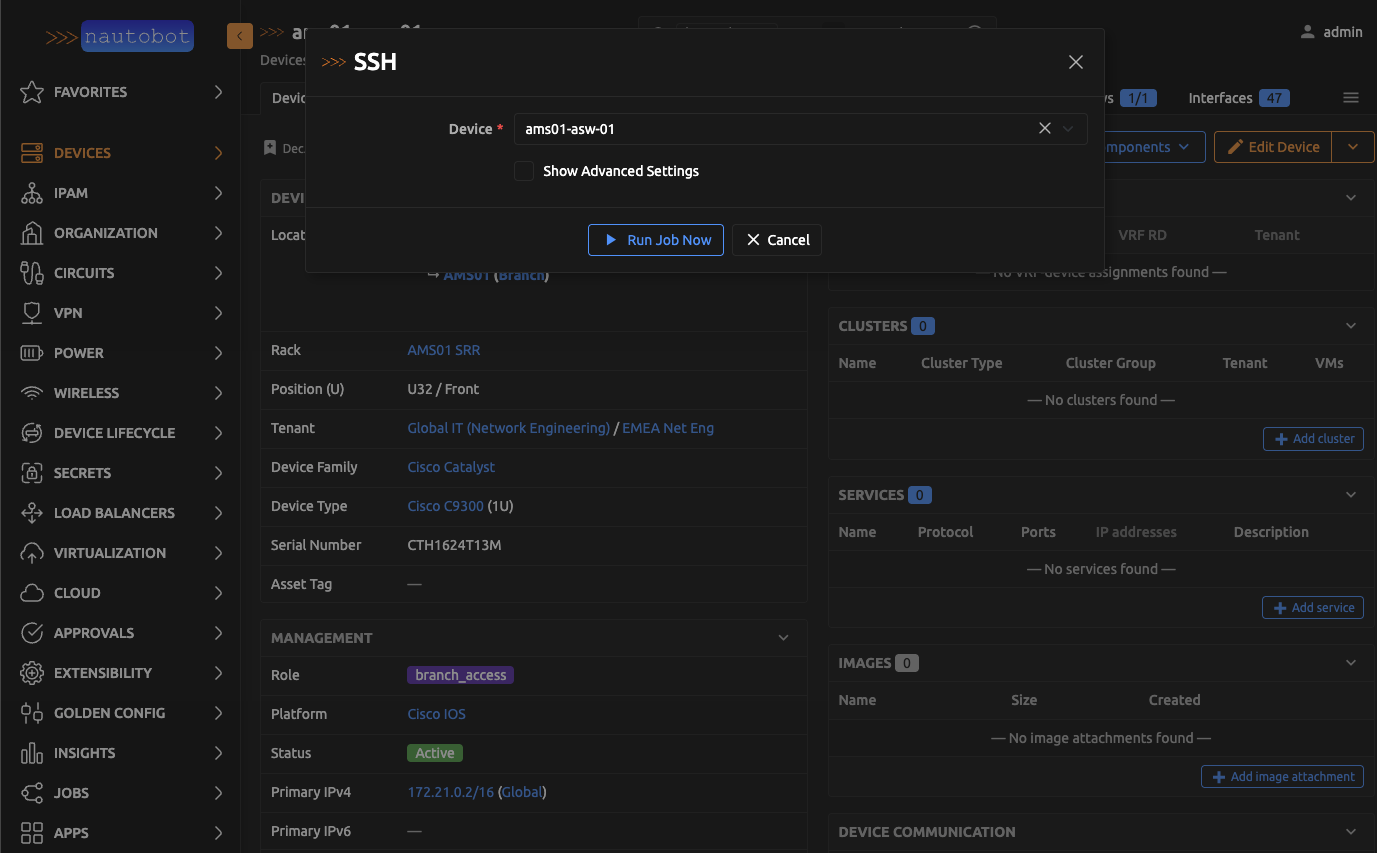
Once TCP connectivity is confirmed, navigate to the device's detail page and click the network tools button. Select SSH Test from the dialog. The device will be pre-filled as the target.
Alternatively, navigate to Jobs, find SSH under the Network Tools group, and select the target device from the dropdown.
Interpreting the Result
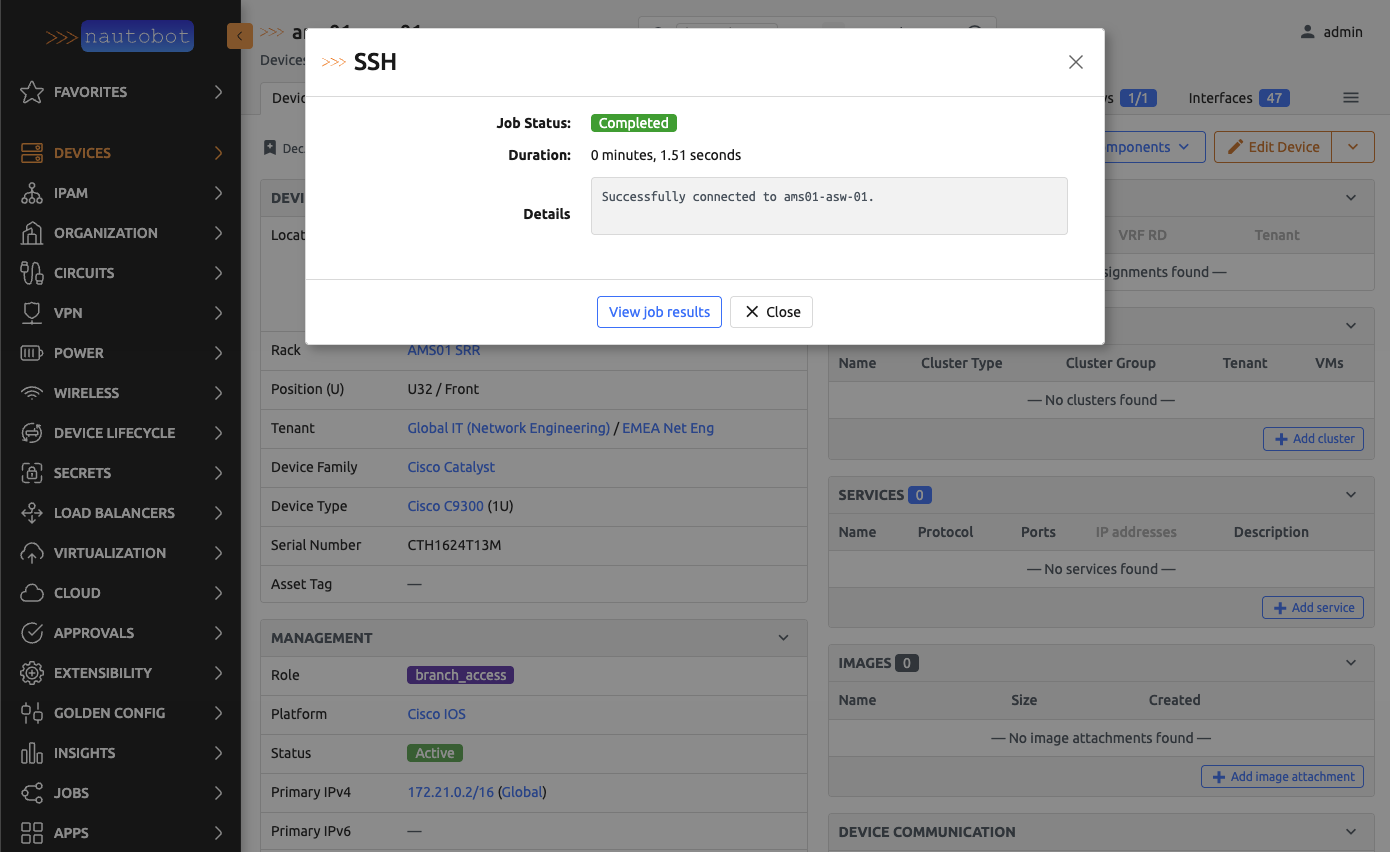
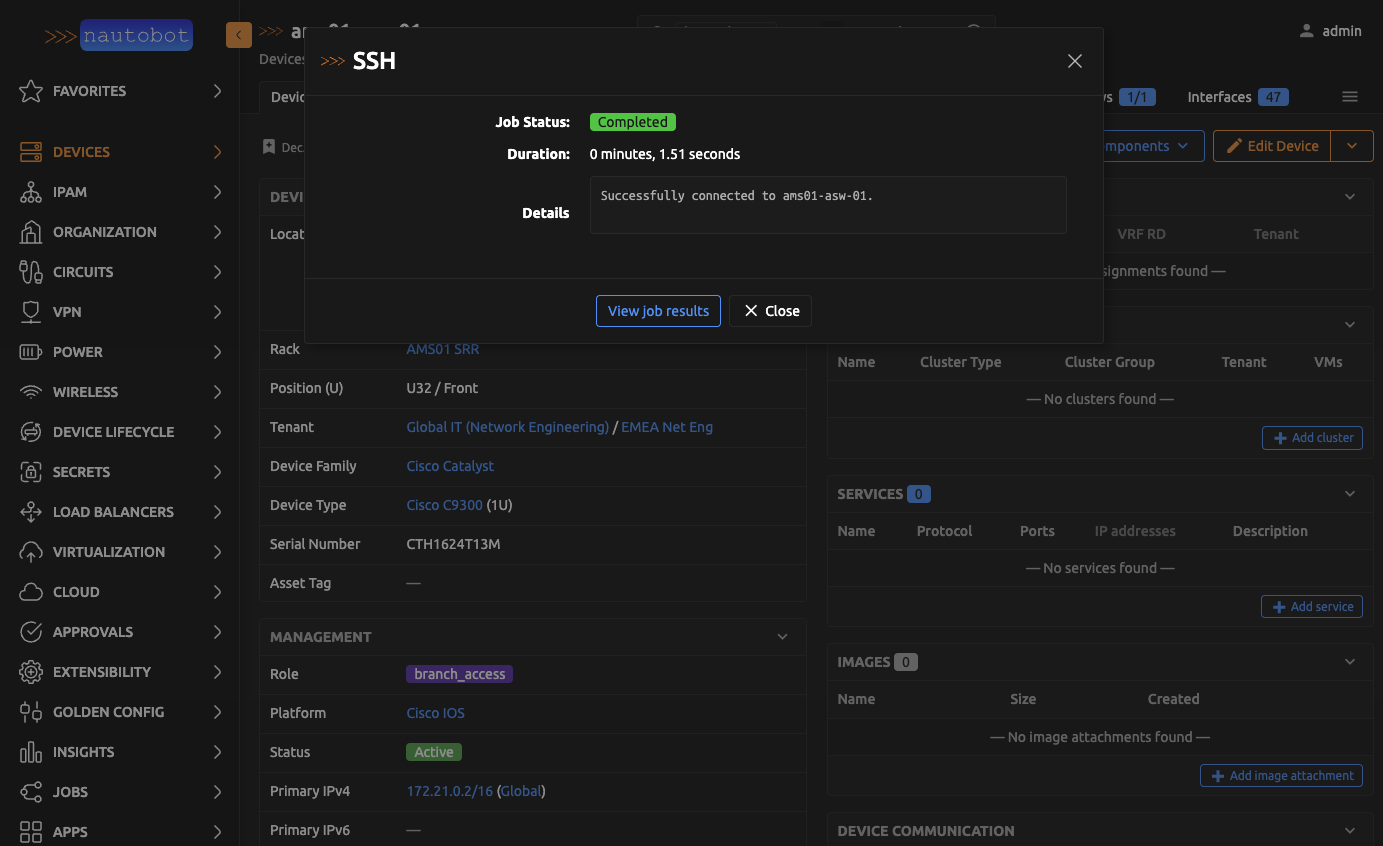
A successful result confirms end-to-end SSH connectivity and authentication. This rules out SSH as the root cause and focuses the investigation on Golden Config configuration or job settings.
If the job fails, the result will include error output to help identify whether the issue is authentication, credential configuration, or driver compatibility.
Collecting Diagnostics for Support
When investigating an issue with your Nautobot environment, the troubleshooting tools can collect a full diagnostic snapshot to share with support. The method depends on whether the Nautobot instance is running or not.
When Nautobot Is Running
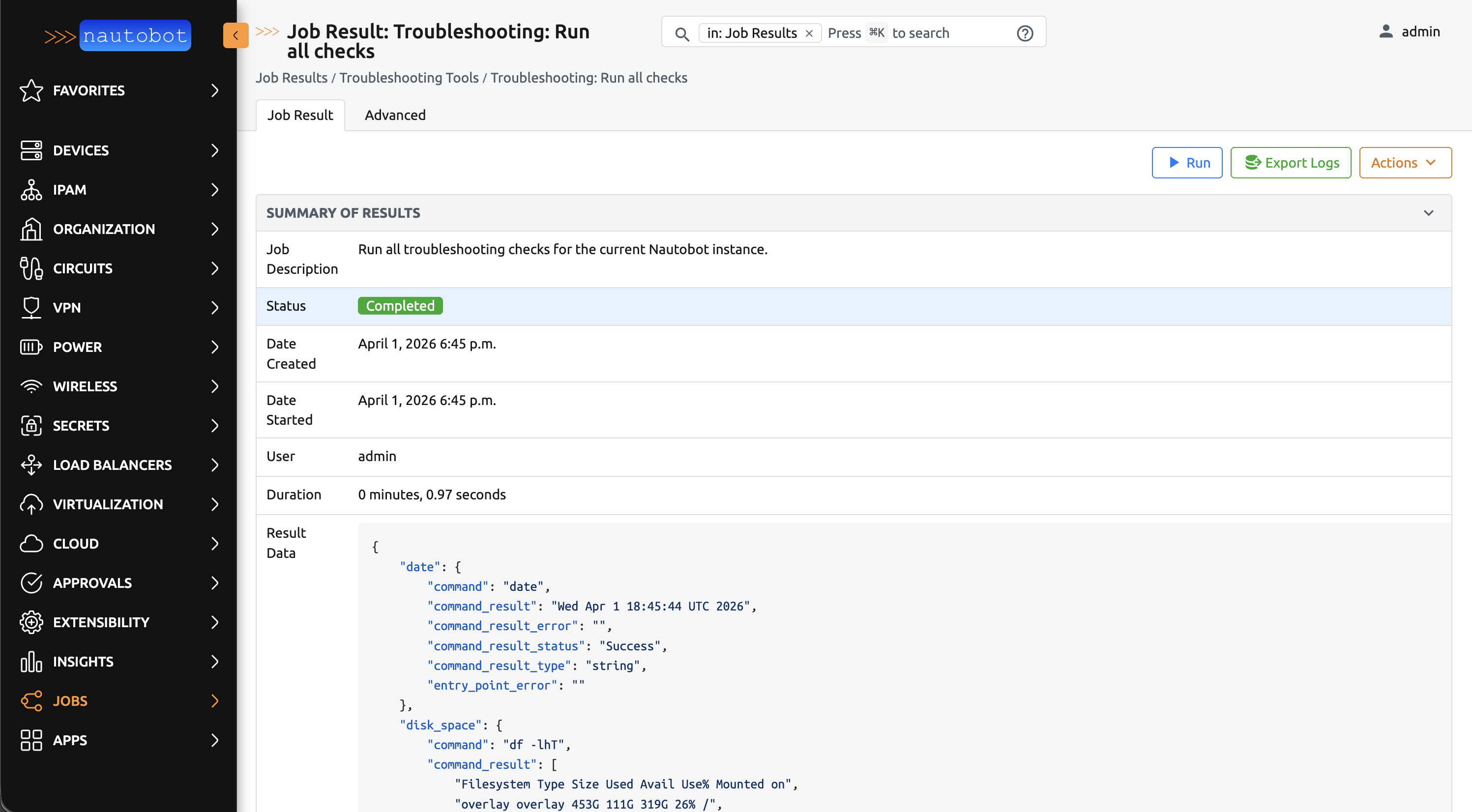
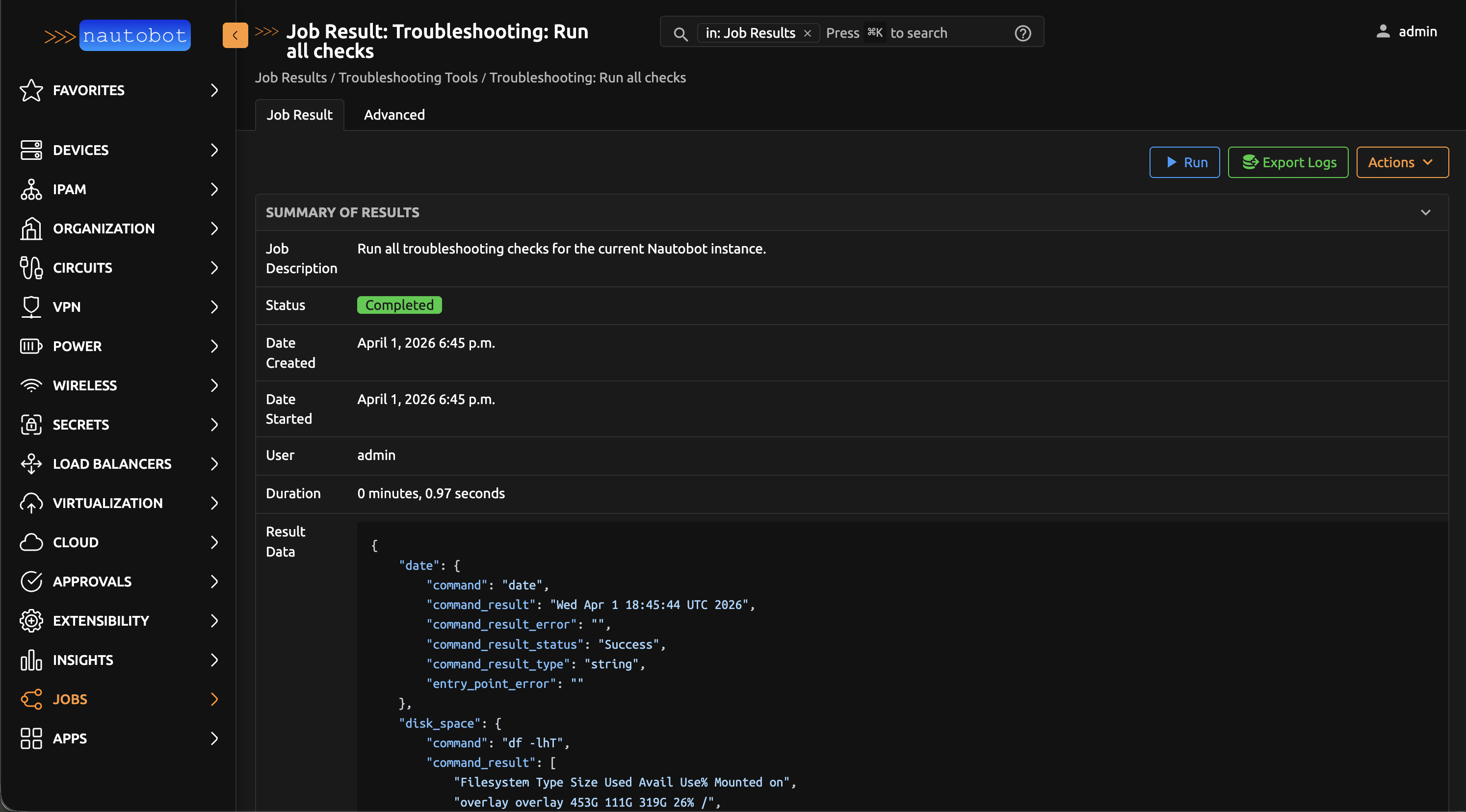
If the Nautobot web interface is accessible, run the Troubleshooting: Run all checks job to collect diagnostics and download the results directly from the job output.
Step 1: Navigate to the job
Go to Jobs in the Nautobot navigation menu and find Troubleshooting: Run all checks under the Troubleshooting Tools group.


Step 2: Run the job
Click Run with the default settings. The job will execute all enabled diagnostic checks and produce a results file for each check.
Step 3: Download the results
When the job completes, a results file will appear as a clickable download link in the job output. Download all of the files and compress them on your local machine.
Step 4: Send to support
Attach the zip file when opening or updating a case through the Network to Code support portal.
When Nautobot Is Down
If the Nautobot instance is unavailable, the nautobot_troubleshooting CLI command can be run directly on the Nautobot host to collect the same diagnostic data without a running instance.
Note
Any troubleshooting checks requiring Nautobot will fail gracefully.
Step 1: Run the troubleshooting command
This runs all enabled checks and saves the results as a zip file. The output will show the file path when complete.


Step 2: Send to support
Attach the zip file when opening or updating a case through the Network to Code support portal.
Warning
Troubleshooting Checks have included some sanitization around commonly used patterns, such as PASSWORD, KEY, and TOKEN. Please review any output before sharing the results.