Using the App
This document describes common use-cases and scenarios for this App.
General Usage
Leveraging Nautobot to perform automated software upgrades on networking equipment.
Use-cases and common workflows
This app provides composable jobs that can be used individually as needed to perform the following tasks:
- Using Jobs to transfer software to a network device from a central software repository (HTTP(S), FTP, SFTP, etc).
- Using Jobs to save the running configuration of a device.
- Using Jobs to reboot a network device.
- Manage the lifecycle of software on a network device with a workflow execution to upgrade a device.
Individual Jobs for Custom Workflows
Each step of the upgrade process is implemented as a separate Nautobot Job that can be run independently:
| Job | Description |
|---|---|
| Transfer Software Image to Device | Transfers one or more software image files to a device from a remote URL. |
| Save Device Configuration | Saves the running configuration to the startup configuration the device uses at boot. |
| Install OS on Device | Installs the new OS image and reboots the device. |
| Reboot Device | Reboots a network device with an optional wait for reload. |
| Check Running Version | Reads each device's running OS version and compares it against the target Software Version. |
| Update Device Software Version | Updates the Software Version association on the device in Nautobot. |
| Execute OS Upgrade Workflow | Orchestrates all of the above jobs in sequence with a custom results view. |
Because each job can be run on its own, you can use an external orchestrator (such as Nautobot Job Hooks, an external workflow engine, or a CI/CD pipeline) to build custom upgrade workflows that fit your operational requirements. For example, you might run the file transfer job across an entire fleet in advance, then execute the install and reboot jobs during a maintenance window on a per-device basis.
Platform Support
OS upgrades supports a mix of vendors and device types; the upgrade behavior differs per platform, in particular reboot behavior, install mode handling on IOS/IOS-XE, and image requirements on IOS-XR. See the Platform Support Matrix for the full breakdown, including the IOS-XR golden ISO requirements.
Built-In Version Checks
The Execute OS Upgrade Workflow job runs the Check Running Version job twice:
- Before the upgrade — any device already running the target version is reported and removed from the rest of the workflow, so images are not transferred to (or installed on) devices that don't need them.
- After the install — each device's running version is read back and compared against the target Software Version. A mismatch fails the workflow before the new Software Version is assigned in Nautobot.
SoftwareVersion.version must match the device's show version output exactly
The comparison is an exact string match (case-insensitive, surrounding whitespace ignored) — no version normalization is performed. For example, a Software Version of 16.12.09 does not match a device reporting 16.12.9.
A mismatched value causes the pre-check to treat devices already on the target version as needing an upgrade, and causes the post-check to report a successful upgrade as failed. Always set SoftwareVersion.version to the version string exactly as the device displays it in show version.
Cancelling a Running Job
Upgrade jobs can be long-running — the Install OS on Device job allows up to three hours per run. If a job needs to be stopped (for example, it is taking longer than expected or a worker died mid-job), Nautobot's built-in job cancel can terminate a running job or clean up a stuck job record from its Job Result view. See Job Cancel in the Nautobot documentation (requires Nautobot v3.2.0 or later).
Warning
Cancelling an in-flight upgrade job kills the task immediately with no cleanup. The device itself may still be mid-transfer or mid-install — verify device state before re-running the job.
File Size Validation
The Transfer Software Image to Device and Execute OS Upgrade Workflow jobs both accept a Skip File Size Check toggle (disabled by default). The toggle is the master switch: by default, the job validates the image size against the target device's available disk space before starting the transfer. Check the toggle to bypass that validation.
By default (toggle unchecked):
- If the selected Software Image File has
image_file_sizepopulated, that value is forwarded to pyntc. - If
image_file_sizeis empty and the download URL is HTTP(S), the job issues aHEADrequest withAccept-Encoding: identityand uses the response'sContent-Length. IfContent-Lengthis not returned, it falls back to a cancelledGET. If neither yields a size, the job fails before starting the transfer. - If
image_file_sizeis empty and the download URL is not HTTP(S), the job fails with a message asking you to populateimage_file_sizeor check the Skip File Size Check toggle. - pyntc then checks the target device's available disk space against the resolved size before starting the transfer. If the device lacks room, pyntc raises
NotEnoughFreeSpaceErrorand the job surfaces this as an explicit "Insufficient disk space on device" error so the cause is distinguishable from checksum or generic transfer failures.
When the toggle is checked, the size path is skipped entirely — no HEAD probe, no pyntc free-space check. Check it when your image source does not report Content-Length and you have not populated image_file_size on the Software Image File, or when you otherwise need to bypass the validation.
Operational Compliance Integration
When the Nautobot Operational Compliance app is installed alongside OS Upgrades, the Execute OS Upgrade Workflow job automatically expands to include pre-change and post-change operational state checks. This provides a built-in mechanism for validating that network devices are healthy before and after an upgrade.
How It Works
With Operational Compliance enabled, the upgrade workflow chain expands from:
to:
Pre Check → Transfer Image File(s) → Save Configuration → Install OS → Post Check → Upgrade Validation → Assign New Software
- Pre Check — Collects command output from devices before the upgrade begins using the Operational Compliance
CollectCommandOutputjob. This captures the baseline operational state. - Post Check — Collects the same command output after the OS install and reboot, capturing the post-upgrade operational state.
- Upgrade Validation — Runs the Operational Compliance
CompareCommandOutputjob to compare pre and post check results against the selected validation rules, highlighting any unexpected changes.
Selecting Validation Rules
When Operational Compliance is installed, the Execute OS Upgrade Workflow job form will display additional input fields:
- Validation Rules — Select individual validation rules to run during pre/post checks.
- Validation Rule Groups — Select validation rule groups to run during pre/post checks.
- Fail Fast — When enabled (default), the upgrade validation will stop on the first error encountered.
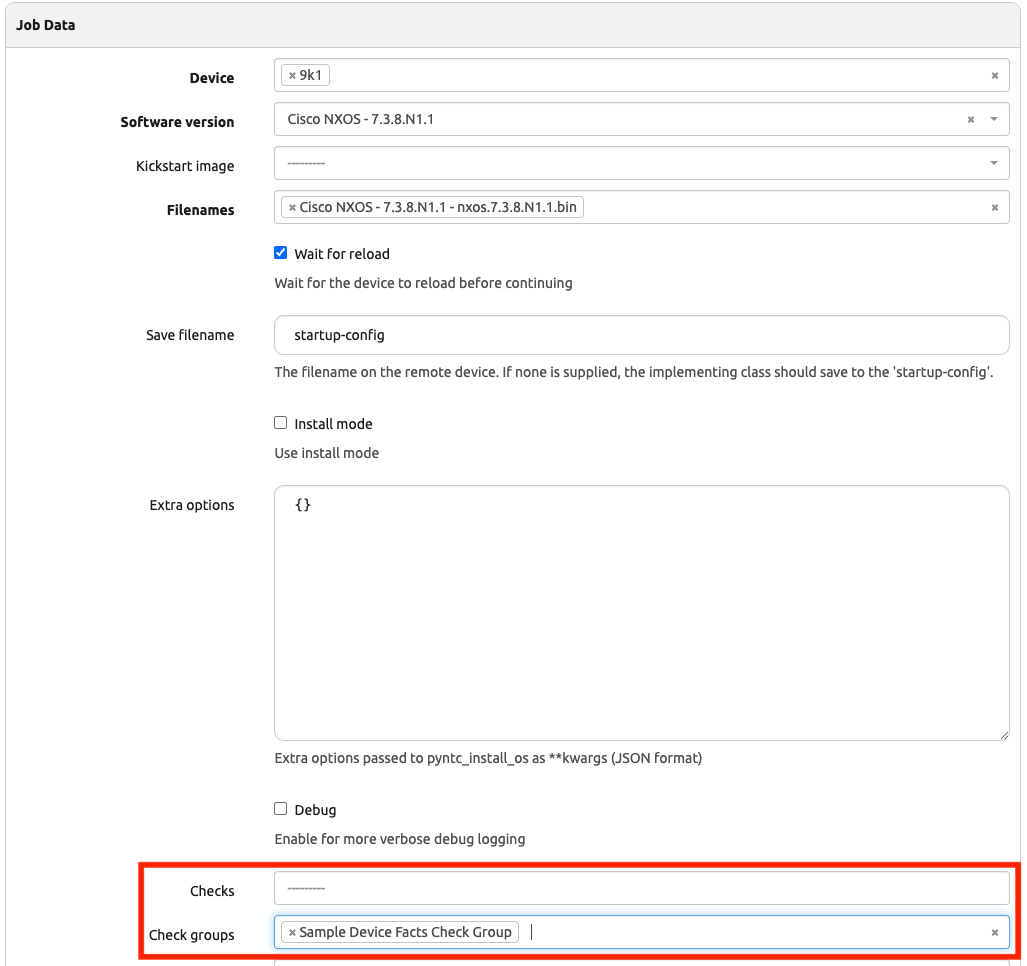
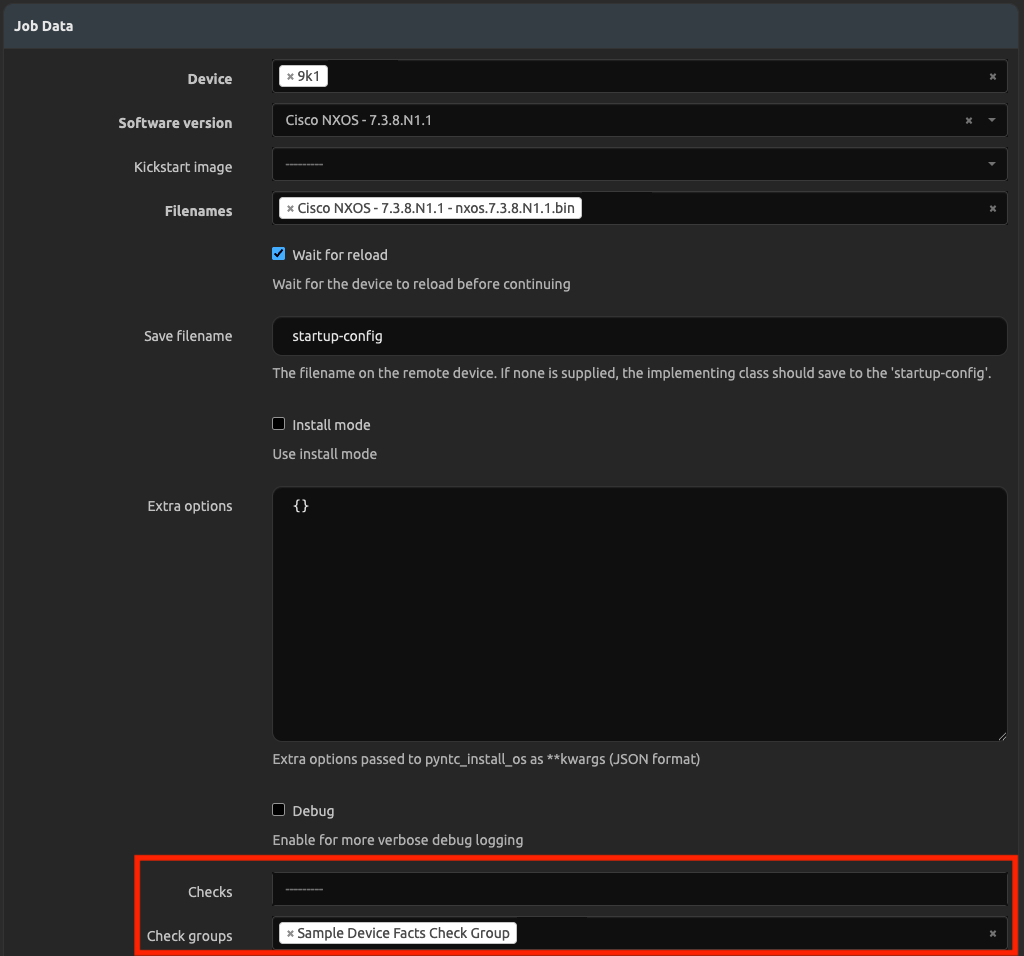
If no validation rules or validation rule groups are selected, the Pre Check, Post Check, and Upgrade Validation steps are automatically skipped.
Viewing Results
The custom job results view reflects the expanded workflow, showing the status of each step including the compliance checks:
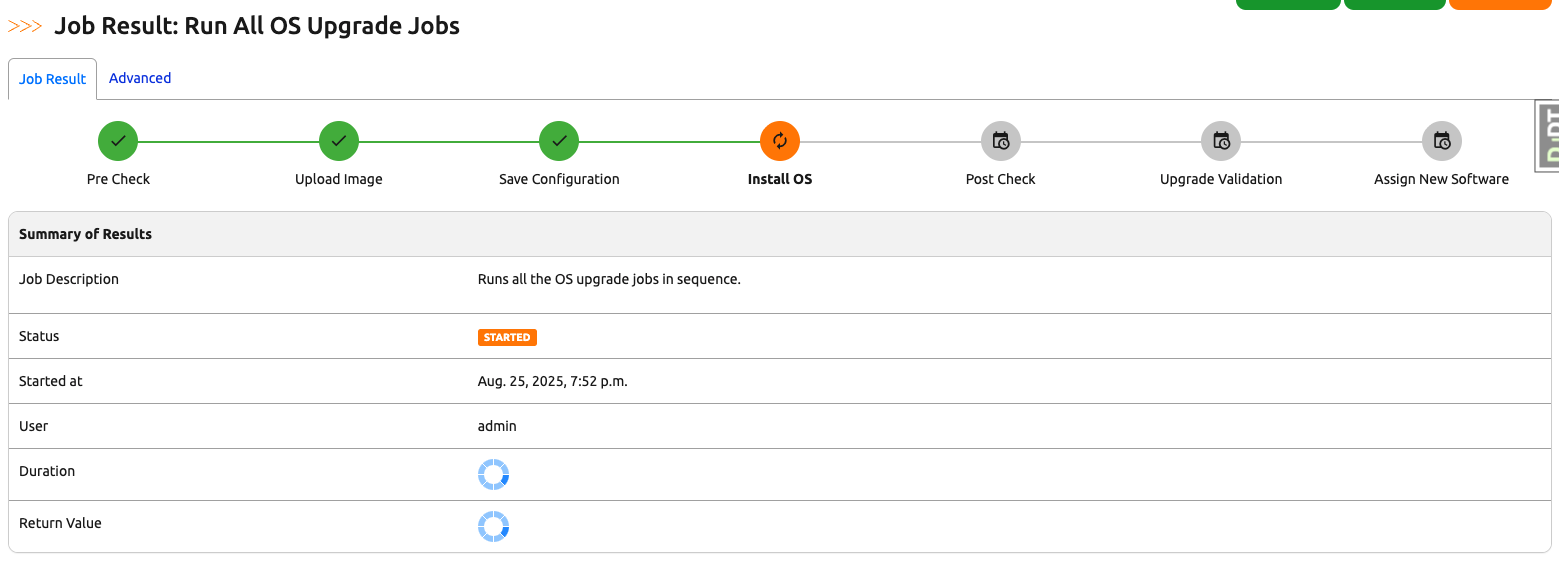
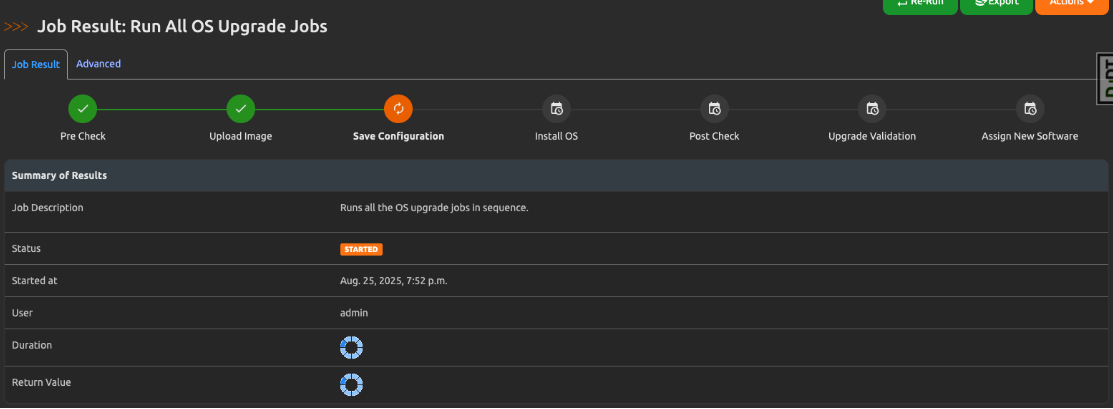
Each step in the workflow displays one of the following statuses: pending, started, finished, skipped, or failure.