Getting Started with the App
This document provides a step-by-step tutorial on how to get the App going and how to use it.
Install the App
To install the App, please follow the instructions detailed in the Installation Guide.
First steps with the App
In order to run all of the OS Upgrade jobs on any given device, you must have the following data populated:
- Software Versions and Software Image Files.
- Both the current version and the new validated version to upgrade to.
- Devices with Primary IP address, Platform, Device Type, Software and Software Image Files, and Secrets Group.
Here's how to set this up:
-
Create and document Software Version(s).
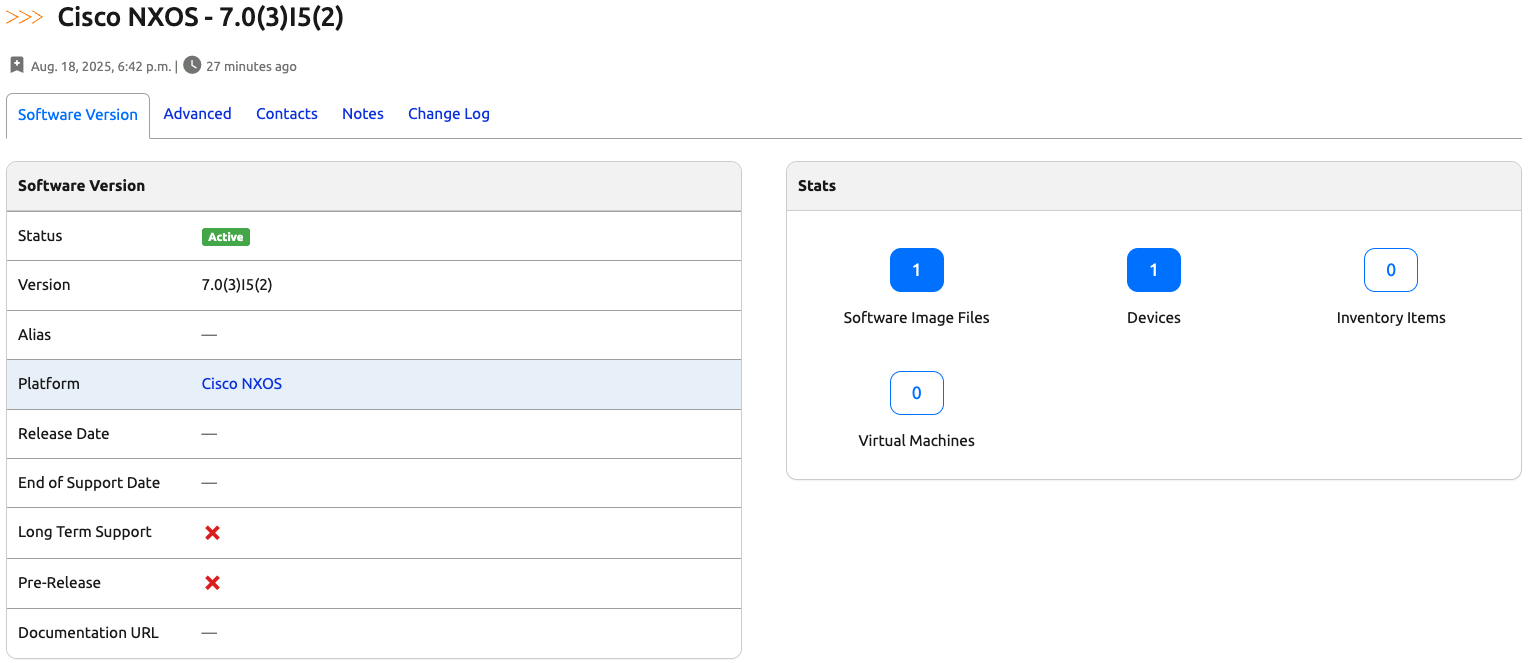
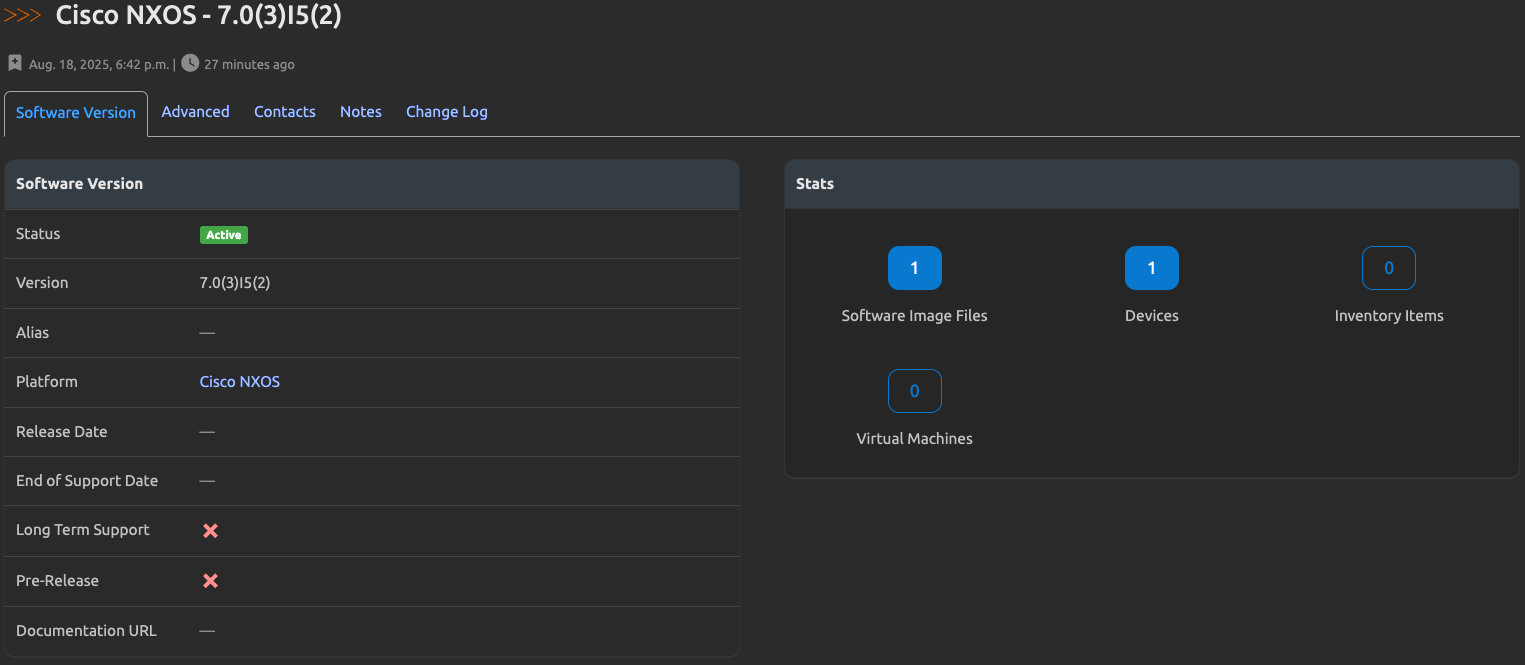
"Software Version" is a core Nautobot data model that can be used to track software versions and their metadata. Below we demonstrate a software version for Cisco NX-OS. See Supported Platforms for the full list of platforms the app handles, each with platform-specific behavior for file transfers and OS installs.
Info
Repeat the steps for all the software versions you need to track. Below represents two versions we need to demonstrate the application functionality.


-
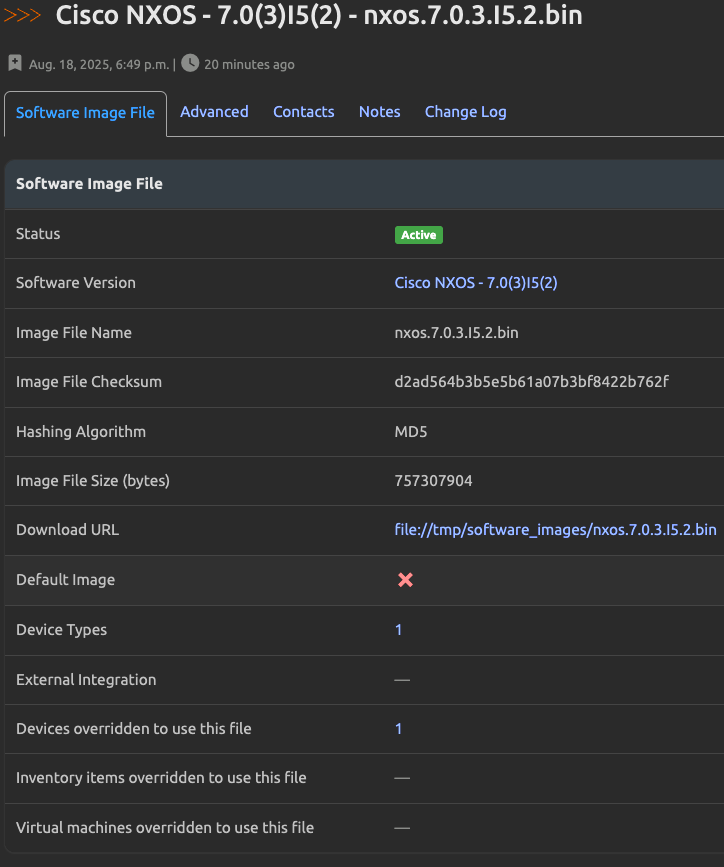
Link the new Software Versions to a Software Image File and provide a Download URL, Hashing Algorithm, and Image File Checksum.
Warning
All three fields (
download_url,hashing_algorithm, andimage_file_checksum) are required for file transfers to succeed. The file transfer job will fail if any of these are missing.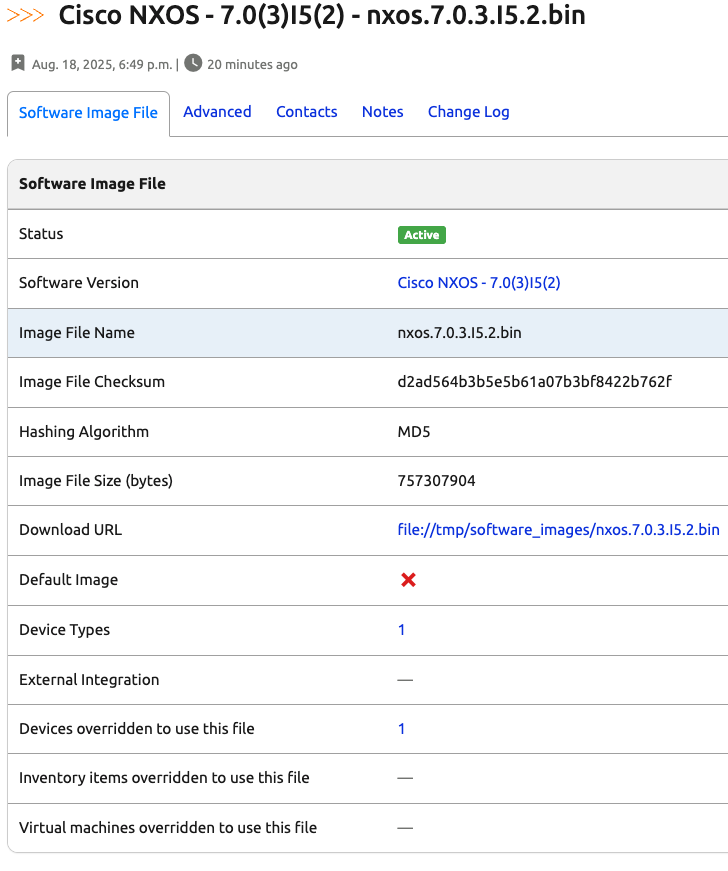
Info
Repeat the steps for all the software image files. Below represents two software files we need to demonstrate the application functionality.


Tip
If your file server requires authentication, you must also configure an External Integration with a Secrets Group and assign it to the Software Image File. See Download Credentials via External Integration for details.
-
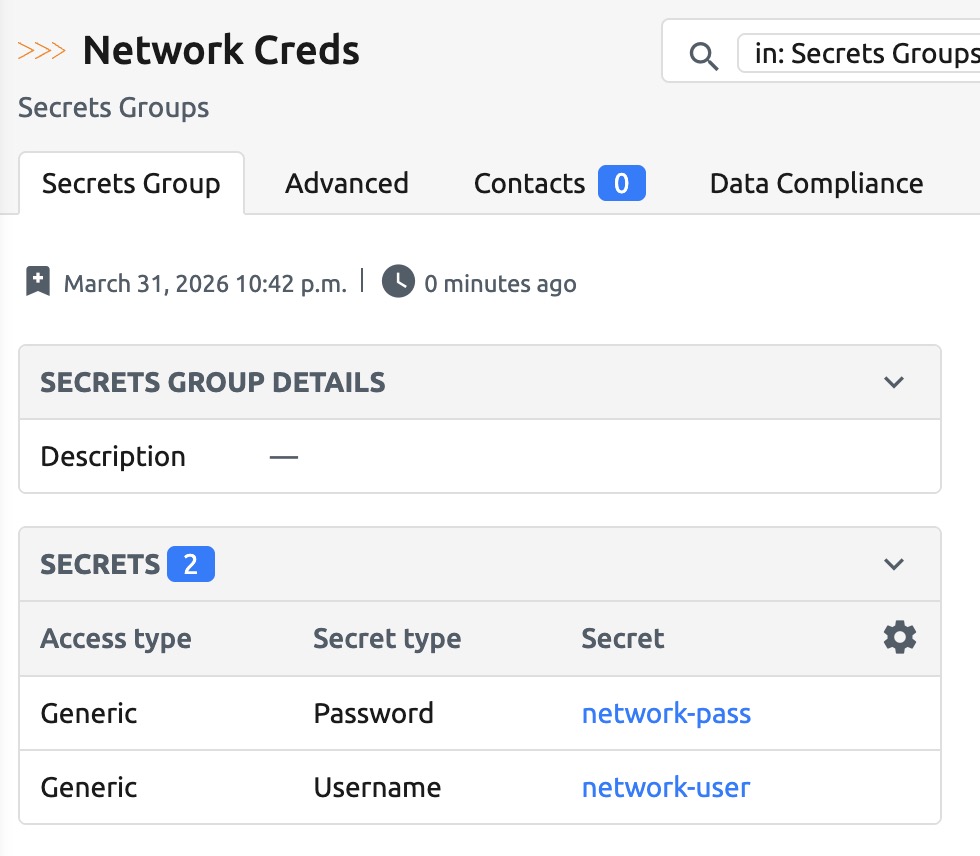
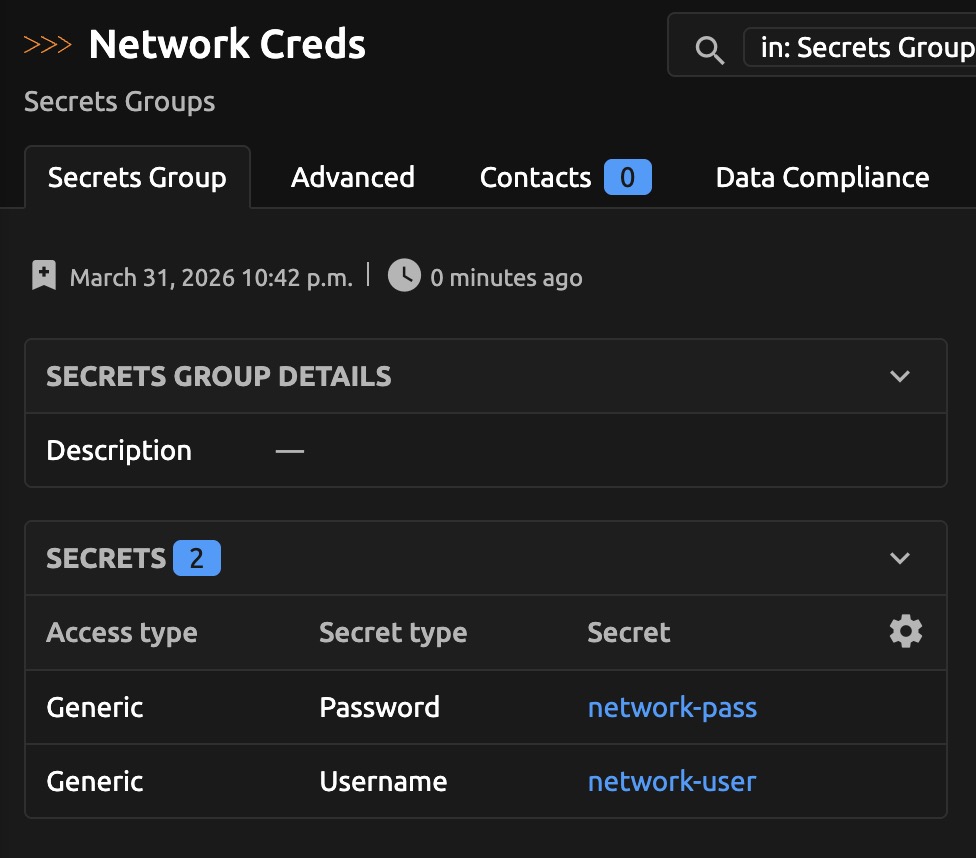
Properly setup Network Credentials via Secret Groups.
-
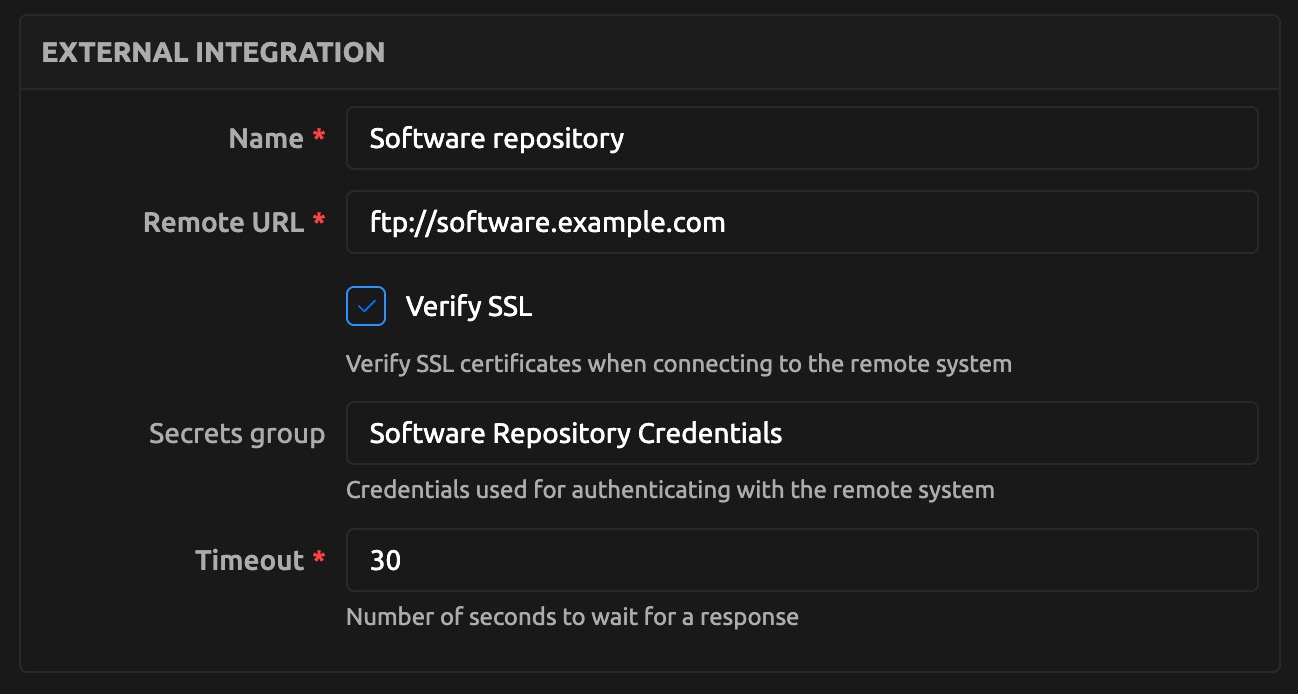
Create an External Integration and Secrets Group with the software repository credentials.
The Secrets should use the
Genericaccess type withUsernameandPassword(orToken) secret types. See the external interactions section for more details.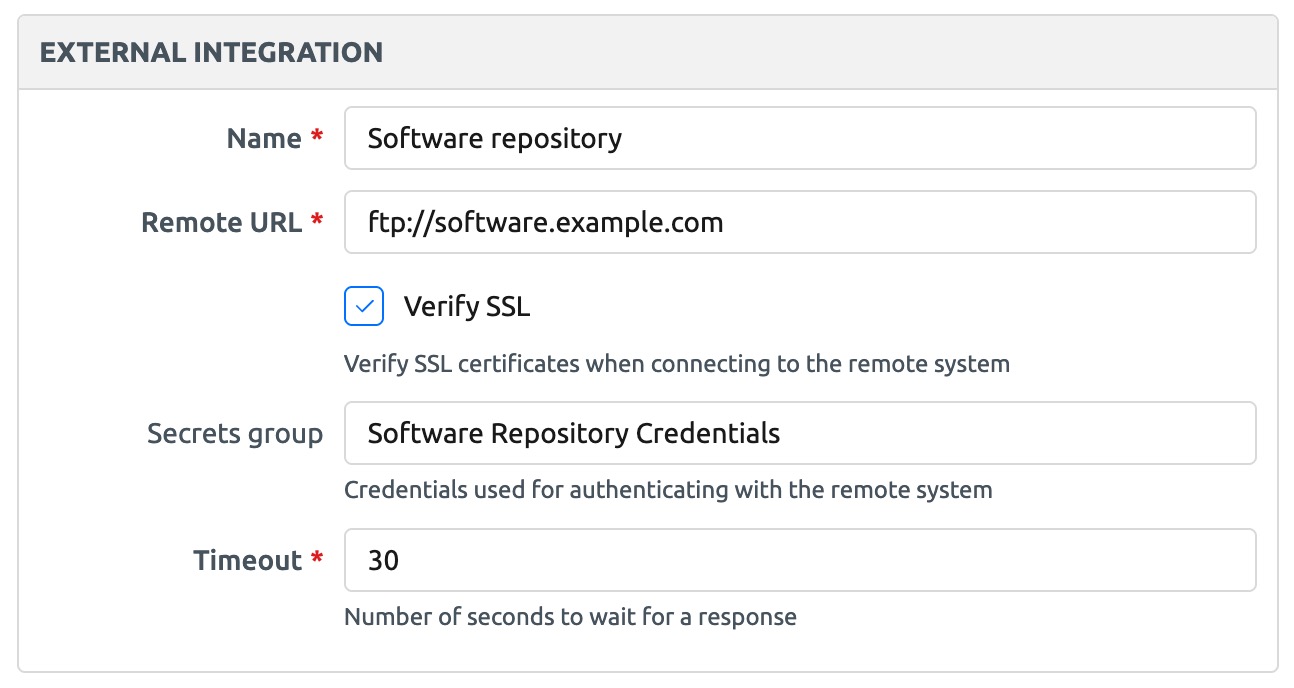
-
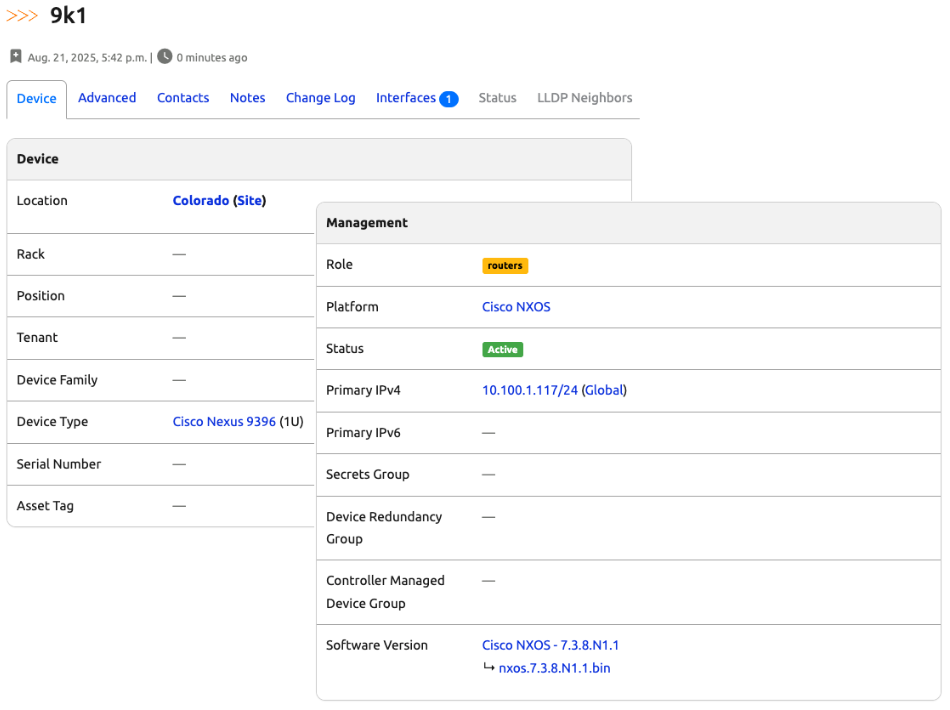
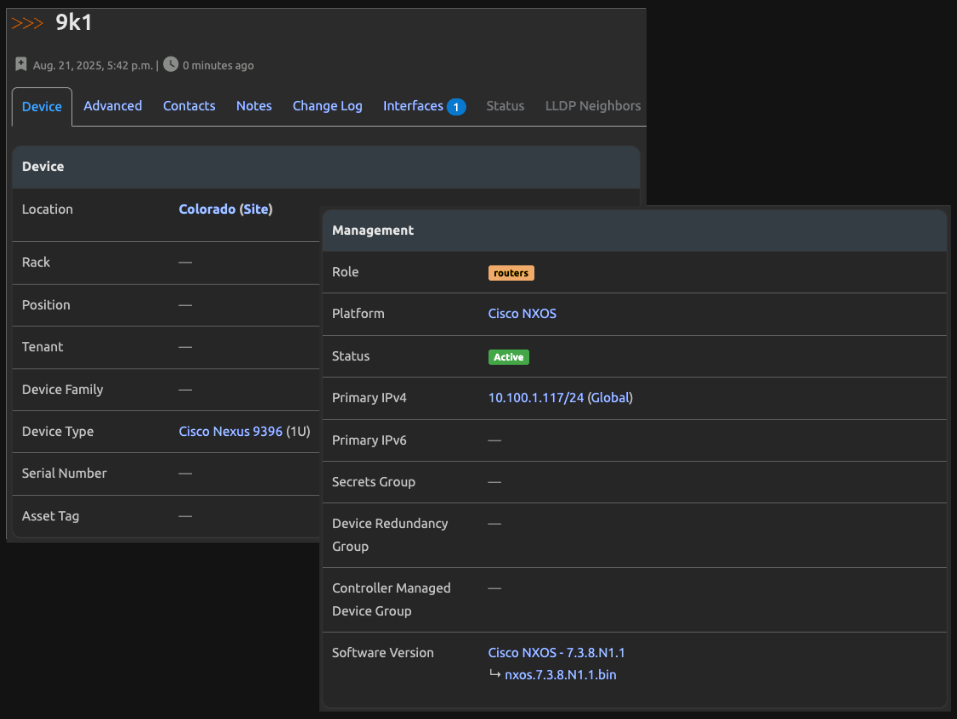
Ensure the in-scope devices are configured with a Primary IP address, Platform, and Device Type.
Next Steps
Once the required data dependencies are met, you are ready to upgrade a network device, the steps below show how to customize the Nornir configurations.
-
Customize device specific Nornir configurations.
Different operating systems may have the requirement to tweak different Nornir configuration options. This can be accomplished globally in the
nautobot_config.pyfile under thenautobot_plugin_nornirapp configuration."nautobot_plugin_nornir": { "use_config_context": {"secrets": False, "connection_options": True}, # Optionally set global connection options. "connection_options": { "pyntc": { "extras": { "timeout": 3600 } }, } }A more flexible option is to add it to each specific device/role etc. in the
config_contextdetails in the format shown below. -
Set up the Nautobot Operational Compliance App (Optional).
-
Follow the quick start guide for the example validation rule group shown below.
-
When the Operational Compliance app is installed and configured, the job will automatically update to support a selection to choose the validation rules and/or validation rule groups to run.
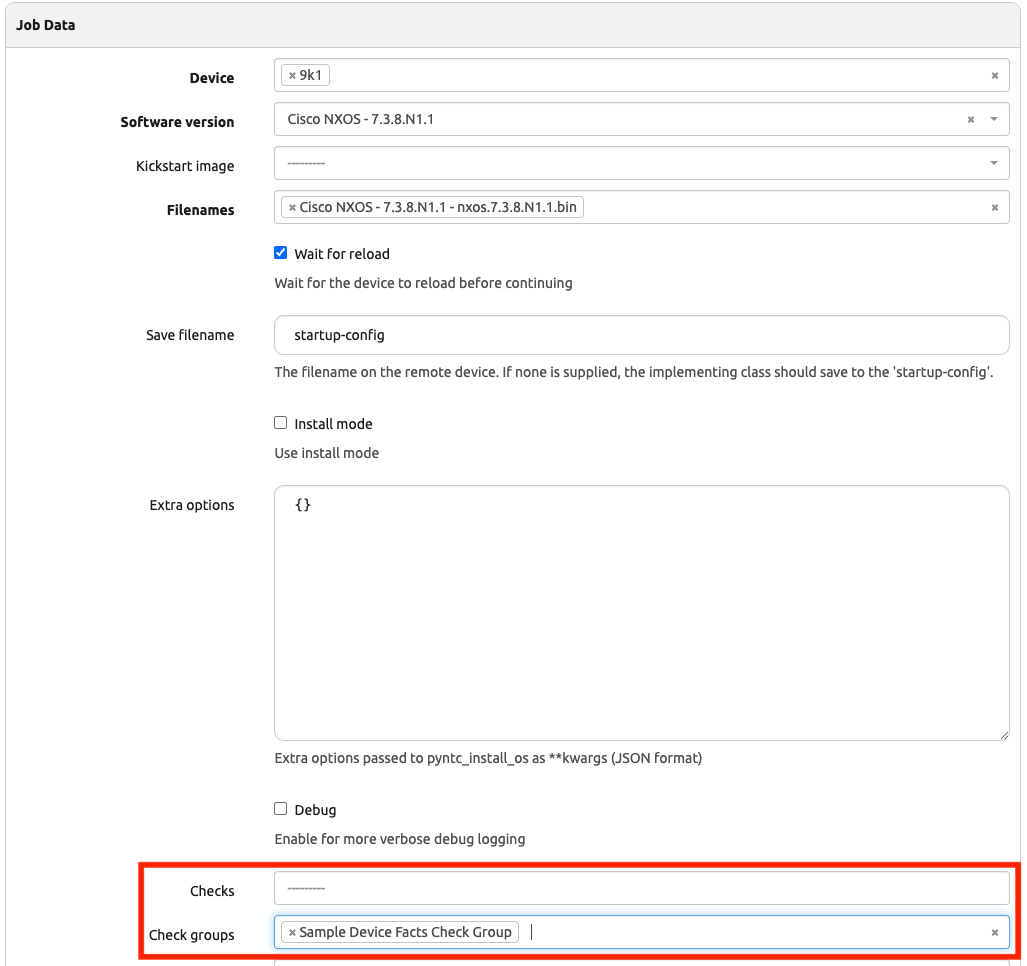
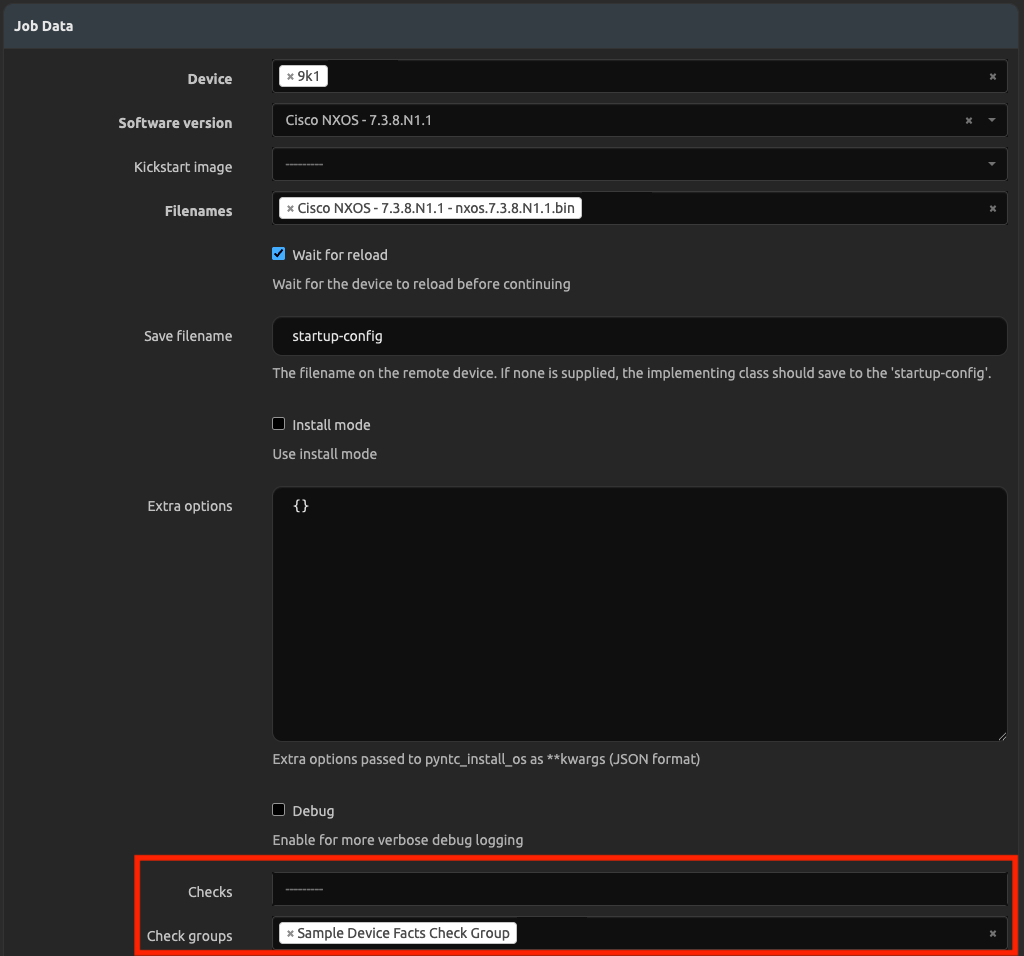
- The workflow will also be dynamically updated to show the extra steps added.
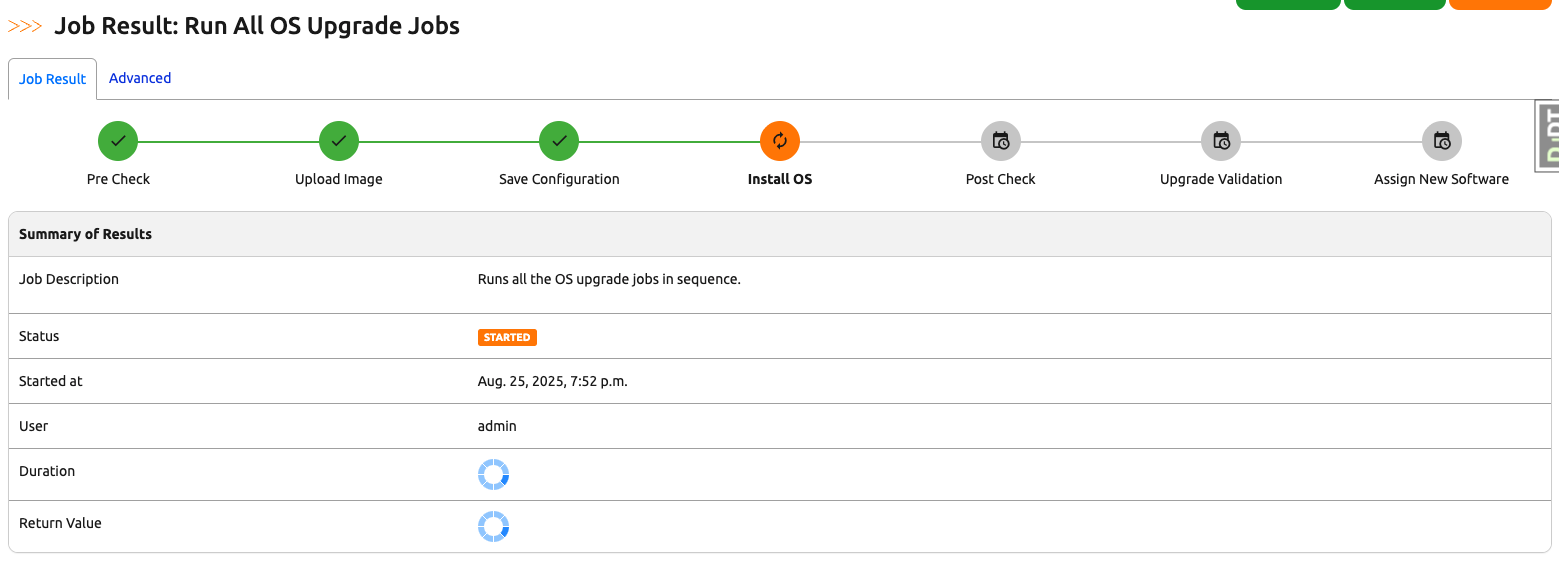
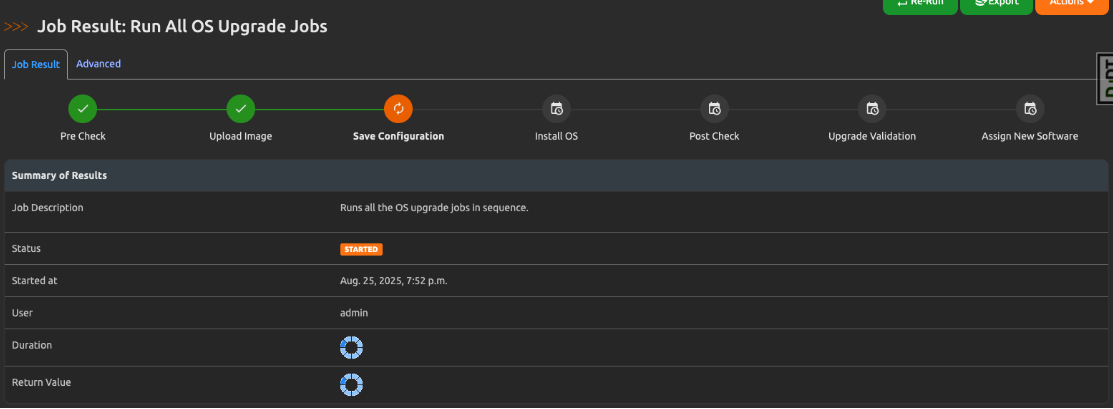
-
Info
For more details on how to properly setup the Operational Compliance app follow the Operational Compliance User Guide.
-
Enable the OS Upgrade jobs for running.
Notice all jobs are disabled by default.
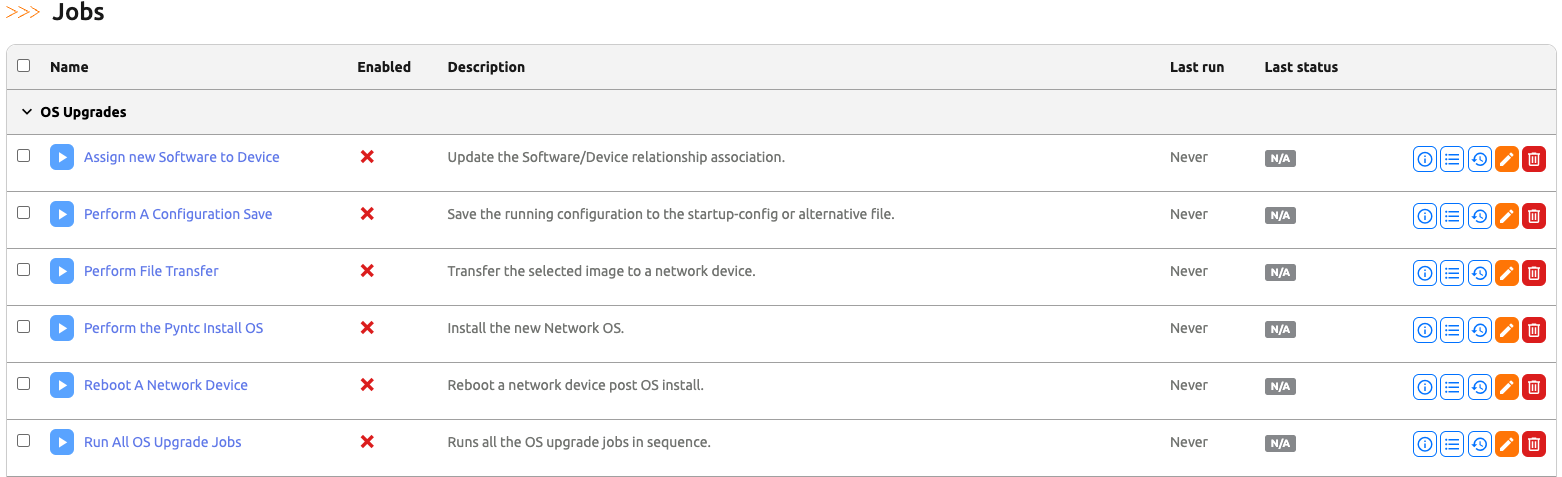
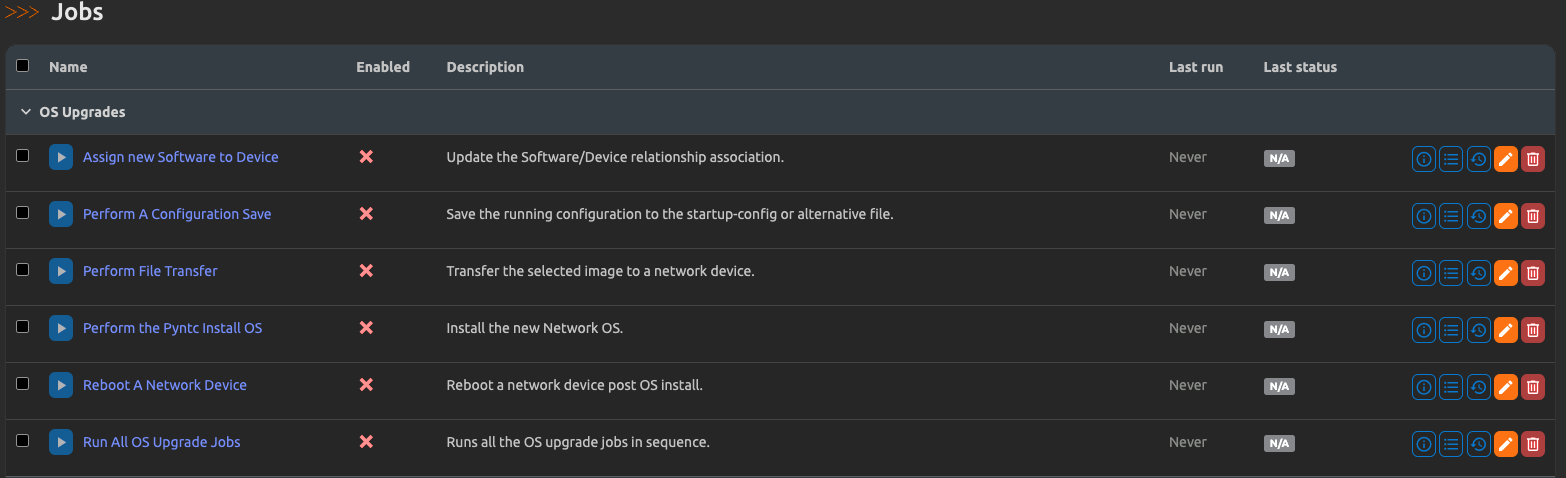
Select all the OS Upgrade jobs and click on
Edit Selected.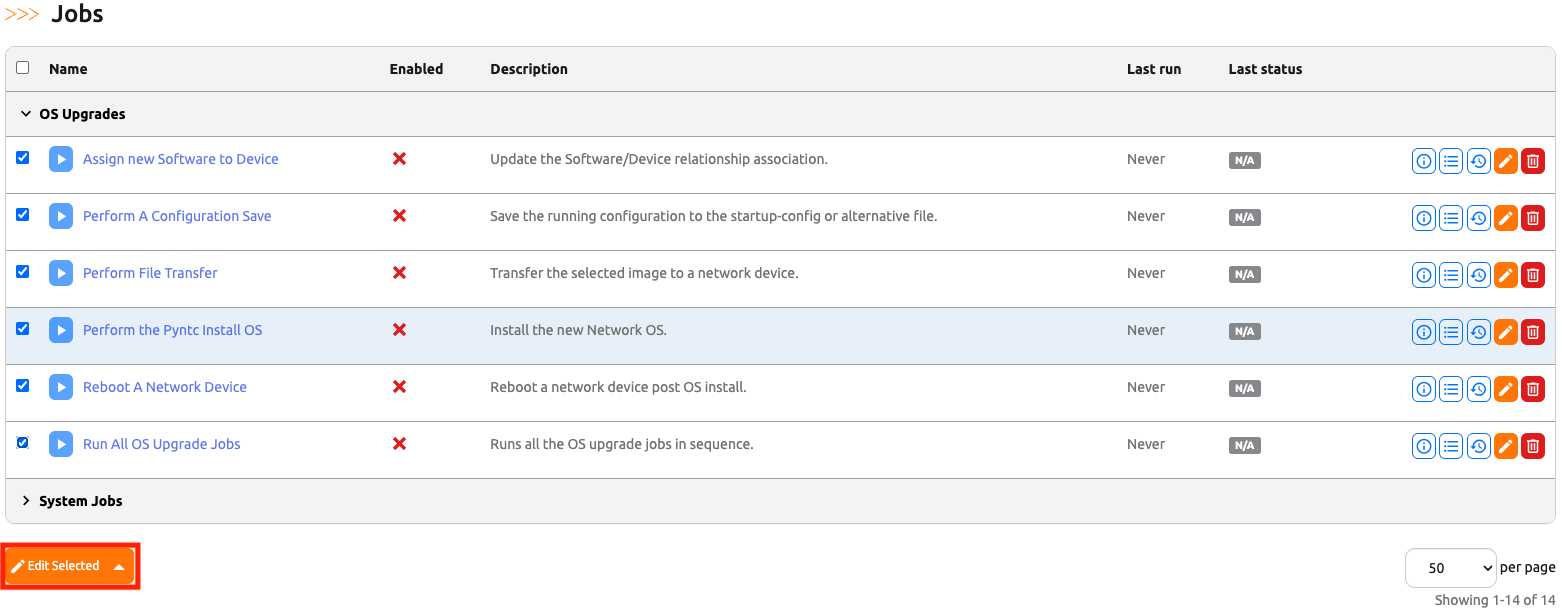
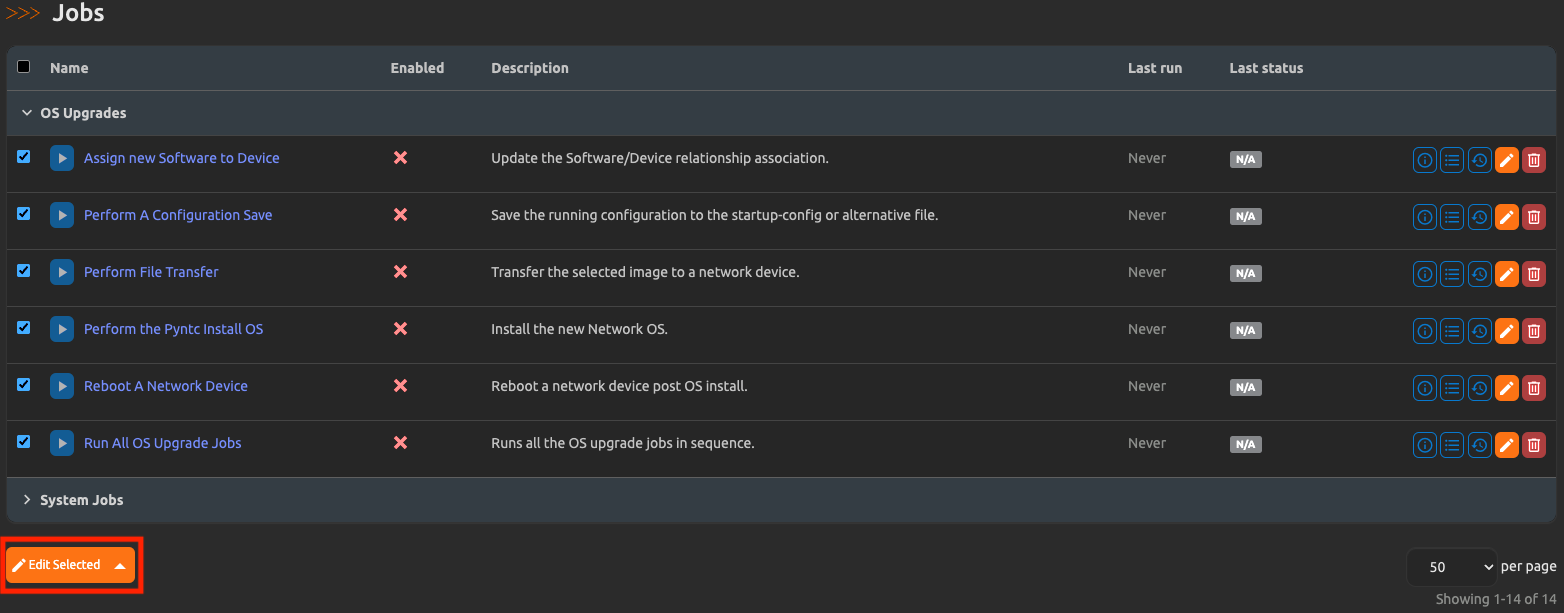
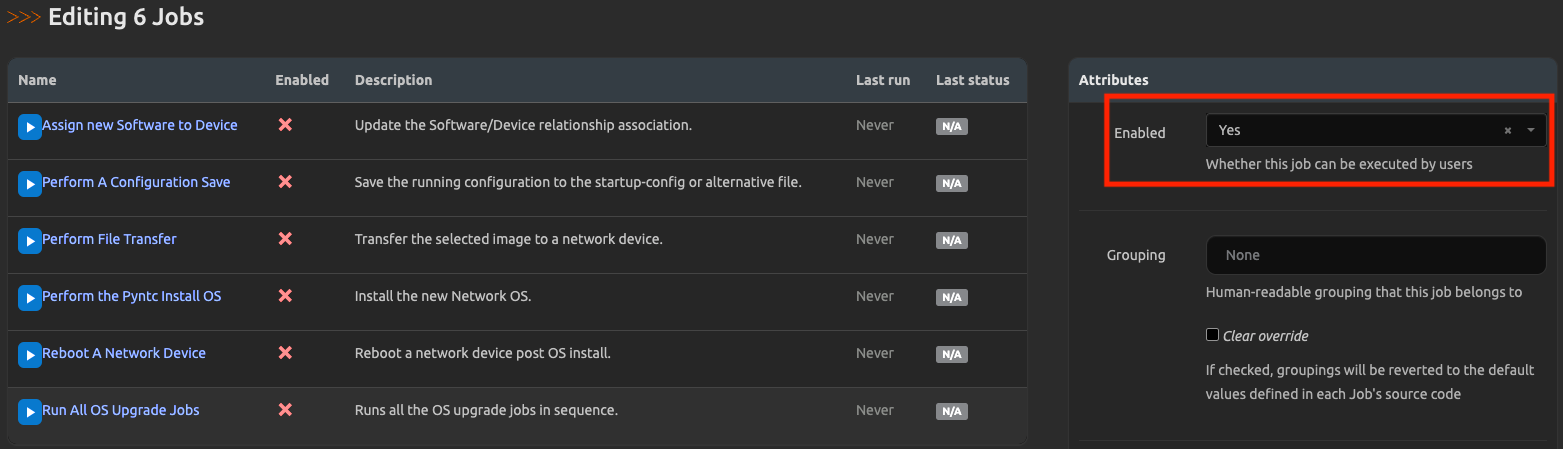
Set the
Enabledattribute toYesand apply the changes.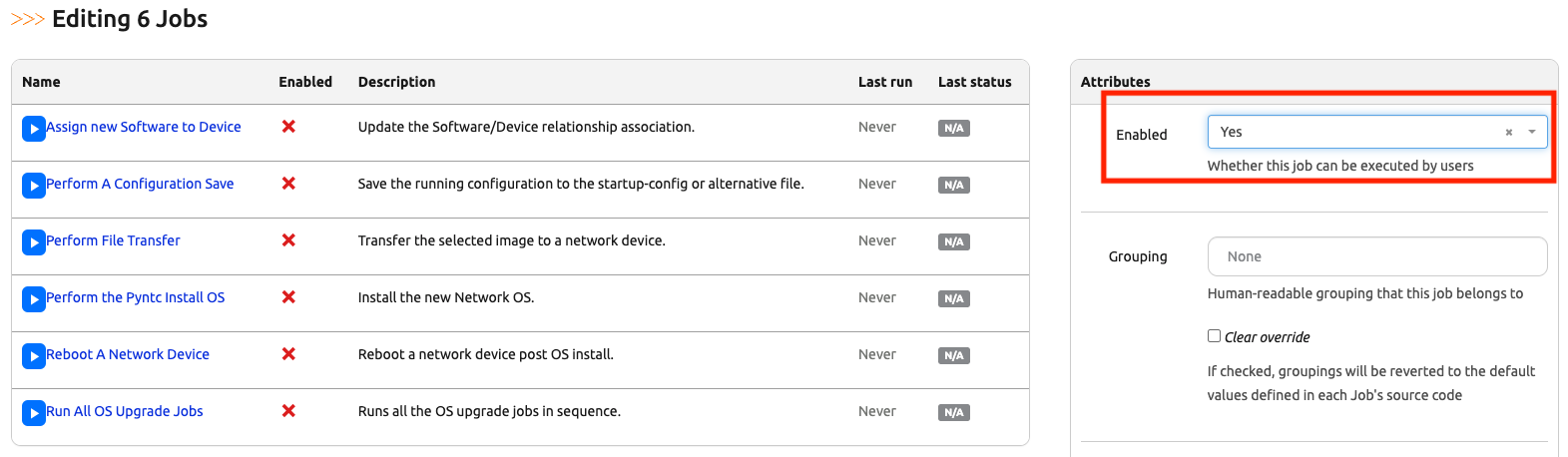
-
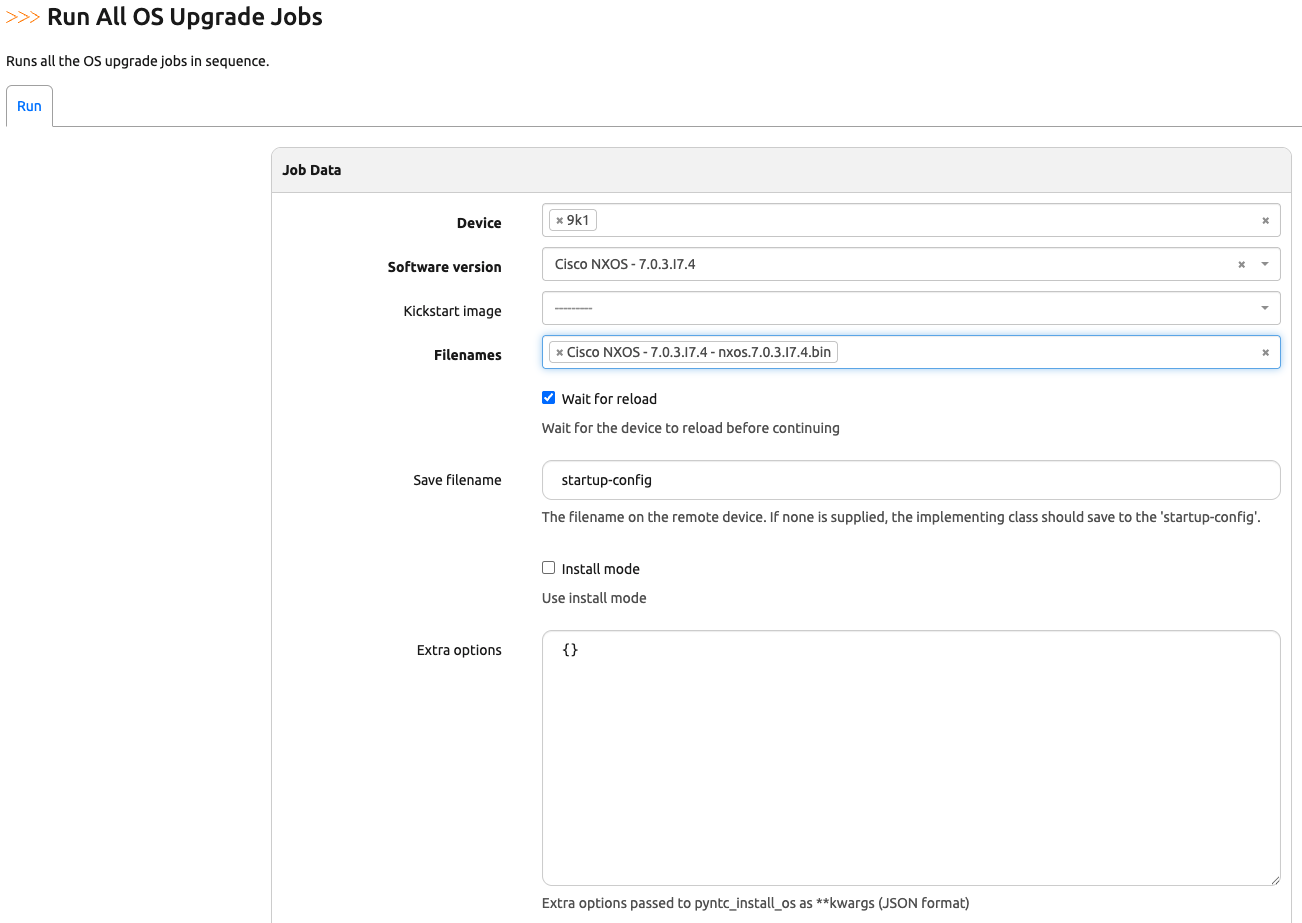
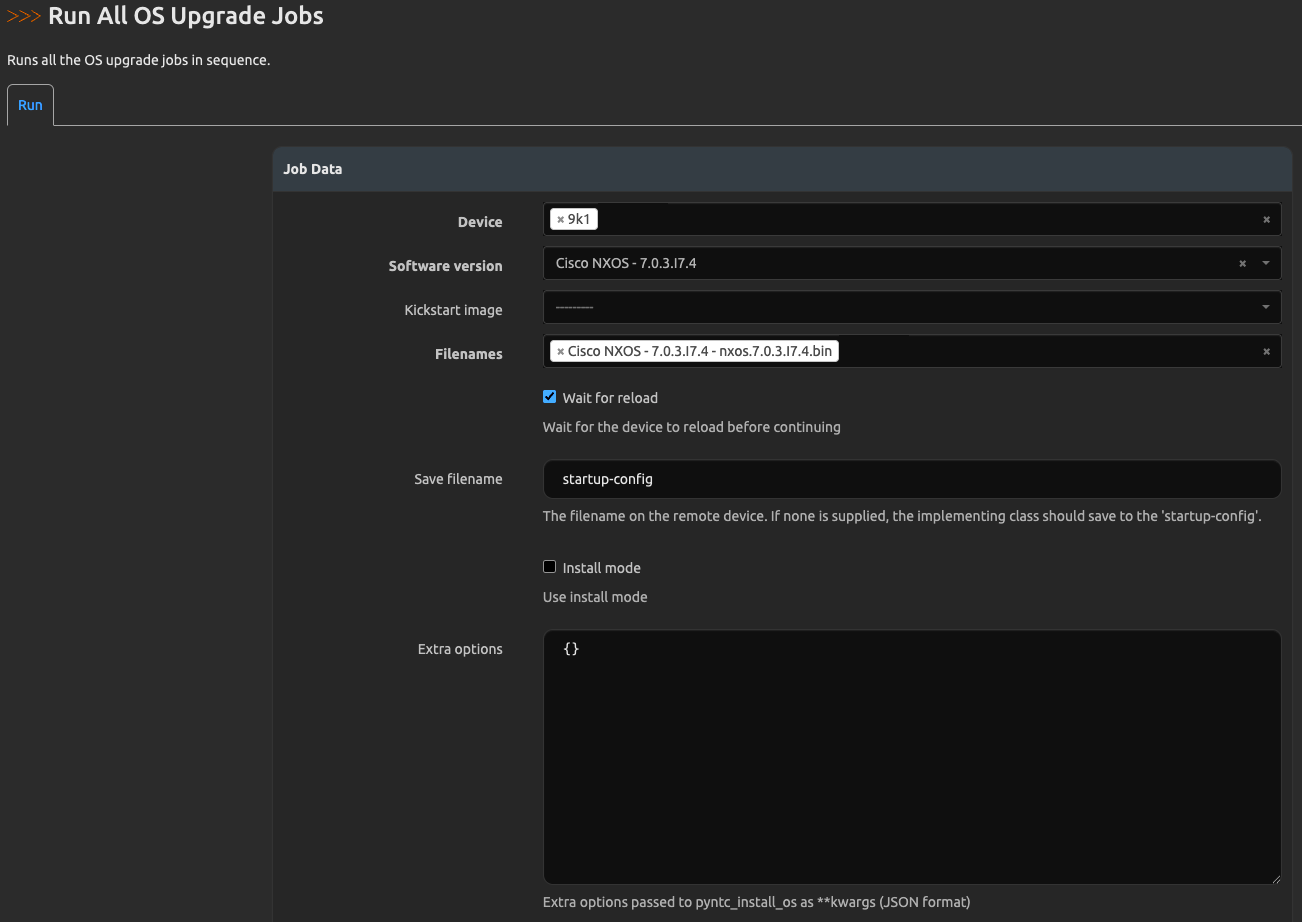
Select the Execute OS Upgrade Workflow for a device and execute an upgrade.
-
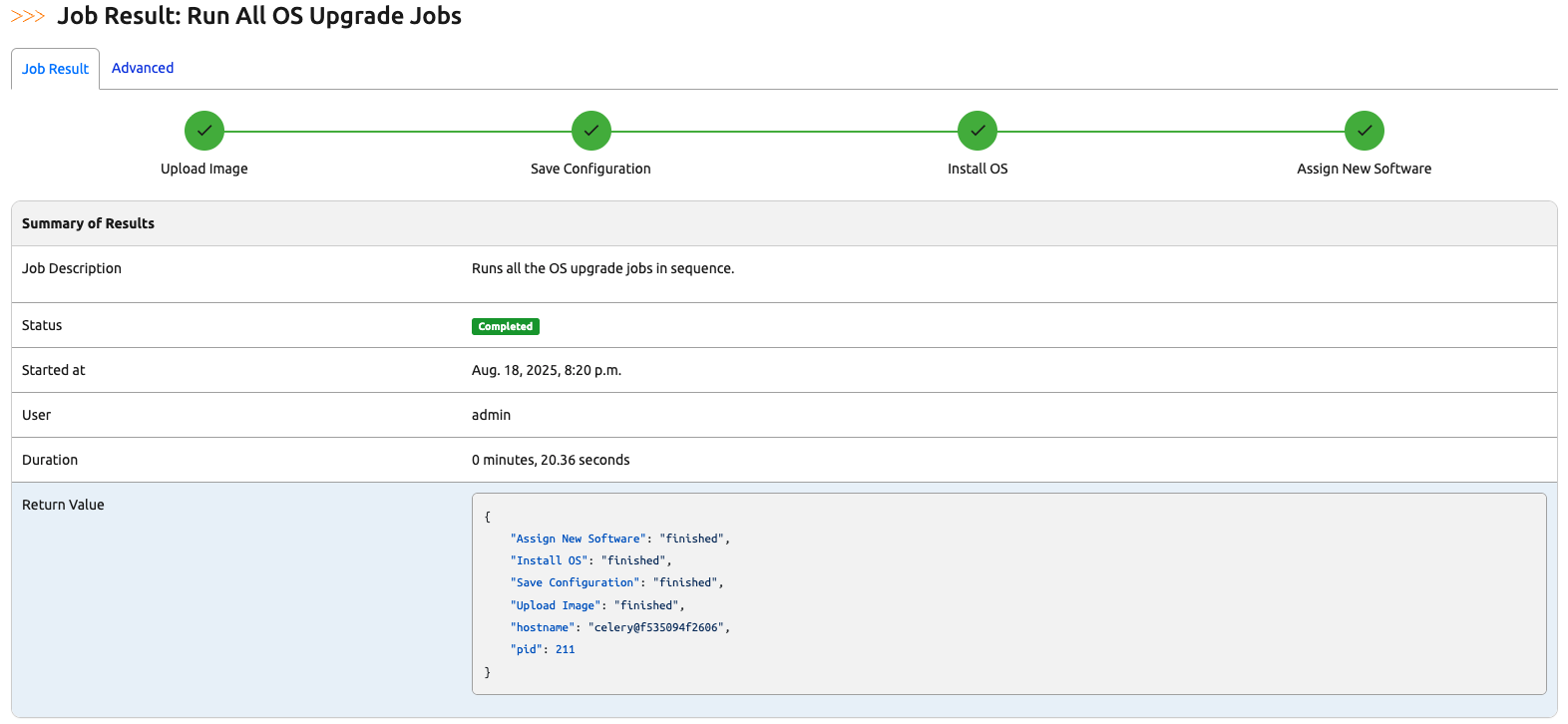
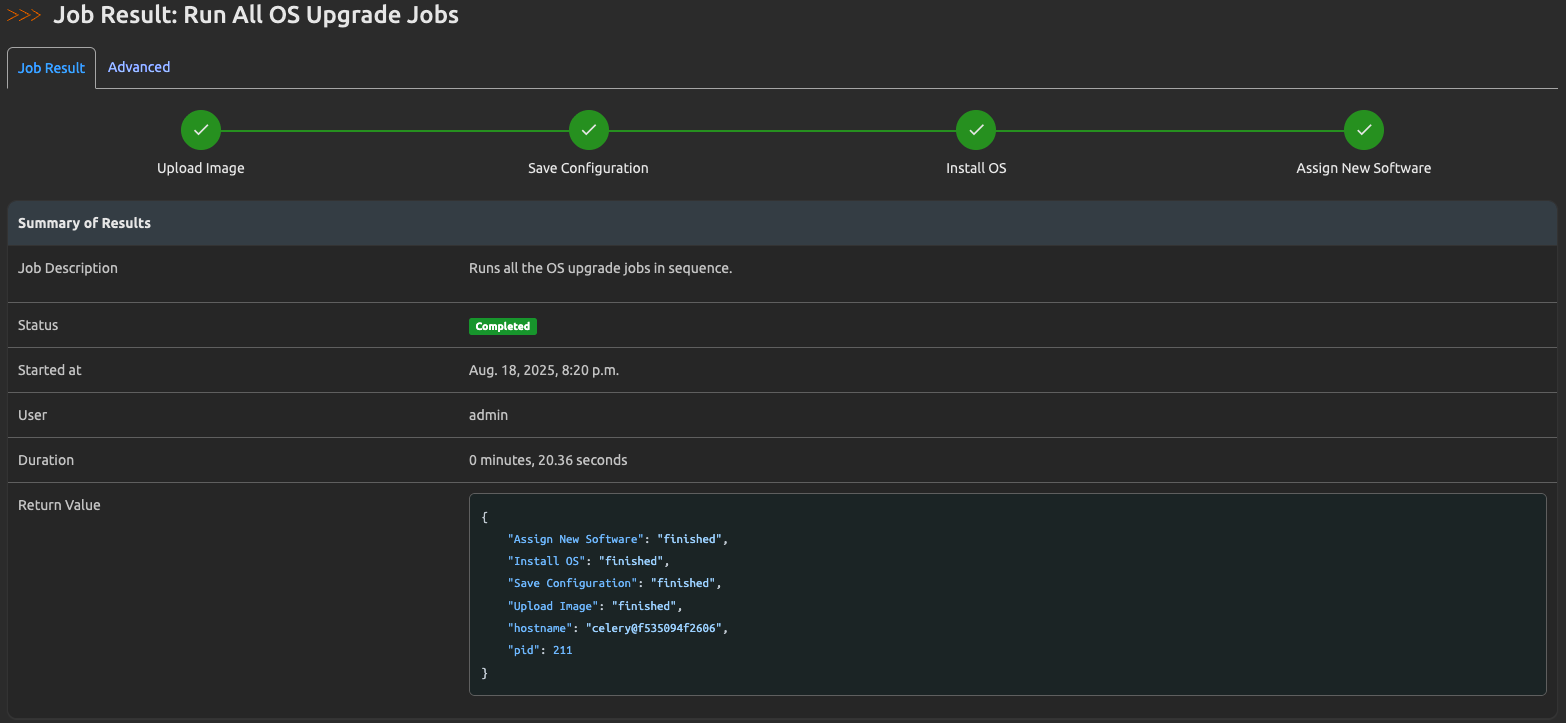
Monitor the workflow progress by visualizing the orchestrated flow on the custom Job results view.