Using the App
This document describes common use-cases and scenarios for this App.
General Usage
The app centers on three objects:
- A Report Template is a named, ordered container of blocks. It stores no data of its own; it holds only references to Nautobot data sources.
- A Report Block is one section of a template. Static blocks (title page, table of contents, rich text, page break) render from their own fields; data-bearing blocks (Saved View, Export Template, Jinja Template) pull live Nautobot data at render time, scoped to the permissions of the user generating the report.
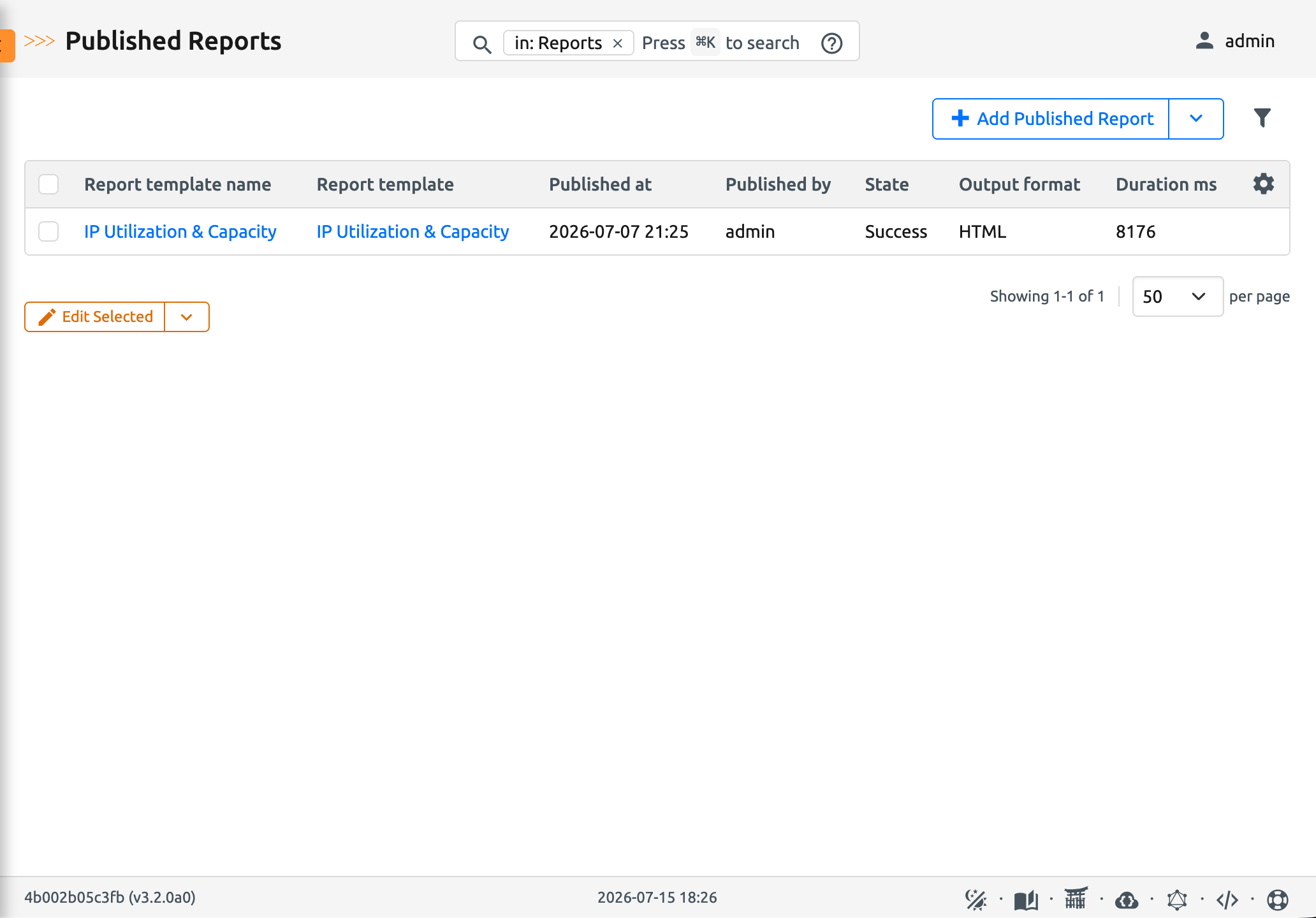
- A Published Report is an immutable snapshot of a template rendered to HTML at a point in time, downloadable as HTML, DOCX, or PDF.
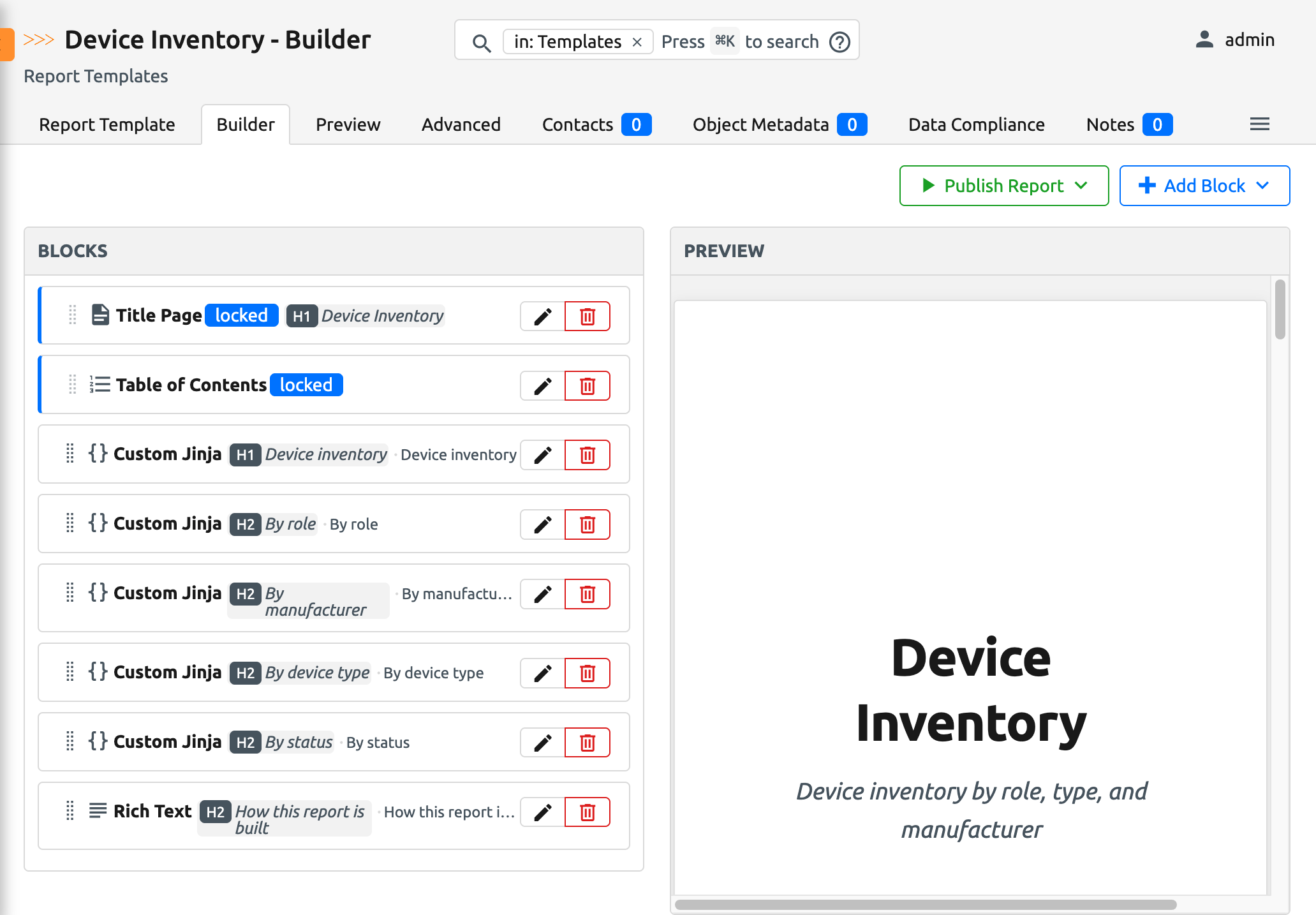
Templates are authored in the report builder, a drag-and-drop editor with a live preview pane. Because data is queried live and permission-scoped, the same template can produce different output for different users, and every published snapshot reflects exactly what its author could see when it ran.
Block types
| Block | Kind | What it renders |
|---|---|---|
| Title Page | Static | Cover page with heading, subheading, author, "prepared for", and date. One per template. |
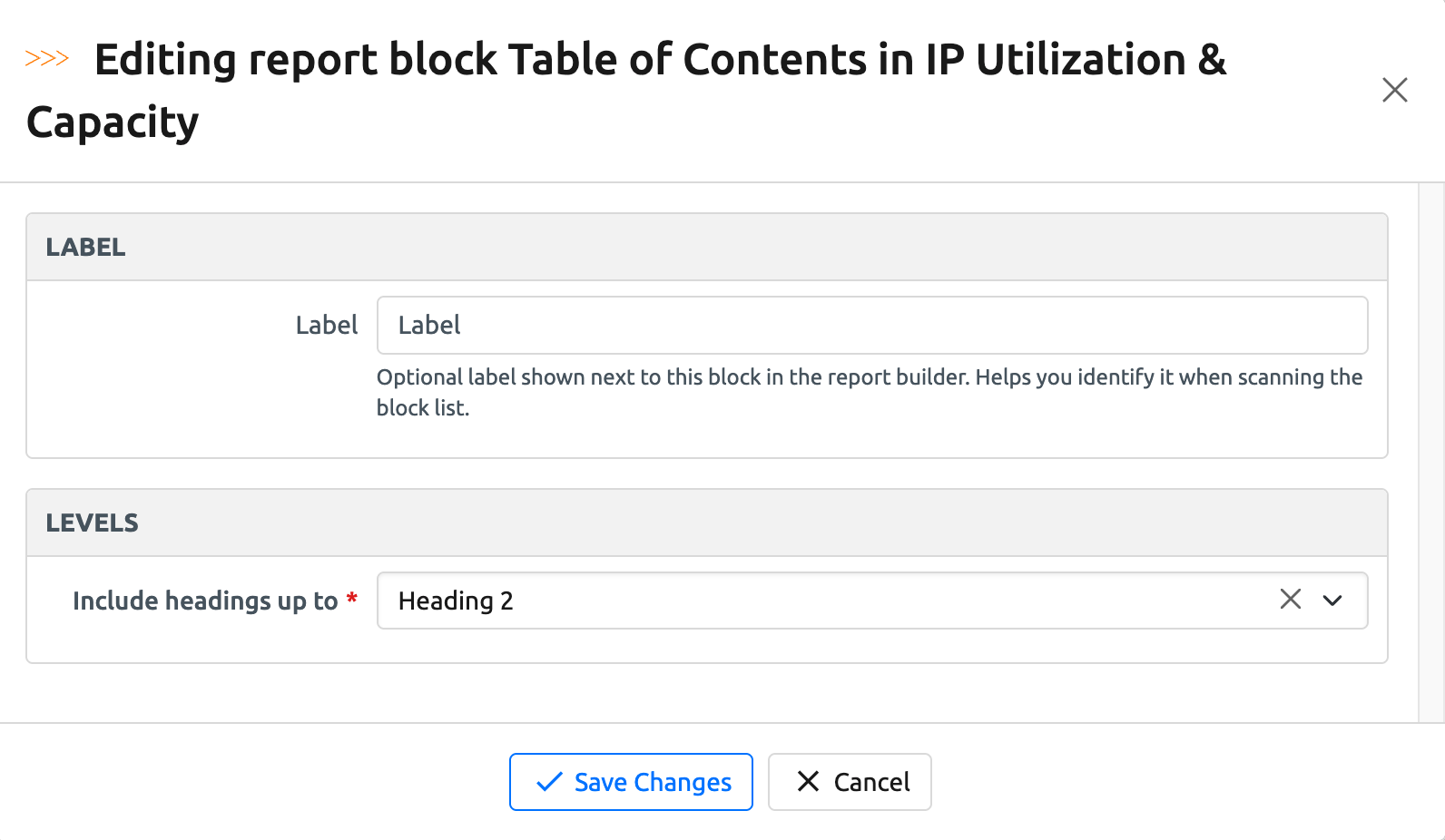
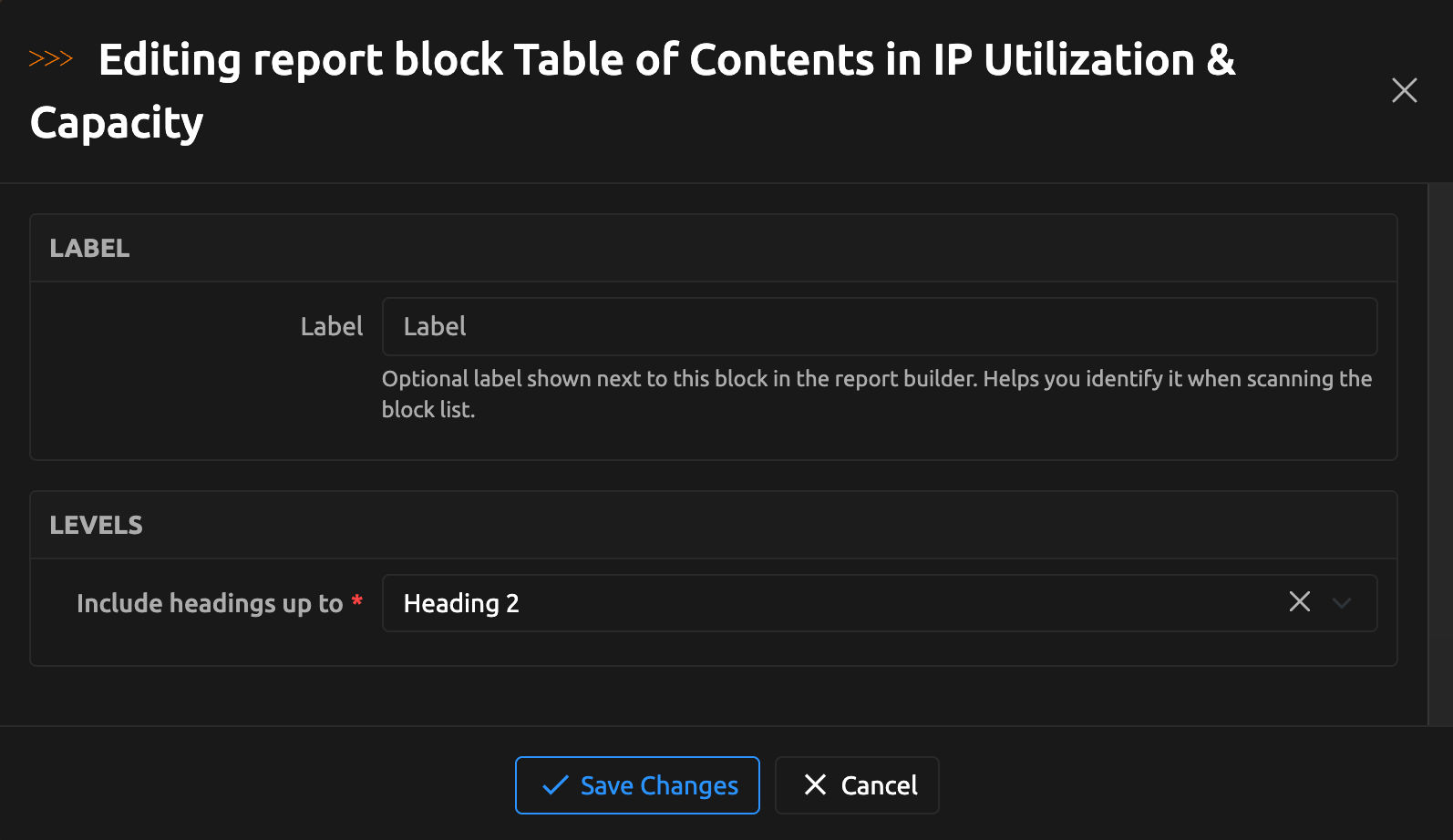
| Table of Contents | Static | Built automatically from the headings of other blocks. One per template. |
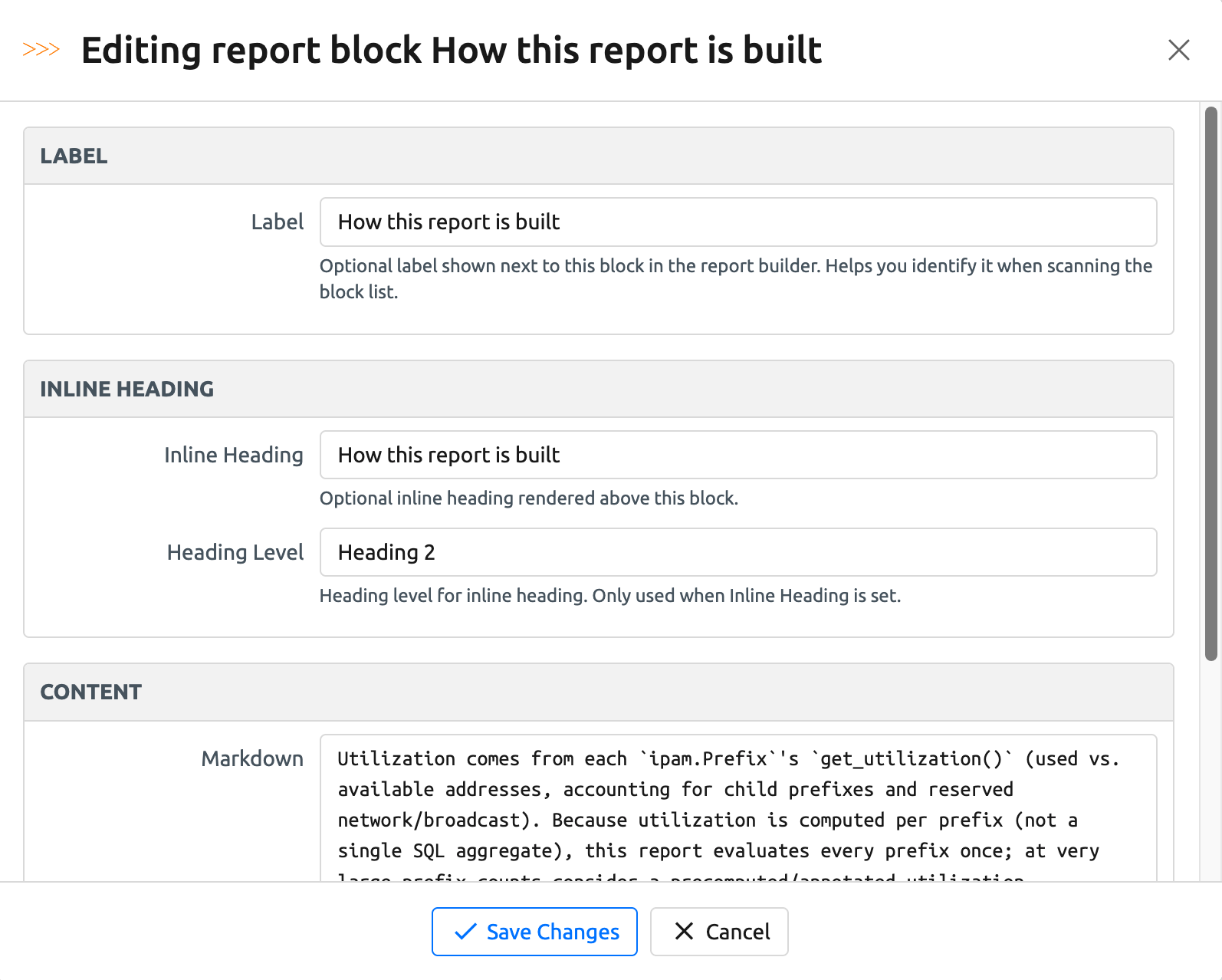
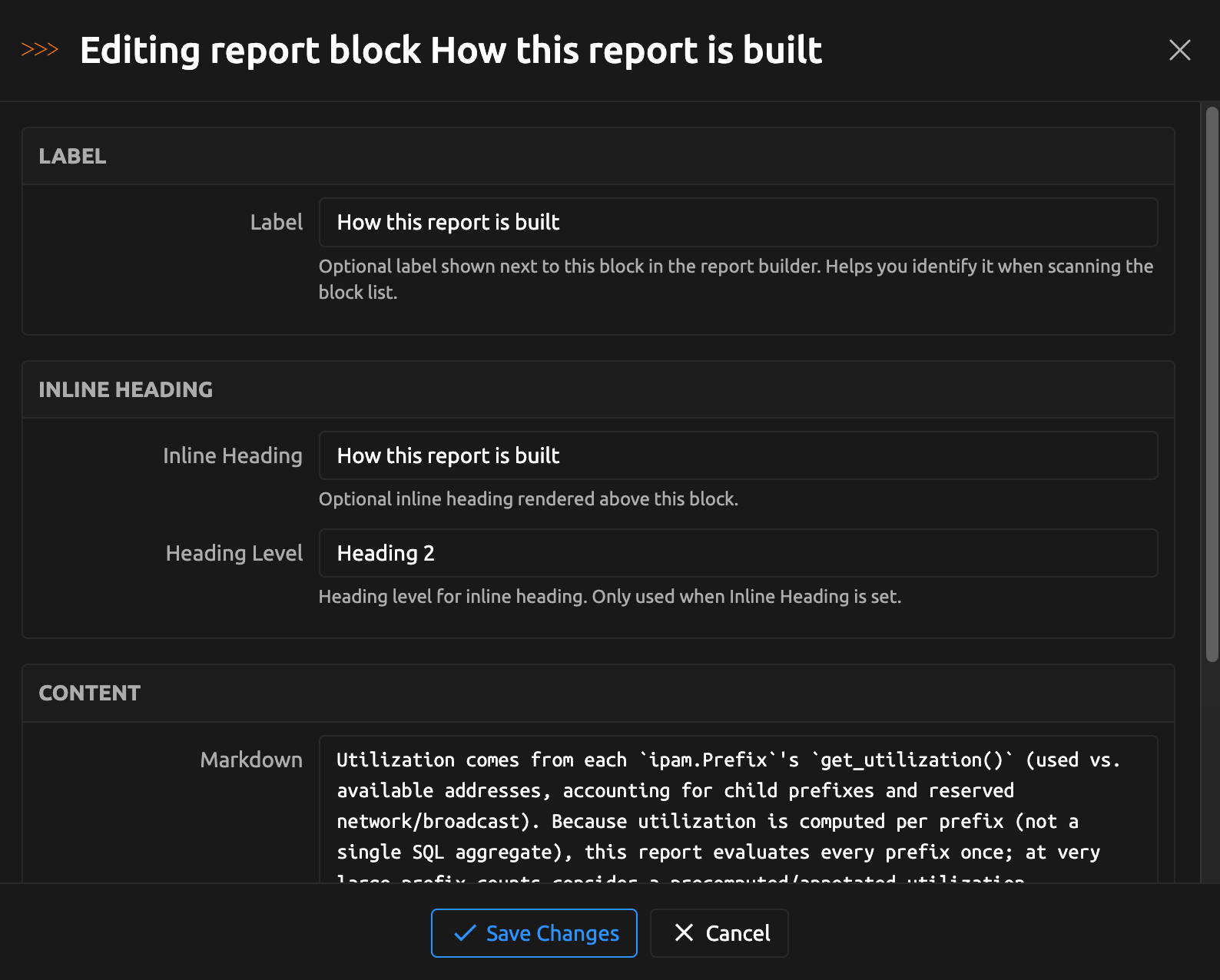
| Rich Text | Static | Markdown authored directly into the block. |
| Page Break | Static | Forces a page boundary in paginated output; renders nothing itself. |
| Saved View | Data | Renders a Nautobot Saved View as a table, using the view's own filters, sort order, and columns. |
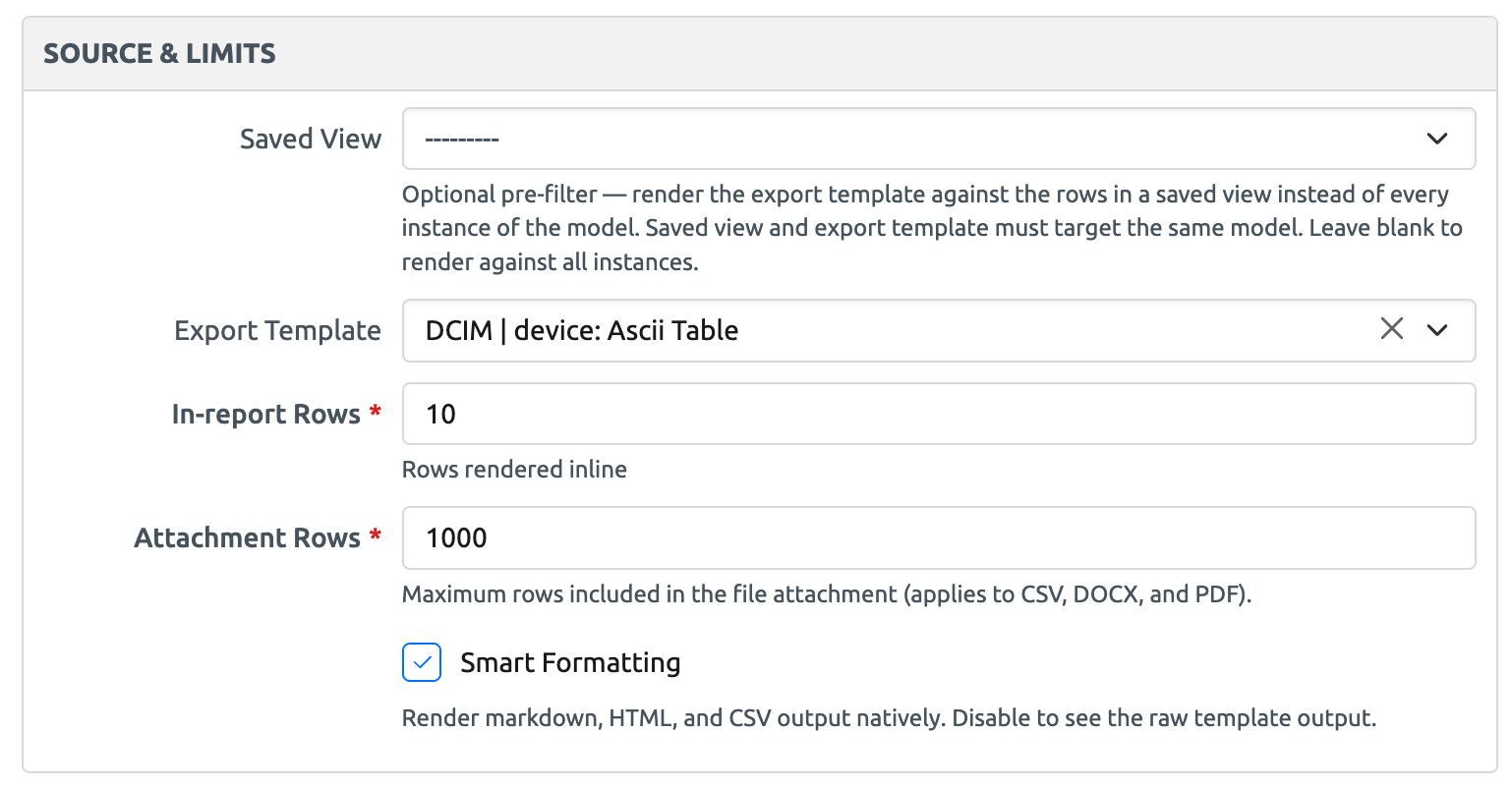
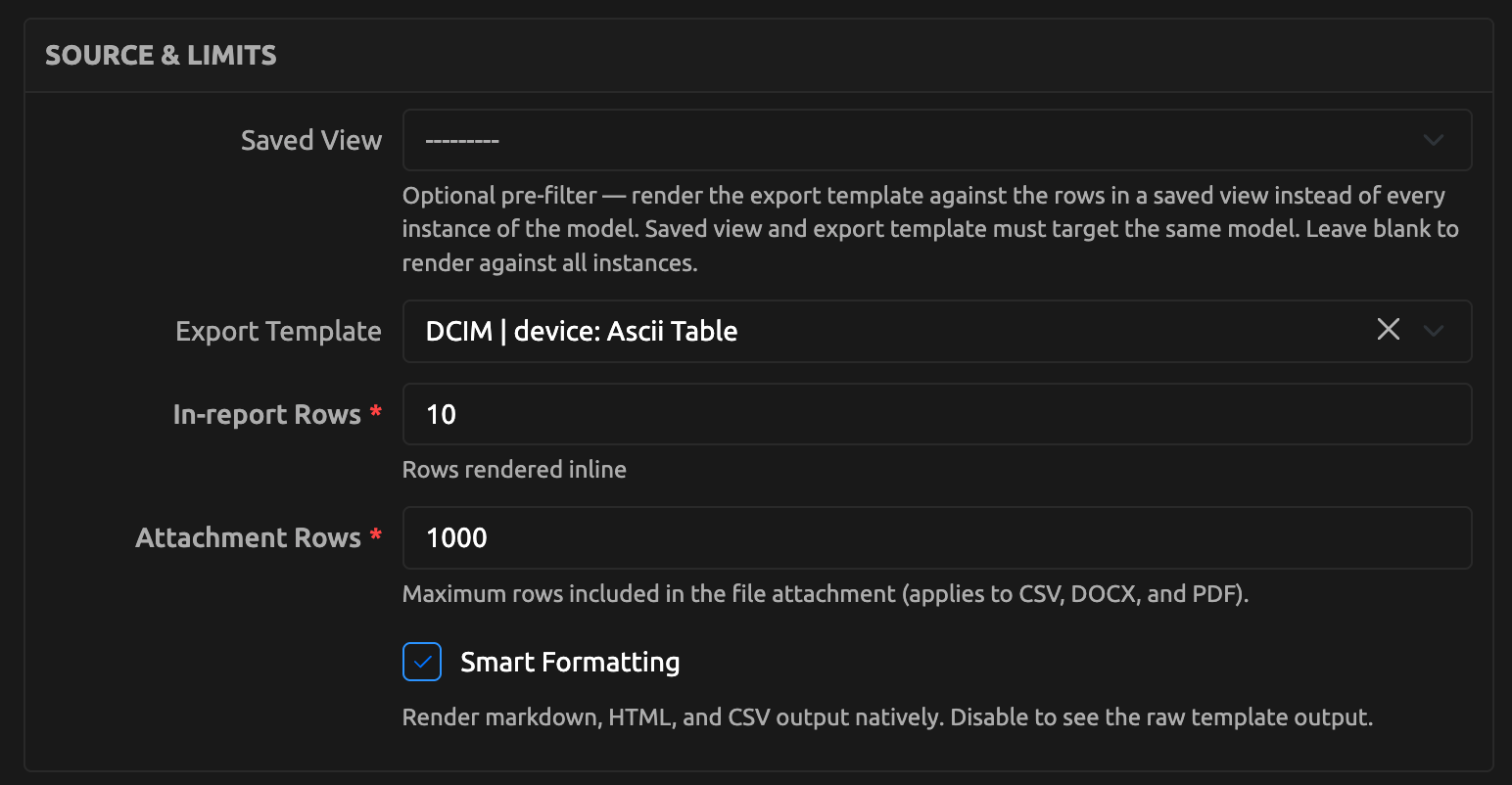
| Export Template | Data | Renders a Nautobot Export Template against a model queryset, optionally narrowed by a same-model Saved View. |
| Jinja Template | Data | Free-form Jinja with Nautobot's full filter library; binds Saved Views and GraphQL Saved Queries as variables. See Building Reports with Jinja Templates. |
Each block is configured through its settings dialog in the report builder.
Title Page Block
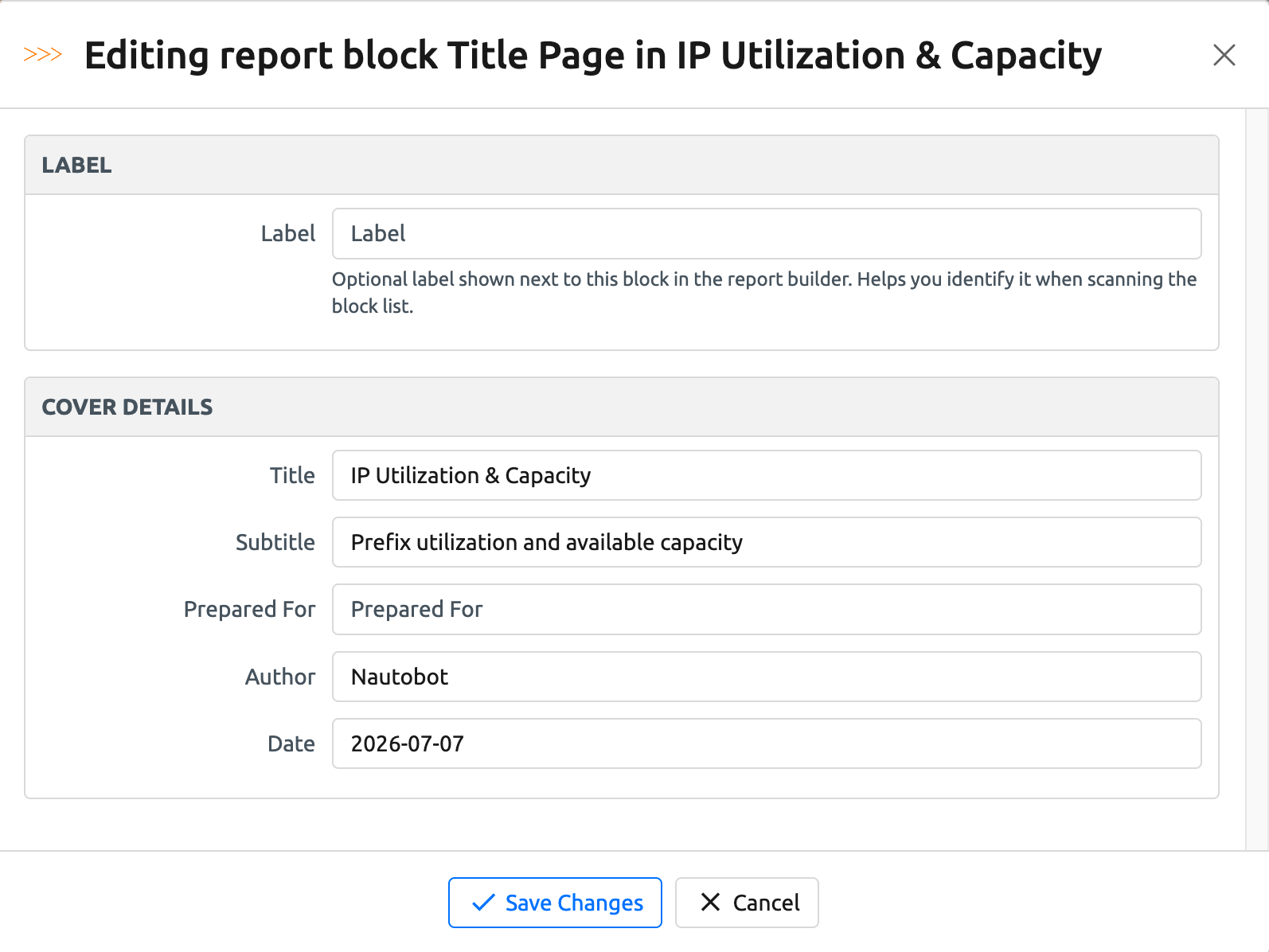
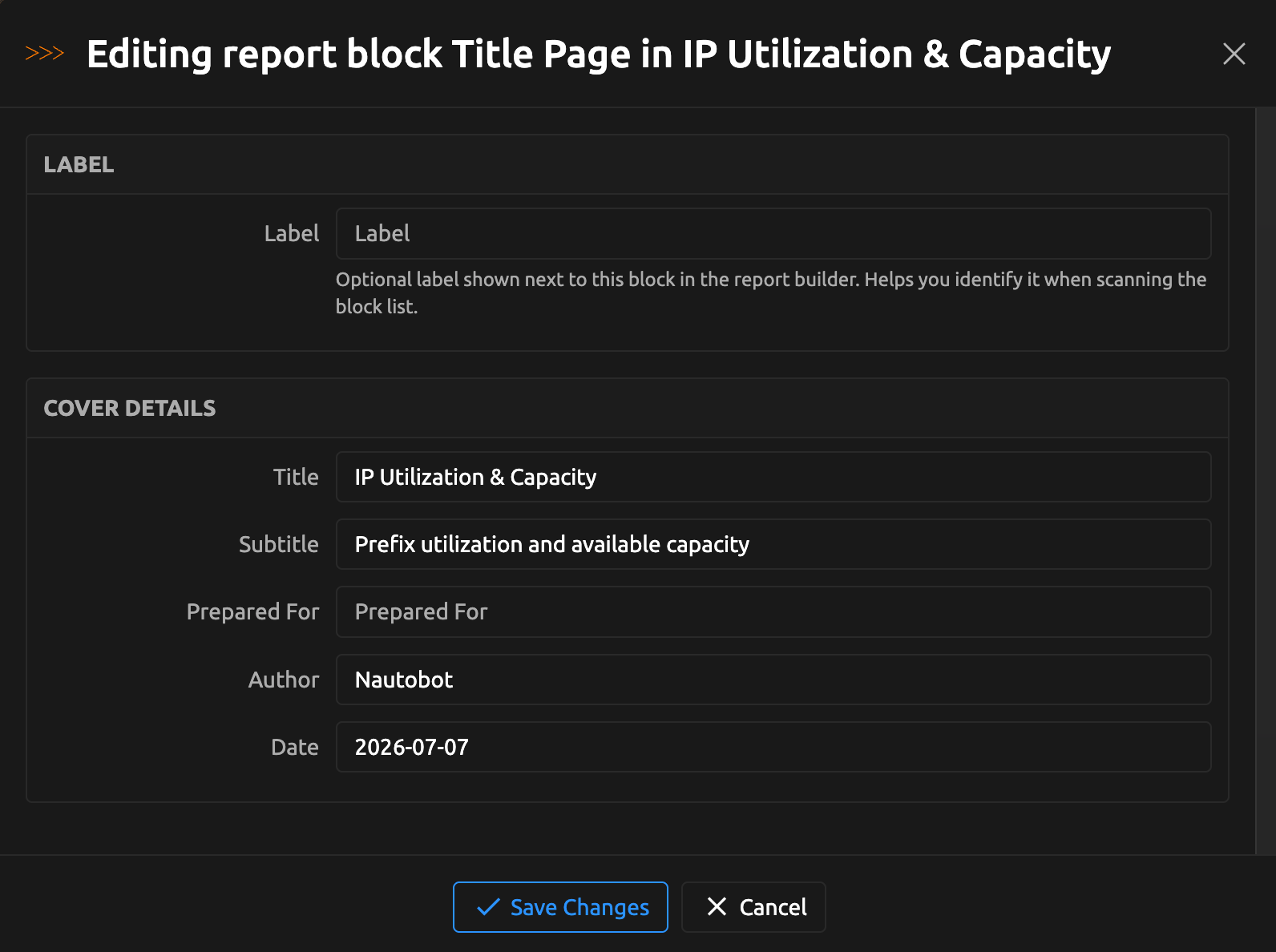
Table of Contents Block
Rich Text Block
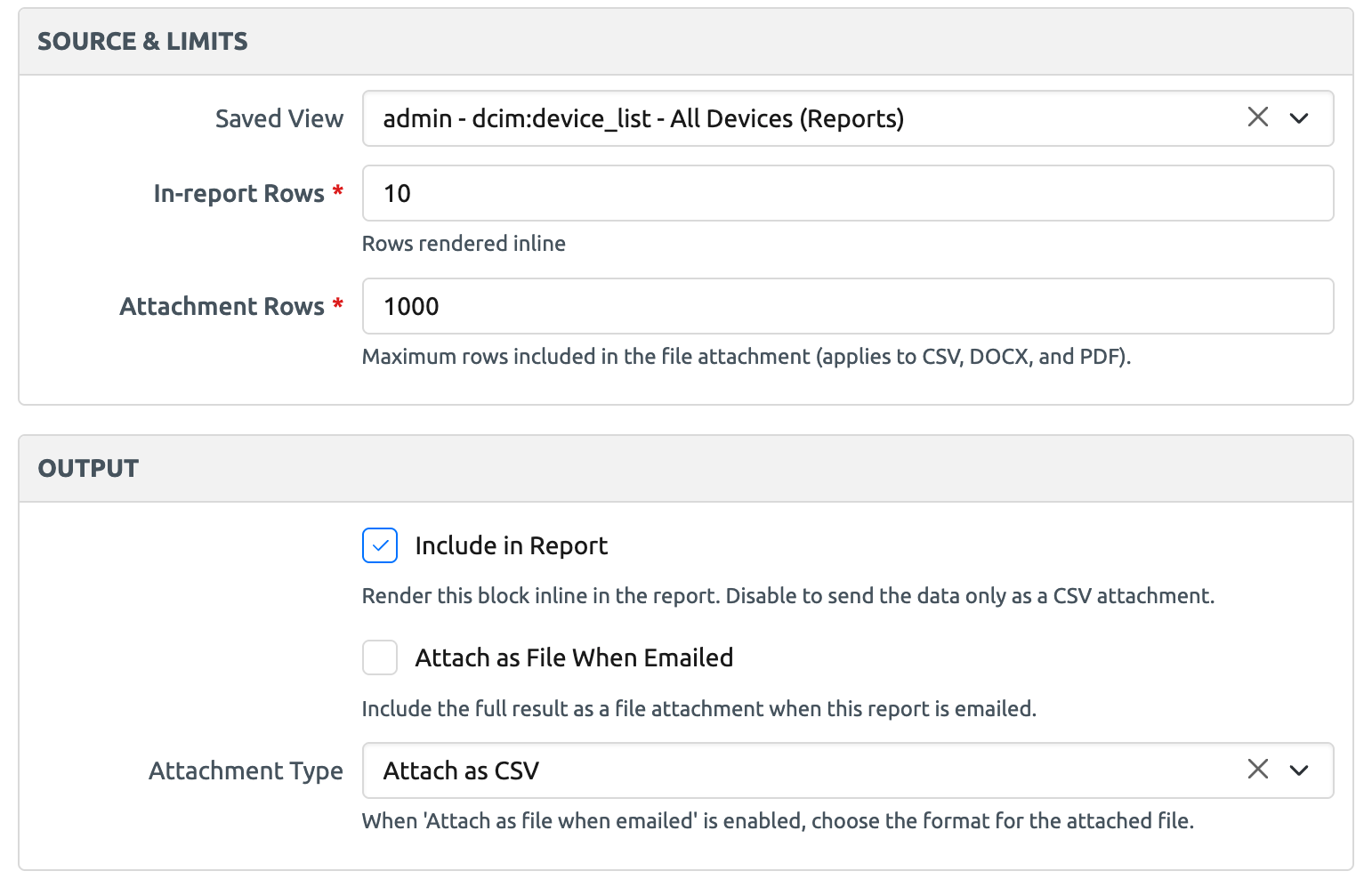
Saved View Block
Export Template Block
Row caps
Saved View and Export Template blocks are row-capped so reports stay fast and readable. Each block has an in-report row count (default 10) and, when attached to an email, a separate attachment row count (default 1000). Both are clamped to a hard system ceiling of 5000 rows. Jinja Template blocks are not row-capped — the template author controls how many rows are rendered; see Building Reports with Jinja Templates.
Permissions
Data-bearing blocks (Saved View, Export Template, Jinja Template) query live Nautobot data through Nautobot's object permissions as the acting user. Static blocks render only their own fields and carry no Nautobot data.
- In the report builder and preview, the acting user is you: the preview renders with your permissions, and objects you cannot view are omitted. Two users previewing the same template can see different data.
- When a report is published, the publish job renders the template with the permissions of the user who ran it — for scheduled runs, the user who created the schedule. The result is stored as a frozen HTML snapshot on the Published Report.
- After publication, permissions are not re-applied to the data inside the report. Opening or downloading a Published Report requires only the
viewpermission on Published Reports; the snapshot is served exactly as captured. Anyone who can open the report sees everything its publisher could see at publish time, including objects their own permissions would not let them view directly.
Template visibility and sharing
Access to the templates themselves is layered on top of Nautobot's standard object permissions: a user always needs the view permission on Report Templates, and the following rules then narrow which templates that permission returns.
- Viewing: a template is visible to its owner, to all users when Is Shared is enabled, and to all users when it is a built-in template. Is Shared is disabled by default, so a new template is private to its owner until you enable it. Superusers see every template.
- Editing and deleting: only the template's owner can modify or delete it; superusers can modify or delete any template except built-ins. Sharing a template lets other users view it, not edit it.
- Built-in templates cannot be modified or deleted by anyone, including superusers. Clone a built-in template to customize it. See Pre-built Reports for what ships with the app.
- Blocks follow their template: whoever can view or edit a template can view or edit its blocks.
Downloading a report
From a Published Report you can download the frozen snapshot as HTML, DOCX, or PDF.
Use-cases and common workflows
Publishing a report
The Publish Report job renders a Report Template and stores the result as a Published Report snapshot.
If a block cannot render, for example the block's saved view or export template was deleted, or a Jinja Template has an error, the job fails, names the blocks that could not be rendered, and creates no Published Report. To see why a block is failing, open the template's Builder or Preview tab, where render errors are shown inline on the affected blocks.
Emailing a report
The Publish And Email Report job renders a Report Template, stores the resulting Published Report snapshot, and emails it to a list of recipients in one step. It accepts comma-separated to / cc / bcc addresses, a subject and an optional subject prefix (the addresses and subject support {{ ... }} template syntax), an optional HTML signature, an optional sender address, and a choice of how to deliver the report:
- Embed inline: render the report body directly into the email. Off by default.
- Attach report as: attach the rendered report as one or more of PDF, DOCX, or HTML. Defaults to PDF; select no format to send the email without a whole-report attachment.
- Attach individual blocks: see below.
Email delivery requires a configured Django email backend; see the installation guide for the required settings.
As with the Publish Report job, if any block fails to render the job fails, no Published Report is created, and no email is sent.
If the email itself cannot be sent — for example the email server is unreachable — the job fails and logs the error, but the Published Report snapshot is already created and is kept.
Templating recipients and the subject
The to, cc, bcc, and subject inputs are rendered with Django template syntax before the email is sent, so they can include values from the report being published. These variables are available:
| Variable | Contains |
|---|---|
template |
The report template being published (for example, {{ template.name }}) |
report |
The published report snapshot created by this run |
now |
The date and time the email is generated |
user |
The user running the job |
The default subject is {{ template.name }} -- {{ now|date:'Y-m-d' }}, which renders as, for example, Device Inventory -- 2026-07-14. The optional subject prefix is prepended to the rendered subject as-is, without templating.
Per-block file attachments
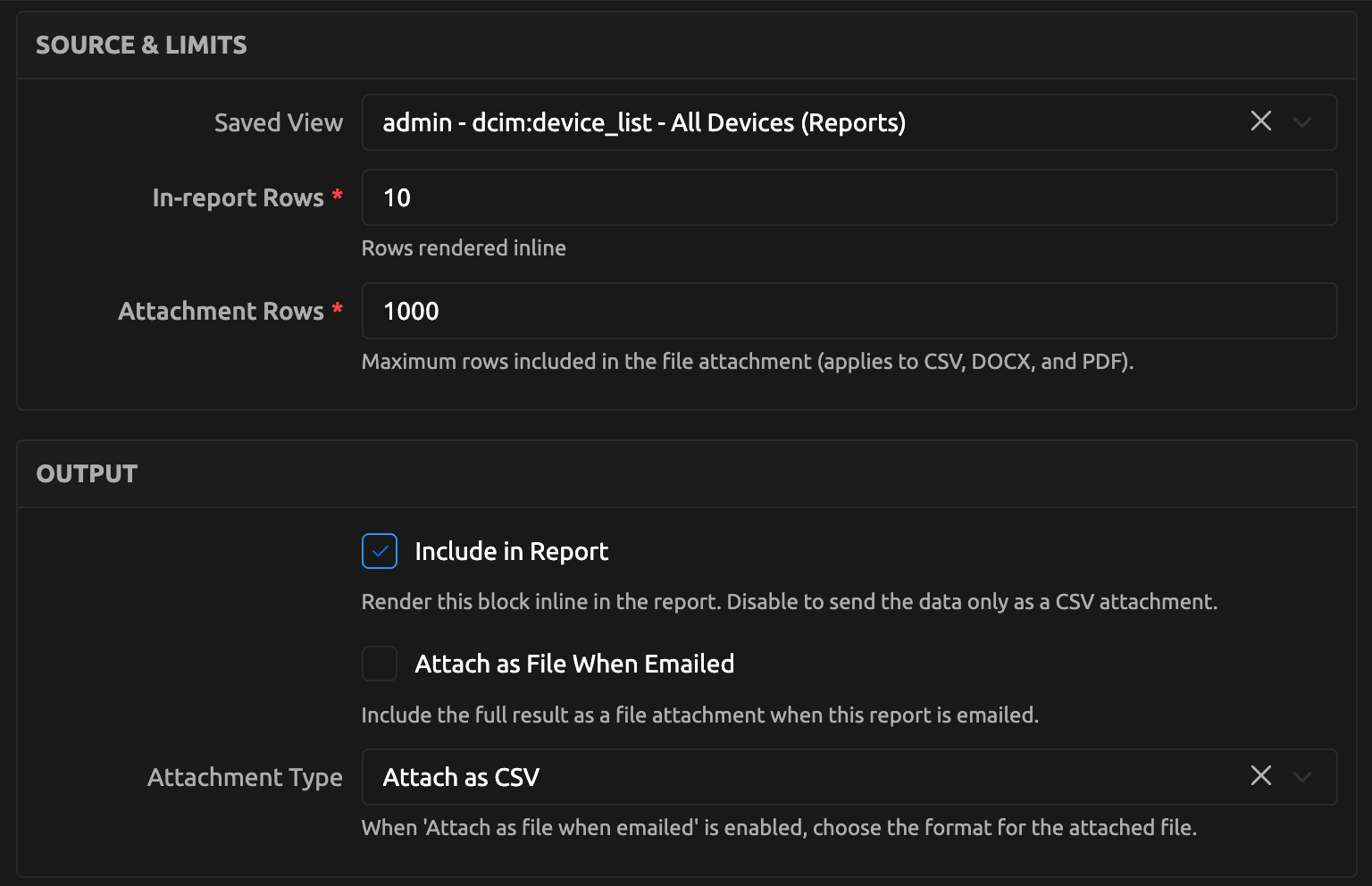
Blocks with the Attach as File When Emailed checkbox enabled are automatically attached as their own files whenever the report is emailed. This is controlled entirely by per-block settings (found on Saved View and Export Template blocks in the report builder):
- Attach as File When Emailed: the checkbox that marks the block for attachment.
- Attachment Type: the file format: CSV, DOCX, or PDF.
- Attachment Rows: caps how many rows the attachment contains, independent of the (usually smaller) inline row count.
The checkbox and format live in the block's Output section in the report builder (Attachment Rows sits with the other row limits in the block's Source & Limits section):
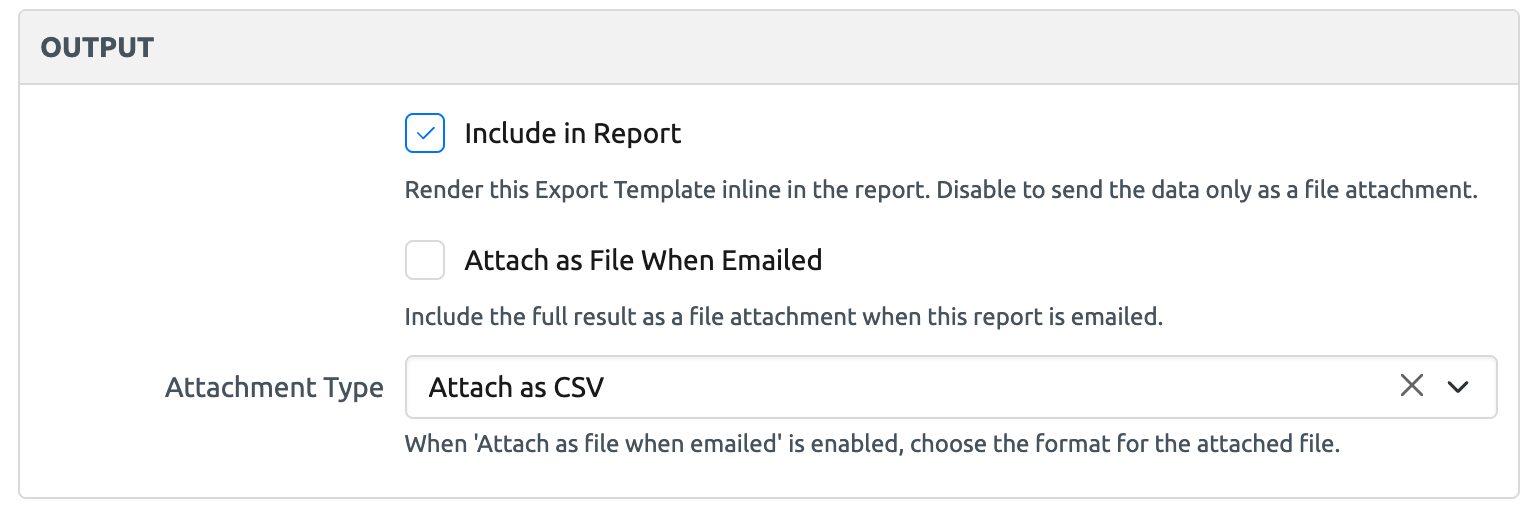
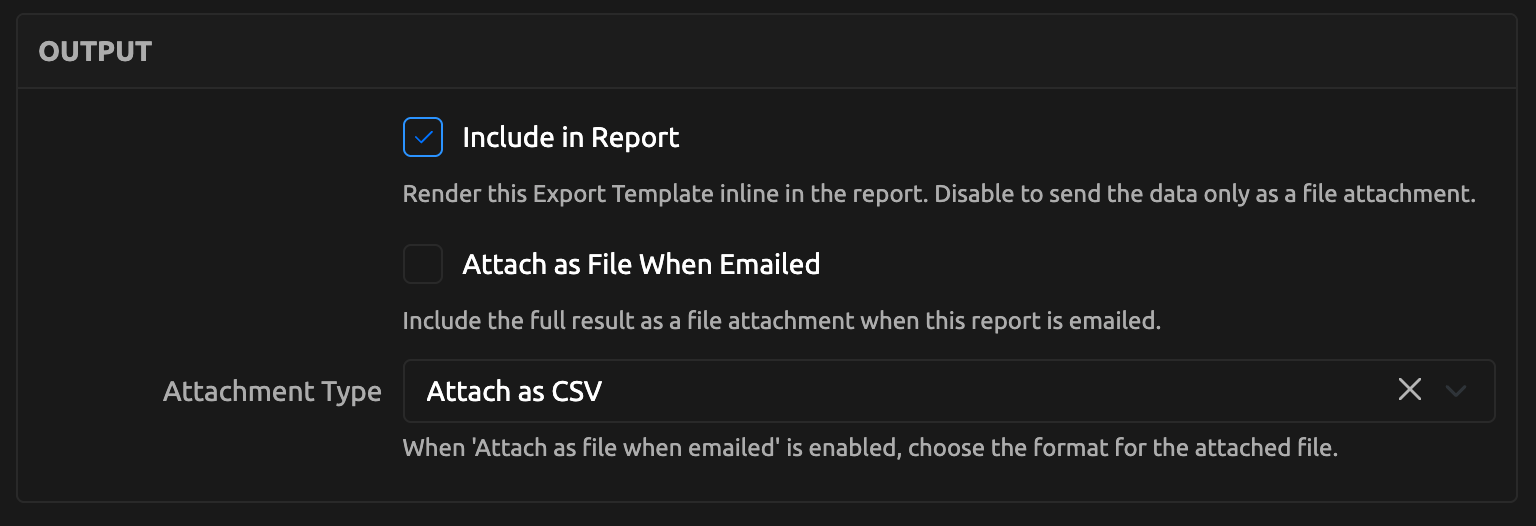
The Attach as File When Emailed checkbox decides which blocks are attached. Only Saved View and Export Template blocks can be attached; the checkbox is ignored for other block types. A block can be configured as attachment-only by turning off Include in Report, so its data is emailed as a file without appearing in the report body.
Each attachment is named after the block's label (falling back to its heading, then its type); duplicate names are de-duplicated automatically. If a single block fails to render (for example, an Export Template that does not produce CSV is asked to attach as CSV), that one attachment is skipped with a logged warning and the email is still sent.
Scheduling a report
Reports can be published and emailed on a schedule directly from the template's page. Open Publish Report > Publish And Email Report and fill in the recipients and delivery options as usual, then use the Type field at the bottom of the form to choose when the job runs:
- Once immediately (the default): the report is published and emailed as soon as you submit.
- Once in the future: runs a single time at the date and time you choose.
- Recurring hourly / daily / weekly: runs repeatedly, starting at the date and time you choose.
- Recurring custom: runs on a schedule you define in crontab syntax.
Choosing any option other than Once immediately reveals a Schedule name field and the timing fields, and the submit button changes to Schedule Job. Scheduled times are interpreted in the Nautobot server's configured time zone.
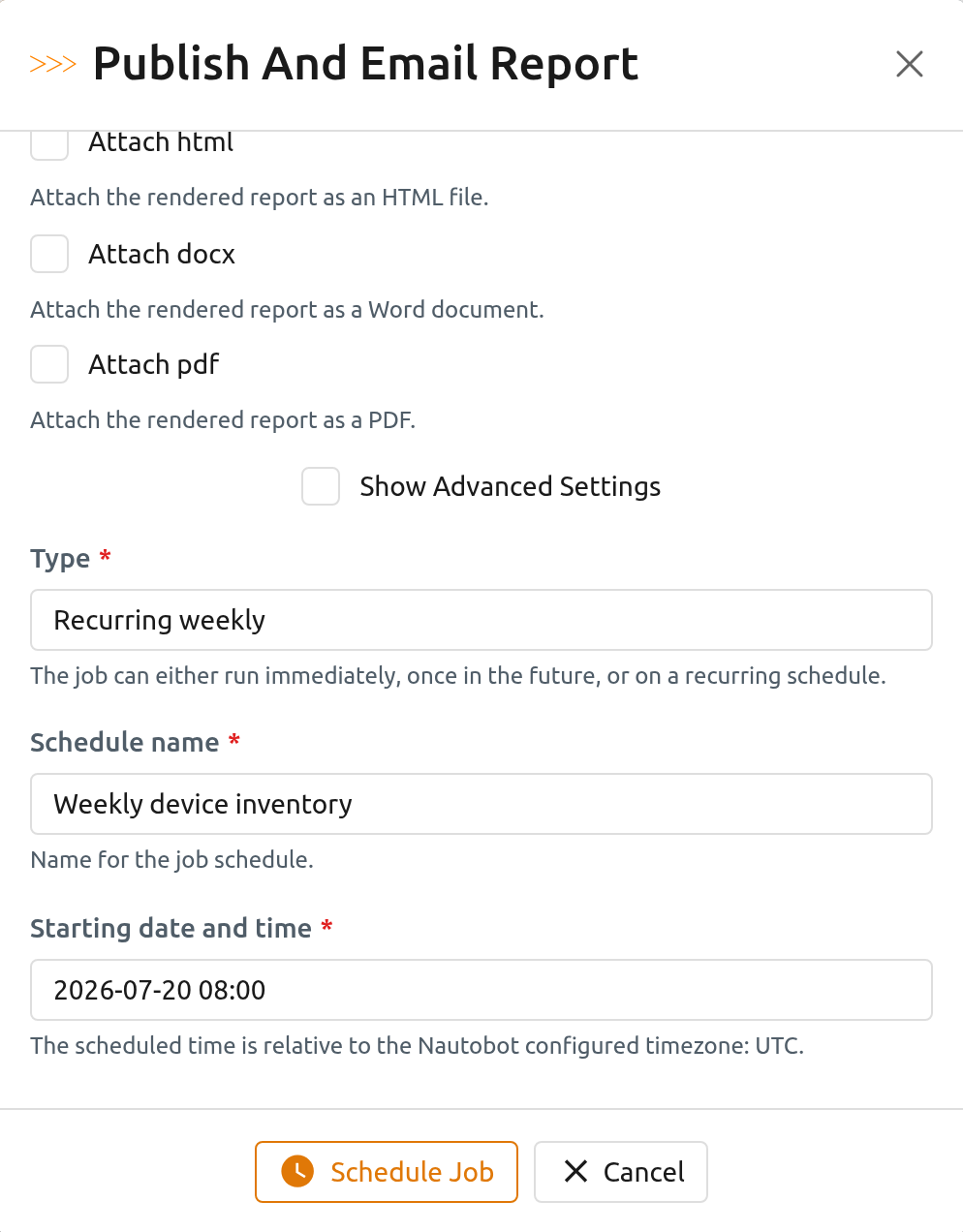
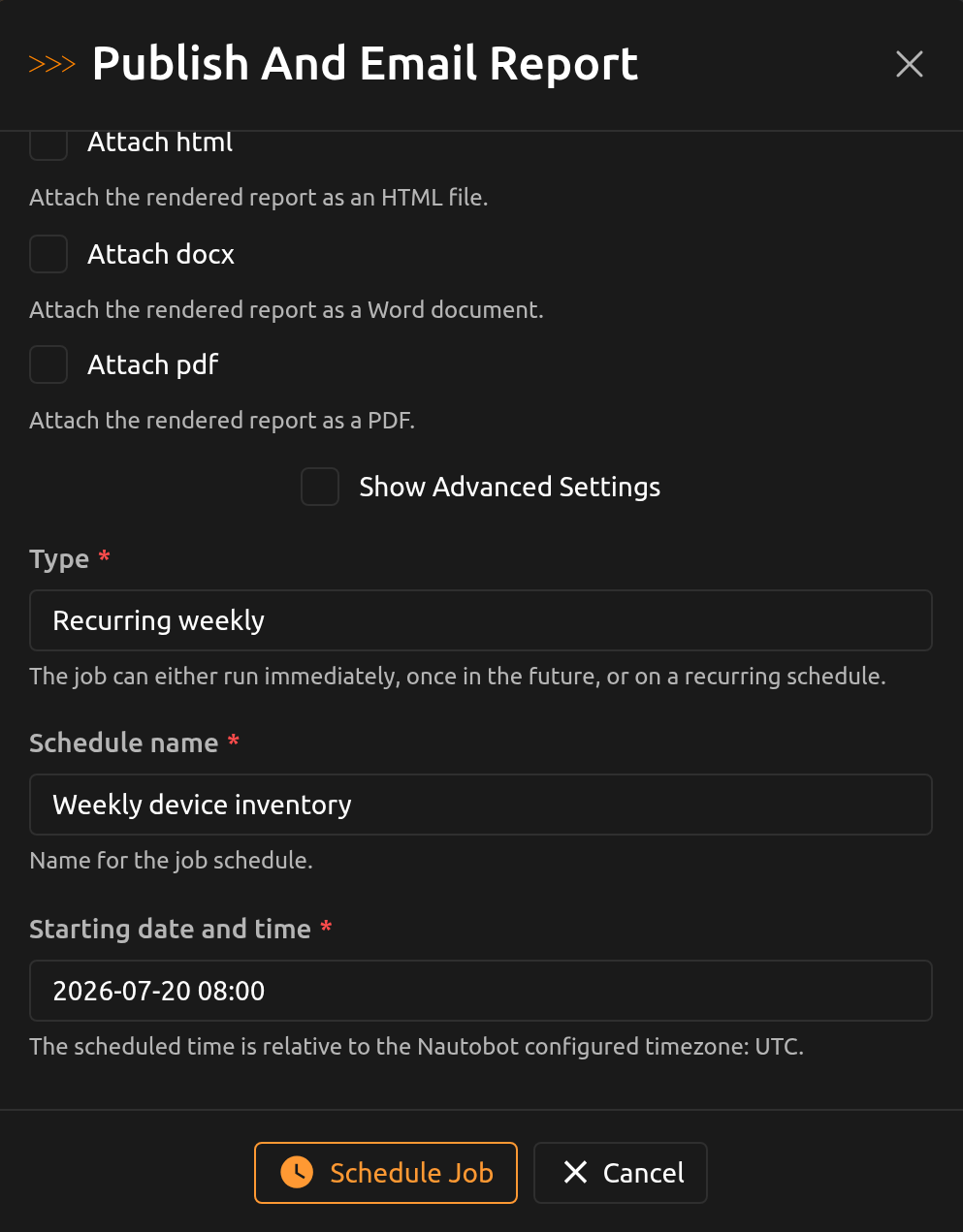
Submitted schedules are managed like any other scheduled job: review and delete them under Jobs > Scheduled Jobs. See Nautobot's job scheduling documentation for details.
Screenshots
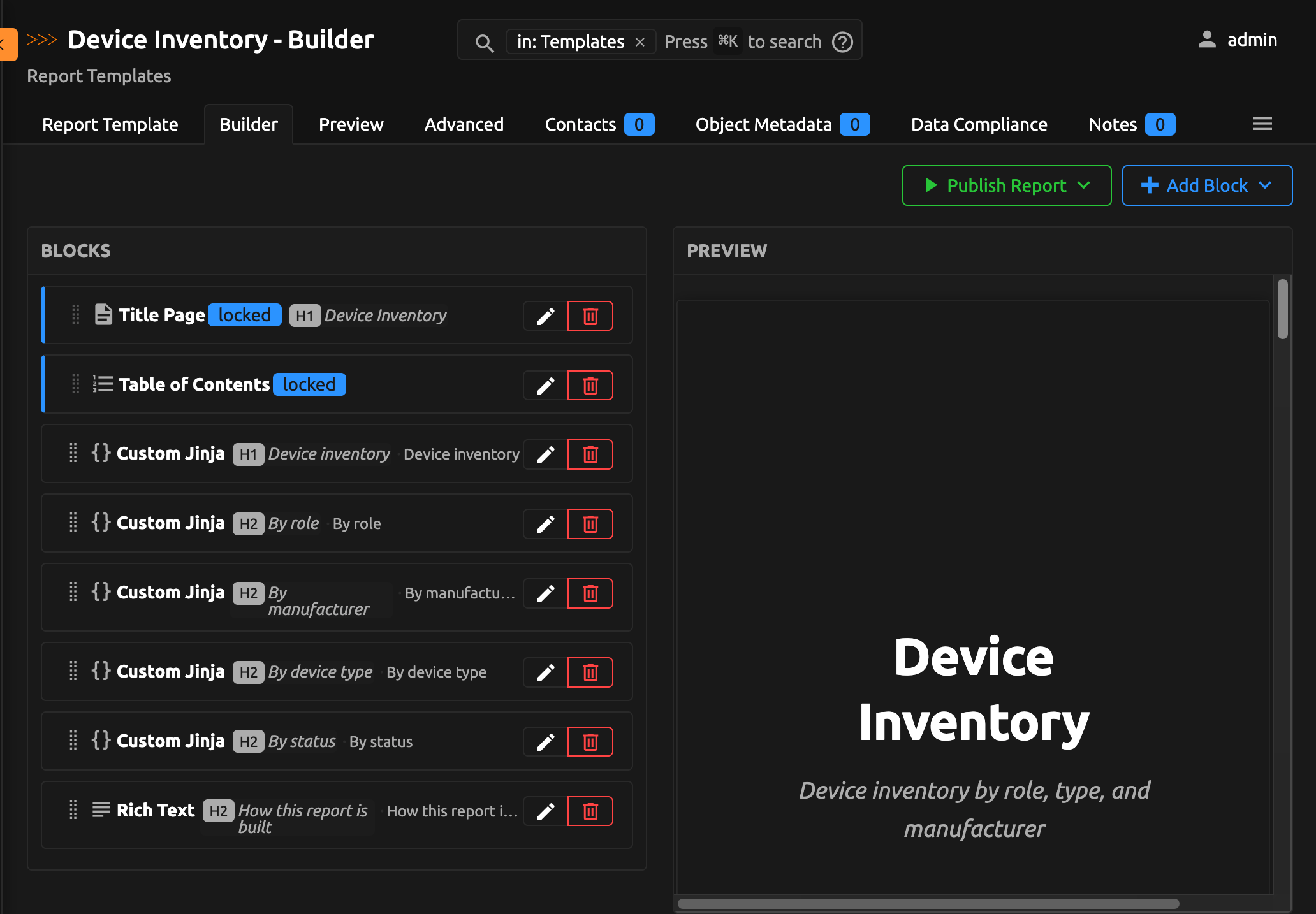
The report builder with its live preview pane:
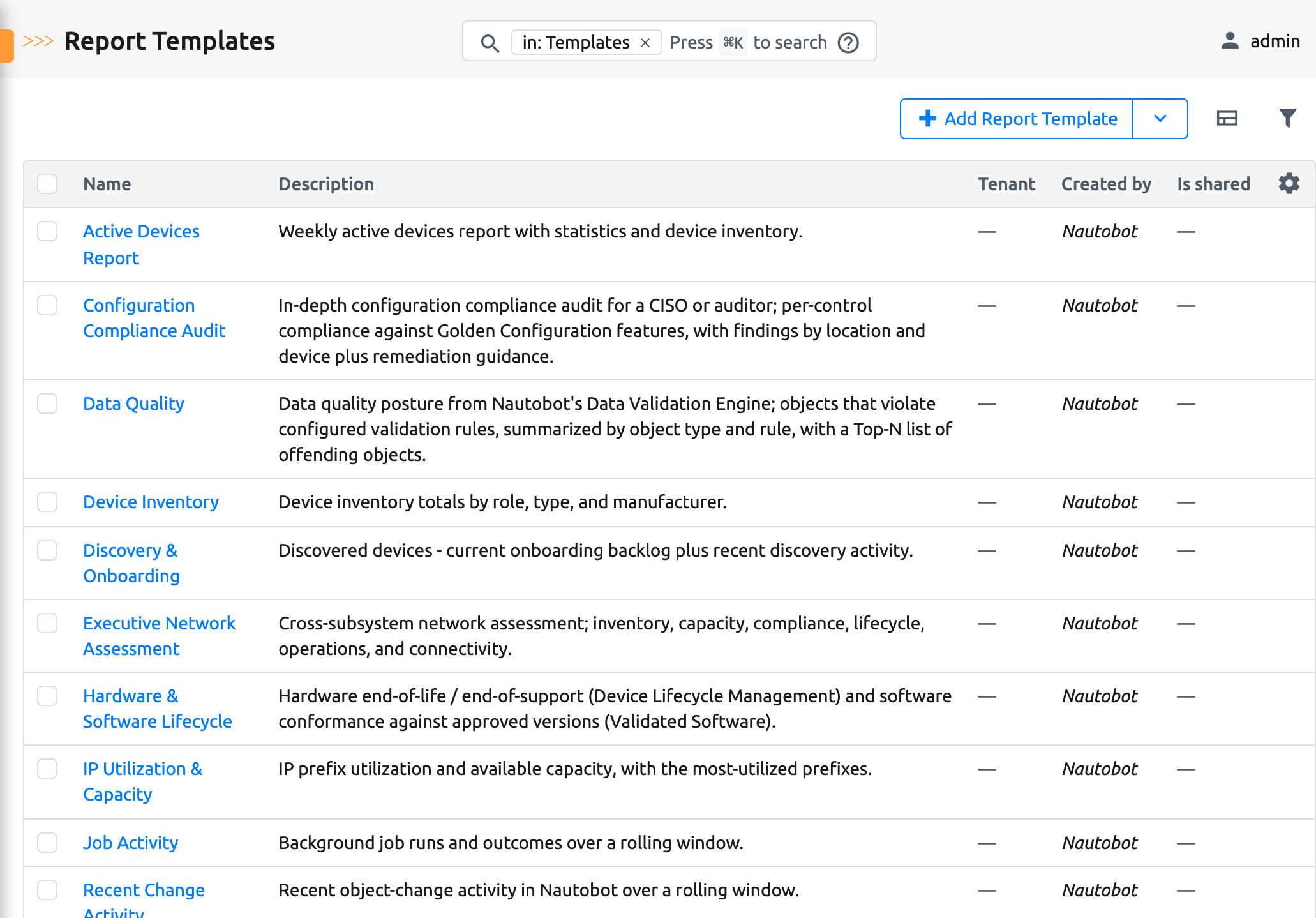
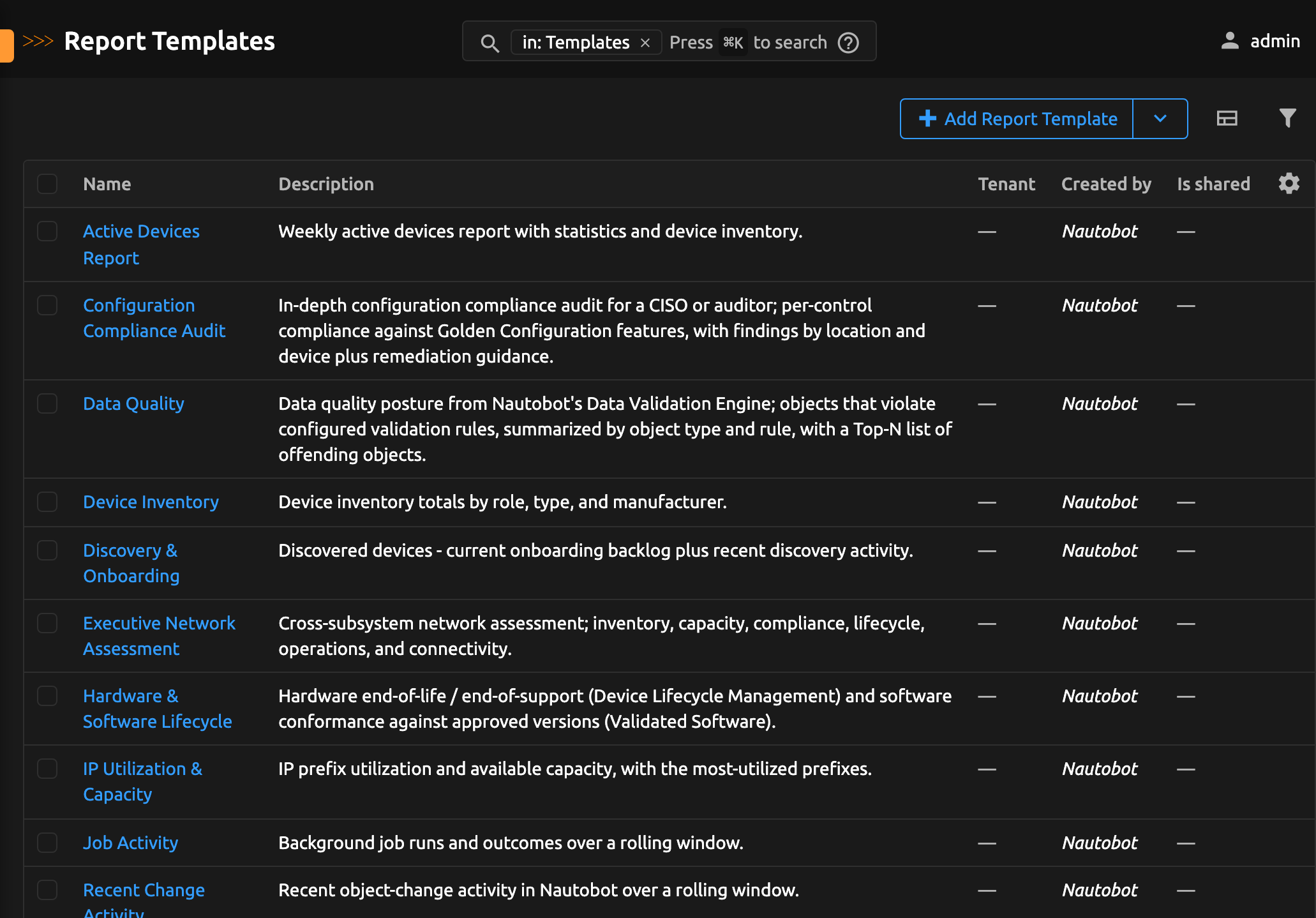
The report template list:
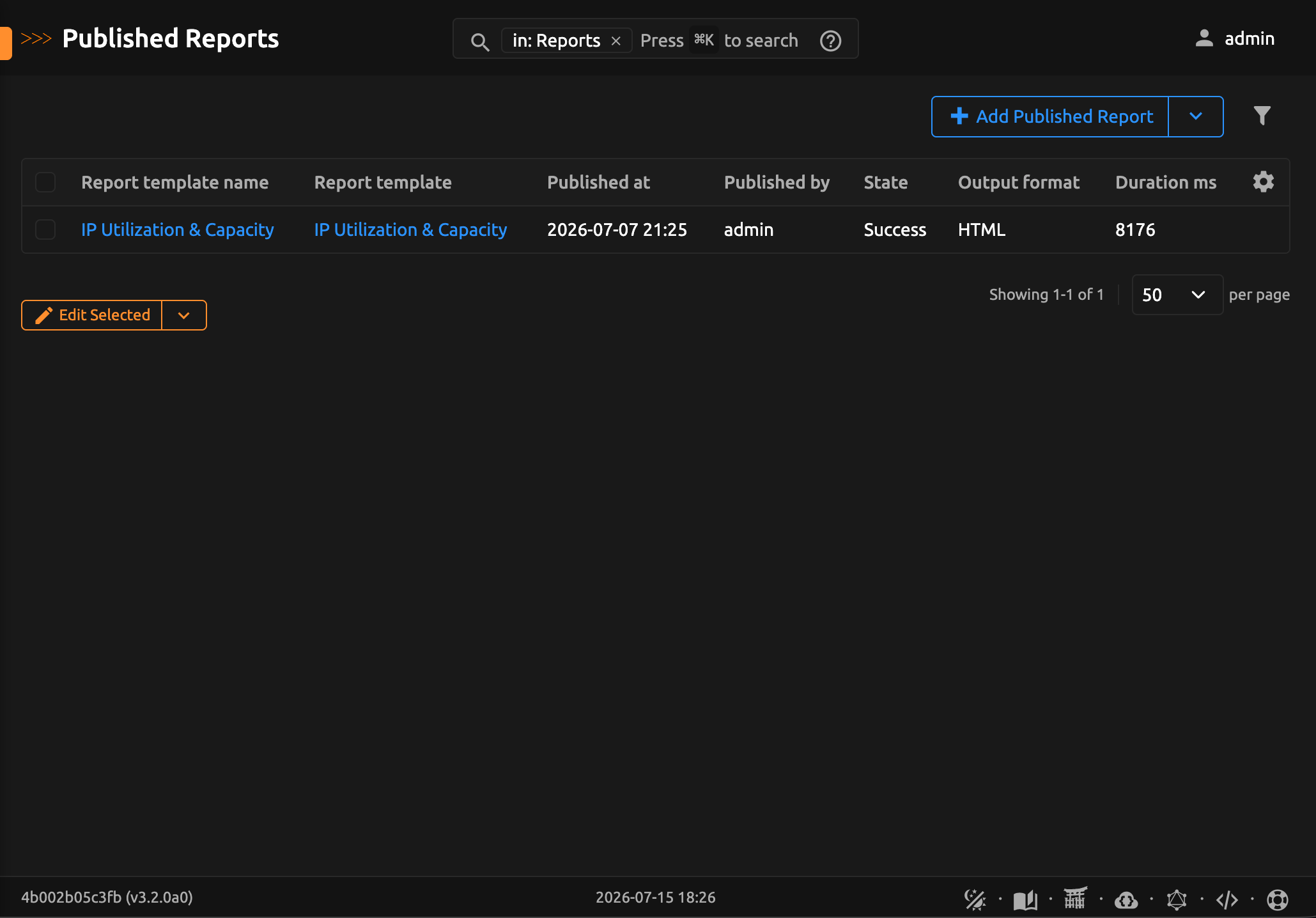
The published report list: