Connecting Nautobot MCP Server to GitHub Copilot
This guide walks you through connecting an already-running Nautobot MCP Server to GitHub Copilot in VS Code.
Prerequisites
- VS Code with GitHub Copilot extension installed (see VS Code documentation and MCP setup guide)
- Nautobot MCP Server running and accessible (see Install Guide for setup)
- Your Nautobot API token (each user provides their own)
Configure VS Code
VS Code supports remote MCP servers natively over HTTP. You configure the server in a .vscode/mcp.json file (workspace-level) or via user settings.
Option 1: Workspace-Level Configuration (Recommended)
Create a .vscode/mcp.json file in your project root. This can be shared with your team via source control.
{
  "servers": {
    "Nautobot": {
      "type": "http",
      "url": "https://mcp.yourcompany.com/mcp",
      "headers": {
        "Authorization": "Bearer ${input:nautobot-api-token}"
      }
    }
  },
  "inputs": [
    {
      "id": "nautobot-api-token",
      "type": "promptString",
      "description": "Nautobot API Token",
      "password": true
    }
  ]
}
Configuration:
type- Must behttpfor remote MCP serversurl- Your server's URL (use/mcpfor streamable-http or/ssefor SSE transport). For a local MCP server, usehttp://localhost:8000/mcpinstead.headers- Passes your Nautobot API token as a Bearer tokeninputs- Prompts you securely for the API token so it is not hardcoded in the file. For local development, you can skip theinputssection and hardcode the token directly in theAuthorizationheader (e.g.,"Bearer YOUR_NAUTOBOT_API_TOKEN").
Option 2: User-Level Configuration
To configure the server globally across all projects, open the Command Palette (Ctrl+Shift+P / Cmd+Shift+P) and run MCP: Open User Configuration. Add the same server configuration as shown above.
Option 3: Command Palette
You can also add the server interactively:
- Open the Command Palette (
Ctrl+Shift+P/Cmd+Shift+P) - Run MCP: Add Server
- Select HTTP as the server type
- Enter your server URL (e.g.,
https://mcp.yourcompany.com/mcp) - Enter a name/ID for the server (e.g.,
Nautobot) - Select the configuration level (workspace or user)
Note: The Command Palette method does not prompt for headers. You will need to manually add the headers section to the generated configuration file afterward.
Start the Server
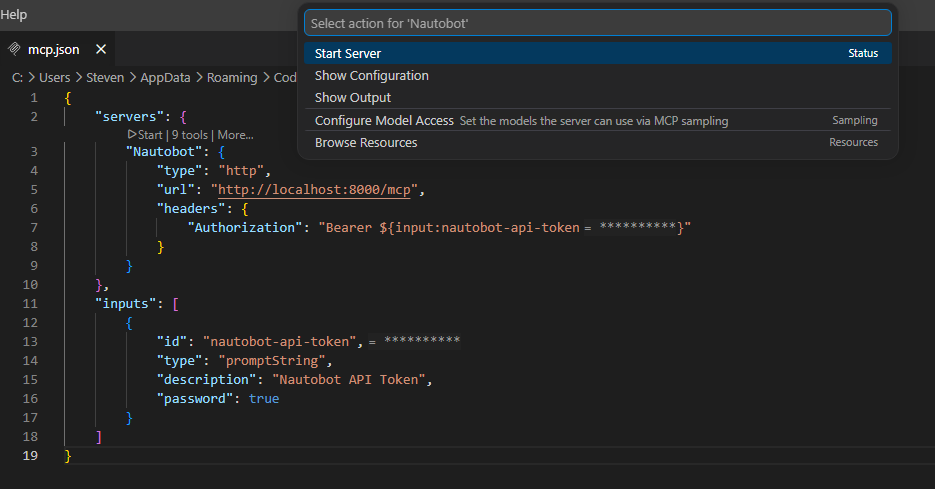
After adding the configuration, VS Code will show a Start code lens action above the server entry in mcp.json. Click Start to initialize the connection, or run MCP: List Servers from the Command Palette and start the server from there.
Verify Connection
Once started, you can verify the connection in several ways:
-
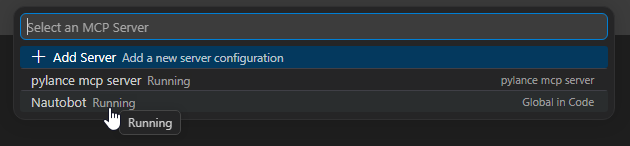
MCP Server List - Run MCP: List Servers from the Command Palette to see the status of all configured MCP servers
-
Extensions Sidebar - In the Extensions view (
Ctrl+Shift+X/Cmd+Shift+X), expand the MCP Servers - Installed section to see the server status, configuration, and management options.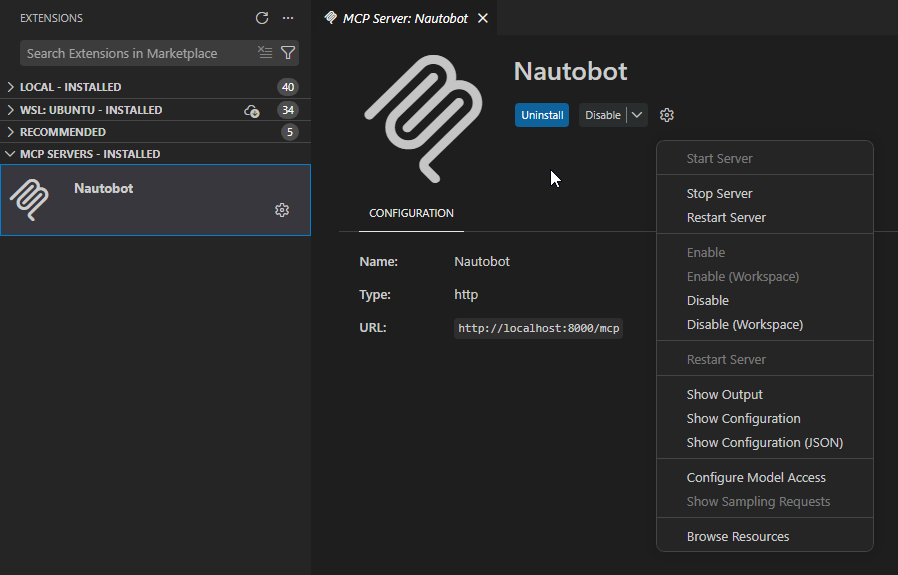
-
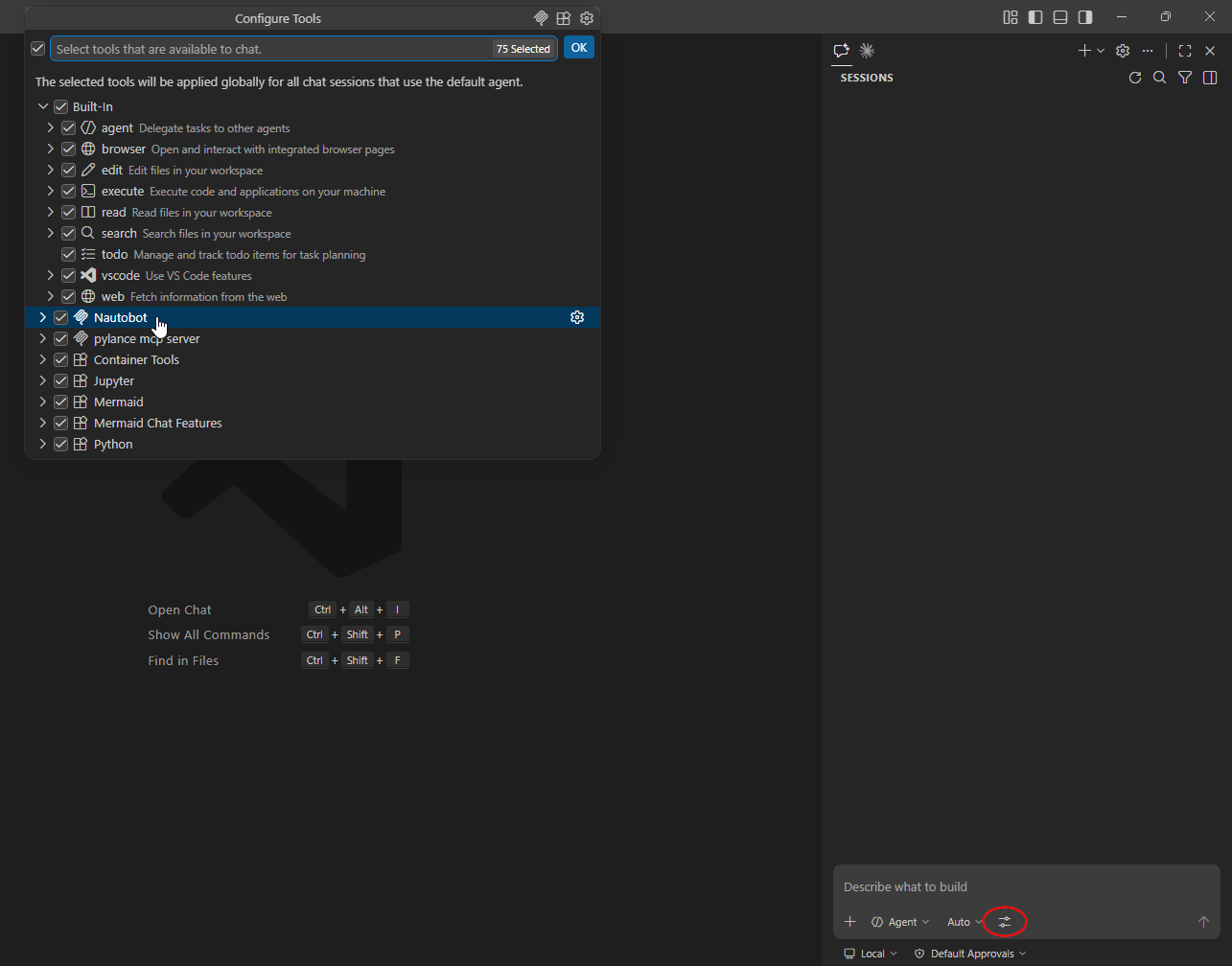
Chat Panel - In the Copilot Chat panel, click the Configure Tools... button to see the Nautobot MCP Server.
Managing the Server
Restart or Stop
- Run MCP: List Servers from the Command Palette, select the Nautobot server, and choose Restart Server or Stop Server
- Use the inline code lens actions in
mcp.jsonto restart or stop the server
Remove
Delete the server entry from your .vscode/mcp.json file or user configuration.
View Logs
If the server encounters issues, you can view the output logs:
- Run MCP: List Servers from the Command Palette
- Select the Nautobot server
- Choose Show Output to open the MCP output channel
Troubleshooting
Server Not Connecting
- Verify server is running - Check that the Nautobot MCP Server is running and accessible
- Check the endpoint - Ensure the URL ends with
/mcpforstreamable-httptransport or/ssefor SSE transport - Verify your token - An invalid Nautobot API token will prevent successful connection
- Check server output - Run MCP: List Servers -> Show Output to view error details
TLS Certificate Issues
If connecting to a server with a self-signed or private CA certificate, you may need to set http.proxyStrictSSL to false in your VS Code settings, or add the CA certificate to your system trust store.
Token Not Being Sent
Ensure the headers section is correctly configured in your mcp.json. If using input variables, verify the inputs array is present and the id matches the ${input:...} reference in the header value.
Example Usage in GitHub Copilot
Once configured, you can ask GitHub Copilot to query your Nautobot instance using the Chat panel in VS Code:
"Get all active devices in Texas with their names, locations, and device types"
"Show me all interfaces on devices in the NYC location"
"Find the first 10 VLANs with ID between 100 and 200"
"List the primary IP addresses for devices in the production environment, limit to 20 results"
GitHub Copilot will use the Nautobot MCP Server to query your Nautobot instance.