Use Cases
Example: Pre/Post-Change Interface State Validation
Scenario: Validate that all Loopback interfaces are up before a change, then intentionally shut down a loopback interface, and use the app to detect and highlight the change.
Prerequisite
The Take Snapshot job only collects from devices governed by an Operational Compliance Setting — your device must be in a setting's dynamic group. If you completed the Getting Started guide, you already have one. Selecting the rule on the job form (as this example does) runs it in addition to any rules designated on the setting, which fits this one-off pre/post change check.
Step 1: Create the "Loopback Interfaces Up" Validation Rule
-
Navigate to Operations > Setup > Validation Rules and click the + Add Validation Rule button.
-
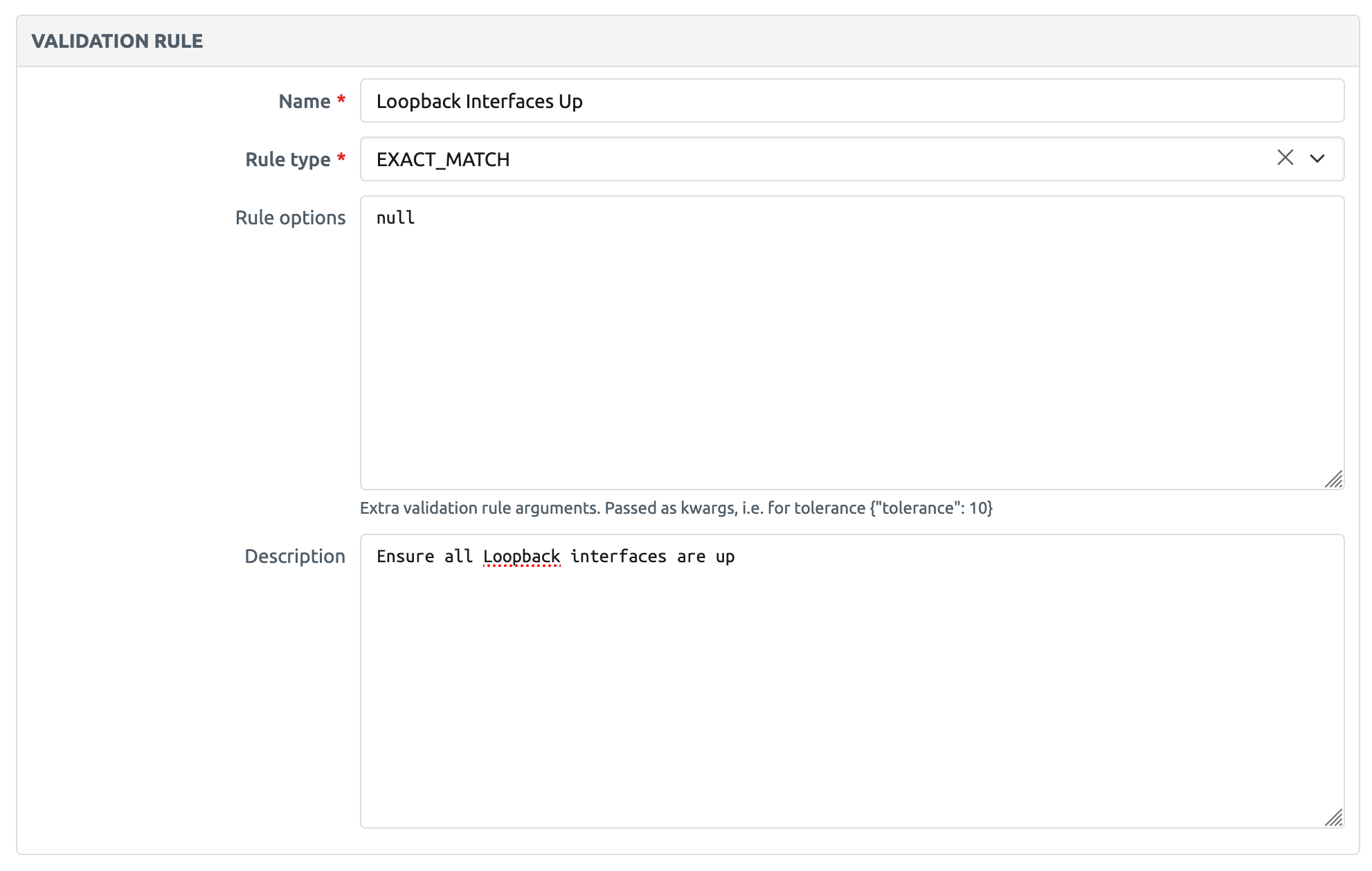
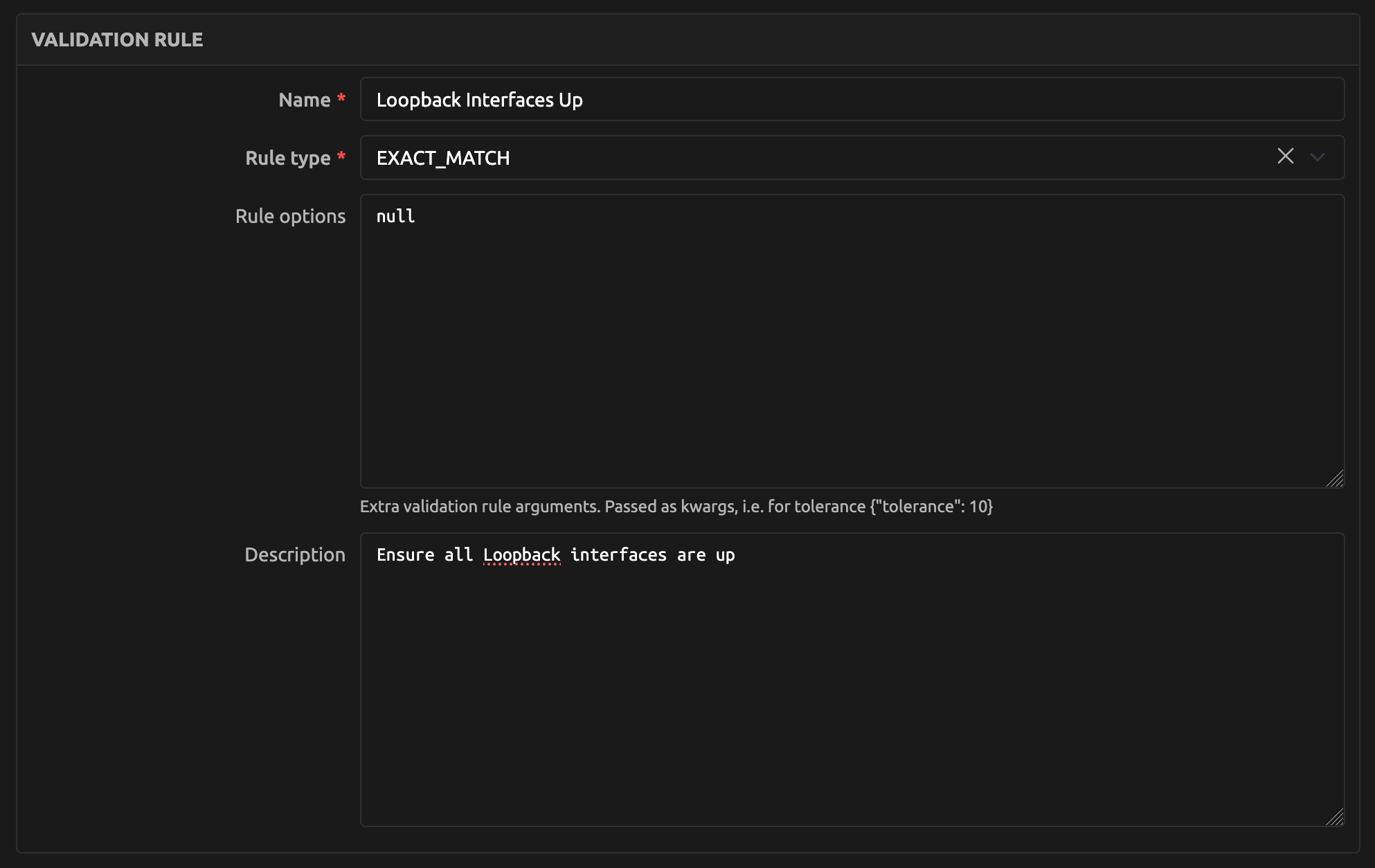
Fill in the form:
- Name:
Loopback Interfaces Up - Rule Type:
EXACT_MATCH - Rule Options: (leave null)
- Description:
Ensure all Loopback interfaces are up
- Name:
-
Click Create
Step 2: Create the Command Parser for Loopback Interfaces
-
Navigate to Operations > Setup > Command Parsers and click the + Add Command Parser button.
-
Fill in the form:
- Parser:
TEXTFSM - Command:
show interfaces - NAPALM Getter: (leave blank — not used for TEXTFSM)
- Validation Rule:
Loopback Interfaces Up - Platform:
cisco_ios - Path:
(This JMESPath expression filters for interfaces whose name starts with "Loopback" and extracts their interface name, link status, and protocol status.)
- Exclude: (leave empty list)
- Parser:
-
Click Create
Note
Try to use the long form of the command (e.g., show interfaces) rather than an abbreviated form (e.g., sh int) to ensure the best chance of matching the command to a parser template in any Git repositories.
Step 3: Create a Validation Rule Group
-
Navigate to Operations > Setup > Validation Rule Groups and click the + Add Validation Rule Group button.
-
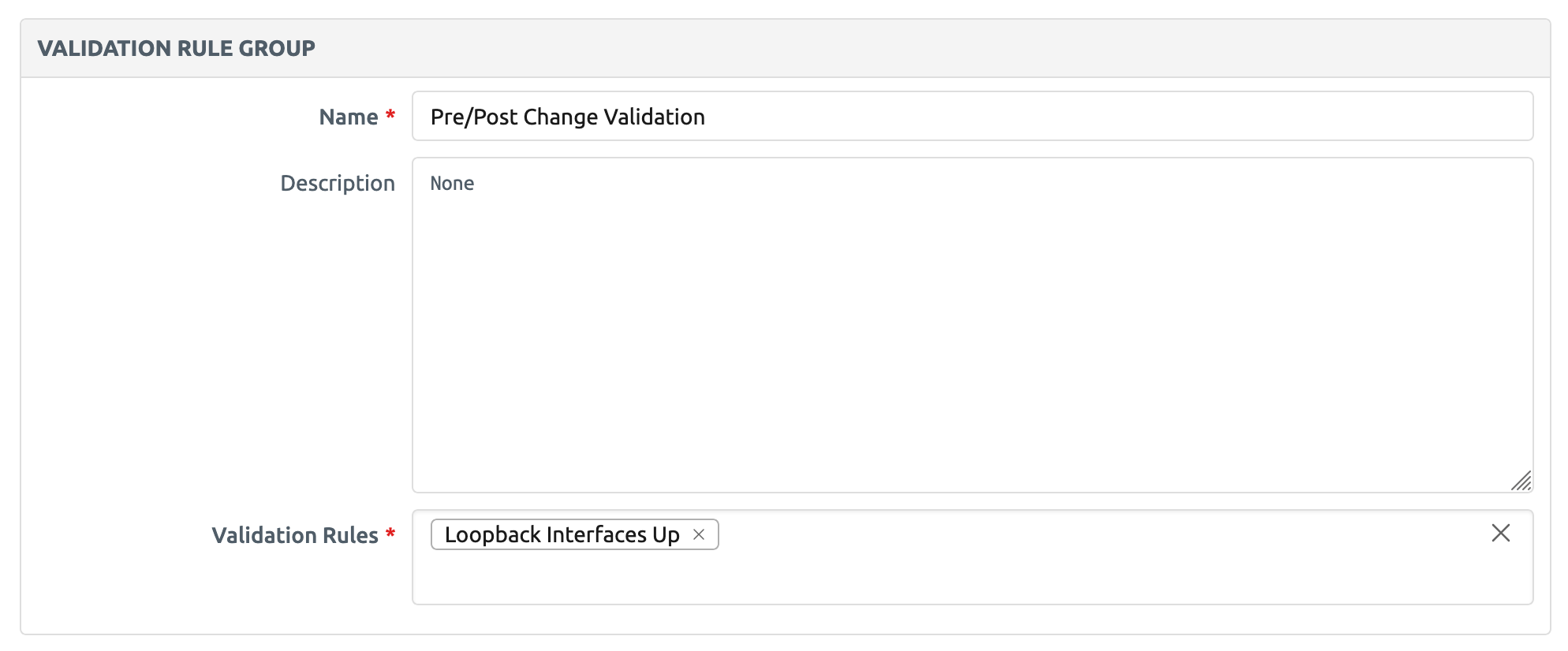
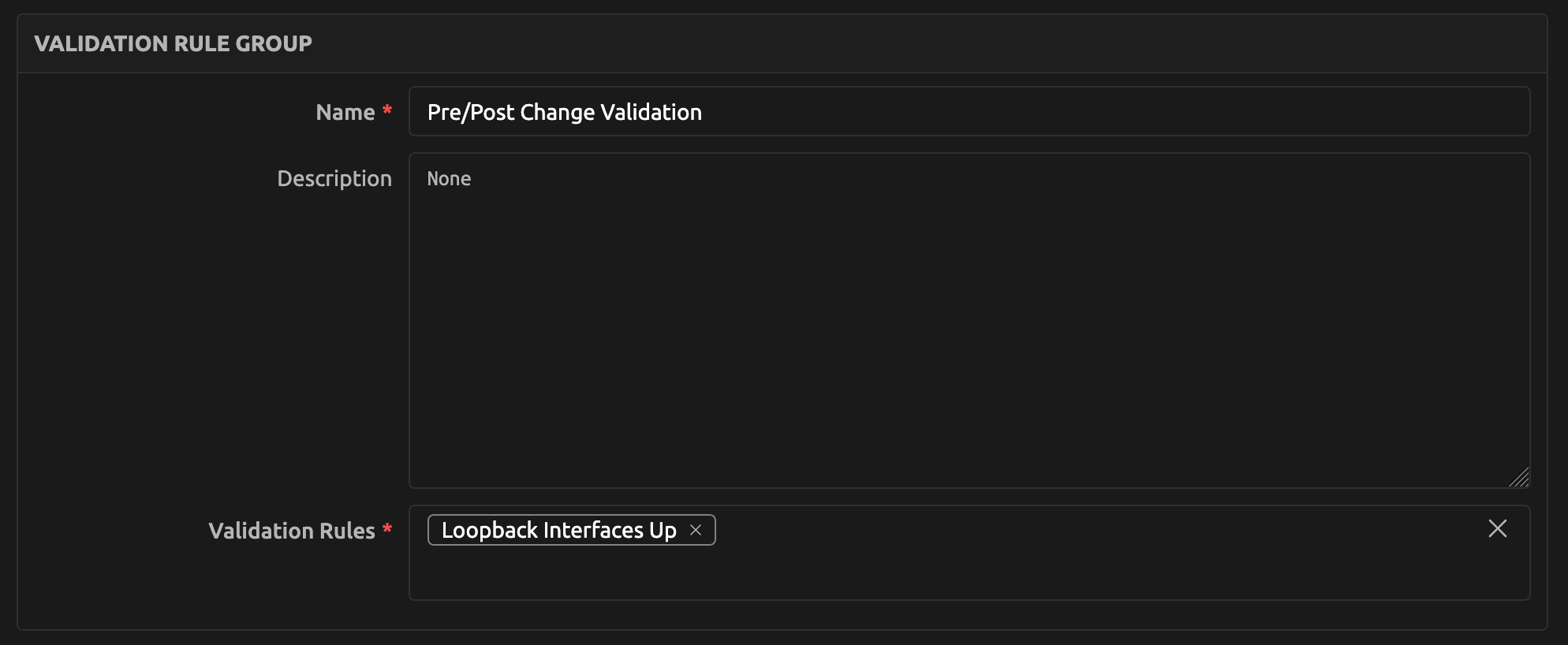
Fill in the form:
- Name:
Pre/Post Change Validation - Validation Rules: Add the
Loopback Interfaces Upvalidation rule
- Name:
-
Click Create
Step 4: Take a "Pre" Snapshot
-
Navigate to Operations > Manage > Snapshots and click the Take Snapshot button.
-
Fill in the form:
- Snapshot Name: (optional — a name will be auto-generated if left blank)
- Validation Rules:
Loopback Interfaces Up - Device: Select your device
Tip
You can also select a Validation Rule Group instead of individual rules, and filter devices by location, platform, role, tags, and more.
-
Click Run Job
-
Once the job completes, you should see your new snapshot in the Snapshots list. Click into it to verify the collected command output.
Step 5: Make a Change on the Device
SSH to your device and shut down a loopback interface:
Step 6: Take a "Post" Snapshot
Repeat Step 4 to collect the "post" snapshot state. Navigate to Operations > Manage > Snapshots, click Take Snapshot, select the same rule and device, and run the job.
Step 7: Compare the Snapshots
-
Navigate to Operations > Manage > Validation Results and click the Compare Two Snapshots button.
-
Fill in the form:
- Pre Snapshot: Select your "pre" snapshot
- Post Snapshot: Select your "post" snapshot
-
Click Run Job
Step 8: View the Results
Once the job completes, the Validation Results list will show a result for your device and rule. The Match column indicates whether the check passed or failed. Click into the result to see the full detail page with the diff.
Example Data
"Pre" Snapshot (Loopback10 up):
"Post" Snapshot (Loopback10 down):
[
  ["Loopback0", "up", "up"],
  ["Loopback10", "administratively down", "down"],
  ["Loopback109", "up", "up"]
]
Example Diff Output:
{
  "index_element[1][1]": {
    "new_value": "administratively down",
    "old_value": "up"
  },
  "index_element[1][2]": {
    "new_value": "down",
    "old_value": "up"
  }
}
How to read this diff:
index_element[1][1]means the second interface in the list (Loopback10), second field (link_status), changed from"up"to"administratively down".index_element[1][2]means the second interface, third field (protocol_status), changed from"up"to"down".
This shows exactly which interface and fields changed between the two snapshots.
Jobs
The Operational Compliance app provides six jobs that enable network teams to validate device state, develop command parsers, and manage operational data. Jobs can be run manually through the Nautobot UI or programmatically via the REST API.
Prerequisites
Before using any jobs, ensure the following prerequisites are met:
- Nautobot Nornir Plugin: Required for device connectivity and command execution
- Device Platform Assignment: All target devices must have a Platform assigned
- Network Connectivity: Devices must be reachable from the Nautobot instance
- Credentials Configuration: Device credentials must be configured in the Nornir plugin
- Validation Rules: For snapshot jobs, validation rules must be created first
- Command Parsers: For validation rules to work, appropriate command parsers must exist for each platform
Job Overview
| Job Name | Purpose |
|---|---|
| Take Snapshot | Collect operational data and validate it — validation-only rules (Parameter Match, Operator, Regex) automatically, plus an option to compare two-snapshot rules (Exact Match, Tolerance) against the most recent prior snapshot |
| Compare Snapshots | Compare two user-selected snapshots and generate validation results (Exact Match, Tolerance) |
| Clean Command Output | Remove old command output data to manage storage |
| Run Show Command | Execute ad-hoc commands on devices for troubleshooting |
| Build Command Parser | Develop and test command parser configurations |
| Test Command Parser | Test existing command parsers against live devices |
Take Snapshot
Added in version 3.2.0
Location: Operations → Manage → Snapshots → Take Snapshot button (also available under Jobs → Operational Compliance) Description: Collect a snapshot of device command output based on the selected validation rules, then validate it. The validation-only rule types — Parameter Match, Operator, and Regex — evaluate a single command output against fixed values in the rule's options (no baseline needed) and are validated automatically after collection. Two-snapshot rule types (Exact Match, Tolerance) are only collected by default; check Compare against latest snapshot to also validate them against the most recent previous snapshot for each device and rule combination, if one exists.
Execution Steps
- Navigate to Operations → Manage → Snapshots and click Take Snapshot (or run it from Jobs → Operational Compliance).
- Choose the validation rules (or validation rule groups) and the devices to collect from.
- Optionally check Compare against latest snapshot to validate Exact Match and Tolerance rules against the most recent previous snapshot for each device and rule.
- Click Run Job.
- Review the results in the Validation Results list; the Rule Type column distinguishes one-sided validation rows (no "pre") from two-snapshot comparison rows.
Parameters
| Parameter | Type | Required | Default | Description |
|---|---|---|---|---|
| snapshot_name | String | No | Auto-generated (timestamp + user) | Name for the snapshot that gets created |
| validation_rules | Multi-select | No | None | Validation rules to collect command output for and evaluate |
| validation_rule_groups | Multi-select | No | None | Validation rule groups whose rules are added to the run |
| Device scoping filters (location, role, platform, device_type, device, tags, status, tenant, dynamic_groups, …) | Multi-select | No | None | Narrow the set of in-scope devices; scoped to the Operational Compliance setting's dynamic group |
| compare_against_latest_snapshot | Boolean | No | False | Also validate Exact Match / Tolerance rules against the most recent previous snapshot for each device and rule combination, if one exists |
| fail_job_on_task_failure | Boolean | No | False | Fail the entire job if any device task fails |
| debug | Boolean | No | False | Enable more verbose debug logging |
Build Command Parser
Added in version 3.1.0
Location: Jobs → Operational Compliance → Build Command Parser Description: Build and test a command parser configuration against live devices. Specify parser type, command, and JMESPath expression — logs raw output, parsed output, and JMESPath result at each stage. Optionally save as a CommandParser object.
Purpose and Use Cases
The Build Command Parser job enables network engineers to develop and test command parser configurations without writing code. This is used for:
- Parser Development: Create new command parsers for validation rules
- Testing and Iteration: Test parser configurations against live devices
- JMESPath Development: Refine JMESPath expressions to extract the right data
- Multi-device Validation: Ensure parsers work across different devices of the same platform
This job provides an automated alternative to manually creating Command Parser objects through the UI. For detailed information about parser types, JMESPath syntax, and configuration concepts, see the Command Parser Reference.
Prerequisites
- Target devices must be reachable and have credentials configured
- Devices must have platforms assigned
- For NAPALM parsers: devices must support the selected NAPALM getter
- For TextFSM/TTP parsers: appropriate templates must be available
Parameters
| Parameter | Type | Required | Default | Description |
|---|---|---|---|---|
| device | Multi-select | No | None | Specific devices to test against |
| dynamic_groups | Multi-select | No | None | Dynamic groups to test against |
| parser_type | Choice | Yes | None | Parser type: TEXTFSM, NAPALM, TTP, or JSON |
| command | String | No | None | CLI command (required for TEXTFSM, TTP, JSON) |
| napalm_getter | Choice | No | None | NAPALM getter (required for NAPALM parser type) |
| platform | Object | No | None | Platform for template matching and validation |
| path | String | No | "*" | JMESPath expression to extract data |
| save | Boolean | No | False | Save parser configuration to database |
| validation_rule | Object | No | None | Validation rule to associate (required if saving) |
Parser Type Details
For detailed explanations of each parser type, see the Command Parser Reference.
TEXTFSM Parser
- Command: Required. CLI command to execute (e.g., "show interfaces")
- NAPALM Getter: Leave blank
- Templates: Uses NTC templates or custom templates from Git repositories
NAPALM Parser
- Command: Leave blank
- NAPALM Getter: Required. Select from available getters (e.g., "get_facts", "get_interfaces")
- Templates: Not needed - NAPALM provides structured output
TTP Parser
- Command: Required. CLI command to execute
- NAPALM Getter: Leave blank
- Templates: Requires custom TTP templates from Git repositories
JSON Parser
- Command: Required. CLI command that returns JSON (e.g., "show version | json")
- NAPALM Getter: Leave blank
- Templates: Not needed - output is parsed as JSON directly
JMESPath Expression Development
The path parameter uses JMESPath to extract specific data from the parsed output. Common patterns:
*- Extract everything (useful for initial testing)[*].interface- Extract interface names from a list[*].[interface, status]- Extract interface names and status[*].[$interface$, status]- Use interface as reference key for better diffsvrfs.default.peers[*].[$peerAddress$, state]- Extract BGP peer data with reference keys
For comprehensive JMESPath syntax, examples, and reference key anchoring details, see the Command Parser Reference.
Execution Steps
- Navigate to Jobs → Operational Compliance → Build Command Parser
- Select target devices or dynamic groups for testing
- Choose the parser type (TEXTFSM, NAPALM, TTP, or JSON)
- Configure the command or NAPALM getter based on parser type
- Set the platform if you want to validate template matching
- Enter a JMESPath expression (start with "*" to see all data)
- If you want to save the parser, check "Save Parser" and select a validation rule
- Click Run Job
- Review the detailed logs showing each processing stage
Testing Workflow and Output Interpretation
The job logs show three stages of processing for each device:
Stage 1: Raw Output Shows the unprocessed command output from the device. This helps verify:
- The command executed successfully
- The device returned expected data
- Connection and authentication worked
Stage 2: Parsed Output Shows the structured data after applying the parser (TextFSM, NAPALM, etc.). This helps verify:
- The parser template matched correctly
- Data was structured as expected
- All relevant fields were extracted
Stage 3: JMESPath Result Shows the final data after applying the JMESPath expression. This helps verify:
- The JMESPath expression is correct
- The right data is being extracted
- Reference keys are properly configured
Example Log Output
Parser type: TEXTFSM
Command: 'show interfaces'
JMESPath: '[*].[$interface$, link_status, protocol_status]'
Devices: 2
  router1 — platform: cisco_ios, network_driver: cisco_ios
  router2 — platform: cisco_ios, network_driver: cisco_ios

=== router1 ===
Raw output (first 500 chars):
GigabitEthernet0/0 is up, line protocol is up
  Hardware is CSR vNIC, address is 0050.56bb.e9c8 (bia 0050.56bb.e9c8)
  Internet address is 10.1.1.1/24
...

Parsed output:
[
  {"interface": "GigabitEthernet0/0", "link_status": "up", "protocol_status": "up"},
  {"interface": "GigabitEthernet0/1", "link_status": "down", "protocol_status": "down"}
]

JMESPath result:
[
  ["GigabitEthernet0/0", "up", "up"],
  ["GigabitEthernet0/1", "down", "down"]
]

SUCCESS: Parser test completed successfully
Saving Parsers to the Database
When the "Save Parser" option is enabled:
- Validation Rule Required: You must select a validation rule to associate with the parser
- Platform Validation: If a platform is specified, it will be saved with the parser
- Automatic Creation: A CommandParser object is created with all the tested configuration
- Immediate Use: The saved parser can immediately be used in Take Snapshot jobs
The saved parser includes:
- Parser type (TEXTFSM, NAPALM, TTP, JSON)
- Command or NAPALM getter
- JMESPath expression
- Associated validation rule and platform
- All configuration tested during the job execution
Integration
- Validation Rules: Saved parsers are linked to validation rules for use in snapshots
- Take Snapshot Job: Uses saved parsers to collect device data
- Test Command Parser Job: Can test the saved parsers against different devices
- Command Parser Reference: Saved parsers appear in the Command Parsers list
Troubleshooting
Common issues and solutions:
Parser Test Fails:
- Check device connectivity and credentials
- Verify the command is valid for the device platform
- For NAPALM: ensure the getter is supported by the device driver
No Parsed Output:
- For TextFSM: check if NTC templates exist for the command/platform
- For TTP: ensure custom templates are available in Git repositories
- For JSON: verify the command returns valid JSON
JMESPath Returns Empty:
- Start with "*" to see the full data structure
- Check the JMESPath syntax at jmespath.org
- Verify field names match the parsed output exactly
- See the Command Parser Reference for detailed JMESPath guidance
Save Fails:
- Ensure a validation rule is selected
- Check that you have permissions to create CommandParser objects
- Verify the platform is correctly assigned
Test Command Parser
Added in version 3.1.0
Location: Jobs → Operational Compliance → Test Command Parser Description: Test an existing command parser against live devices. Runs the command, parses output, and applies JMESPath — logging each stage.
Purpose and Use Cases
The Test Command Parser job validates existing command parser configurations against live devices. This is used for:
- Parser Validation: Verify that saved parsers work correctly
- Cross-device Testing: Test parsers against different devices of the same platform
- Troubleshooting: Debug parser issues by seeing detailed execution stages
- Platform Compatibility: Validate parsers work across device variations
Prerequisites
- At least one CommandParser object must exist in the database
- Target devices must be reachable and have credentials configured
- Devices should match the parser's configured platform for best results
Parameters
| Parameter | Type | Required | Default | Description |
|---|---|---|---|---|
| parser | Object | Yes | None | CommandParser object to test |
| device | Multi-select | No | None | Specific devices to test against |
| dynamic_groups | Multi-select | No | None | Dynamic groups to test against |
Execution Steps
- Navigate to Jobs → Operational Compliance → Test Command Parser
- Select a command parser from the dropdown
- Select target devices or dynamic groups for testing
- Click Run Job
- Review the detailed logs showing parser execution stages
Output and Results
The job provides the same three-stage logging as Build Command Parser:
Parser Information Display Shows the selected parser's configuration:
- Parser type and associated validation rule
- Command or NAPALM getter
- JMESPath expression
- Configured platform (if any)
Execution Results For each target device:
- Raw Output: Unprocessed command output
- Parsed Output: Structured data after parsing
- JMESPath Result: Final extracted data
- Success/Failure Status: Whether the parser worked correctly
Summary Report
- Total devices tested
- Success and failure counts
- Overall parser status (success/failed/partial)
Testing Workflow and Output Interpretation
The job logs show three stages of processing for each device:
Stage 1: Raw Output Shows the unprocessed command output from the device. This helps verify:
- The command executed successfully
- The device returned expected data
- Connection and authentication worked
Stage 2: Parsed Output Shows the structured data after applying the parser (TextFSM, NAPALM, etc.). This helps verify:
- The parser template matched correctly
- Data was structured as expected
- All relevant fields were extracted
Stage 3: JMESPath Result Shows the final data after applying the JMESPath expression. This helps verify:
- The JMESPath expression is correct
- The right data is being extracted
- Reference keys are properly configured
Example Log Output
Parser: 'show interfaces - cisco_ios - interfaces'
  Parser type: TEXTFSM | Command: 'show interfaces' | NAPALM getter: '' | JMESPath: '[*].[$interface$, link_status, protocol_status]'
  Platform: cisco_ios
Devices: 2
  router1 — platform: cisco_ios, network_driver: cisco_ios
  router2 — platform: cisco_ios, network_driver: cisco_ios

=== router1 ===
Raw output (first 500 chars):
GigabitEthernet0/0 is up, line protocol is up
  Hardware is CSR vNIC, address is 0050.56bb.e9c8 (bia 0050.56bb.e9c8)
  Internet address is 10.1.1.1/24
...

Parsed output:
[
  {"interface": "GigabitEthernet0/0", "link_status": "up", "protocol_status": "up"},
  {"interface": "GigabitEthernet0/1", "link_status": "down", "protocol_status": "down"}
]

JMESPath result:
[
  ["GigabitEthernet0/0", "up", "up"],
  ["GigabitEthernet0/1", "down", "down"]
]

SUCCESS: Parser test completed successfully
Platform Compatibility Warnings
The job automatically detects platform mismatches:
- If the parser is configured for a specific platform
- And target devices have different platforms
- Warning messages are logged for each mismatch
- Tests still run but results may not parse correctly
Integration
- CommandParser Objects: Tests parsers created via Build Command Parser or manual configuration
- Validation Rules: Shows which validation rule the parser supports
- Take Snapshot Job: Validates parsers before using them in production snapshots
- Troubleshooting Workflows: Helps diagnose parser issues in existing configurations
- Command Parser Reference: For detailed parser configuration concepts, see the Command Parser Reference
Troubleshooting
Parser Test Fails:
- Check if the device platform matches the parser's configured platform
- Verify device connectivity and command execution
- Review the raw output to ensure the command ran successfully
Parsed Output is Empty:
- Check if appropriate templates exist for the device platform
- For custom parsers: verify Git repository templates are accessible
- Review parser configuration for correctness
JMESPath Extraction Fails:
- Compare the JMESPath expression against the actual parsed output structure
- Test the expression at jmespath.org with sample data
- Consider updating the parser's JMESPath expression if needed
- See the Command Parser Reference for detailed JMESPath guidance