Getting Started with the App
This document provides a step-by-step tutorial on how to get the Device Discovery App up and running in your Nautobot environment.
Prerequisites
Before starting, make sure you have:
- The app installed and configured
- The Device Onboarding App installed and configured
- SNMP and SSH credentials configured for device access — see the Secrets Guide
Step 1: Create a Discovery Profile
A Discovery Profile defines which prefixes to scan, which protocols and credentials to use, and how the scan should behave.
- Navigate to Devices > Discovery > Discovery Profiles
- Click the + Add Discovery Profile button
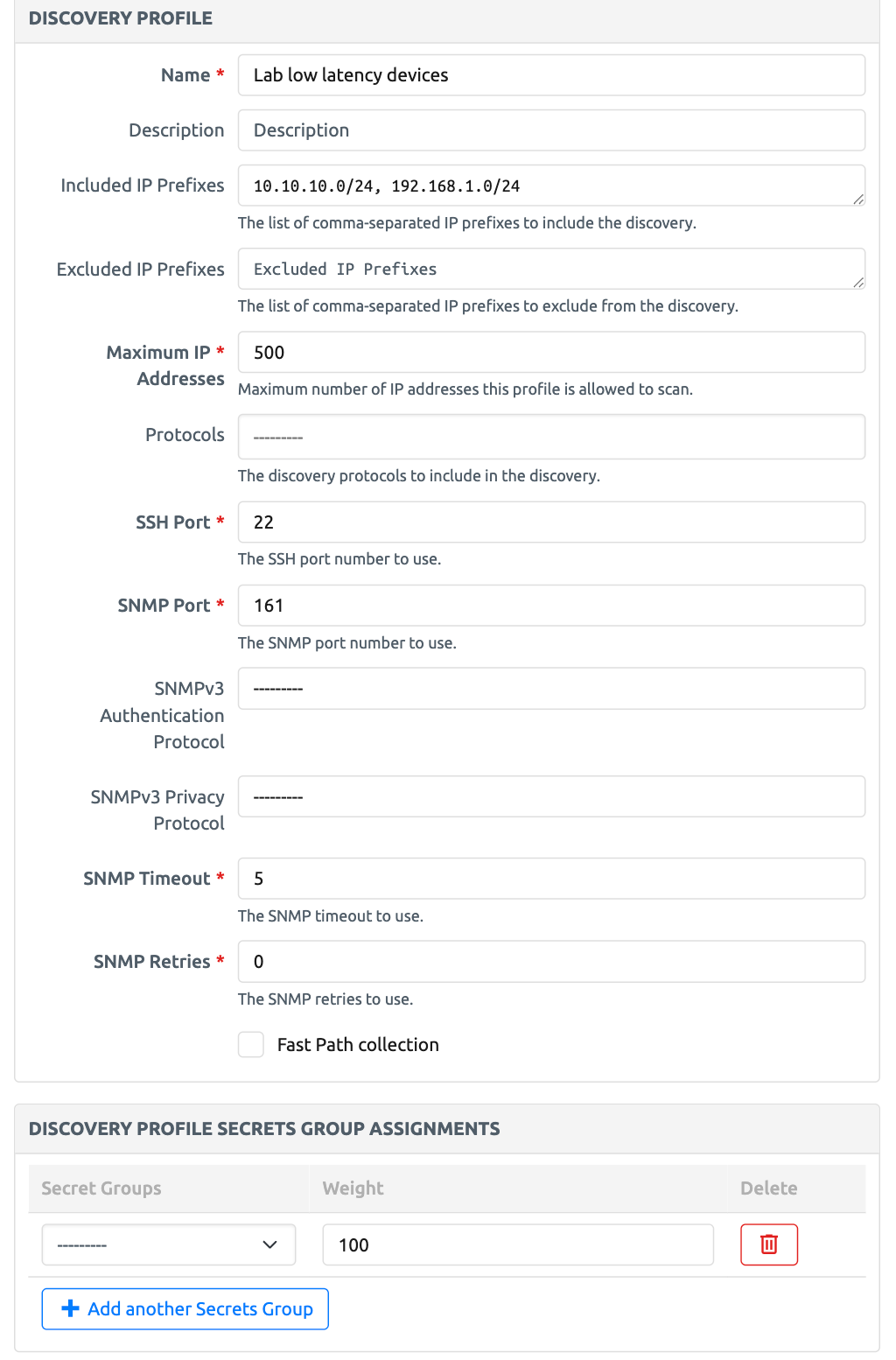
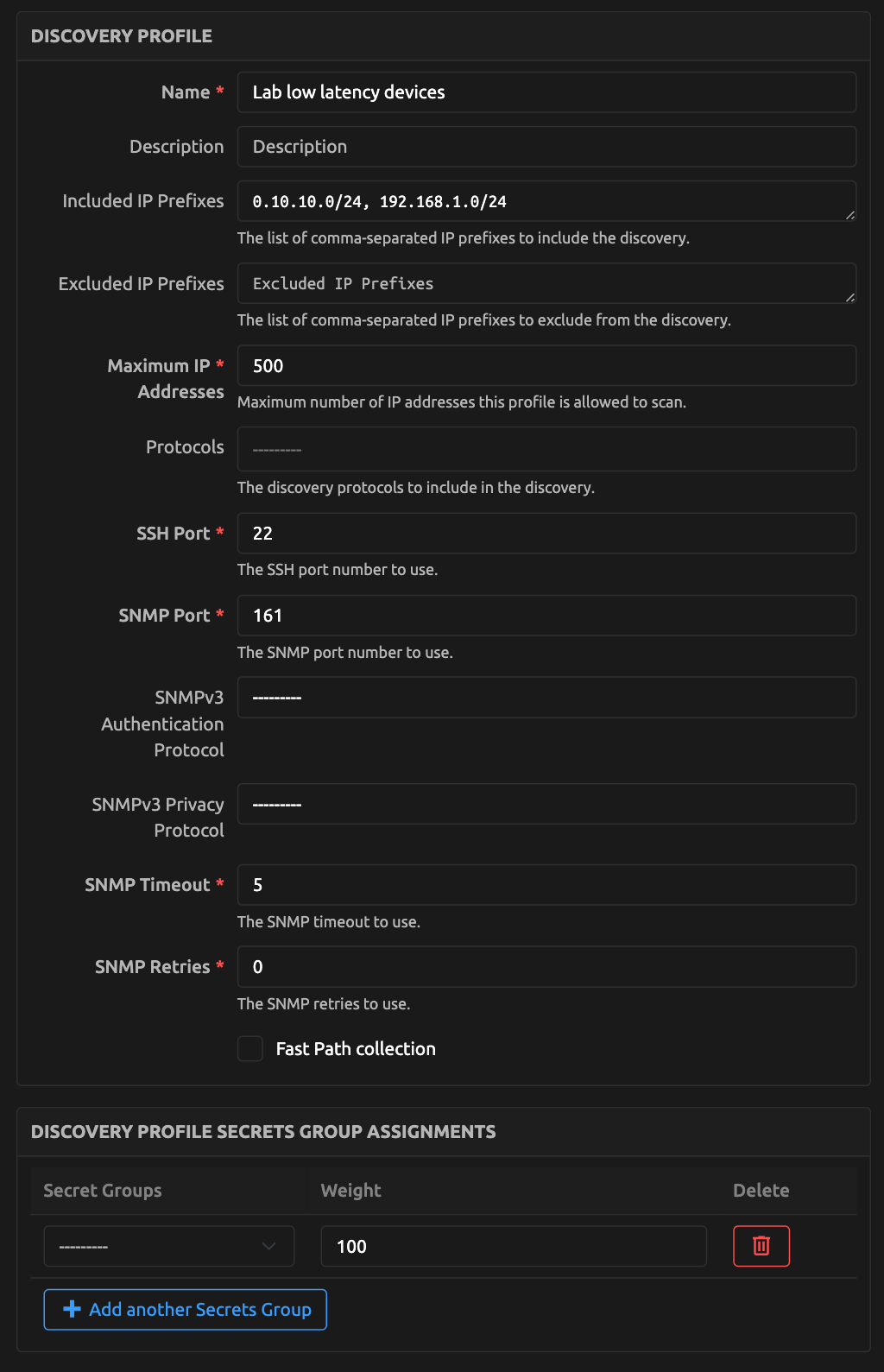
- Fill in the form:
- Name: A descriptive name for the profile (e.g.,
Lab low latency devices) - Included IP Prefixes: The prefixes to scan (e.g.,
10.10.10.0/24, 192.168.1.0/24) - Maximum IP Addresses: A sanity check to prevent excessive or unintended discovery scope
- Protocols: Select SSH, SNMP, or both — at least one is required (see SNMP vs SSH — What Each Protocol Collects for what each one gathers)
- Discovery Profile Secrets Group Assignments: Select valid SNMP and SSH credentials with their weights — see the Secrets Guide for details on credential weighting
- SSH Port: Default
22(modify if your environment uses a non-standard port) - SNMP Port: Default
161(modify if your environment uses a non-standard port) - SNMP Timeout / SNMP Retries: Adjust as needed for your environment
- Fast Path collection: Enable to optimize SSH re-discovery for recurring scans — see the Fast Path Guide
- Strip Domain Suffixes: Optional comma-separated list of domain suffixes (e.g.,
example.com, corp.local) to remove from hostnames returned by devices — see Discovery Profile fields for matching rules
- Name: A descriptive name for the profile (e.g.,
- Click Create
Step 2: Run the Discovery Job
Note
The Network Device Discovery job must be enabled before it can be run. Navigate to Jobs > Jobs, locate Network Device Discovery, and enable it if you have not already done so.
- From the Discovery Profile detail page, click the Run Device Discovery button
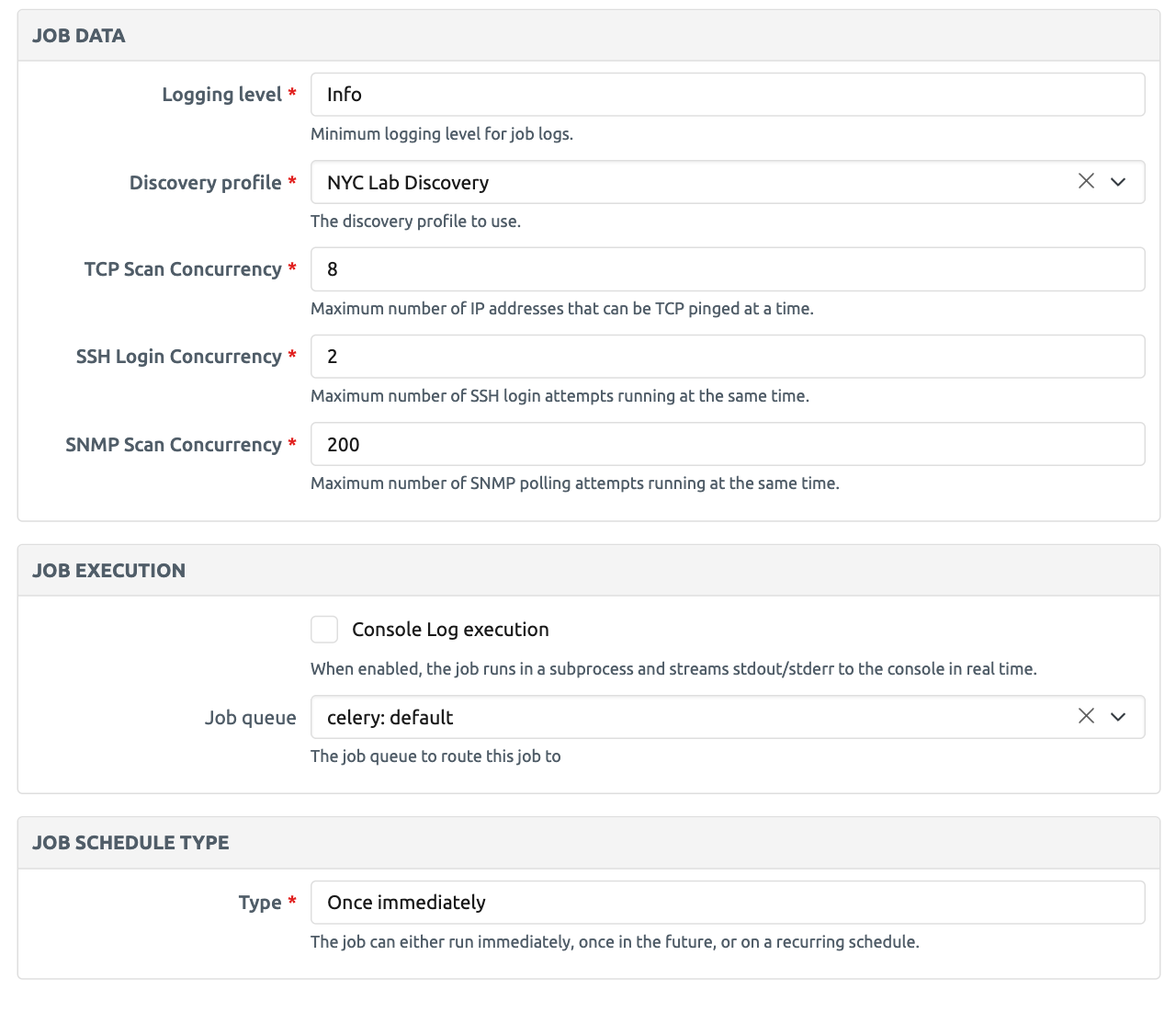
- In the dialog that opens, the Discovery Profile is pre-selected with the profile you are viewing
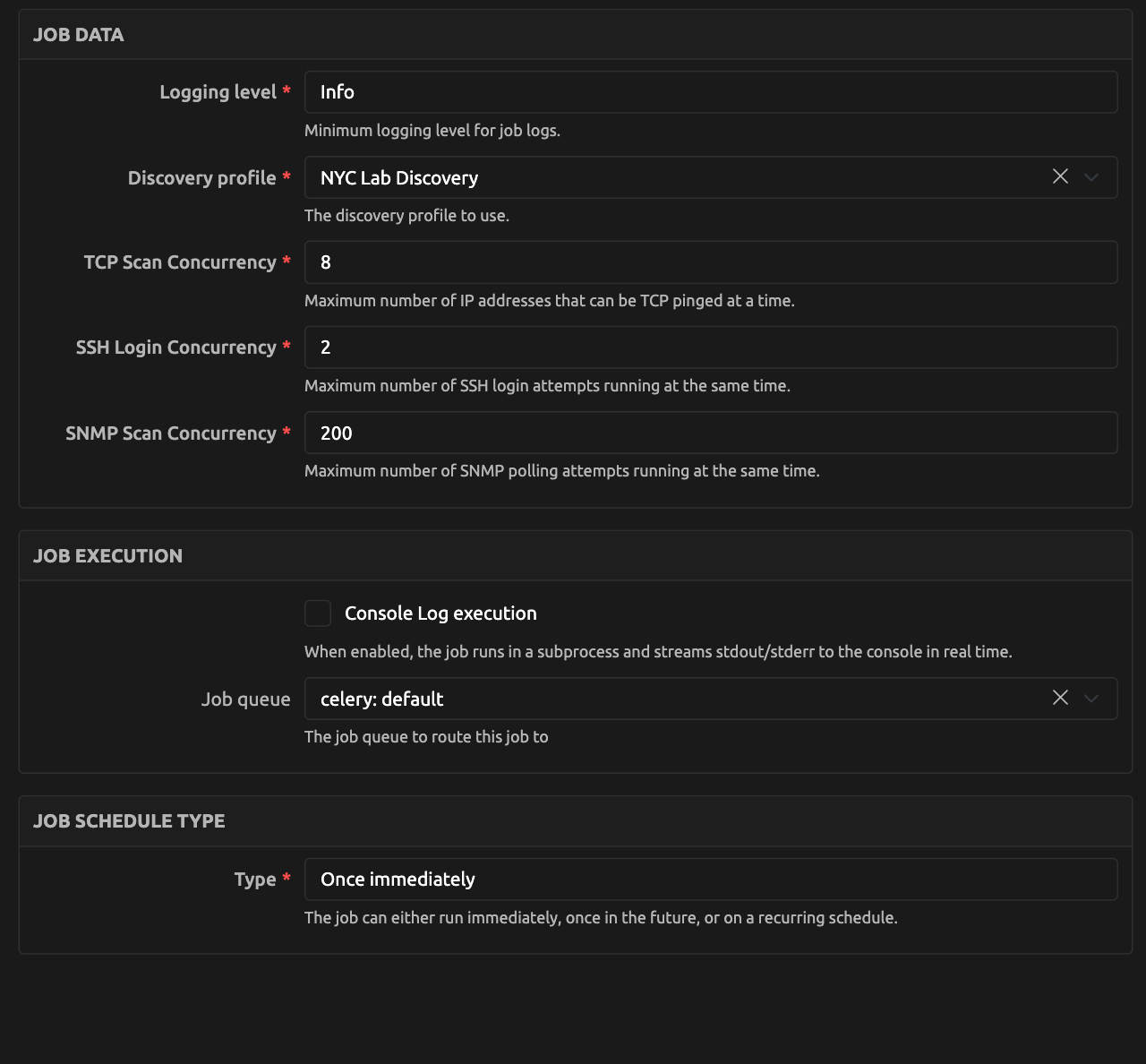
- Optionally, tick Show Advanced Settings to tweak the Logging level, TCP Scan Concurrency, SSH Login Concurrency, and SNMP Scan Concurrency for the run
- Click Run Device Discovery
- While the job runs, the dialog reports its progress. Once it finishes, Details summarizes the run: how many devices were discovered, how many are new, existing, or in conflict, and the SSH and SNMP reachability counts. If the job fails, Details shows the reason
- When the run discovered at least one device, click View Discovered Devices to go straight to the Discovered Devices list
Tip
You can also run discovery from Jobs > Network Device Discovery, or via the Run Device Discovery button on the Devices > Discovery > Discovered Devices list view. Those runs report the same summary, but the View Discovered Devices link is only offered from the Discovery Profile page.
The job will attempt SSH and SNMP connections to each IP within the configured prefixes, identify reachable network devices, collect identity metadata, and correlate the results with the Nautobot inventory. The two protocols collect different data: both gather identity attributes (hostname, serial number, device type, software version), while SSH additionally collects LLDP topology data where the platform supports it. See SNMP vs SSH — What Each Protocol Collects for details.
Step 3: Review Discovered Devices
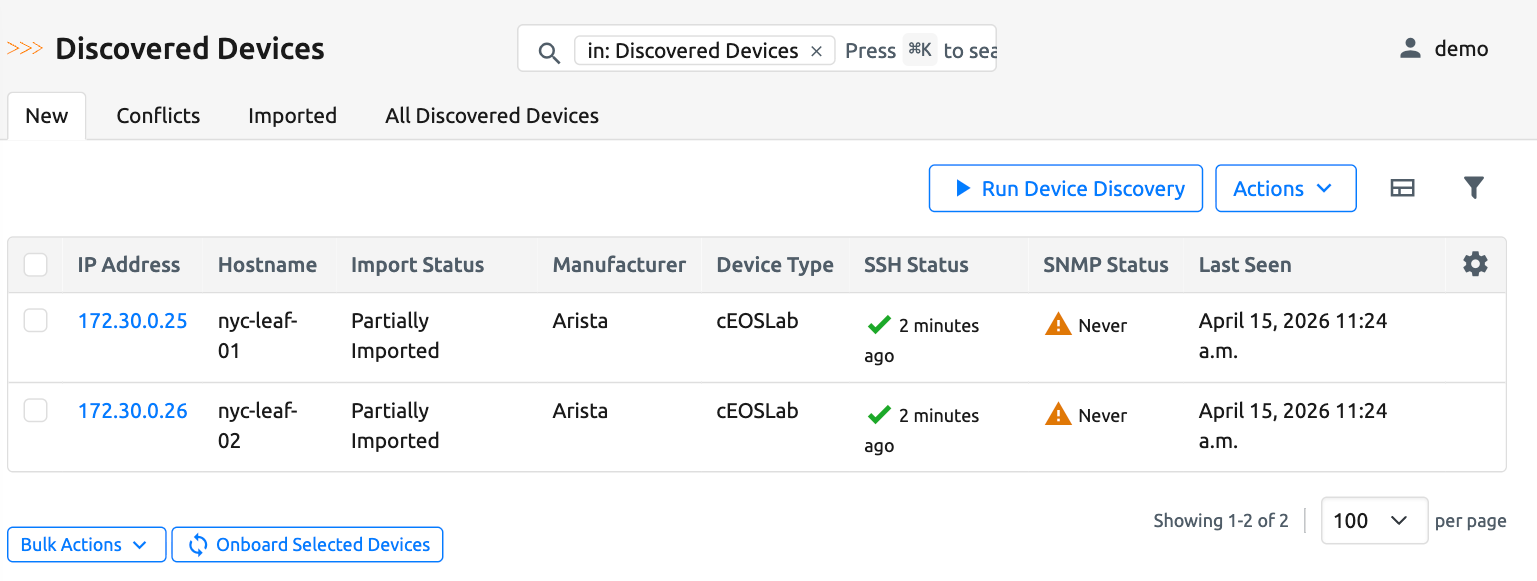
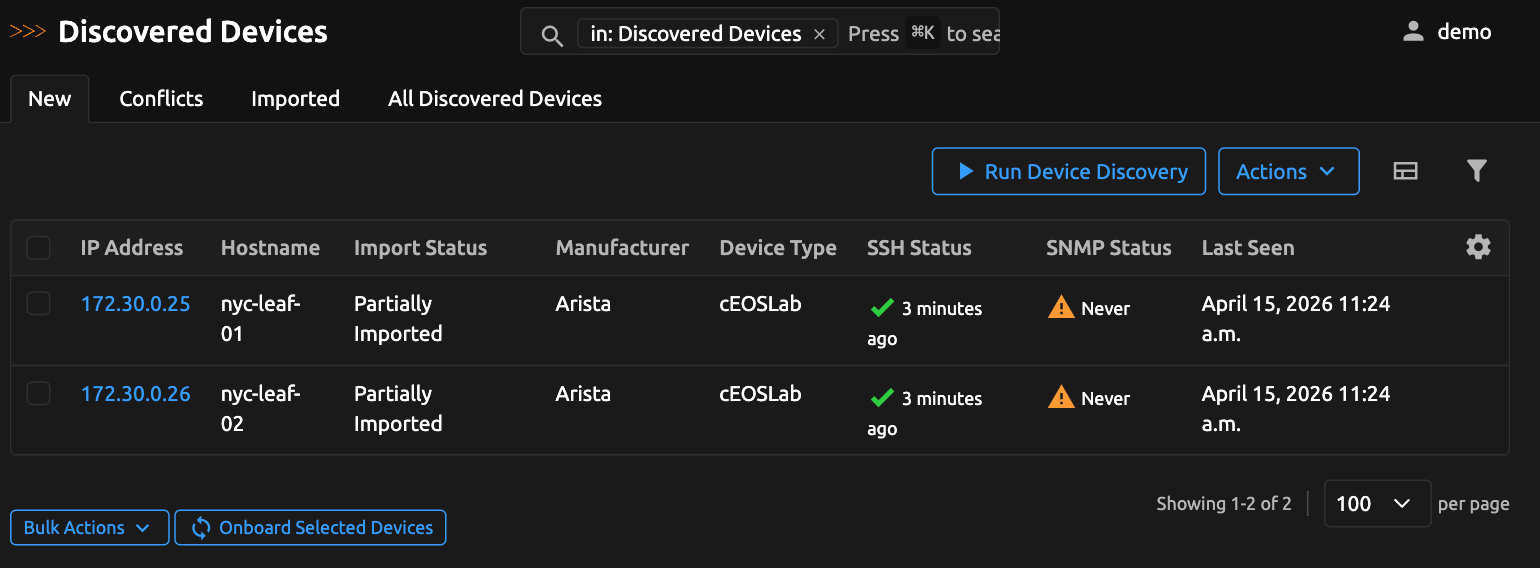
After the job completes, navigate to Devices > Discovery > Discovered Devices. Each entry shows the device's identity data (IP address, hostname, platform, serial number, device model), collection timestamps for SSH and SNMP, and the inventory import status.
Step 4: Understand the Inventory Import Status
Each discovered device is categorized based on how well it matches the existing Nautobot inventory:
| Status | UI Tab | Meaning |
|---|---|---|
| Imported | Imported | Device exists in Nautobot and all attributes match |
| Not Imported | New | Device is reachable but not present in Nautobot |
| Partially Imported | Conflicts | Device exists but some attributes differ |
| Conflict | Conflicts | Multiple Nautobot devices match the discovered data |
Devices that need attention (Partially Imported and Conflict) are grouped together under the Conflicts tab, while devices ready for onboarding appear under the New tab.
For a detailed explanation of the matching logic behind each status, see Inventory Correlation & Health Evaluation.
Step 5: Onboard Missing Devices
If devices are marked as Not Imported:
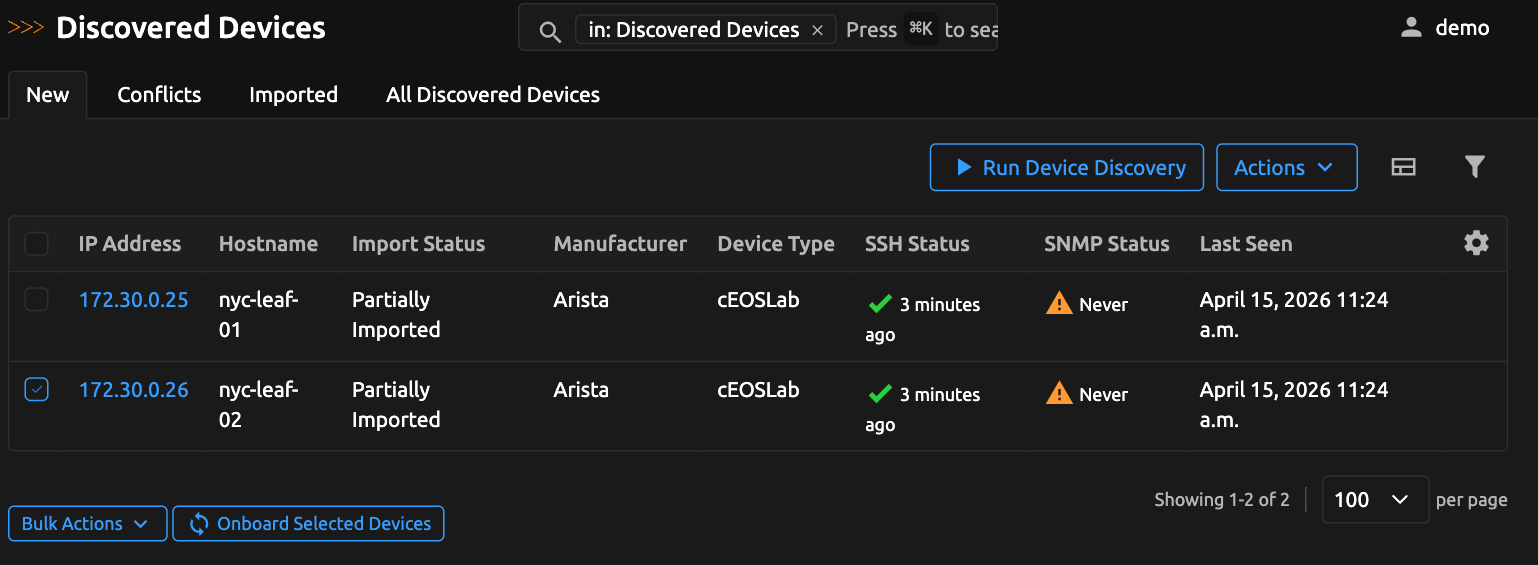
- Select the device(s) from the Discovered Devices list
- Click the Onboard Selected Devices button
- Set the onboarding parameters. Only Namespace is required; Default Location, Default Role, and Default Tenant are optional when classification supplies those values
- Leave Fill From Classification enabled to auto-populate each device's Location, Role, and Tenant from its classification results, falling back to the defaults above. Disable it to apply the defaults to every device, in which case a Default Location and Default Role are required.
- Submit the onboarding job
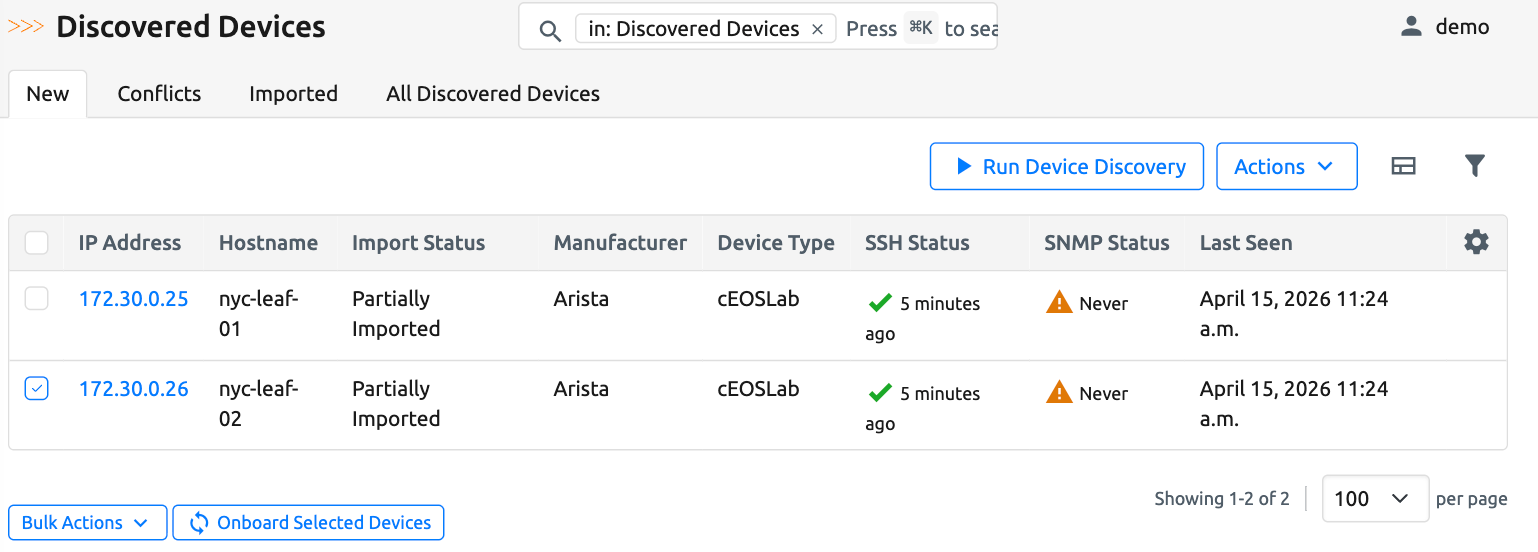
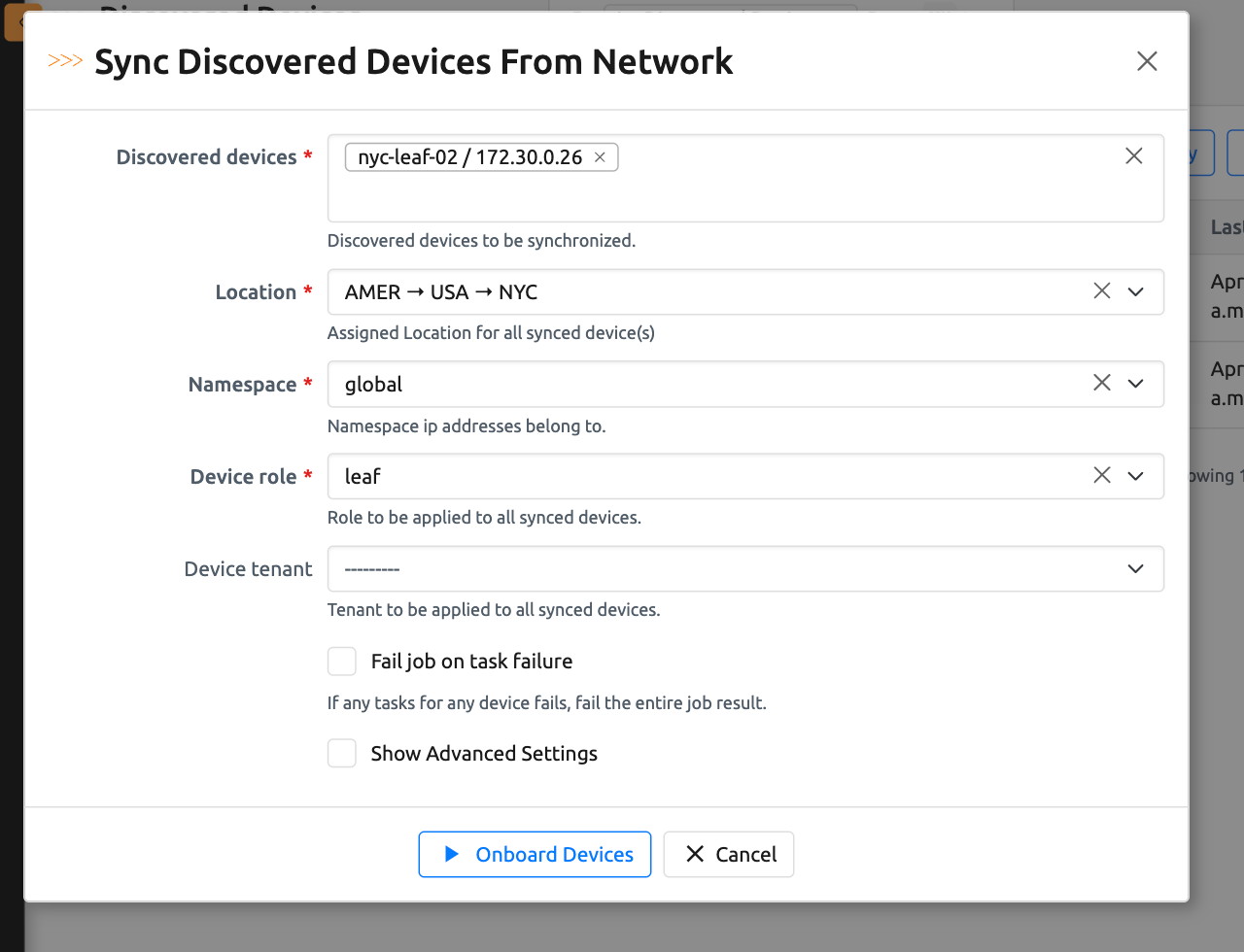
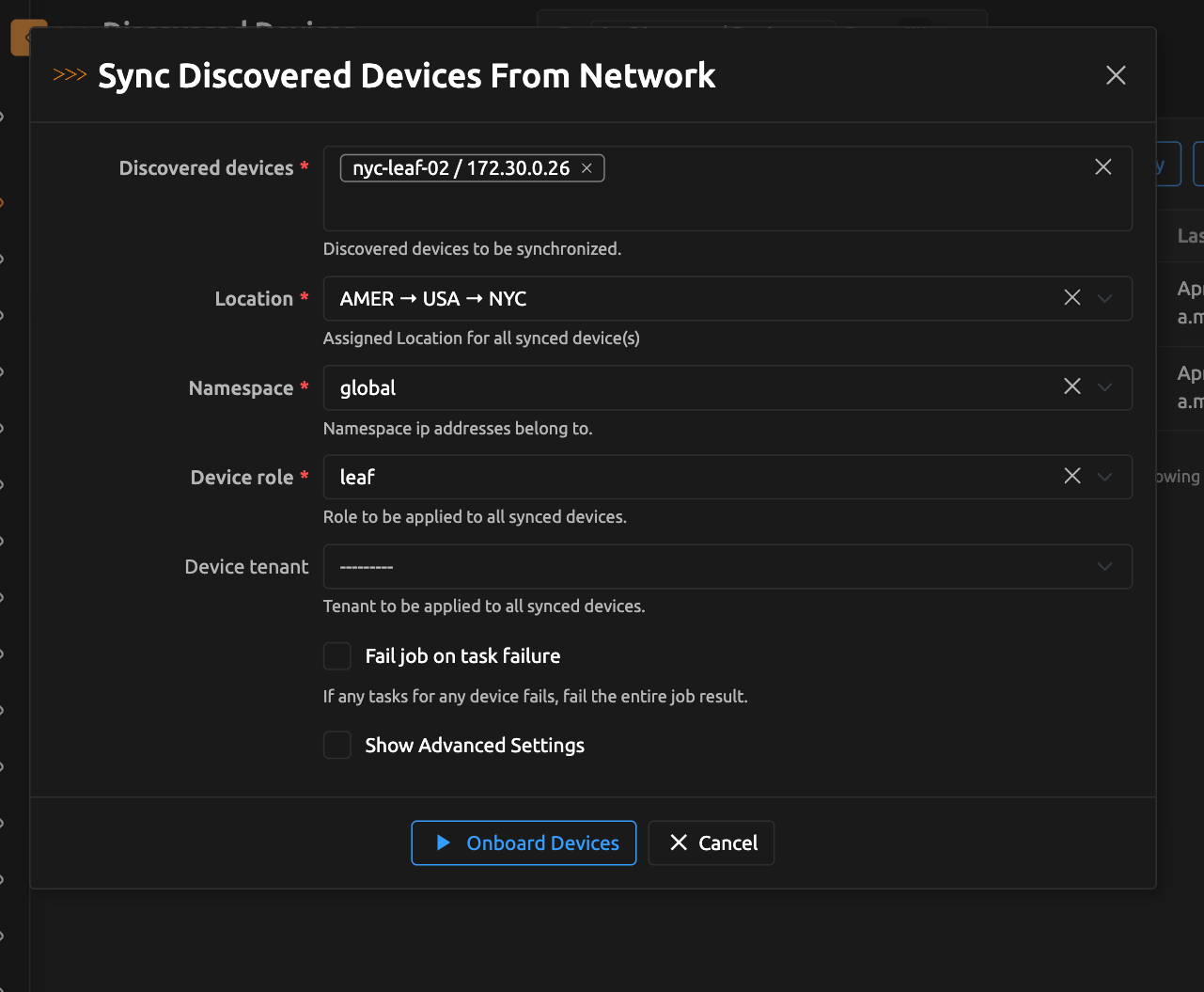
The integration with the Device Onboarding App will create the device records in Nautobot. After onboarding completes, refresh the Discovered Devices view to confirm the status has updated. The job result log also links to each onboarded device, and to the Devices and Discovered Devices lists filtered to that run's devices.
Note
For the onboarding button to be available, your Secrets Group must include both SSH and Generic access types. See the Secrets Guide for details.
Running Discovery Again
Discovery is not a one-time task. To maintain inventory health, schedule the discovery job to run periodically and monitor changes in inventory status over time. Review "last seen" timestamps to identify devices that are no longer reachable, and investigate any status changes that appear between runs.
Running discovery on a schedule keeps your inventory aligned with the real network over time.
Scanning Large Prefixes
Discovery Profiles can target very large scan surfaces (e.g. multiple /16 prefixes covering hundreds of thousands of IPs). To keep worker memory bounded on these runs, SNMP discovery is executed in batches: the app queries a configurable number of IPs, releases the underlying SNMP engine state, then moves on to the next batch. This makes the peak memory of an SNMP scan depend on the batch size rather than on the total size of the scan surface.
The relevant controls are:
snmp_engine_batch_size– app-level setting configured by an administrator inPLUGINS_CONFIG. Controls how many IPs are processed per SNMP engine cycle. Default:1000. See Install and Configure → App Settings for tuning guidance.- SNMP Scan Concurrency – per-job setting on the Discovery Job form. Controls how many SNMP probes are in flight at the same time. Note: the effective concurrency is capped at the batch size, so keep
snmp_engine_batch_size≥ SNMP Scan Concurrency. - Maximum IP Addresses – per-profile safety cap. Prevents creating a Discovery Profile whose scan surface exceeds the allowed size. Increase this if you intentionally want to scan a very large prefix.
If you operate memory-constrained workers or are scheduling scans across very large address space, ask your Nautobot administrator to tune snmp_engine_batch_size downward (e.g. to 250–500) to cap per-run memory at the cost of slightly more engine-recycle overhead.
What the App Does (and Does Not Do)
The Device Discovery App detects network devices via SNMP and SSH, tracks last-seen and connectivity metadata, identifies missing and conflicting inventory records, and integrates with Device Onboarding so new devices can be added to Nautobot directly.
It does not replace monitoring systems (Nagios, Prometheus, etc.), perform full port scans like Nmap, re-onboard devices automatically without review, or discover non-network systems (e.g., Windows servers, Linux servers, printers).
What's Next?
- Learn how credentials are managed and prioritized in the Secrets Guide
- Understand how discovered devices are matched to inventory in Inventory Correlation
- Explore the Fast Path optimization for recurring discovery
- Review the Platform Support Matrix for protocol and feature coverage